Ackee (Self-Hosted Analytics) on Rocky Linux 9
Ackee is a lightweight, open-source self-hosted web analytics platform built for site owners who want clear, useful insights without compromising user privacy. It tracks essential metrics such as page views, referrers, browsers, devices, and screen sizes, while intentionally avoiding cookies, personal identifiers, fingerprinting, and invasive tracking methods.
Ackee is privacy-first by design, making it a strong alternative to Google Analytics and other SaaS analytics tools. In most scenarios, it can be deployed without cookie consent banners, simplifying GDPR compliance and improving user trust.
Running Ackee on Rocky Linux 9, a RHEL-compatible enterprise Linux distribution, provides long-term stability, security updates, and predictable performance. Rocky Linux 9 is particularly well suited for production environments where reliability matters, especially when combined with Docker, MongoDB, Nginx, and HTTPS for a clean, secure, and scalable analytics stack.
Architecture Overview
| Layer | Component | Role |
|---|---|---|
| OS | Rocky Linux 9 | Enterprise-grade, RHEL-compatible Linux base |
| Container Runtime | Docker / Docker Compose | Runs Ackee and MongoDB services |
| Application | Ackee (Node.js) | Analytics engine and web dashboard |
| Database | MongoDB | Stores anonymized analytics data |
| Reverse Proxy | Nginx | HTTPS termination, routing, compression |
| TLS | Let’s Encrypt / PKI | Secures access to the analytics interface |
Ackee’s intentionally minimal architecture keeps operational overhead low, making it easy to deploy, easy to maintain, and easy to back up.
Why Use Ackee?
- Privacy-first analytics – no cookies, no user profiling, no fingerprinting
- GDPR-friendly by default – often no consent banner required
- Self-hosted & open-source – full ownership of analytics data
- Lightweight and efficient – low CPU and memory usage
- Focused metrics – only the data that actually matters
- Simple JavaScript tracking snippet – quick integration into any website
- Multi-site support – track multiple domains from a single dashboard
Ackee is ideal for users who want ethical analytics without unnecessary complexity.
Ackee vs Other Analytics Platforms
| Feature / Capability | Ackee | Google Analytics | Plausible | Umami |
|---|---|---|---|---|
| Hosting | Self-hosted | Cloud only | Cloud / self-hosted | Cloud / self-hosted |
| Cookies | ❌ No | ✅ Yes | ❌ No | ❌ No |
| GDPR friendly | ✅ Yes | ❌ No (by default) | ✅ Yes | ✅ Yes |
| Data ownership | Full | Google-controlled | Partial | Full |
| Tracking depth | Essential | Very detailed | Essential | Moderate |
| Cost | Free, open-source | Free / Paid | Paid | Free / Paid |
Ackee is best suited for blogs, business websites, landing pages, and privacy-focused projects where transparency and trust matter more than aggressive data collection.
Security & Best Practices on Rocky Linux 9
- Run Ackee behind Nginx with HTTPS enabled.
- Keep Ackee and MongoDB accessible only via internal Docker networks.
- Store admin tokens and database credentials using environment variables.
- Enable SELinux enforcing mode and apply correct Docker volume labels.
- Configure firewalld to allow only ports 80 and 443.
- Automate SSL certificate renewal using Certbot or another ACME client.
- Regularly update Rocky Linux, Docker, Ackee, and MongoDB images.
- Schedule MongoDB data backups and test restore procedures.
- Restrict dashboard access to trusted users or IP ranges when required.
Typical Use Cases
- Personal blogs and portfolios – privacy-respecting visitor insights
- Company websites – GDPR-compliant analytics without cookie banners
- Landing pages – ethical tracking of referrers and traffic sources
- Agencies & developers – analytics for multiple client projects
- Open-source, NGO, or non-profit websites – transparent and ethical tracking
Deploying Ackee on Rocky Linux 9 with Docker, MongoDB, Nginx, and SSL gives you a fast, private, and enterprise-ready analytics solution — delivering meaningful insights while keeping user trust and data ownership firmly in your control.
Create a Rocky Linux 9 Instance on Shape.Host
Go to https://shape.host and log in
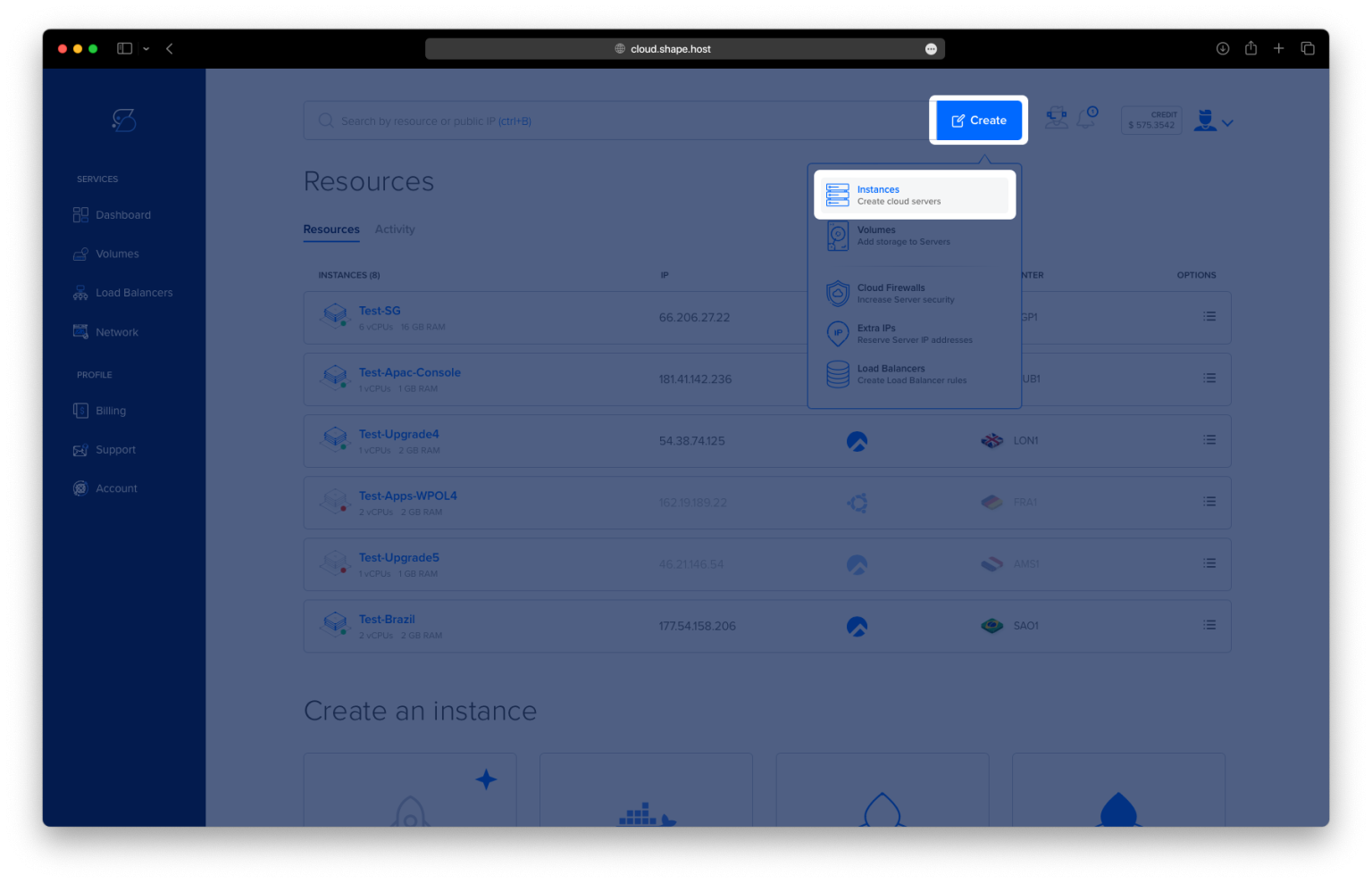
Click Create
Choose Instance
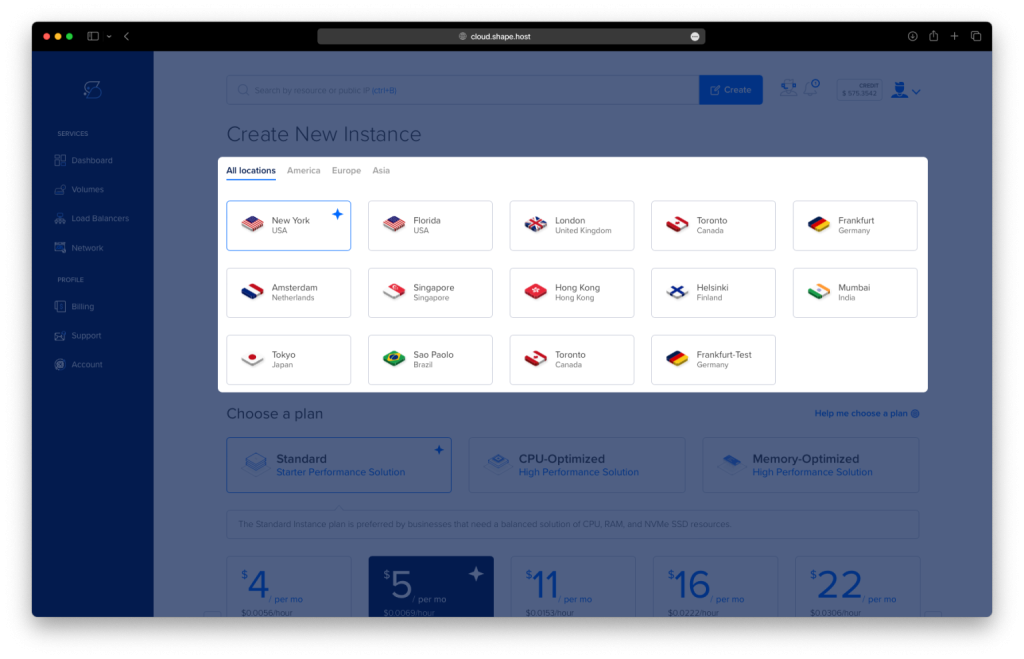
Select a server location
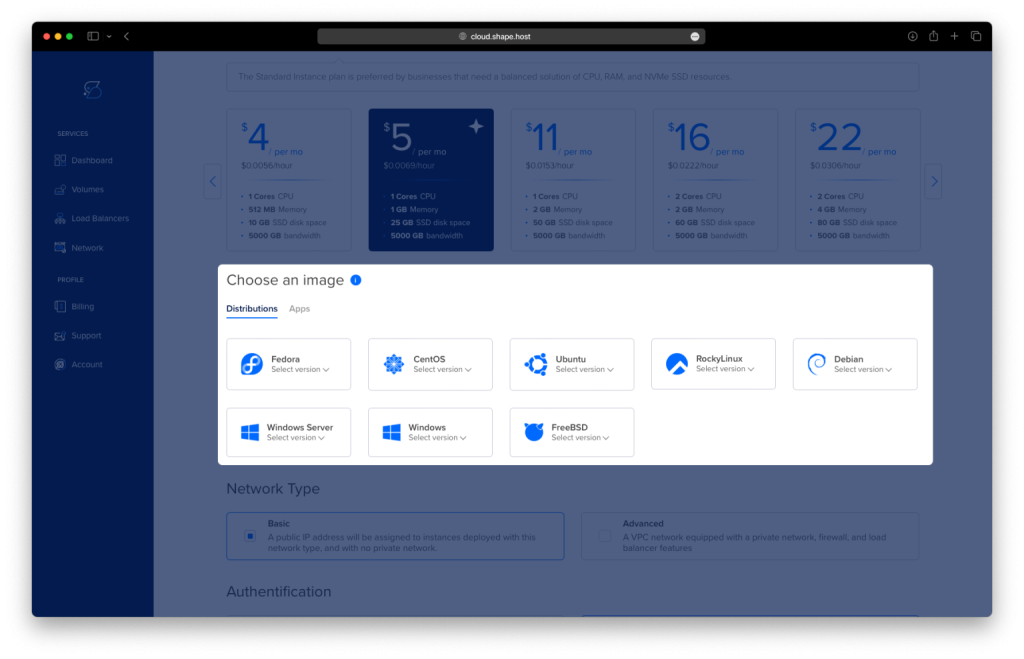
Choose Rocky Linux 9 (64-bit)
Pick a plan (recommended minimum):
2 vCPU
4 GB RAM
20 GB NVMe SSD
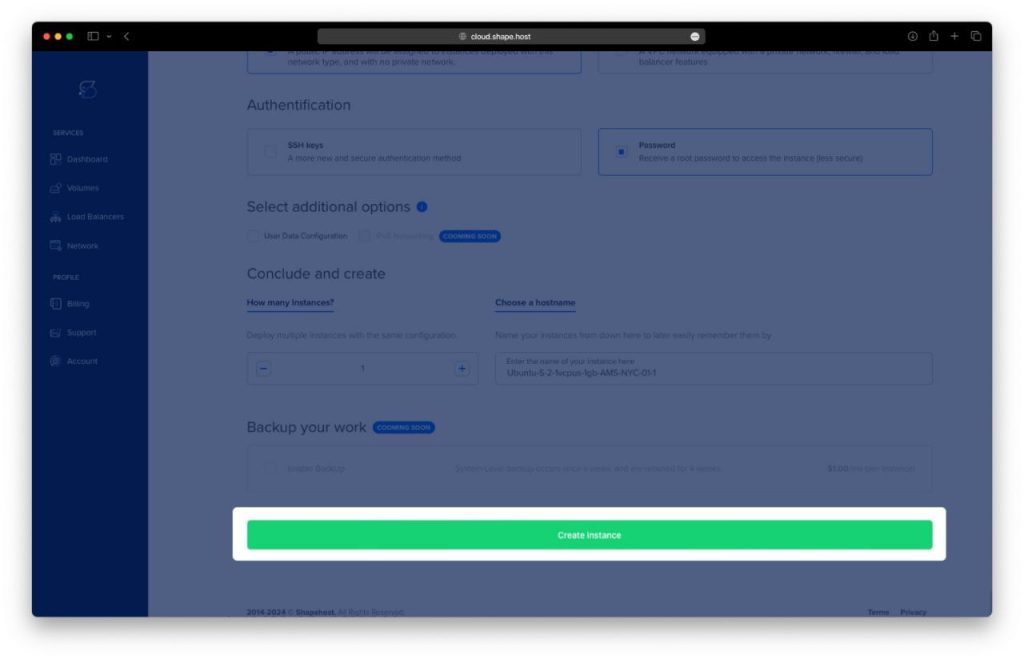
Click Create Instance
Wait for provisioning
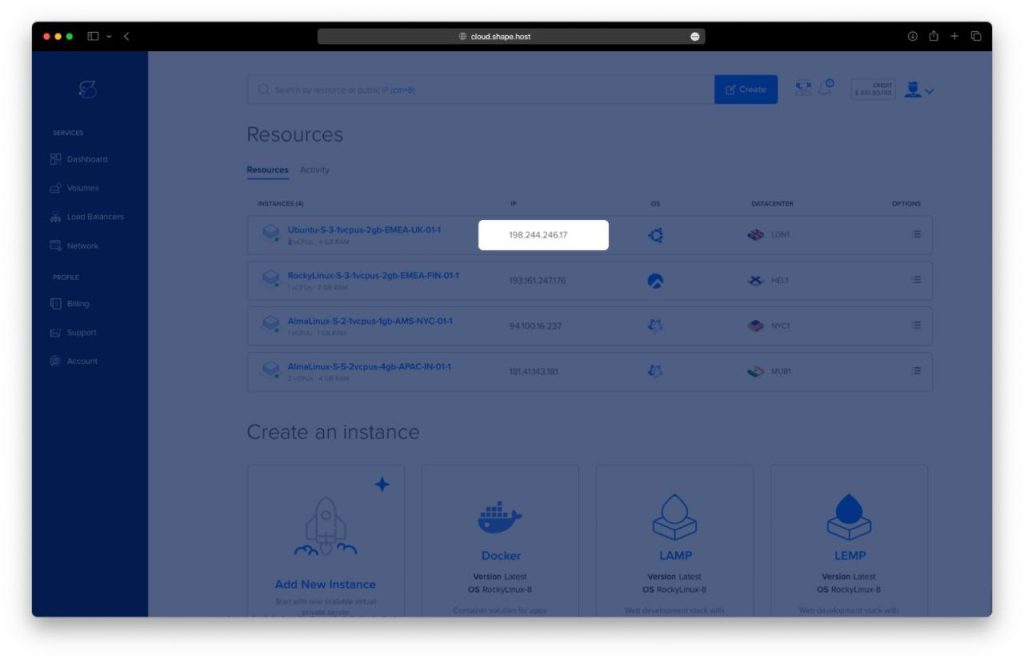
Copy the public IP address
Step 1: Connect to the Server via SSH
ssh root@YOUR_SERVER_IP
You are now logged in as the root user.
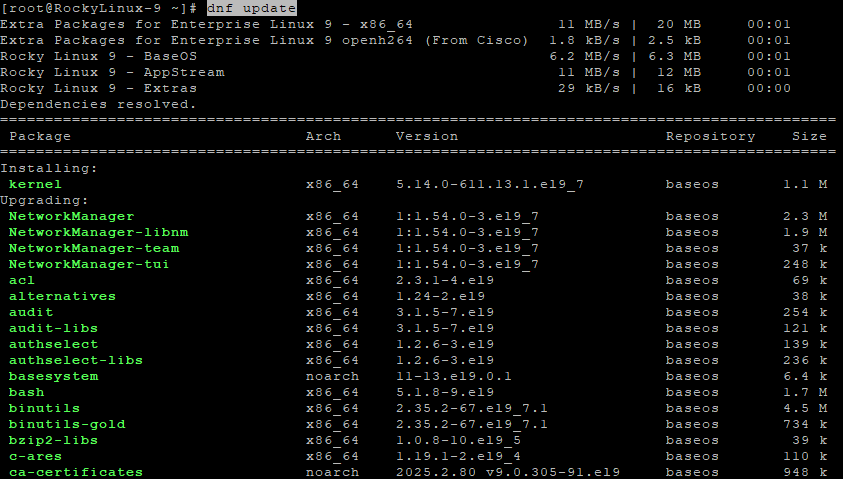
Step 2: Update the System
dnf update
Updates all installed packages to the latest versions.
Step 3: Enable Required Repositories
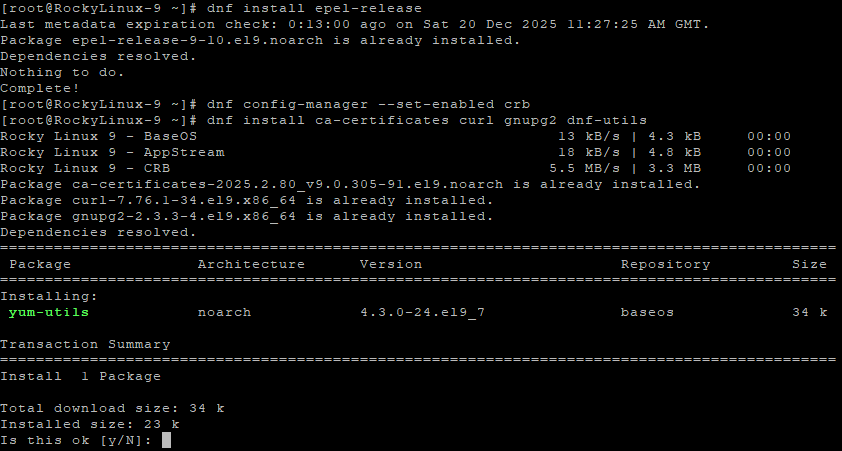
dnf install epel-release
dnf config-manager --set-enabled crb
EPEL and CRB repositories are required on Rocky Linux 9 for Docker dependencies.
Step 4: Install Required System Packages
dnf install ca-certificates curl gnupg2 dnf-utils
These tools are needed to securely add external repositories.
Step 5: Add Docker Repository
dnf config-manager --add-repo https://download.docker.com/linux/centos/docker-ce.repo
Adds the official Docker repository compatible with Rocky Linux 9.
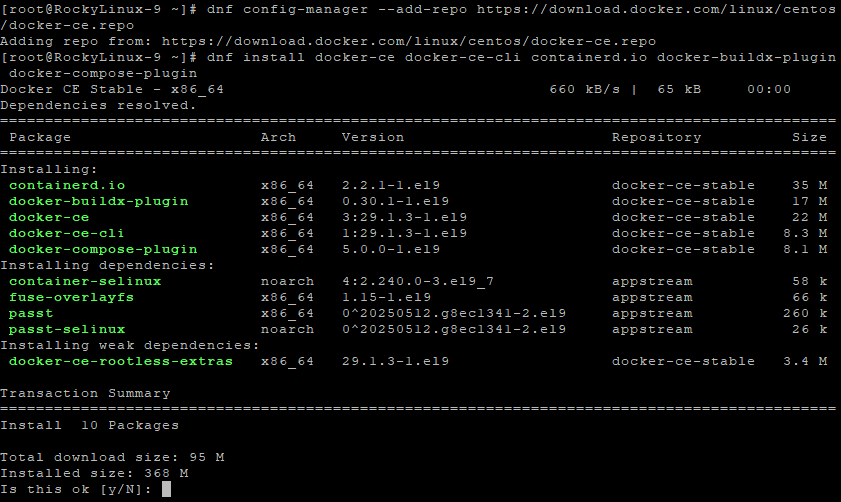
Step 6: Install Docker and Docker Compose
dnf install docker-ce docker-ce-cli containerd.io docker-buildx-plugin docker-compose-plugin
Installs Docker Engine and Docker Compose v2.
Step 7: Enable and Start Docker
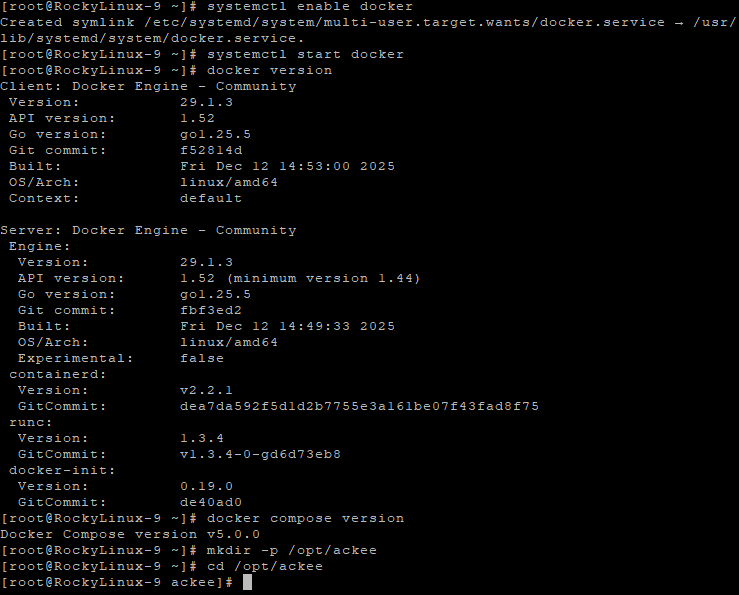
systemctl enable docker
systemctl start docker
Ensures Docker starts automatically on boot.
Step 8: Verify Docker Installation
docker version
docker compose version
Confirms Docker and Docker Compose are installed correctly.
Step 9: Create Ackee Directory
mkdir -p /opt/ackee
cd /opt/ackee
This directory will store Ackee configuration and MongoDB data.
Step 10: Create Docker Compose Configuration
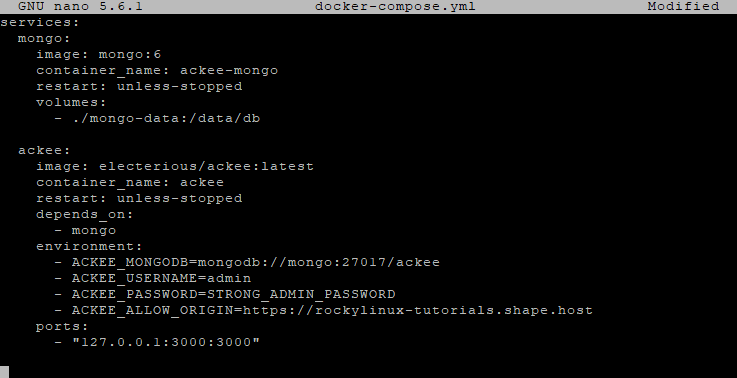
nano docker-compose.yml
Paste the following content:
services:
  mongo:
    image: mongo:6
    container_name: ackee-mongo
    restart: unless-stopped
    volumes:
      - ./mongo-data:/data/db

  ackee:
    image: electerious/ackee:latest
    container_name: ackee
    restart: unless-stopped
    depends_on:
      - mongo
    environment:
      - ACKEE_MONGODB=mongodb://mongo:27017/ackee
      - ACKEE_USERNAME=admin
      - ACKEE_PASSWORD=STRONG_ADMIN_PASSWORD
      - ACKEE_ALLOW_ORIGIN=https://analytics.example.com
    ports:
      - "127.0.0.1:3000:3000"
Explanation:
- MongoDB stores analytics data
- Ackee connects internally to MongoDB
- Ackee listens only on localhost for security
- Admin credentials are defined via environment variables
Save and exit the file.
Step 11: Start Ackee
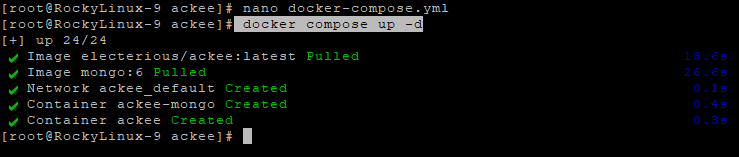
docker compose up -d
Starts MongoDB and Ackee containers in the background.
Step 12: Check Running Containers
docker ps
You should see:
ackeeackee-mongo
Both containers must be running.

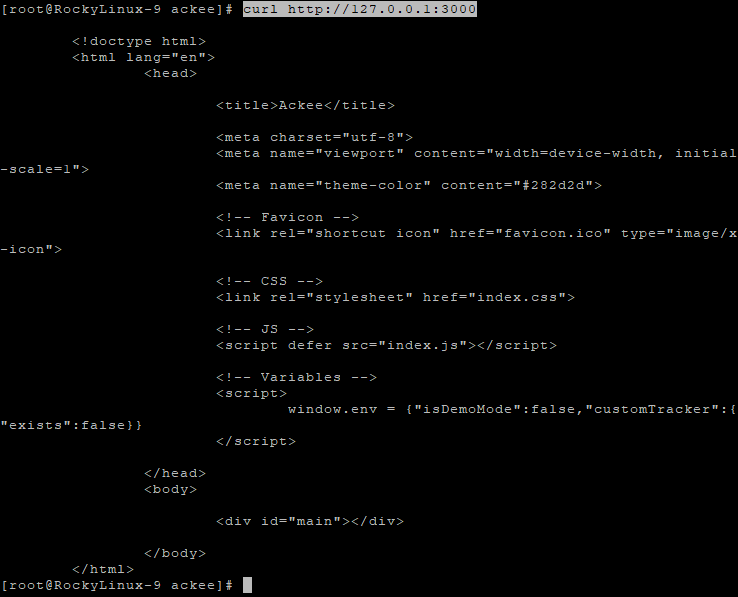
Step 13: Test Ackee Locally
curl http://127.0.0.1:3000
This confirms Ackee is responding before exposing it publicly.
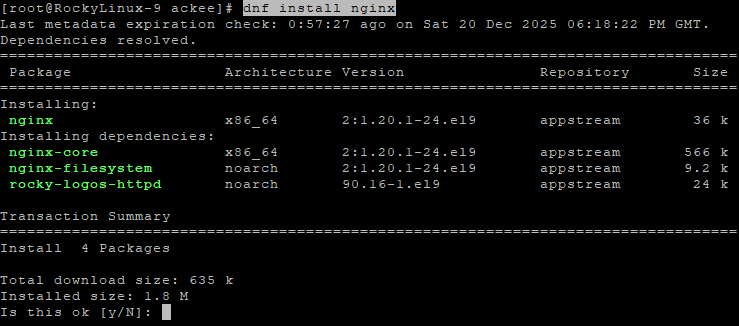
Step 14: Install Nginx
dnf install nginx
Nginx will act as a reverse proxy.
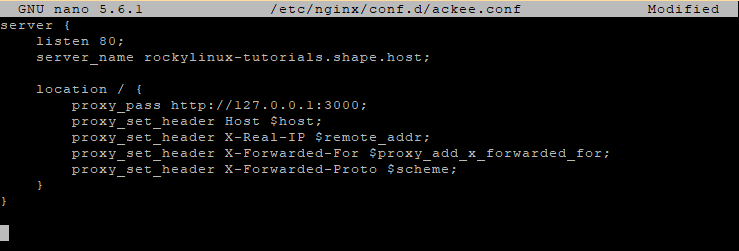
Step 15: Create Nginx Configuration
nano /etc/nginx/conf.d/ackee.conf
Paste:
server {
    listen 80;
    server_name analytics.example.com;

    location / {
        proxy_pass http://127.0.0.1:3000;
        proxy_set_header Host $host;
        proxy_set_header X-Real-IP $remote_addr;
        proxy_set_header X-Forwarded-For $proxy_add_x_forwarded_for;
        proxy_set_header X-Forwarded-Proto $scheme;
    }
}
Step 16: Remove Default Nginx Configuration
rm -f /etc/nginx/conf.d/default.conf
Prevents configuration conflicts.
Step 17: Test and Enable Nginx
nginx -t
systemctl enable nginx
systemctl start nginx
systemctl reload nginx
Step 18: Allow Nginx Network Access (SELinux)
Rocky Linux uses SELinux by default. You must allow Nginx to connect to Docker containers.
setsebool -P httpd_can_network_connect on
This step is mandatory on Rocky Linux.

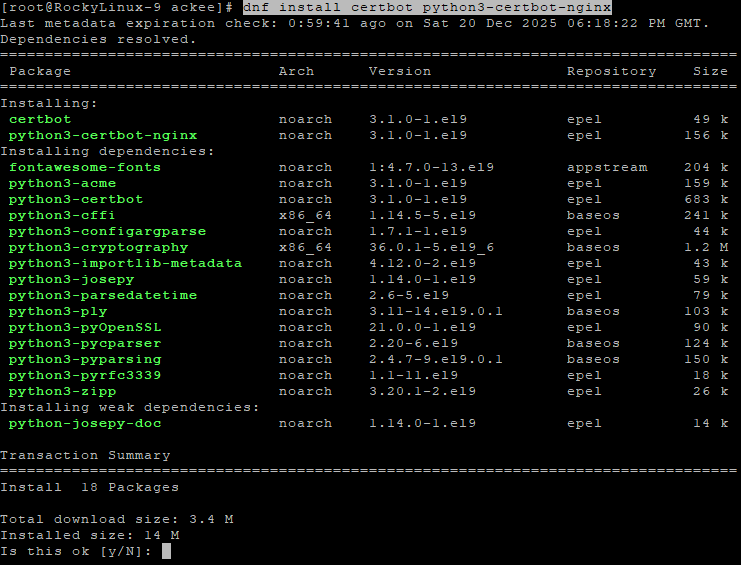
Step 19: Install SSL Certificate
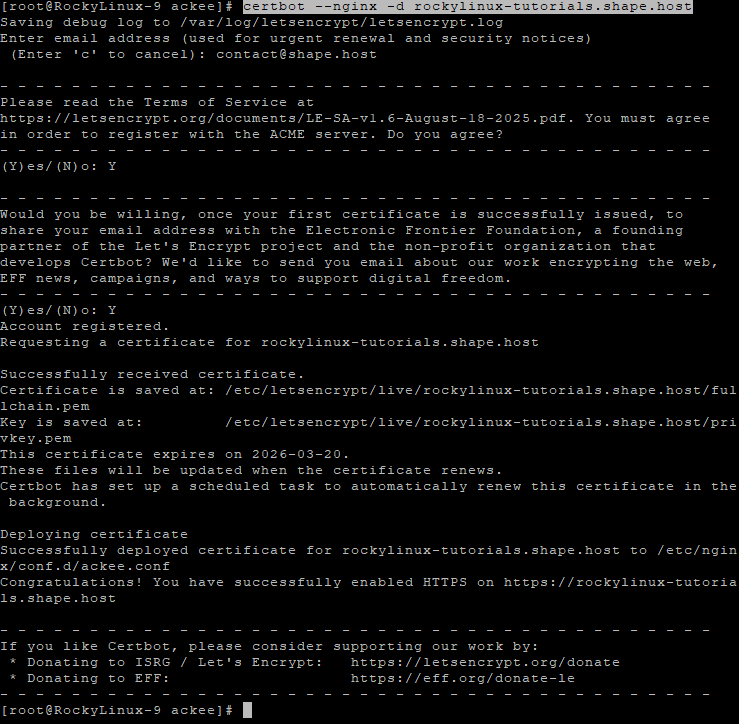
dnf install certbot python3-certbot-nginx
certbot --nginx -d rockylinux-tutorials.shape.host
Certbot automatically configures HTTPS.
Access Ackee Analytics
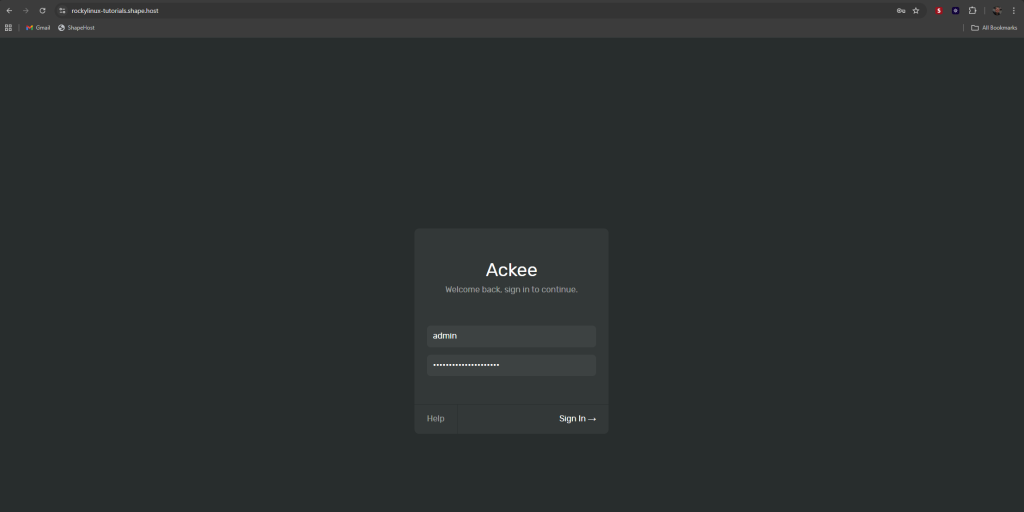
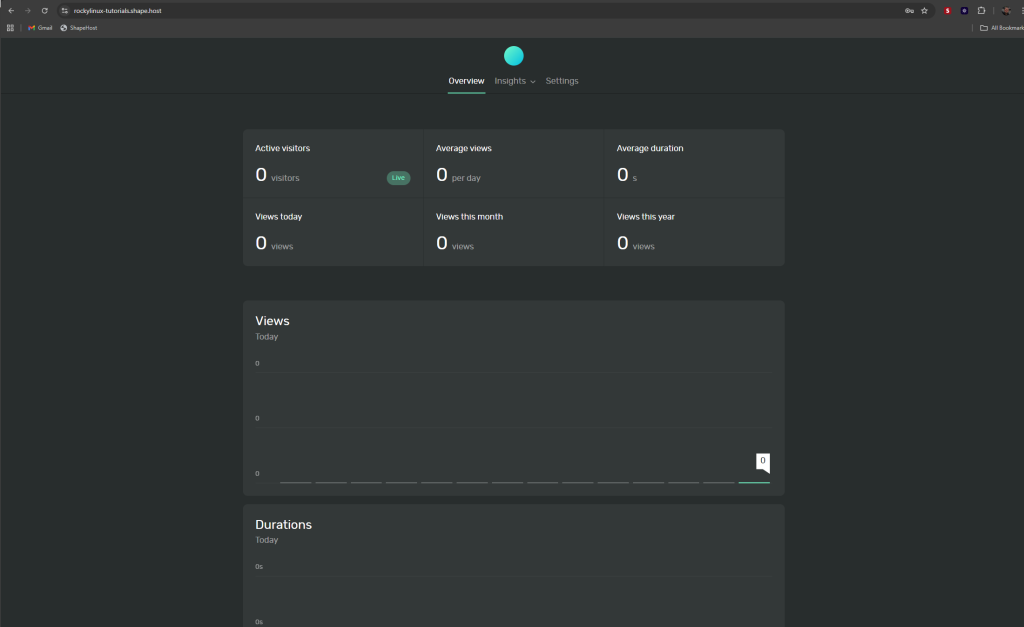
https://your-domain.com
Login credentials:
Username: admin
Password: STRONG_ADMIN_PASSWORD
Ackee benefits from fast storage and stable networking.
Shape.Host Linux SSD VPS provides:
- NVMe SSD storage
- Instant Rocky Linux deployments
- Clean, minimal OS images
- Stable networking
- Excellent performance for Docker workloads
Deploy your next self-hosted analytics stack at https://shape.host.