Apache Guacamole (Docker) on Debian 12 (Nginx + SSL)
Apache Guacamole is a clientless remote desktop gateway that supports RDP, VNC, and SSH — all accessible directly through a modern web browser. Because it’s based on HTML5, no plugins or client software are required: users can securely connect to desktops and servers from anywhere with just a browser.
Running Guacamole in Docker bundles all components (the Guacamole web app, the guacd proxy daemon, and optional database support) into containers, simplifying deployment and maintenance. With Debian 12 (Bookworm) as the host operating system, you gain the advantages of long-term stability, security updates, and a rock-solid Linux foundation that is widely trusted for production use.
Architecture Overview
| Layer | Component | Role |
|---|---|---|
| OS | Debian 12 (Bookworm) | Stable, secure base; systemd service supervision |
| Runtime | Docker Engine | Runs Guacamole and supporting containers |
| Application | Apache Guacamole (Web UI) | Browser-based remote desktop gateway |
| Proxy Daemon | guacd (in container) | Handles RDP, VNC, SSH protocols and streams them to the web client |
| Database | PostgreSQL/MySQL (optional) | Stores users, roles, and connection configs (persistent setups) |
| Reverse Proxy | Nginx (recommended) | TLS termination, HTTP/2, authentication, access control |
| TLS | Let’s Encrypt / PKI | Provides secure HTTPS access |
Why Use Apache Guacamole?
- Clientless – works entirely in the browser; no plugins or agents needed.
- Multi-protocol support – RDP, VNC, and SSH out of the box.
- Centralized access – manage multiple desktops and servers from a single portal.
- Enterprise-grade security – HTTPS, role-based permissions, optional MFA.
- Containerized deployment – easy to set up, upgrade, and move between hosts.
Guacamole vs Other Remote Access Solutions
| Feature/Capability | Apache Guacamole | VPN-only Access | Proprietary Tools (AnyDesk, NoMachine) | Native RDP/VNC Clients |
|---|---|---|---|---|
| Client requirements | None (HTML5 browser) | VPN client | Proprietary app required | RDP/VNC client needed |
| Protocols supported | RDP, VNC, SSH | Network-level only | Custom / limited | RDP or VNC only |
| Multi-user management | Yes (RBAC, DB backend) | No | Limited | No |
| Security | TLS, Nginx, RBAC | VPN encryption only | Vendor-dependent | Basic protocol security |
Guacamole excels when you want centralized, browser-based remote access that works across devices without installing any additional software.
Security & Best Practices
- Deploy Guacamole behind Nginx with SSL for encrypted browser access.
- Use Let’s Encrypt or a corporate PKI for certificates.
- Restrict exposure with Debian firewall rules (UFW/nftables).
- Store accounts and permissions in PostgreSQL or MySQL for persistence.
- Enable MFA or SSO where possible.
- Keep Docker images (
guacamole/guacdandguacamole/guacamole) up to date. - Use Fail2Ban/rate limiting on Nginx to prevent brute-force attempts.
Typical Use Cases
- A remote desktop gateway for teams and sysadmins.
- Secure browser-based SSH access to Linux servers.
- Centralized management of Windows RDP desktops.
- Lightweight alternative to VPN-only setups.
- Safe BYOD (Bring Your Own Device) access to internal systems.
1. Create a Shape.Host VPS Instance
Go to https://shape.host and log in.
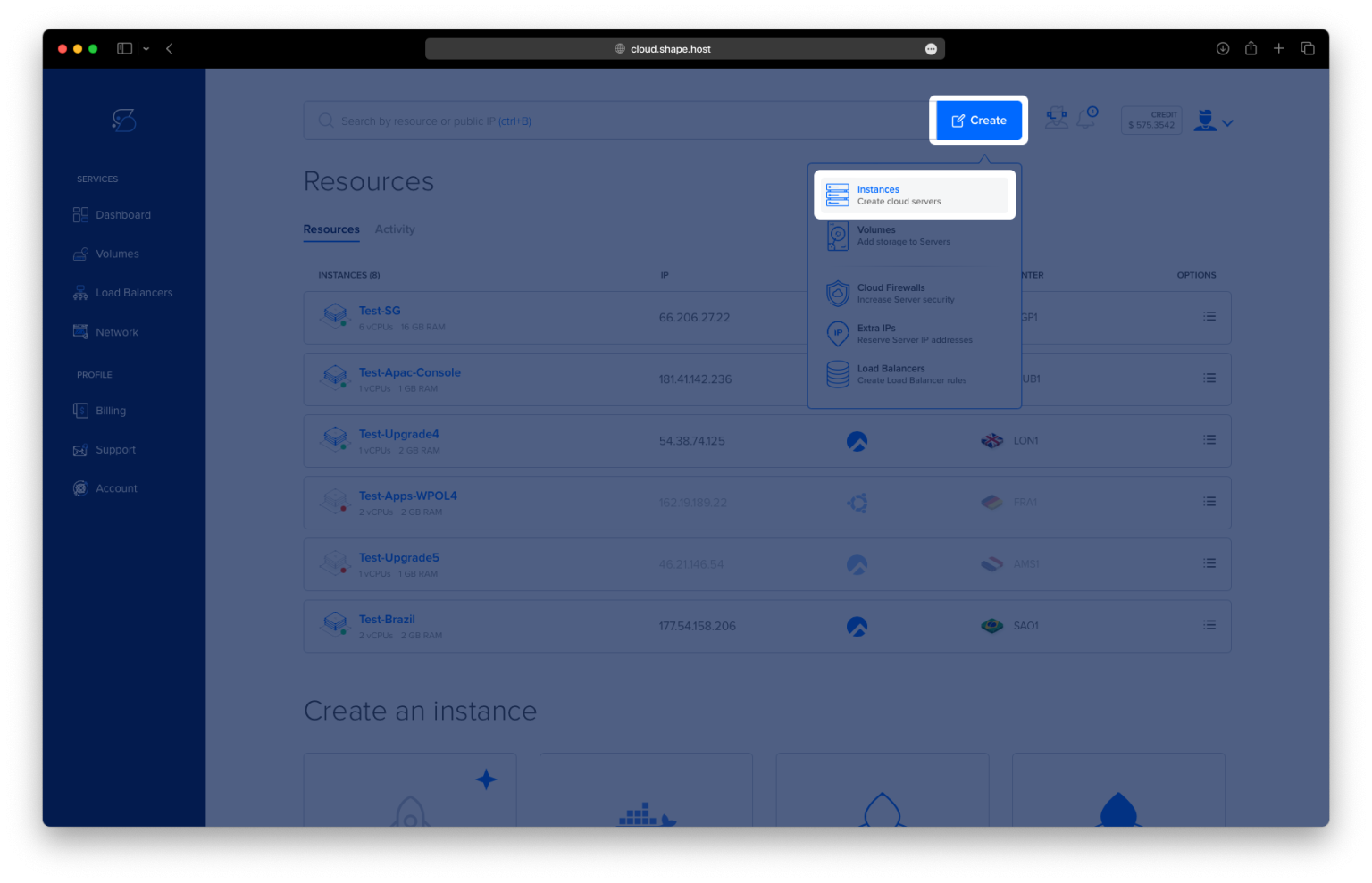
Click “Create” → “Instance”.

Select the server location closest to your users.

Choose Debian 12 (64-bit) as the operating system.
Pick a plan with at least 2 CPUs, 4 GB RAM, and 20 GB SSD.

Click “Create Instance”.

Copy the IP address of your VPS from the Resources section.

2. Connect to Your VPS
On Linux/macOS
ssh root@your-server-ip
On Windows
- On Windows 10/11, use PowerShell:
ssh root@your-server-ip - On older Windows, download PuTTY, enter your server’s IP, and log in as root.
3. Update System and Install Prerequisites
apt update
apt upgrade

Updates system packages.
apt install ca-certificates curl gnupg lsb-release
Installs required tools for secure repositories.

4. Install Docker and Docker Compose
Create directory for Docker keyrings:
install -m 0755 -d /etc/apt/keyrings
Add Docker’s GPG key:
curl -fsSL https://download.docker.com/linux/debian/gpg | gpg --dearmor -o /etc/apt/keyrings/docker.gpg
chmod a+r /etc/apt/keyrings/docker.gpg
Add Docker repository:
echo "deb [arch=$(dpkg --print-architecture) signed-by=/etc/apt/keyrings/docker.gpg] https://download.docker.com/linux/debian $(lsb_release -cs) stable" > /etc/apt/sources.list.d/docker.list
Update and install Docker:
apt update
apt install docker-ce docker-ce-cli containerd.io docker-buildx-plugin docker-compose-plugin


Enable and start Docker:
systemctl enable --now docker
Check versions:
docker --version
docker compose version

5. Create Guacamole Docker Setup
Create a working directory:
mkdir -p /opt/guacamole
cd /opt/guacamole
Create the docker-compose.yml file:
nano docker-compose.yml

Paste the following content:
services:
  guacamole-db:
    image: postgres:15
    container_name: guac-db
    environment:
      POSTGRES_USER: guacuser
      POSTGRES_PASSWORD: StrongPassword123!
      POSTGRES_DB: guacamole_db
    volumes:
      - db_data:/var/lib/postgresql/data
    restart: unless-stopped

  guacd:
    image: guacamole/guacd:1.5.5
    container_name: guacd
    restart: unless-stopped

  guacamole:
    image: guacamole/guacamole:1.5.5
    container_name: guacamole
    environment:
      POSTGRES_HOSTNAME: guacamole-db
      POSTGRES_DATABASE: guacamole_db
      POSTGRES_USER: guacuser
      POSTGRES_PASSWORD: StrongPassword123!
      GUACD_HOSTNAME: guacd
      GUACD_PORT: 4822
    ports:
      - "8080:8080"
    depends_on:
      - guacamole-db
      - guacd
    restart: unless-stopped

volumes:
  db_data:

6. Initialize PostgreSQL Database for Guacamole
Start the database container:
docker compose up -d guacamole-db
Wait for PostgreSQL to initialize:
sleep 10

Generate SQL schema for Guacamole:
docker run --rm guacamole/guacamole:1.5.5 /opt/guacamole/bin/initdb.sh --postgresql > initdb.sql
Import schema into the database:
docker exec -i guac-db psql -U guacuser -d guacamole_db < initdb.sql

Verify tables were created:
docker exec -it guac-db psql -U guacuser -d guacamole_db -c "\dt"

7. Start Guacamole Services
Start all containers:
docker compose up -d
Check status:
docker compose ps
Check logs:
docker logs guacamole --tail=100

Now you can access Guacamole at:
http://<server-ip>:8080/guacamole
Default login:
- Username:
guacadmin - Password:
guacadmin
Change this password immediately after first login.

8. Configure Nginx Reverse Proxy
Install Nginx:
apt install nginx

Create configuration file:
nano /etc/nginx/conf.d/guacamole.conf
Paste:
server {
    listen 80;
    server_name debian-tutorials.shape.host;

    location / {
        proxy_pass http://127.0.0.1:8080/guacamole/;
        proxy_http_version 1.1;
        proxy_set_header Host $host;
        proxy_set_header X-Real-IP $remote_addr;
        proxy_set_header X-Forwarded-For $proxy_add_x_forwarded_for;
        proxy_set_header X-Forwarded-Proto $scheme;

        # WebSockets required for RDP/VNC
        proxy_set_header Upgrade $http_upgrade;
        proxy_set_header Connection "upgrade";
        proxy_read_timeout 3600s;
    }
}

Fix hash bucket size (avoids Nginx errors with long domain names):
printf "server_names_hash_bucket_size 128;\n" > /etc/nginx/conf.d/hash_bucket.conf
Test and reload Nginx:
nginx -t && systemctl reload nginx
9. Enable SSL with Let’s Encrypt
Install Certbot:
apt install certbot python3-certbot-nginx

Request SSL certificate:
certbot --nginx -d debian-tutorials.shape.host

10. Access Guacamole
Now open your browser and visit:
https://debian-tutorials.shape.host
Log in with the default credentials, then update the admin password.


This tutorial was created and tested on a Shape.Host Linux SSD VPS.
With Shape.Host you can:
- Deploy fast VPS servers worldwide
- Choose Debian, Ubuntu, AlmaLinux, or Rocky Linux
- Scale resources instantly (CPU, RAM, Storage)
- Use snapshots, backups, and monitoring
Start today at https://shape.host and set up Apache Guacamole in minutes.