Attendize on Ubuntu 24.04 with PHP 7.4 – A Self-Hosted Ticketing Solution for Developers and Organizers
Attendize is a modern, Laravel-based open-source ticketing platform designed to help event organizers manage registrations, sell tickets, and automate communication. It’s ideal for teams seeking a self-hosted alternative to commercial platforms like Eventbrite or TicketingHub. However, Attendize requires PHP 7.4, which is the recommended version for stability and compatibility—even though newer PHP versions are available on Ubuntu 24.04.
Why Use PHP 7.4 with Attendize on Ubuntu 24.04?
PHP 7.4 is the last version fully compatible with Laravel 5.8, the framework on which Attendize is built. PHP 8.x versions introduce syntax and breaking changes that cause failures with Attendize and its dependencies.
Since Ubuntu 24.04 ships with PHP 8.3, users must enable the Ondřej Surý PPA to install PHP 7.4, ensuring that Attendize runs properly. This combination provides a stable, modern OS with legacy PHP support, especially when containerized or isolated via Shape.Host Cloud VPS.
Key Attendize Features
- Multi-event and multi-organizer support
- Mobile-ready frontend for attendees
- Stripe, PayPal, and Offline payment options
- Discount codes, ticket tiers, and quotas
- Event page branding and customization
- Email notifications and attendee exports
- OAuth login for Facebook/Twitter
How Does Attendize Compare to Other Event Management Platforms?
Below is a technical and business-oriented comparison between Attendize and three notable alternatives: Eventbrite, Pretix, and TicketingHub.
| Feature / Platform | Attendize | Eventbrite | Pretix | TicketingHub |
|---|---|---|---|---|
| Type | Open-source, self-hosted | Cloud SaaS | Open-source + SaaS option | Cloud SaaS |
| Hosting | You manage (e.g., VPS, Docker) | Managed by Eventbrite | Self-hosted or hosted by Pretix | Managed by TicketingHub |
| License | MIT License | Commercial | AGPLv3 (open-source core) | Commercial |
| Customization | Full (code-level access) | Minimal (brand/logo only) | High (modular plugins) | Limited |
| Payment Providers | Stripe, PayPal, Offline | Stripe, PayPal, Square, etc. | Stripe, PayPal, Giropay, etc. | Stripe, PayPal |
| Pricing | Free (VPS cost only) | Fee per ticket sold + % cut | Free self-hosted or ~€100/mo | Fee per ticket + base plan |
| Multi-Organizer | ✔️ | ✔️ Pro Plans Only | ✔️ Built-in | ✖️ |
| Offline Sales Support | ✔️ | ✖️ | ✔️ Mobile POS via plugins | ✖️ |
| GDPR/Compliance | ✔️ (self-managed) | EU-compliant | High focus on GDPR compliance | Limited transparency |
| Technical Stack | Laravel + PHP 7.4 + MySQL | Proprietary | Django + Python + PostgreSQL | Proprietary SaaS |
| Deployment Model | Manual install / Git / Docker | Web-only | Docker, Pip, Ansible, etc. | Web-only |
When to Choose Attendize Over Commercial Services
Choose Attendize if you:
- Want full control over event data, branding, and attendee privacy
- Need a free and self-hosted solution with no per-ticket fees
- Are comfortable with Linux servers, PHP, and Laravel
- Require a system that can be customized or extended to specific workflows
Avoid Attendize if you:
- Prefer a no-maintenance solution and don’t want to manage servers or updates
- Need modern integrations or analytics out of the box (e.g., Google Tag Manager, Salesforce)
- Require scalability for thousands of concurrent buyers, where SaaS platforms offer better load balancing
Attendize in the DevOps Context
Attendize fits well in DevOps pipelines and containerized stacks:
- Easily deployed via Docker or Git-based automation
- Integrates with NGINX or Apache, using PHP-FPM 7.4
- Works with MariaDB, PostgreSQL, or MySQL 8
- Can be hosted securely on Shape.Host Cloud VPS, ensuring root control, SSD storage, and daily backups
Attendize on Ubuntu 24.04 with PHP 7.4 is a powerful self-hosted event management system for developers, agencies, and organizations that value data ownership, control, and customization. While it’s not as polished or actively maintained as commercial SaaS tools, it delivers the essential features needed to run paid or free events at no platform cost.
For the best performance and isolation, it is highly recommended to:
- Deploy Attendize in a dedicated VPS or container
- Use PHP 7.4 from a trusted external PPA
- Secure the stack with Let’s Encrypt SSL, Fail2Ban, and firewalls
Step 1: Set Up a Server Instance on Shape.Host
To get started with Attendize, you need a stable and fast server. Shape.Host provides powerful Cloud VPS services that make it easy to deploy applications like Attendize.
Go to https://shape.host and log into your account.
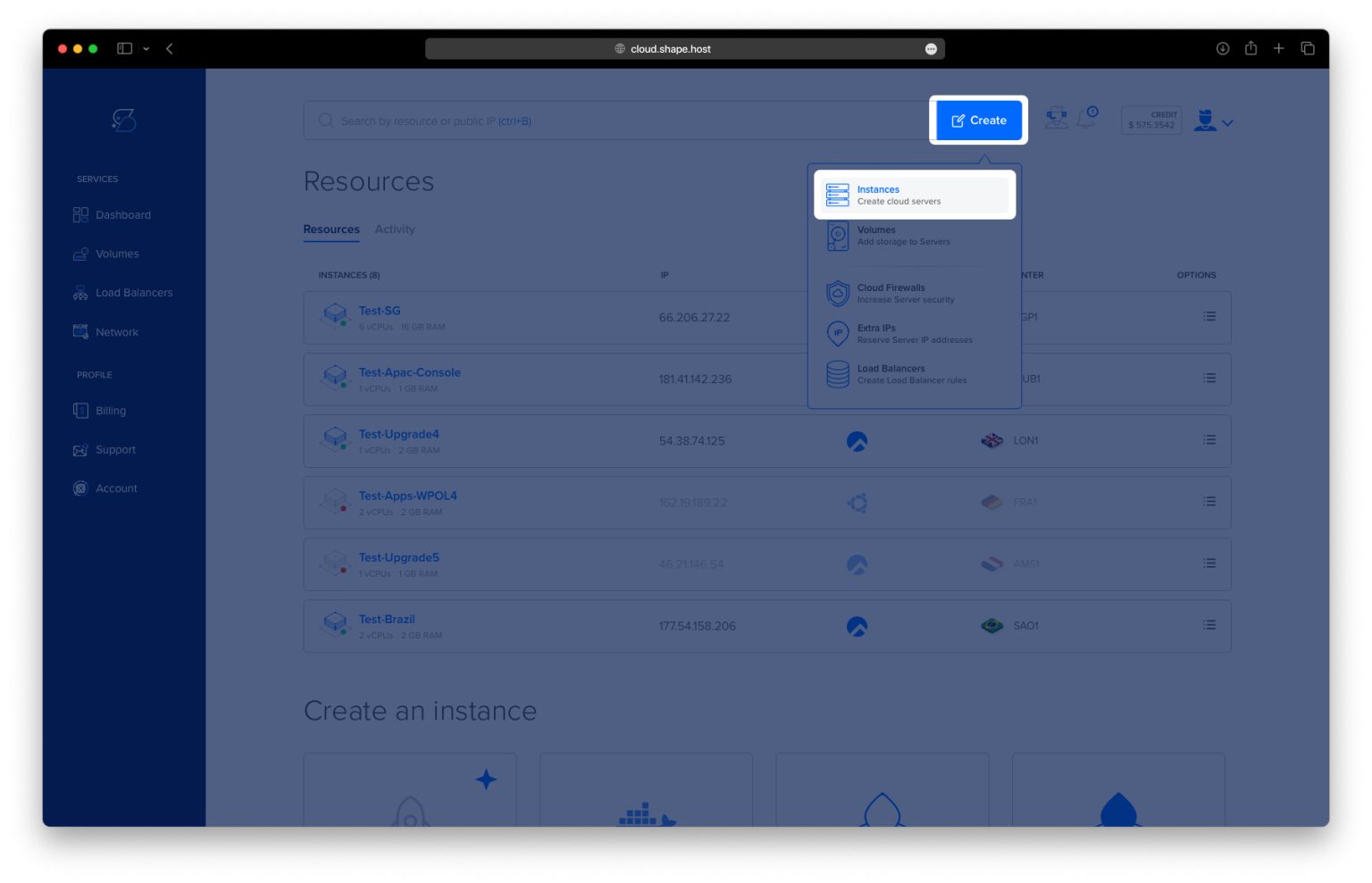
From the dashboard, click “Create” and select “Instance.”

Choose Location: Select a nearby data center.

Instance Type: Choose a Cloud VPS option.
OS: Select Ubuntu 24.04 (64-bit).
Plan: We recommend at least 2 CPUs, 4 GB RAM, and 40 GB SSD for Attendize.

Click “Create Instance.”

Once deployed, copy the IP address from the “Resources” tab to connect via SSH.

Step 2: Connect to Your Instance via SSH
For Linux/macOS:
Open a terminal and run:
ssh root@your-server-ip
For Windows:
Use PuTTY:
- Enter your server IP in “Host Name.”
- Click Open, then log in as
root.
Step 3: Install Attendize with PHP 7.4
Follow the steps below exactly as they appeared in the installation session.
1. Update system packages:
apt update

2. Install essential packages:
apt install software-properties-common curl git unzip

3. Add the PHP 7.4 repository:
add-apt-repository ppa:ondrej/php

4. Update again to fetch PHP 7.4 packages:
apt update

5. Install PHP 7.4 and required extensions:
apt install php7.4 php7.4-cli php7.4-fpm php7.4-common php7.4-mysql php7.4-mbstring php7.4-xml php7.4-curl php7.4-zip php7.4-gd php7.4-intl php7.4-bcmath

6. Enable PHP 7.4 FPM:
systemctl enable --now php7.4-fpm

7. Install MariaDB:
apt install mariadb-server

8. Secure the MariaDB installation:
mysql_secure_installation

9. Create the Attendize database:
mysql -u root -p
Inside the MySQL shell, run:
CREATE DATABASE attendize CHARACTER SET utf8mb4 COLLATE utf8mb4_unicode_ci;
CREATE USER 'attendize'@'localhost' IDENTIFIED BY 'your_secure_password';
GRANT ALL PRIVILEGES ON attendize.* TO 'attendize'@'localhost';
FLUSH PRIVILEGES;
EXIT;

10. Install Composer:
curl -sS https://getcomposer.org/installer | php
11. Move Composer to a global path:
mv composer.phar /usr/local/bin/composer
12. Confirm Composer installation:
composer --version

13. Create web root and clone Attendize:
mkdir -p /var/www
cd /var/www
git clone https://github.com/Attendize/Attendize.git
14. Switch to the latest stable version:
cd Attendize
git checkout v2.8.0

15. Copy and configure the environment file:
cp .env.example .env
nano .env

Update these values:
APP_URL=http://your_domain_or_ip
DB_DATABASE=attendize
DB_USERNAME=attendize
DB_PASSWORD=your_secure_password

MAIL_DRIVER=smtp
MAIL_HOST=smtp.yourhost.com
MAIL_PORT=587
MAIL_USERNAME=your@email.com
MAIL_PASSWORD=your_password
MAIL_ENCRYPTION=tls
MAIL_FROM_NAME="Attendize"
MAIL_FROM_ADDRESS="your@email.com"

16. Install PHP dependencies:
composer install --no-dev --optimize-autoloader

17. Generate application key:
php artisan key:generate

18. Install Laravel IDE Helper (optional, for development):
composer require --dev barryvdh/laravel-ide-helper
19. Run migrations and seed the database:
php artisan migrate --seed

20. Set permissions:
chown -R www-data:www-data /var/www/Attendize
chmod -R 775 storage bootstrap/cache

Step 4: Configure NGINX
1. Install NGINX:
apt install nginx

2. Create site configuration:
nano /etc/nginx/sites-available/attendize
Paste:
server {
    listen 80;
    server_name your_domain_or_ip;

    root /var/www/Attendize/public;
    index index.php index.html;

    location / {
        try_files $uri $uri/ /index.php?$query_string;
    }

    location ~ \.php$ {
        include snippets/fastcgi-php.conf;
        fastcgi_pass unix:/run/php/php7.4-fpm.sock;
        fastcgi_param SCRIPT_FILENAME $document_root$fastcgi_script_name;
        include fastcgi_params;
    }

    location ~ /\.ht {
        deny all;
    }
}

3. Enable the site and reload NGINX:
ln -s /etc/nginx/sites-available/attendize /etc/nginx/sites-enabled/
nginx -t && systemctl reload nginx

Step 5: Set Up Background Queue Service
1. Create a queue worker systemd service:
nano /etc/systemd/system/attendize-queue.service
Paste:
[Unit]
Description=Attendize Queue Worker
After=network.target

[Service]
ExecStart=/usr/bin/php /var/www/Attendize/artisan queue:work
Restart=always
User=www-data
Group=www-data

[Install]
WantedBy=multi-user.target

2. Enable and start the queue service:
systemctl daemon-reload
systemctl enable --now attendize-queue

3. Add Laravel scheduler to crontab:
crontab -u www-data -e
Add:
* * * * * php /var/www/Attendize/artisan schedule:run >> /dev/null 2>&1

Step 6: Verify Installation
Visit the following in your browser:
http://your_domain_or_ip/install
You’ll be guided through the web-based installation process.


You’ve successfully installed Attendize on Ubuntu 24.04 using PHP 7.4, MariaDB, and NGINX. Attendize gives you full control over event ticketing and attendee management, and it’s perfect for independent organizers and businesses.
Host your next project with Shape.Host Cloud VPS for reliable performance and easy scaling.
➡️ Start today at https://shape.host