Koel on Ubuntu 24.04 – A Self-Hosted Music Streaming Server for Audiophiles and Developers
Koel (pronounced “cool”) is a web-based personal audio streaming server written in PHP and built on the Laravel framework. It allows users to host their own private Spotify-like experience, streaming music from their own server with full control over audio files, users, and libraries.
Running Koel on Ubuntu 24.04 “Noble Numbat”, the latest long-term support (LTS) release, offers a secure and modern platform with an updated PHP ecosystem, native Laravel compatibility, and reliable media handling libraries.
What is Koel?
Koel is a modern, minimalist streaming solution for personal use. It allows users to:
- Upload or scan local music libraries (MP3, FLAC, AAC, etc.)
- Stream music via a web interface or mobile app
- Manage playlists, albums, artists, genres, and covers
- Share access with friends and family via user accounts
The interface is built with Vue.js, while the backend uses Laravel, requiring PHP, MySQL, and Node.js for full functionality.
Koel and Ubuntu 24.04 – A Compatible Match
Ubuntu 24.04 ships with:
- PHP 8.3
- Node.js 18/20 (via NodeSource)
- MySQL 8.0 or MariaDB 10.11
- NGINX 1.22 or Apache 2.4
- Linux Kernel 6.8+ with optimized filesystem I/O
Koel is fully compatible with PHP 8.1+, meaning you can deploy it natively on Ubuntu 24.04 without needing legacy PHP versions (unlike some older Laravel-based apps). This makes it easier to maintain, secure, and integrate into modern CI/CD workflows.
Key Features of Koel
- Stream from your own music collection (FLAC, MP3, OGG)
- Mobile-friendly via responsive UI and Koel mobile apps
- User Management – Create user accounts with varying access
- Search & Filter – Filter by artist, album, title, genre, and year
- Metadata Management – Auto-fetch album covers and update tags
- Gapless Playback & Streaming – Powered by HTML5
<audio>and MediaSource Extensions
Koel System Architecture
| Layer | Technology |
|---|---|
| Frontend | Vue.js (Webpack + Sass) |
| Backend | Laravel (PHP 8.1+) |
| Database | MySQL / MariaDB |
| Media Engine | ffmpeg / getID3 |
| Web Server | NGINX or Apache |
| Background Jobs | Laravel Queues |
Koel also uses Composer for PHP dependency management and npm/yarn for frontend builds.
Ideal Use Cases for Koel
- Personal Streaming Server – Listen to your music library from any device
- Office/Team Music System – Internal streaming for shared offices
- Home NAS Integration – Ideal for running alongside Plex or Jellyfin
- Alternative to Spotify/YouTube Music – With full privacy and zero data sharing
Because Koel is self-hosted, users maintain complete control over their audio data and streaming environment.
Technical Benefits of Koel on Ubuntu 24.04
- Modern PHP Stack – Koel runs best on PHP 8.1+, which is officially supported in Ubuntu 24.04.
- Updated Node & NPM – Available from NodeSource or apt, ideal for frontend compilation and updates.
- Secure and Maintainable – Ubuntu’s AppArmor, ufw, and automatic security updates offer enterprise-grade safety.
- Systemd Integration – Easily set up Koel as a systemd service for always-on access.
- NGINX or Apache – Koel can be reverse-proxied easily, and integrates with Let’s Encrypt for HTTPS.
Limitations and Considerations
- No Built-in Transcoding: Koel doesn’t transcode audio on the fly (e.g., FLAC to MP3), so mobile streaming requires compatible formats.
- Storage-Intensive: Large FLAC libraries can consume significant space.
- No Multi-Room Sync: Unlike Snapcast or Mopidy, Koel doesn’t support multi-room synchronized playback.
- No Podcast or Radio Support: It’s strictly for personal audio files.
Security & Maintenance Tips
- Create a non-root user for running Koel.
- Secure the installation with HTTPS (e.g., Let’s Encrypt).
- Restrict access via fail2ban, UFW, or a VPN for personal use.
- Schedule regular backups of the music directory and database.
- Keep
composerandnpmpackages updated periodically.
Alternatives to Koel
| Platform | Type | Database Required | Transcoding | Mobile App | License |
|---|---|---|---|---|---|
| Koel | Laravel-based | Yes (MySQL/MariaDB) | ❌ | ✔️ Koel App | MIT |
| Navidrome | Go-based | Yes (SQLite/Postgres) | ✔️ | ✔️ Subsonic apps | GPLv3 |
| Ampache | PHP-based | Yes (MySQL) | ✔️ | ✔️ Subsonic apps | AGPL |
| Funkwhale | Python/Django | Yes (PostgreSQL) | ✔️ | ✔️ Mobile clients | AGPL |
| Jellyfin | Full media server | Yes (SQLite/Postgres) | ✔️ | ✔️ Native clients | GPL |
Koel is best suited for users who want a clean, minimalist experience and already prefer the Laravel/PHP ecosystem.
Koel on Ubuntu 24.04 is a powerful, elegant, and fully self-hosted music streaming server tailored to privacy-conscious users and developers. With modern PHP support, a responsive interface, and seamless local audio streaming, Koel turns your VPS or home server into a private Spotify.
It is best deployed on a Shape.Host Cloud VPS running Ubuntu 24.04, where you benefit from SSD performance, root access, scalable resources, and data isolation—ideal for running a media application 24/7.
Step 1: Set Up a Server Instance on Shape.Host
Start by creating a server to host Koel:
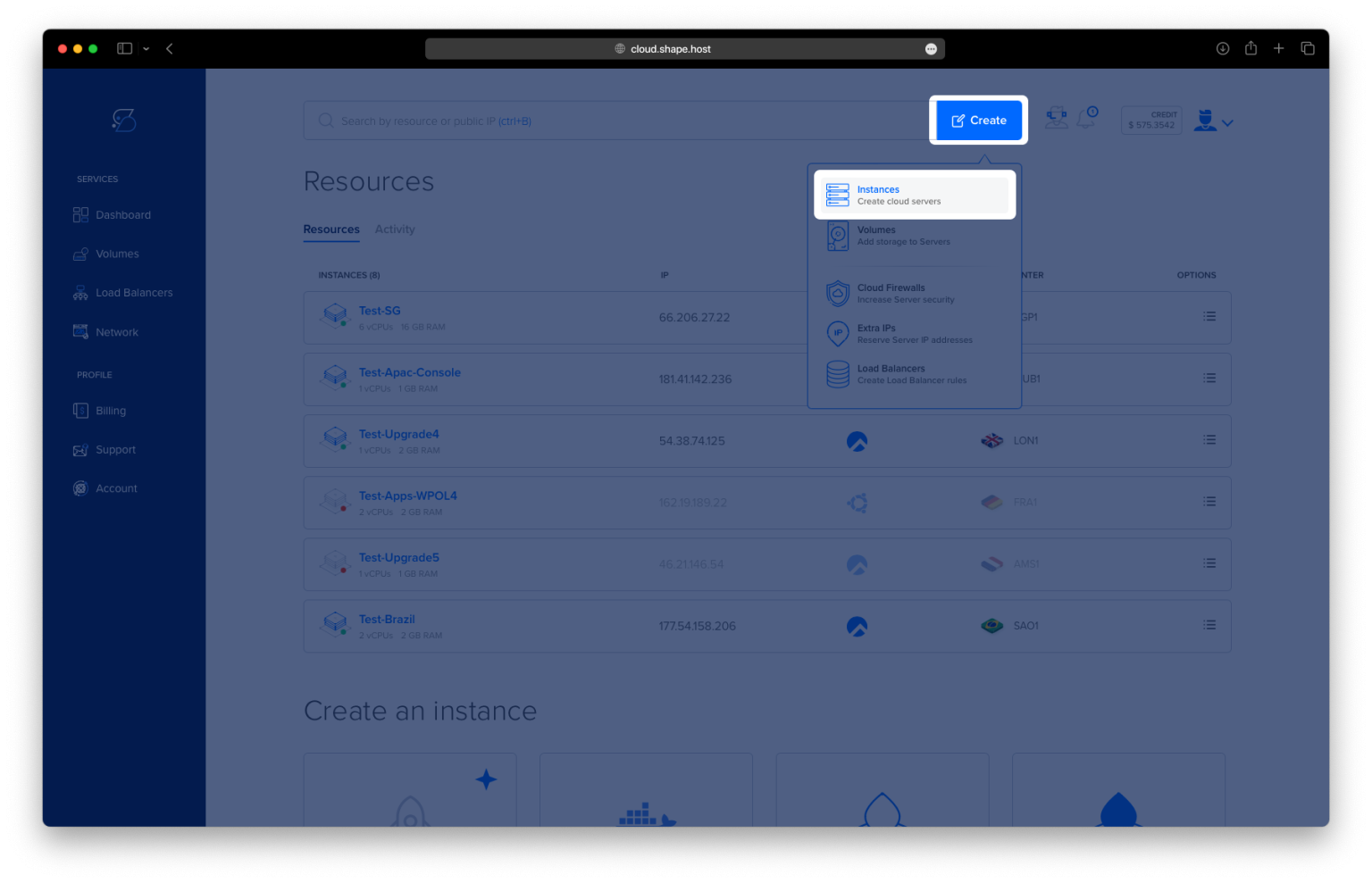
Go to https://shape.host and log in.
Click “Create” → “Instance”.

Configure your instance:
Region: Select a data center near your users.

OS: Choose Ubuntu 24.04 (64-bit).
Plan: Select at least 2 vCPUs, 4 GB RAM, and 40 GB SSD.

Click Create Instance and wait for it to deploy.

Copy your server’s public IP address.

Step 2: Connect to the Server via SSH
From Linux/macOS:
ssh root@your_server_ip
From Windows (via PuTTY):
- Enter the IP in “Host Name”
- Click Open
- Log in as
root
Step 3: Install Required Software and PHP 8.2
Step 3.1 – Update the System
Refresh your package index:
apt update

Step 3.2 – Install Common Tools
Install required tools for managing software and web services:
apt install software-properties-common curl git unzip ffmpeg mariadb-server nginx

ffmpegis used for audio processing (required by Koel).nginxis our web server.mariadb-serveris the database Koel will use.
Step 3.3 – Add PHP 8.2 Repository
The default PHP version in Ubuntu 24.04 is higher than 8.2. Koel supports PHP 8.2, so we add Ondřej Surý’s repository:
add-apt-repository ppa:ondrej/php

Then update the package list again:
apt update

Step 3.4 – Install PHP 8.2 and Extensions
Install PHP 8.2 along with all required modules for Koel:
apt install php8.2-fpm php8.2-cli php8.2-mbstring php8.2-xml php8.2-curl php8.2-zip php8.2-bcmath php8.2-gd php8.2-intl php8.2-sqlite3 php8.2-imagick php8.2-mysql php8.2-json

Step 4: Configure the Database
Step 4.1 – Secure MariaDB
Run this to set a root password and remove insecure settings:
mysql_secure_installation

Step 4.2 – Create the Koel Database and User
mysql -u root -p
Then enter the following SQL commands in the MariaDB shell:
CREATE DATABASE koel CHARACTER SET utf8mb4 COLLATE utf8mb4_unicode_ci;
CREATE USER 'koeluser'@'localhost' IDENTIFIED BY 'StrongPassword123!';
GRANT ALL PRIVILEGES ON koel.* TO 'koeluser'@'localhost';
FLUSH PRIVILEGES;
EXIT;

Step 5: Install Composer (PHP Dependency Manager)
Step 5.1 – Download Composer
curl -sS https://getcomposer.org/installer | php
Step 5.2 – Move Composer to a System Path
mv composer.phar /usr/local/bin/composer
Step 5.3 – Confirm Installation
composer --version

Step 6: Install Node.js and NPM
Koel uses NPM for frontend assets.
Step 6.1 – Add Node.js 20 Repository
curl -fsSL https://deb.nodesource.com/setup_20.x | bash -

Step 6.2 – Install Node.js and NPM
apt install nodejs

Step 6.3 – Check Versions
node -v
npm -v

Step 7: Download and Configure Koel
Step 7.1 – Clone Koel
cd /var/www
git clone https://github.com/koel/koel.git
cd koel

Step 7.2 – Copy Environment File
cp .env.example .env

Step 7.3 – Configure Environment
Edit the file:
nano .env
Update the following lines:
DB_CONNECTION=mysql
DB_HOST=127.0.0.1
DB_PORT=3306
DB_DATABASE=koel
DB_USERNAME=koeluser
DB_PASSWORD=StrongPassword123!

Step 8: Install Koel Dependencies
Step 8.1 – Install PHP Dependencies
composer install --no-dev --optimize-autoloader

Step 8.2 – Generate App Key
php artisan key:generate

Step 8.3 – Initialize Koel (backend only)
php artisan koel:init --no-assets
Step 8.4 – Install and Build Frontend
npm install
npm audit fix
npm run build


Step 9: Set Permissions
Make Koel accessible by the web server:
chown -R www-data:www-data /var/www/koel
chmod -R 755 /var/www/koel

Step 10: Configure NGINX
Step 10.1 – Create Virtual Host
nano /etc/nginx/sites-available/koel
Paste:
server {
    listen 80;
    server_name yourdomain.com;

    root /var/www/koel/public;
    index index.php index.html;

    location / {
        try_files $uri $uri/ /index.php?$query_string;
    }

    location ~ \.php$ {
        include snippets/fastcgi-php.conf;
        fastcgi_pass unix:/run/php/php8.2-fpm.sock;
        fastcgi_param SCRIPT_FILENAME $document_root$fastcgi_script_name;
        include fastcgi_params;
    }

    location ~ /\.ht {
        deny all;
    }
}

Step 10.2 – Enable Site and Reload
ln -s /etc/nginx/sites-available/koel /etc/nginx/sites-enabled/
nginx -t && systemctl reload nginx

Step 11: Enable HTTPS (Optional)
Use Certbot to add a free SSL certificate:
apt install certbot python3-certbot-nginx
certbot --nginx -d yourdomain.com


Step 12: Final Database and Admin Setup
Step 12.1 – Run Database Migrations
php artisan migrate --force
Step 12.2 – Run Final Initialization
php artisan koel:init
You will be prompted to:
- Enter an admin name (e.g.,
Andrei) - Enter an email
- Enter a password

Step 13: Access Koel
Open your browser and navigate to:
http://yourdomain.com
Log in using the admin credentials you just created.


You’ve now installed Koel on Ubuntu 24.04 using PHP 8.2, MariaDB, and NGINX. You can stream your music collection from anywhere with a beautiful web interface.
Ready to host more apps?
Use Shape.Host Cloud VPS for high-performance, scalable deployments.
Start today at https://shape.host