OpenLiteSpeed (OLS) is a high-performance, open-source web server developed by LiteSpeed Technologies. It provides a fast, secure, and flexible solution for hosting websites and web applications. OpenLiteSpeed is designed to deliver outstanding performance with minimal resource consumption and supports modern web standards, making it a preferred choice for developers and system administrators.
Key Features of OpenLiteSpeed
- High Performance
OpenLiteSpeed uses an event-driven architecture, enabling it to handle thousands of simultaneous connections efficiently. This makes it suitable for high-traffic websites and demanding applications. - Automatic HTTPS
One of OpenLiteSpeed’s standout features is its ability to automatically issue and renew SSL/TLS certificates through Let’s Encrypt, ensuring secure connections without manual configuration. - LiteSpeed Cache (LSCache)
LSCache is a powerful caching system integrated into OpenLiteSpeed. It supports both static and dynamic content, significantly improving load times for websites, especially those running on CMS platforms like WordPress. - Support for HTTP/3 and QUIC
OpenLiteSpeed supports modern web protocols such as HTTP/3 and QUIC, which improve website performance by reducing latency and enhancing connection reliability. - User-Friendly Web Admin Interface
OpenLiteSpeed includes an intuitive web-based admin panel that simplifies server management. Tasks such as configuring virtual hosts, managing SSL certificates, and monitoring server performance can be done easily through the interface. - Compatibility with Popular CMS
OpenLiteSpeed works seamlessly with popular content management systems like WordPress, Joomla, and Magento, offering optimized performance and built-in caching solutions. - Dynamic Content Handling
It supports multiple programming languages, including PHP, Python, and Ruby, making it suitable for hosting dynamic web applications. - Powerful Rewrite Engine
OpenLiteSpeed supports Apache-style.htaccessrewrite rules, which simplifies migration from Apache to OpenLiteSpeed. - Reverse Proxy and Load Balancing
Built-in reverse proxy and load balancing features make OpenLiteSpeed ideal for distributed systems and applications requiring high availability. - Security
OpenLiteSpeed comes with robust security features, including a built-in Web Application Firewall (WAF) to protect against common vulnerabilities like SQL injection and cross-site scripting (XSS).
Advantages of OpenLiteSpeed
- Free and Open Source: OpenLiteSpeed is completely free to use, making it an affordable solution for web hosting.
- Ease of Use: Its simple configuration and web-based admin panel make it accessible to both beginners and advanced users.
- Performance: Faster than traditional web servers like Apache, especially when handling dynamic content.
- Scalability: Suitable for both small websites and enterprise-level applications.
- Low Resource Consumption: Requires minimal CPU and memory, making it ideal for servers with limited resources.
What You Can Do with OpenLiteSpeed
- Host Static Websites
Serve static files like HTML, CSS, and JavaScript with exceptional speed and efficiency. - Run Dynamic Web Applications
Host PHP-based websites (e.g., WordPress) or web applications written in other languages like Python or Ruby. - Secure Websites with HTTPS
Use OpenLiteSpeed’s automatic SSL/TLS feature to secure your websites effortlessly. - Optimize Website Performance
Leverage LSCache and support for modern protocols like HTTP/3 to improve site speed and user experience. - Serve as a Reverse Proxy
Use OpenLiteSpeed as a reverse proxy to distribute traffic to backend servers for better scalability and reliability.
Common Use Cases for OpenLiteSpeed
- WordPress Hosting
OpenLiteSpeed is optimized for WordPress, offering faster load times and better performance compared to other web servers. - E-commerce Websites
Host e-commerce platforms like Magento or WooCommerce with high speed and reliability, ensuring a seamless shopping experience. - High-Traffic Websites
Handle large volumes of traffic efficiently without compromising performance or resource usage. - Web Application Hosting
Deploy dynamic web applications that require fast response times and high availability. - Content Delivery
Serve media files and static content efficiently with built-in caching and modern protocol support.
How OpenLiteSpeed Compares to Other Web Servers
- OpenLiteSpeed vs. Apache
OpenLiteSpeed offers better performance and lower resource usage, especially for dynamic content. It also simplifies SSL setup with automatic HTTPS. - OpenLiteSpeed vs. Nginx
While both are lightweight and high-performance, OpenLiteSpeed’s built-in LSCache and automatic HTTPS make it more user-friendly for beginners. - OpenLiteSpeed vs. LiteSpeed Enterprise
OpenLiteSpeed is the free, open-source version of LiteSpeed Enterprise, which includes additional features like advanced WAF and premium support for large-scale deployments.
Getting Started with OpenLiteSpeed
- Installation
OpenLiteSpeed can be installed on various operating systems, including Debian, Ubuntu, and CentOS. Docker images are also available for containerized environments. - Configuration
Use the Caddyfile to configure your server easily, including setting up virtual hosts, SSL certificates, and rewrite rules. - Deploy Your Website
Upload your website files, or set up your CMS (like WordPress), and start serving content. - Optimize Performance
Enable LSCache and fine-tune caching and compression settings to maximize speed and efficiency.
OpenLiteSpeed is a modern, efficient, and user-friendly web server that simplifies the process of hosting and managing websites. Whether you’re hosting a small personal blog or a large-scale web application, OpenLiteSpeed offers the performance, scalability, and security you need.
Step 1: Create an Instance
Before starting, you need a server instance running AlmaLinux 9.
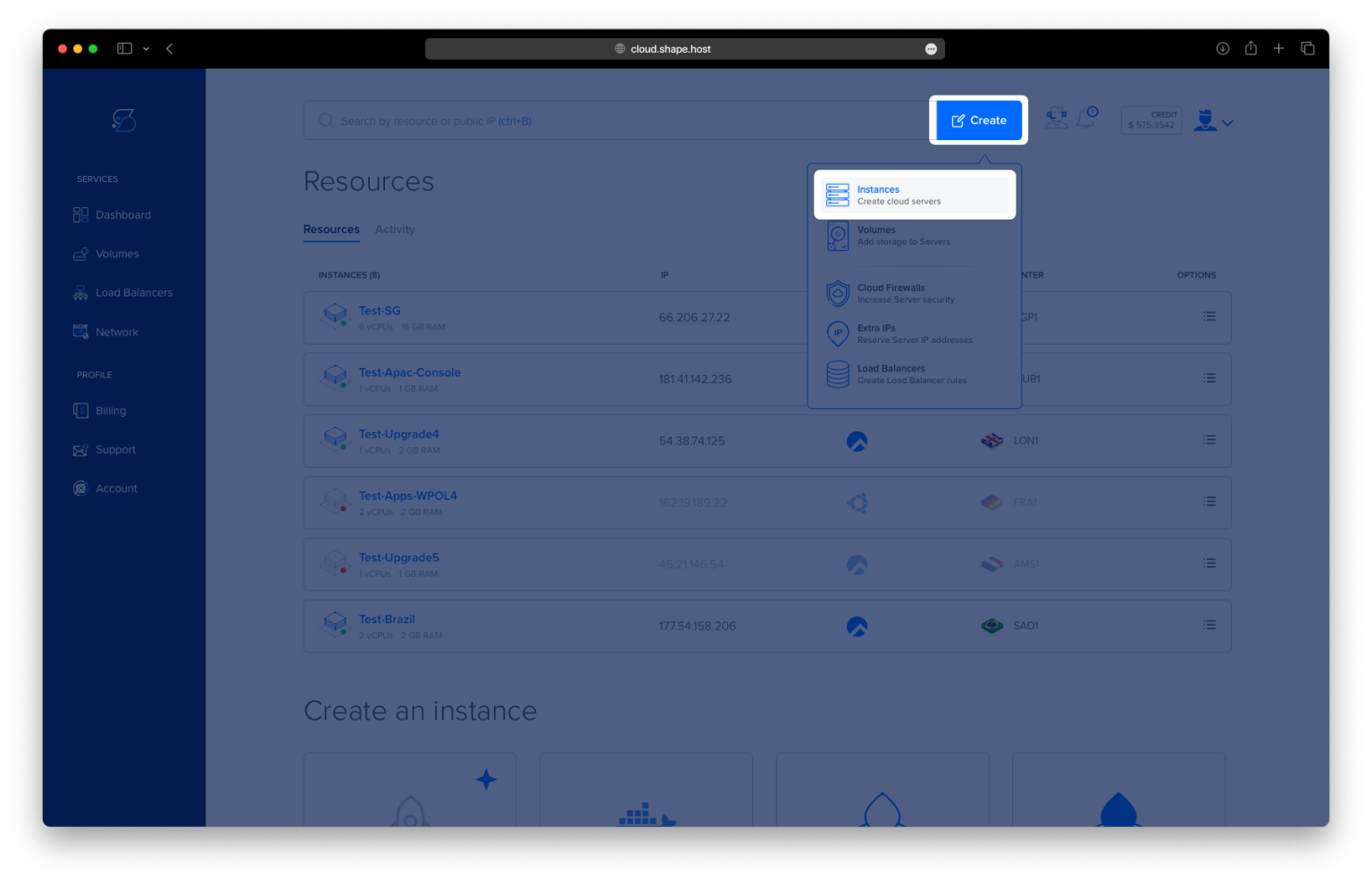
Log in to Shape.Host: Access your Shape.Host account and head to the Dashboard.
Initiate Server Creation: Click the “Create” button found in the top-right corner.
Select Instance Type: From the available options, choose “Instances” to create a new server.
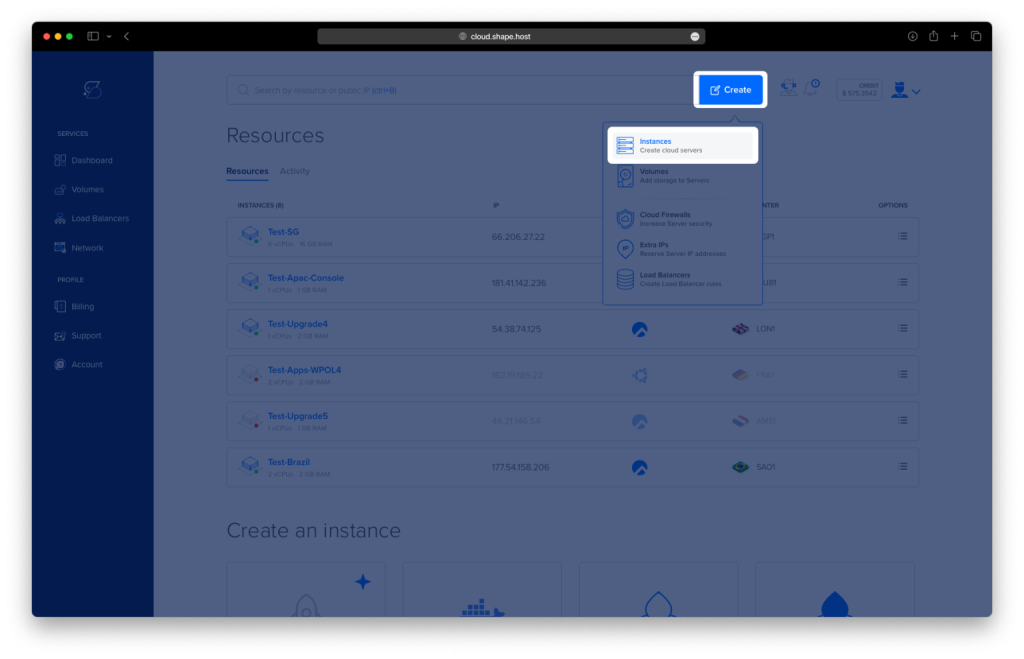
Choose Server Location: Pick a data center that’s geographically close to your target audience to ensure optimal speed.
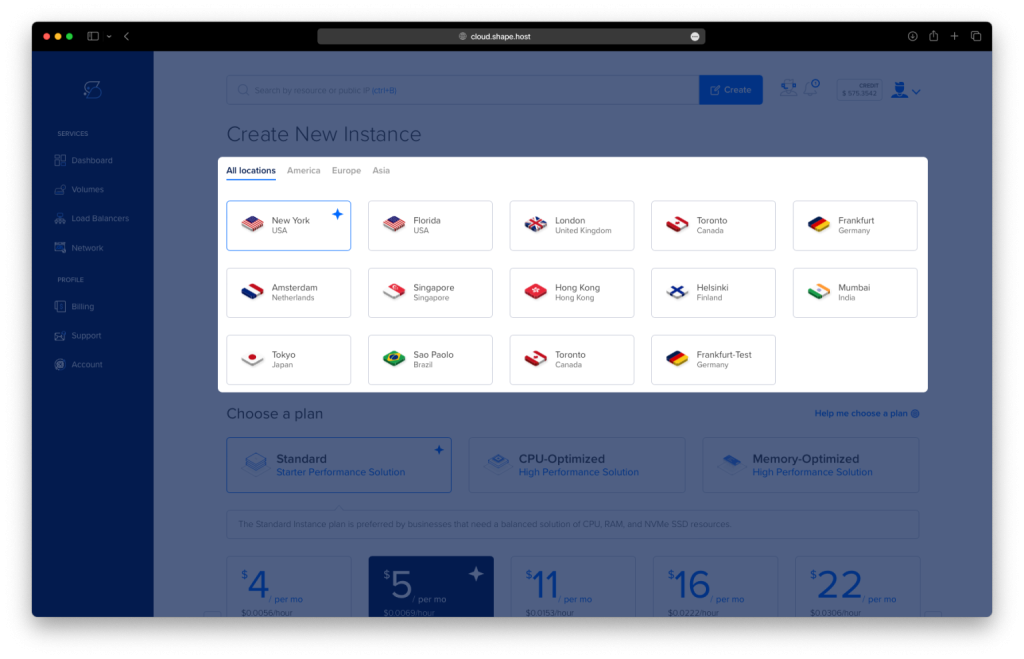
Select a Suitable Plan: Decide on a plan based on your needs—whether it’s Standard or Memory-Optimized.
Set the Operating System: Choose AlmaLinux 9 as your preferred OS.
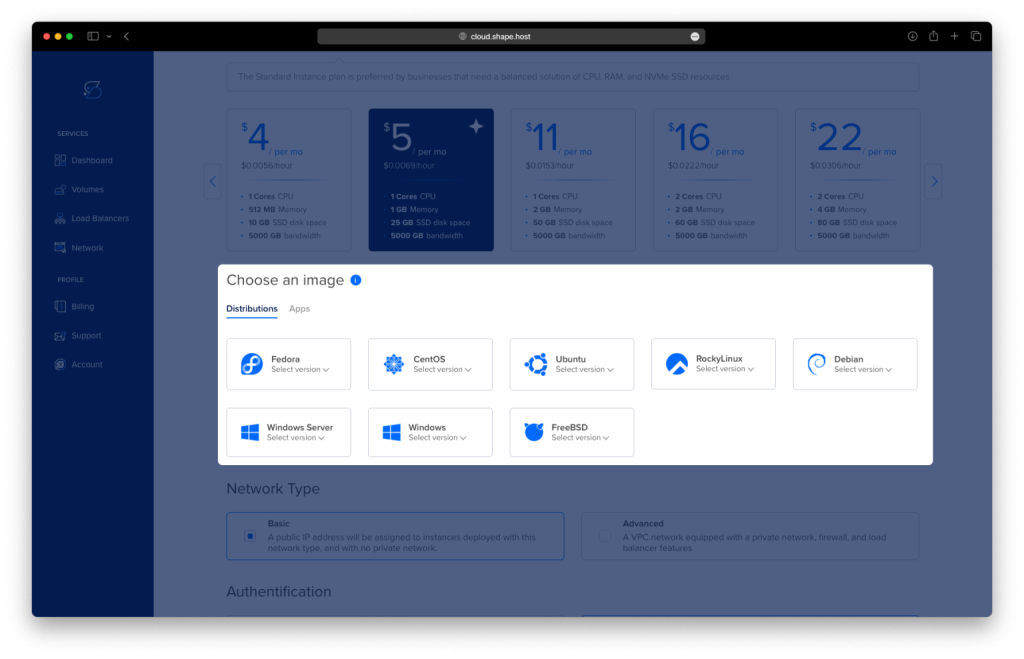
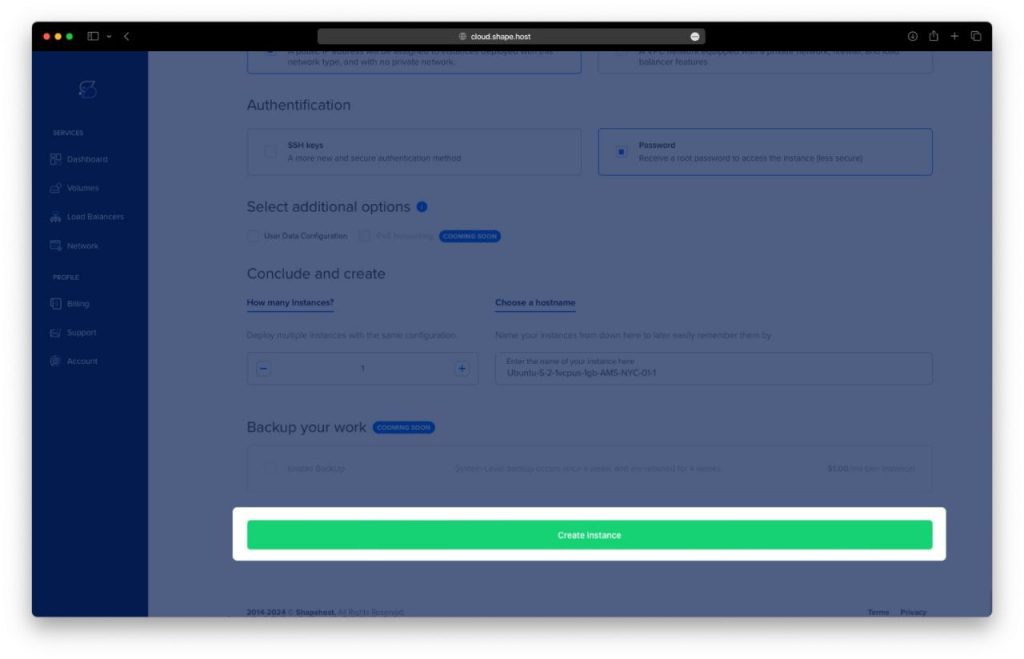
Finalize and Launch: Pick your preferred authentication method (either SSH keys or password) and then click Create Instance.
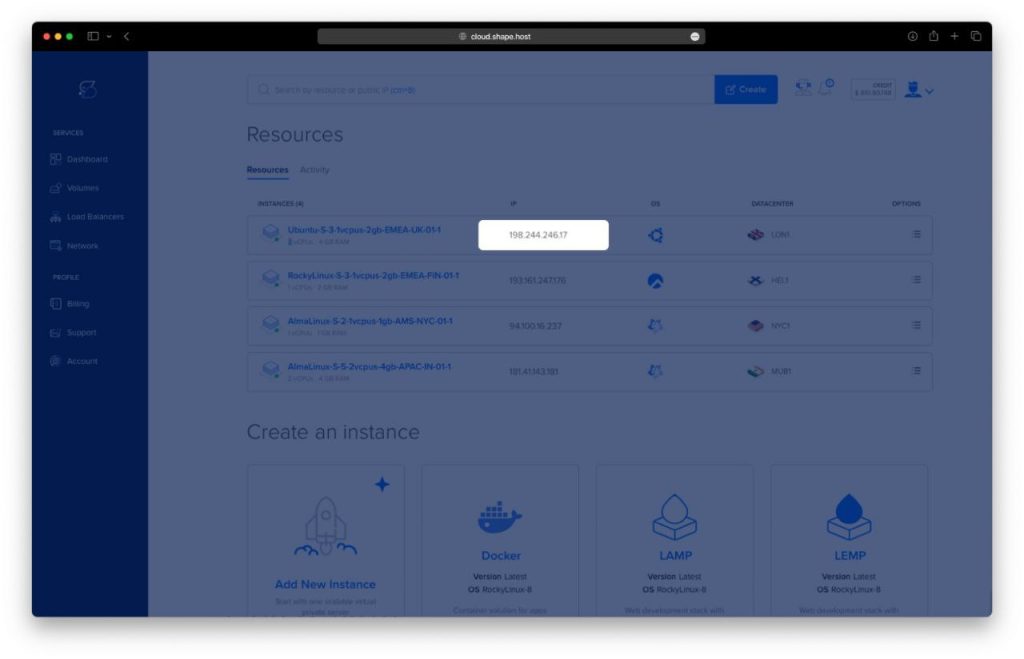
Here you can find your IP.
Step 2: Connect to Your Instance
Connect to your server using SSH:
- Linux/macOS:
ssh root@<your_server_ip> - Windows: Use PuTTY. Enter the server’s IP, select SSH, and log in with your credentials.
Step 3: Install OpenLiteSpeed
Step 3.1: Update the System
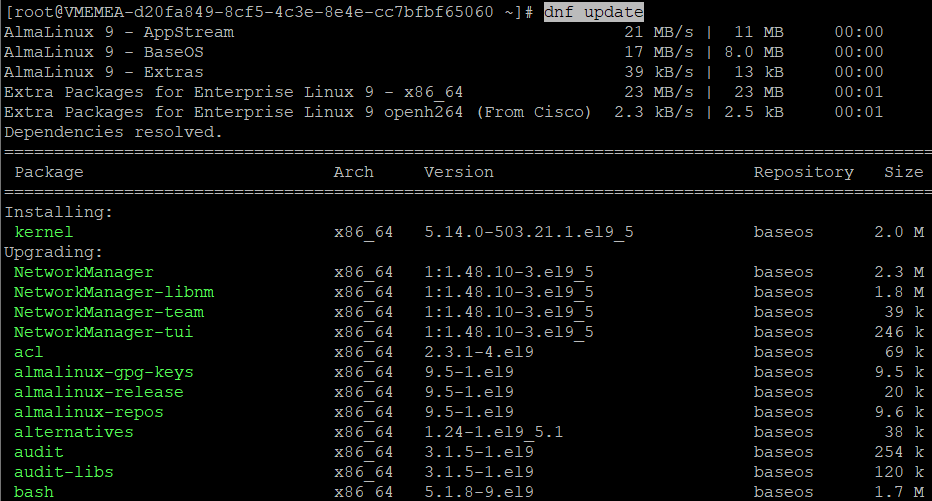
Update your system packages:
dnf update
Step 3.2: Install Required Tools
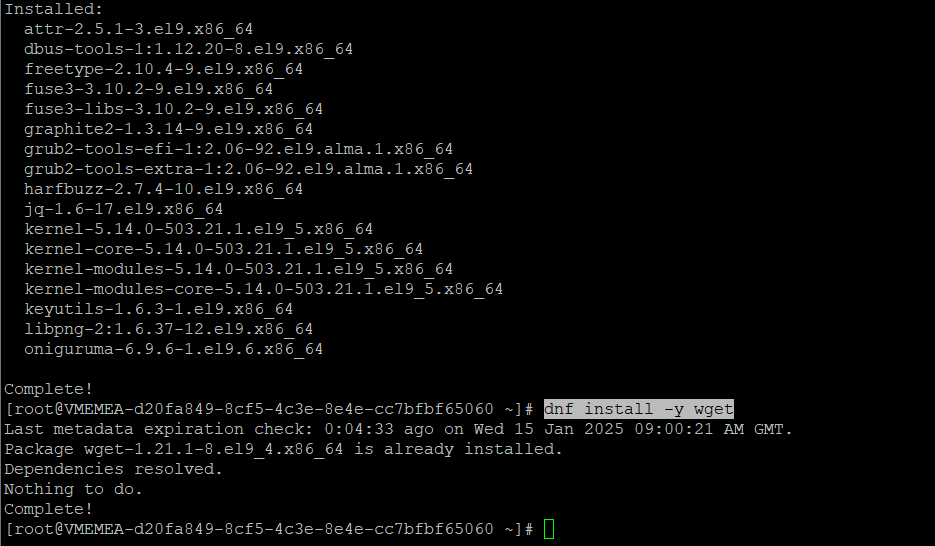
Install wget for downloading files:
dnf install -y wget
Step 3.3: Add OpenLiteSpeed Repository and Install
Run the LiteSpeed repository script:
wget -O - https://repo.litespeed.sh | bash
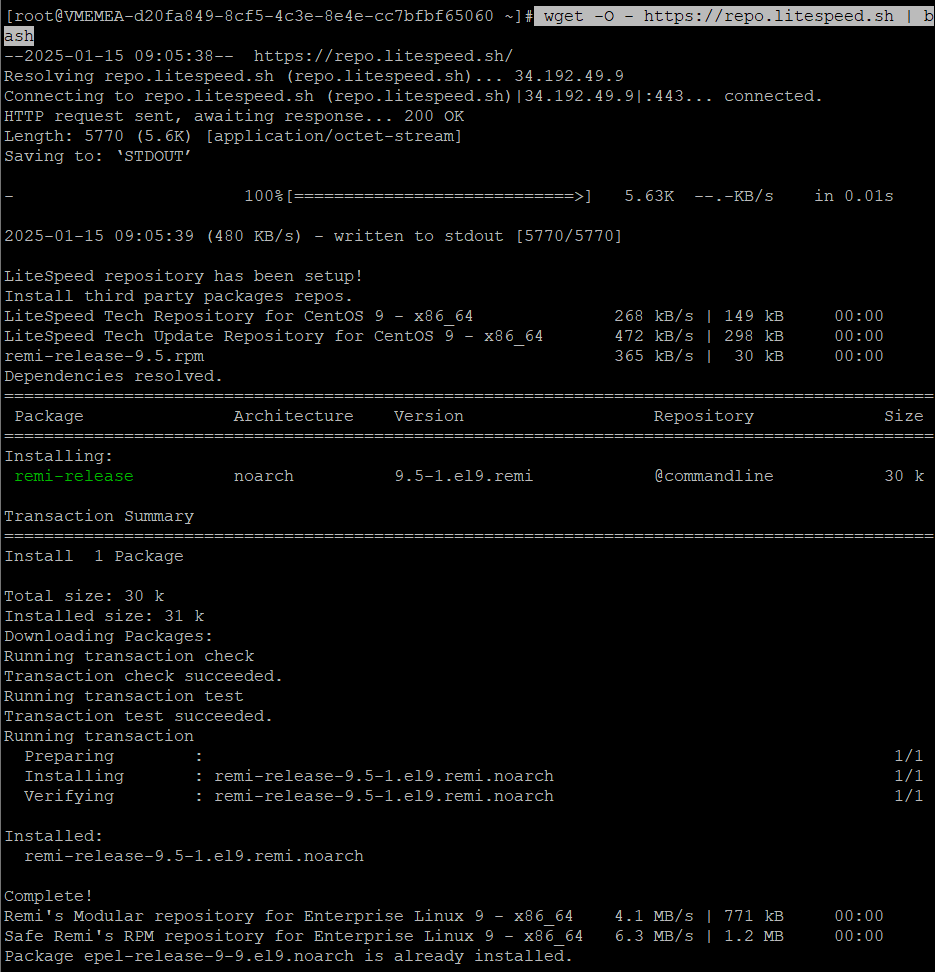
Install OpenLiteSpeed and PHP 8.1:
dnf install -y epel-release
dnf install openlitespeed lsphp81

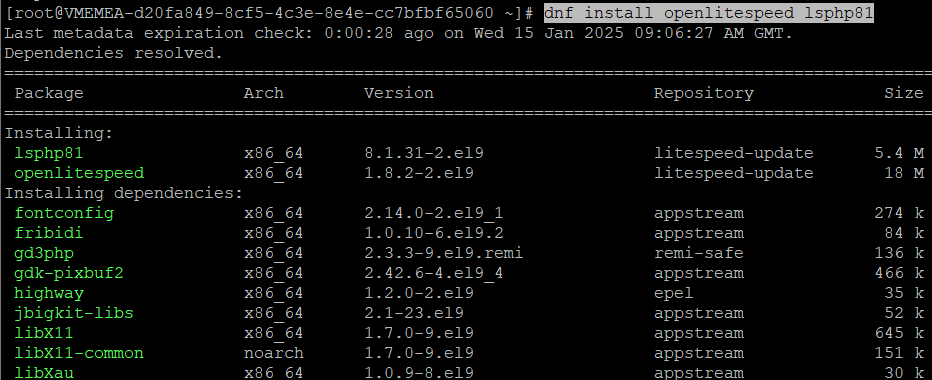
Step 4: Set Admin Console Password
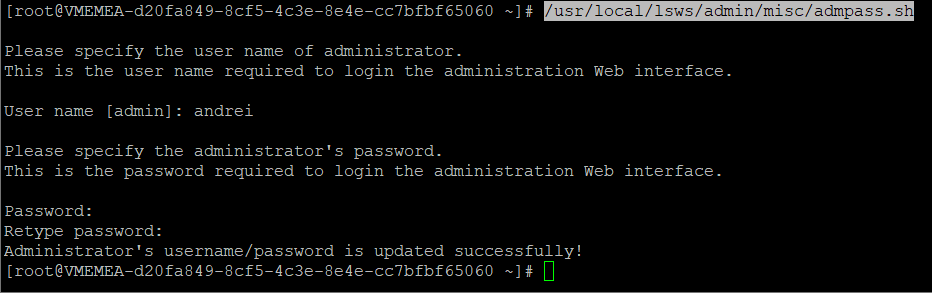
Set up the admin console password for OpenLiteSpeed:
/usr/local/lsws/admin/misc/admpass.sh
Step 5: Start and Check OpenLiteSpeed Service
Step 5.1: Update the System Again
To ensure all components are up-to-date, run:
dnf update

Step 5.2: Check the Service Status
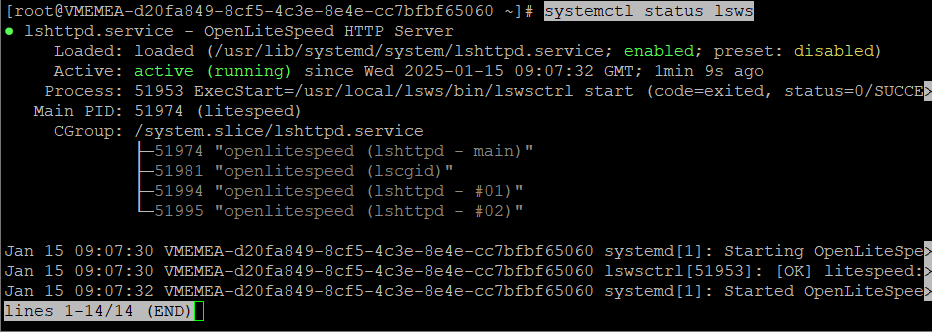
Verify that OpenLiteSpeed is installed and running:
systemctl status lsws
Step 6: Configure Firewall
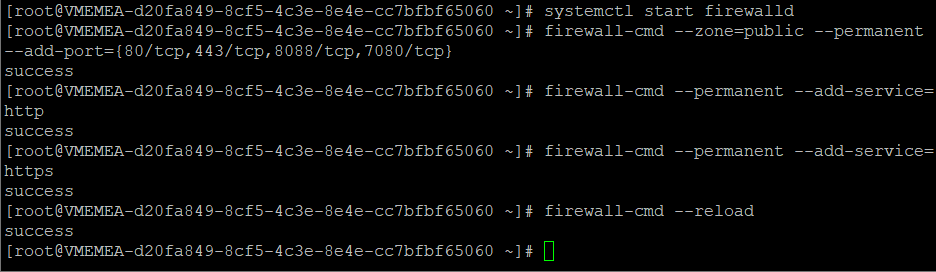
Step 6.1: Start Firewalld
Ensure the firewall is active:
systemctl start firewalld
Step 6.2: Allow Required Ports
Allow traffic on OpenLiteSpeed and common web server ports:
firewall-cmd --zone=public --permanent --add-port={80/tcp,443/tcp,8088/tcp,7080/tcp}
Step 6.3: Add HTTP and HTTPS Services
Enable HTTP and HTTPS services:
firewall-cmd --permanent --add-service=http
firewall-cmd --permanent --add-service=https
Step 6.4: Reload Firewall
Apply the firewall changes:
firewall-cmd --reload
Step 7: Access the OpenLiteSpeed Web Console
Open your web browser (e.g., Chrome) and access the OpenLiteSpeed web console using the following URL:
http://<SERVER-IP>:7080
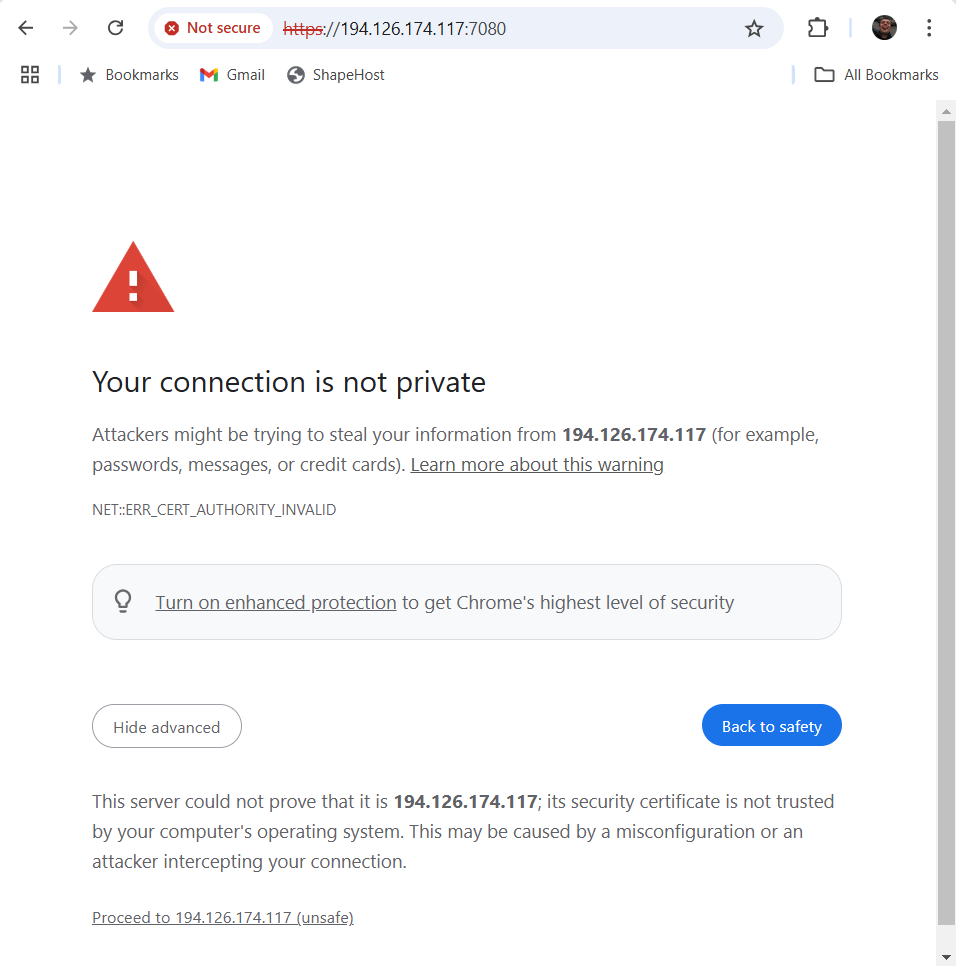
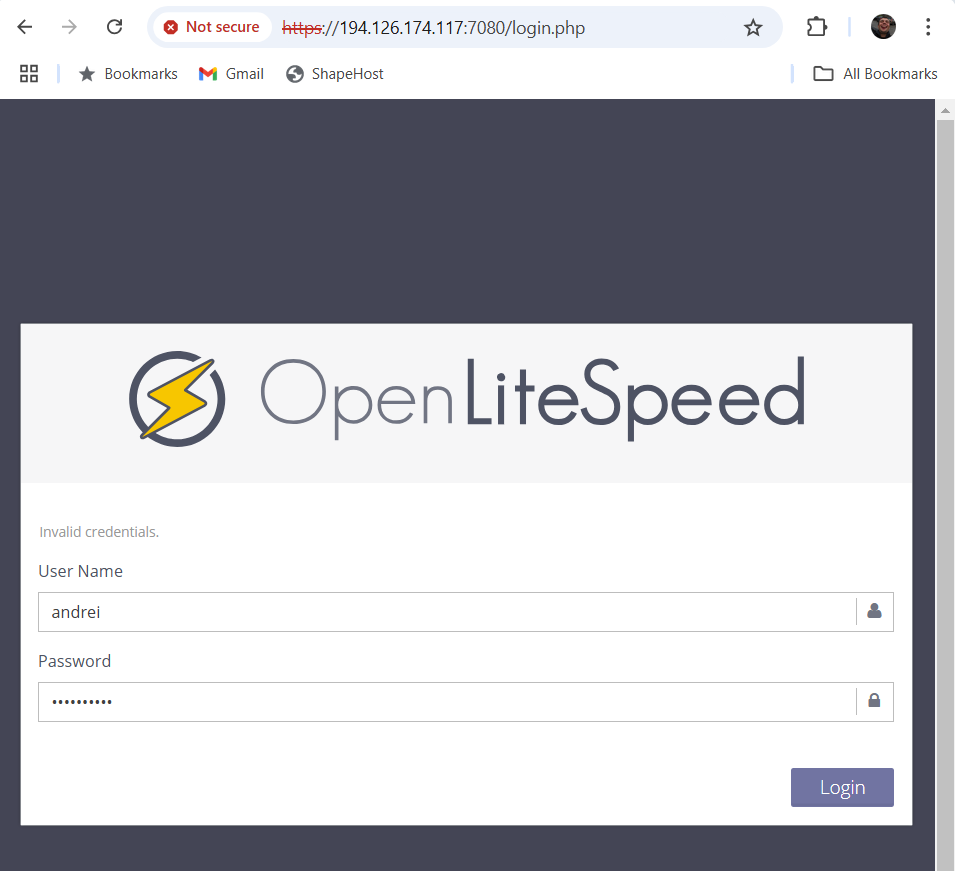
Log in using the admin username and password you configured earlier.
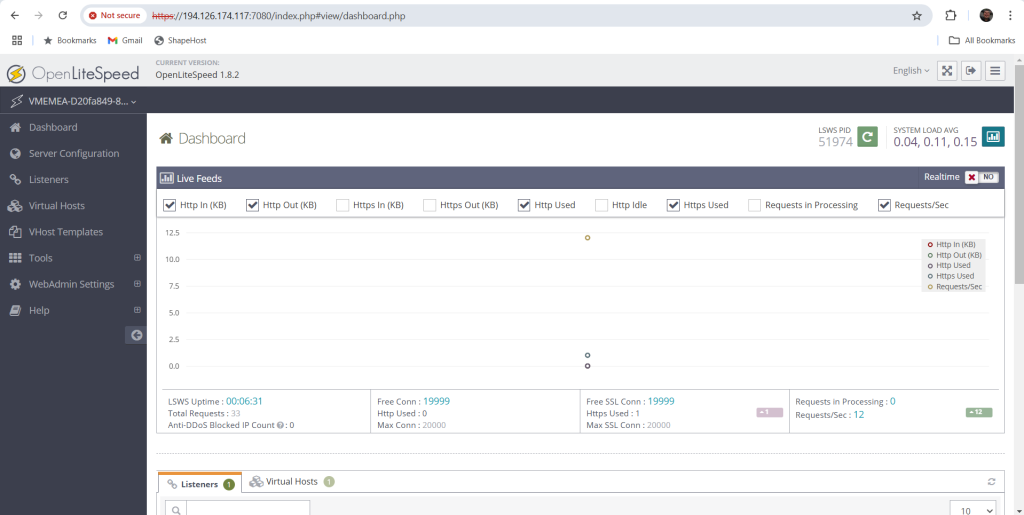
You have successfully installed and configured OpenLiteSpeed on AlmaLinux 9. For optimized hosting solutions, consider Shape.Host Cloud VPS, offering high performance and scalability for all your web hosting needs.