 Christian Wells
Install Ollama on Ubuntu 24.04 with Nginx and ZeroSSL
Ollama gives you a simple way to run local large language models behind a clean HTTP API, which makes it useful for private AI experiments, internal tools, coding assistants, and applications that need a local model runtime instead of a hosted provider.
In this guide, we restore a fresh Ubuntu 24.04.1 LTS server on Shape.Host, verify the latest Ollama stable release from the official project, install the current Linux build pinned to that version, bind the Ollama service to localhost only, publish it through Nginx on tutorials.shape.host, secure it with a trusted ZeroSSL certificate, and validate the finished deployment from the terminal over both local and public HTTPS endpoints.
| Application | Ollama |
|---|---|
| Application version | 0.18.2 |
| Operating system | Ubuntu 24.04.1 LTS |
| Reverse proxy | Nginx 1.24.0 |
| Public hostname | tutorials.shape.host |
| TLS issuer | ZeroSSL ECC Domain Secure Site CA |
| Validated on | Live Shape.Host Ubuntu 24.04.1 server |
Why Use Ollama on Ubuntu 24.04?
- Ubuntu 24.04.1 LTS gives you a current long-term support base for an AI runtime you may want to keep stable.
- Ollama provides a clean local API for model serving without requiring a separate web application stack.
- The official Linux installer creates the service and runtime user for you, which keeps the base setup simple.
- Publishing Ollama through Nginx lets you add HTTPS and hostname-based access while still keeping the native listener on localhost only.
Before You Begin
Make sure the following prerequisites are in place before you start:
- A fresh Ubuntu 24.04 server
- Root or sudo access
- A DNS record pointing
tutorials.shape.hostto your server IP - Ports
80and443open to the internet - Your ZeroSSL EAB key ID and EAB HMAC key for ACME account registration
1. Verify the Ubuntu 24.04 Release
Start by confirming that the restored server is actually running Ubuntu 24.04.1 LTS.
cat /etc/os-release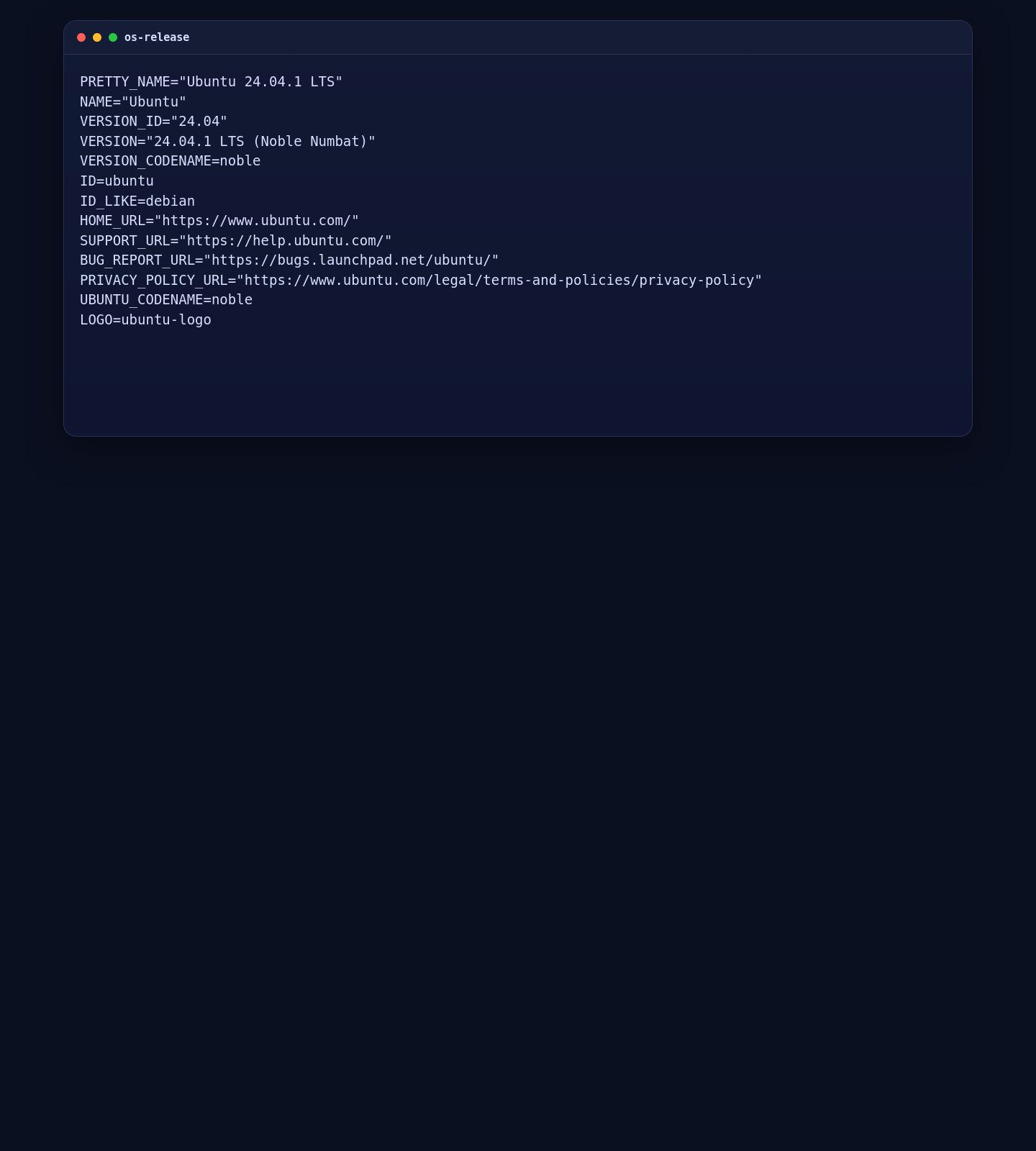
2. Install Nginx, UFW, and Base Dependencies
Ollama’s official Linux installer handles the runtime itself, but you still need Nginx for the reverse proxy and UFW for the public web firewall profile used in this guide.
export DEBIAN_FRONTEND=noninteractive

apt-get update
apt-get install -y curl nginx ufw ca-certificates

systemctl enable --now nginx
ufw allow OpenSSH
ufw allow 'Nginx Full'
ufw --force enable

curl --version | head -n 1
nginx -v
ufw status
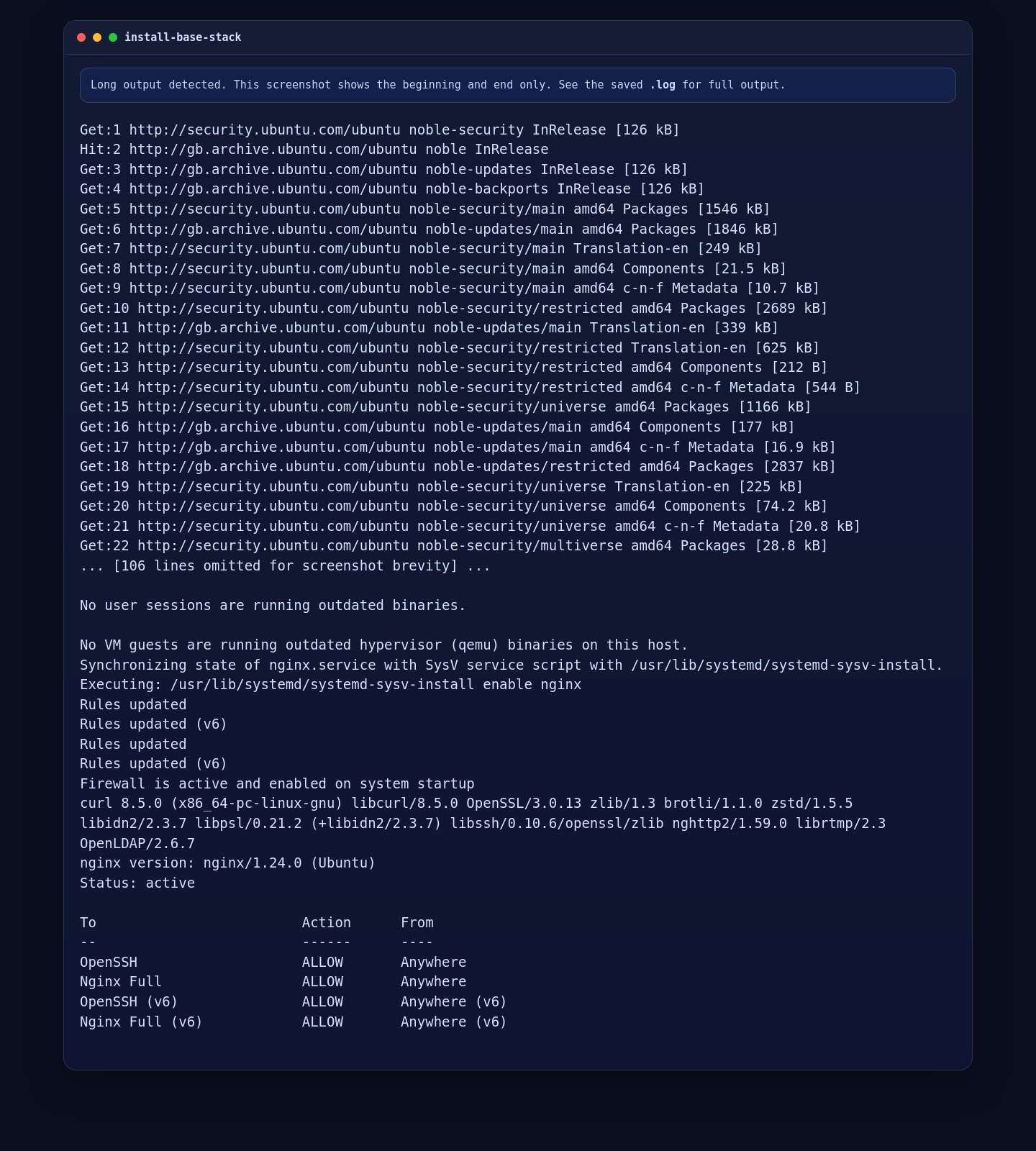
On the validated Ubuntu 24.04.1 deployment, this installed Curl 8.5.0, Nginx 1.24.0, and an active UFW policy that allowed both SSH and the Nginx HTTPS profile.
3. Install Ollama 0.18.2 and Bind It to Localhost Only
The official Ollama README uses the Linux install script. To keep this tutorial reproducible, we pin the current stable release directly with OLLAMA_VERSION. After installation, we add a systemd override so Ollama listens on 127.0.0.1:11434 instead of being exposed directly on the network.
curl -fsSL https://ollama.com/install.sh | OLLAMA_VERSION=0.18.2 sh

mkdir -p /etc/systemd/system/ollama.service.d
cat > /etc/systemd/system/ollama.service.d/override.conf <<'EOF'
[Service]
Environment="OLLAMA_HOST=127.0.0.1:11434"
EOF

systemctl daemon-reload
systemctl enable --now ollama
systemctl restart ollama
sleep 5

systemctl is-active ollama
ollama -v
cat /etc/systemd/system/ollama.service.d/override.conf
systemctl cat ollama | sed -n '1,80p'
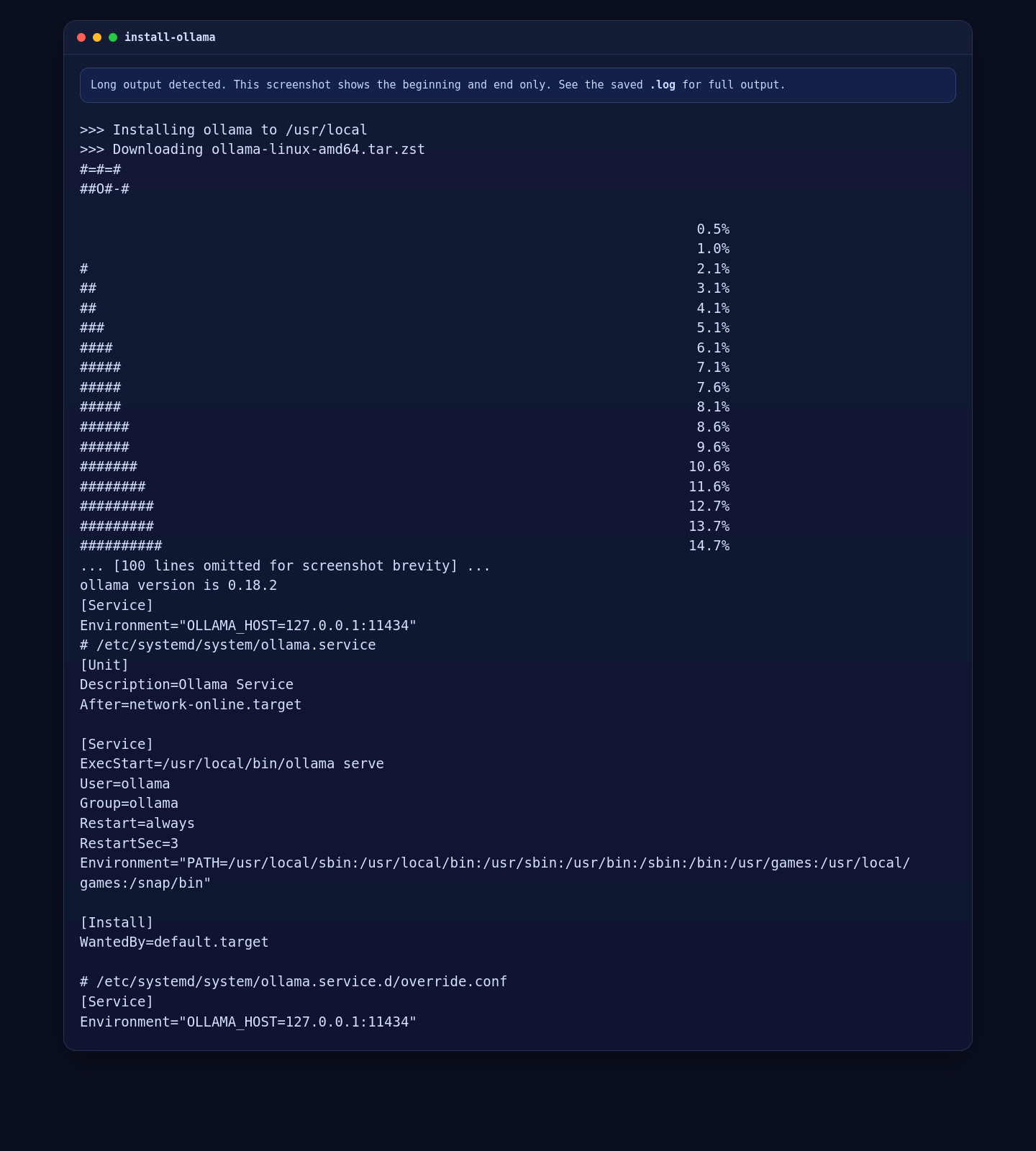
On the live server, the official installer created the ollama runtime user and systemd unit automatically, reported CPU-only mode because no GPU was present on this test server, and the final version check returned 0.18.2.
4. Validate the Local Ollama API
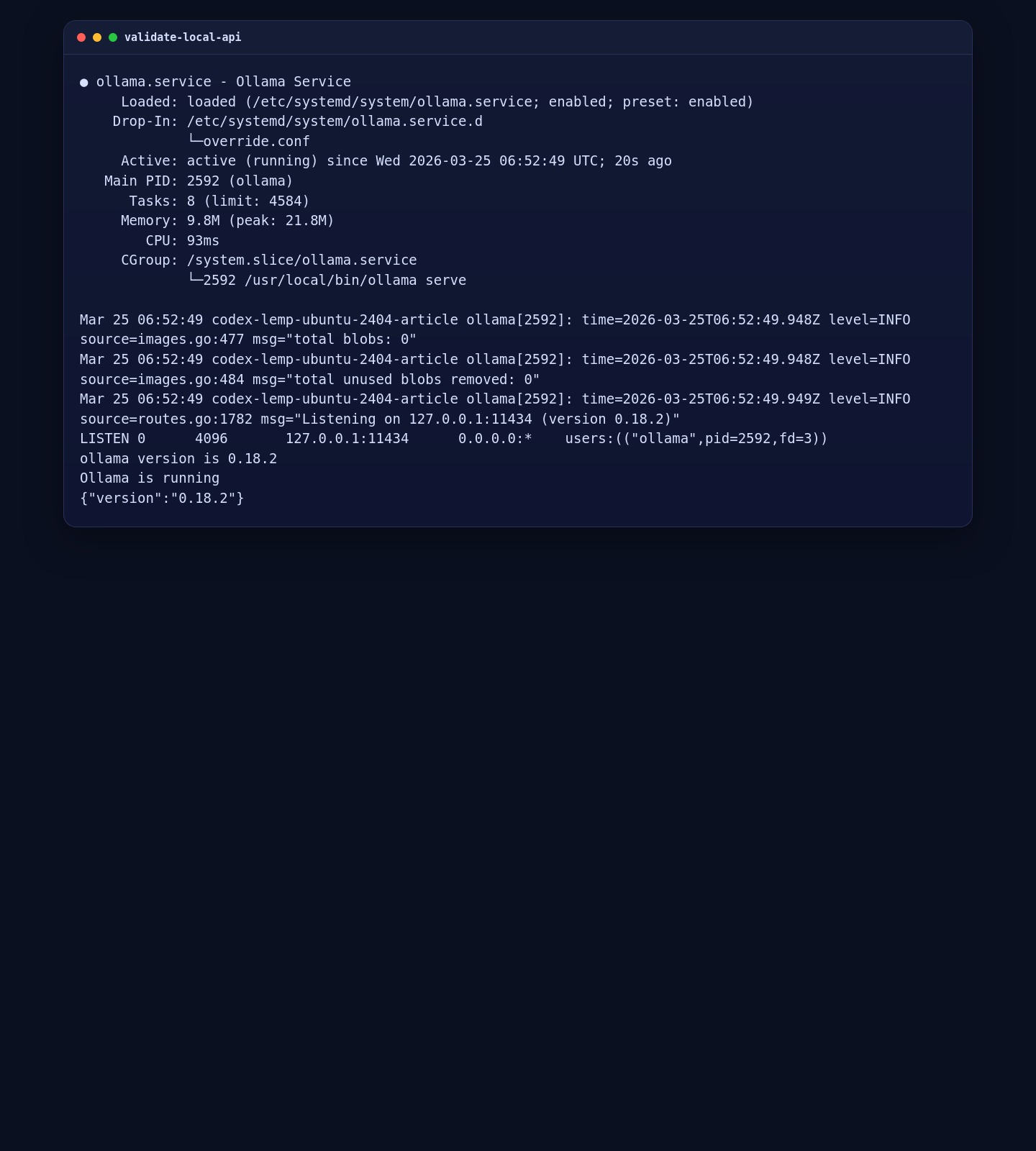
Before adding the public reverse proxy, confirm that the service is running, the listener is bound to localhost, and both the root endpoint and version endpoint answer locally.
systemctl status --no-pager ollama | sed -n '1,15p'
ss -lntp | grep ':11434'
ollama -v
curl -fsS http://127.0.0.1:11434/
printf '\n'
curl -fsS http://127.0.0.1:11434/api/version
printf '\n'
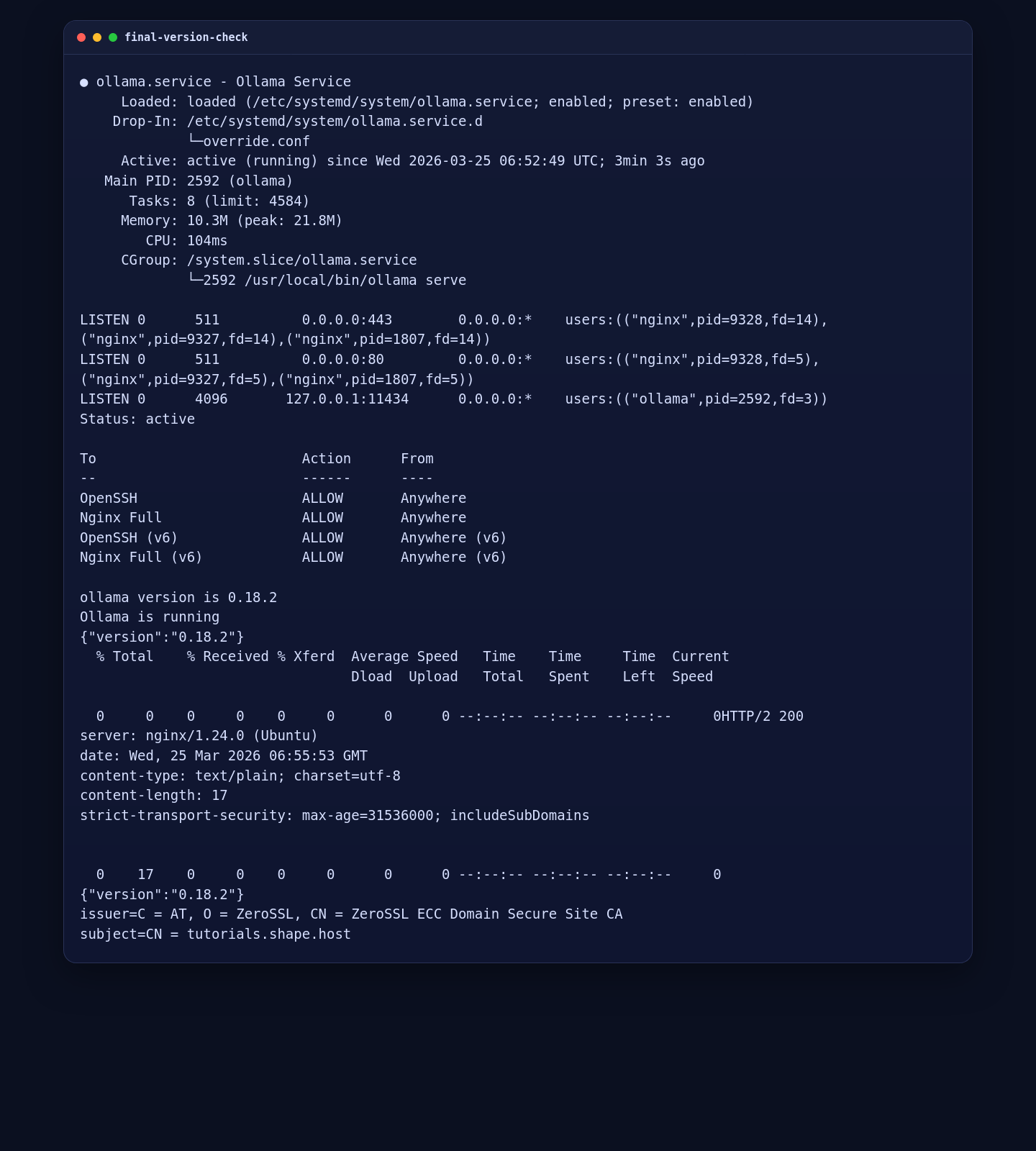
On the validated deployment, Ollama listened on 127.0.0.1:11434, the root endpoint returned Ollama is running, and the version endpoint returned {"version":"0.18.2"}.
5. Configure Nginx and ZeroSSL for the Public Ollama Endpoint
Ollama’s FAQ recommends proxying to localhost:11434 and setting the upstream Host header to localhost:11434. That detail matters here, because it avoids the 403 response Ollama can return when it sees the public hostname instead of the expected local upstream host.
mkdir -p /var/www/_letsencrypt /etc/nginx/ssl/tutorials.shape.host
rm -f /etc/nginx/sites-enabled/default

cat > /etc/nginx/sites-available/tutorials.shape.host <<'EOF'
server {
    listen 80;
    server_name tutorials.shape.host;

    location /.well-known/acme-challenge/ {
        root /var/www/_letsencrypt;
        default_type "text/plain";
    }

    client_max_body_size 0;
    proxy_buffering off;
    proxy_request_buffering off;
    proxy_read_timeout 3600;
    proxy_send_timeout 3600;

    location / {
        proxy_pass http://127.0.0.1:11434;
        proxy_http_version 1.1;
        proxy_set_header Host localhost:11434;
        proxy_set_header X-Real-IP $remote_addr;
        proxy_set_header X-Forwarded-For $proxy_add_x_forwarded_for;
        proxy_set_header X-Forwarded-Proto $scheme;
    }
}
EOF

ln -sfn /etc/nginx/sites-available/tutorials.shape.host /etc/nginx/sites-enabled/tutorials.shape.host

ufw allow 'Nginx Full'

nginx -t
systemctl reload nginx

curl -fsSL https://get.acme.sh | sh -s email=contact@shape.host
/root/.acme.sh/acme.sh --set-default-ca --server zerossl
/root/.acme.sh/acme.sh --register-account --server zerossl --eab-kid YOUR_ZEROSSL_EAB_KID --eab-hmac-key YOUR_ZEROSSL_EAB_HMAC_KEY
/root/.acme.sh/acme.sh --issue --server zerossl --webroot /var/www/_letsencrypt -d tutorials.shape.host --keylength ec-256
/root/.acme.sh/acme.sh --install-cert -d tutorials.shape.host --ecc \
  --fullchain-file /etc/nginx/ssl/tutorials.shape.host/fullchain.cer \
  --key-file /etc/nginx/ssl/tutorials.shape.host/tutorials.shape.host.key \
  --reloadcmd "systemctl reload nginx"

cat > /etc/nginx/sites-available/tutorials.shape.host <<'EOF'
server {
    listen 80;
    server_name tutorials.shape.host;

    location /.well-known/acme-challenge/ {
        root /var/www/_letsencrypt;
        default_type "text/plain";
    }

    location / {
        return 301 https://$host$request_uri;
    }
}

server {
    listen 443 ssl http2;
    server_name tutorials.shape.host;

    ssl_certificate /etc/nginx/ssl/tutorials.shape.host/fullchain.cer;
    ssl_certificate_key /etc/nginx/ssl/tutorials.shape.host/tutorials.shape.host.key;

    add_header Strict-Transport-Security "max-age=31536000; includeSubDomains" always;
    client_max_body_size 0;
    proxy_buffering off;
    proxy_request_buffering off;
    proxy_read_timeout 3600;
    proxy_send_timeout 3600;

    location / {
        proxy_pass http://127.0.0.1:11434;
        proxy_http_version 1.1;
        proxy_set_header Host localhost:11434;
        proxy_set_header X-Real-IP $remote_addr;
        proxy_set_header X-Forwarded-For $proxy_add_x_forwarded_for;
        proxy_set_header X-Forwarded-Proto $scheme;
    }
}
EOF

nginx -t
systemctl reload nginx
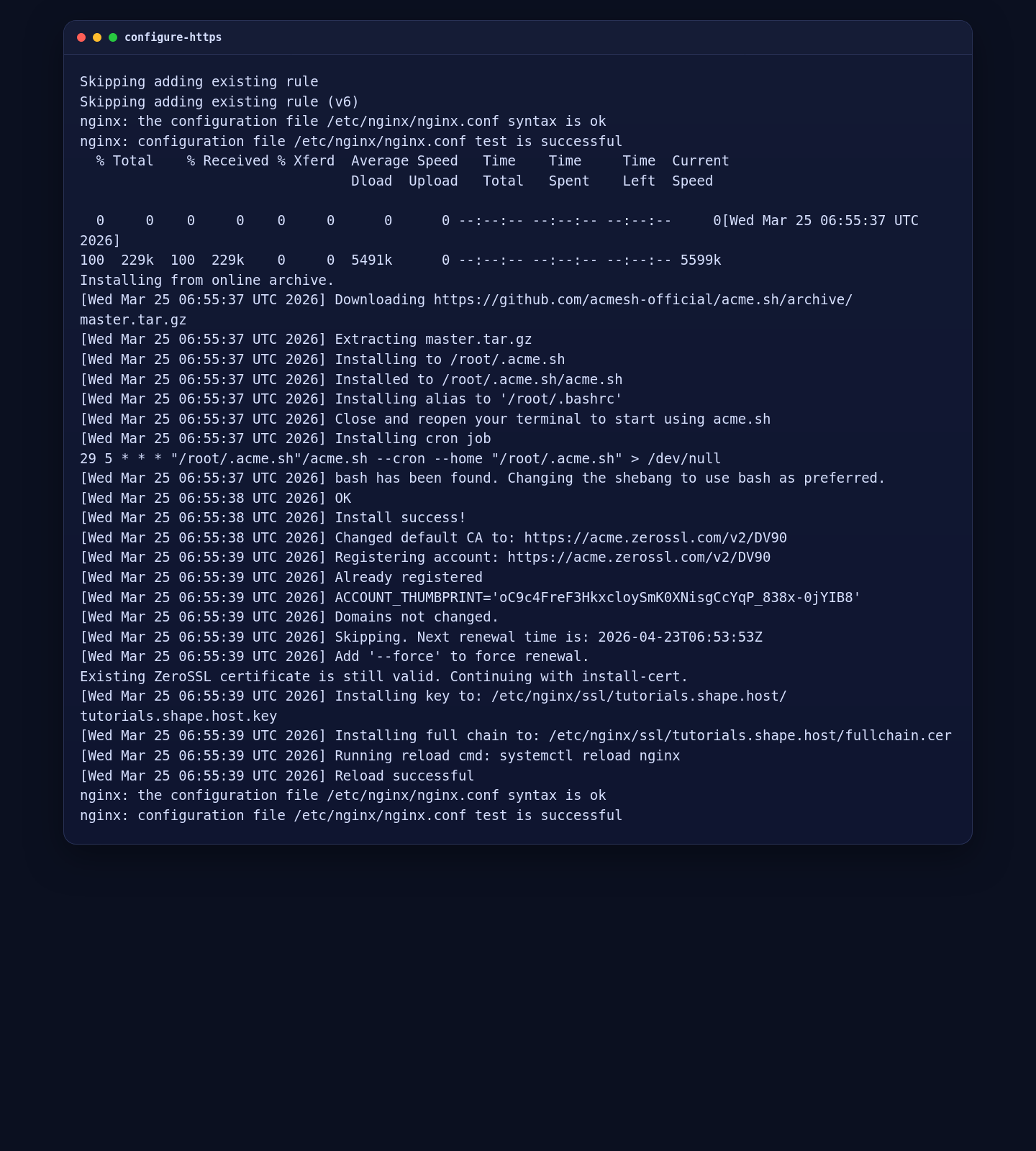
On the validated Ubuntu 24.04.1 run, Nginx accepted the configuration cleanly, the upstream Host localhost:11434 header removed the earlier public 403 issue, and ZeroSSL issued a trusted ECC certificate for tutorials.shape.host.
6. Validate the Public HTTPS Ollama Endpoint
Ollama does not expose a rich browser dashboard by default, so the final validation here focuses on the actual public HTTPS endpoint and API response rather than forcing a low-value UI screenshot.
systemctl status --no-pager ollama | sed -n '1,12p'
ss -lntp | grep -E ':80|:443|:11434'
ufw status
ollama -v
curl -fsS http://127.0.0.1:11434/
printf '\n'
curl -fsS http://127.0.0.1:11434/api/version
printf '\n'
curl -I --resolve tutorials.shape.host:443:51.89.69.216 https://tutorials.shape.host/
curl --resolve tutorials.shape.host:443:51.89.69.216 -fsS https://tutorials.shape.host/api/version
printf '\n'
openssl x509 -in /etc/nginx/ssl/tutorials.shape.host/fullchain.cer -noout -issuer -subject
On the live server, the public HTTPS root returned HTTP/2 200, the public API version endpoint returned {"version":"0.18.2"}, and the installed certificate issuer resolved to ZeroSSL ECC Domain Secure Site CA.
Hardening Notes
- Ollama does not include built-in public authentication, so add access controls at the reverse proxy layer if this endpoint will be exposed beyond a trusted environment.
- Keep the native Ollama listener on
127.0.0.1:11434unless you intentionally need direct network exposure. - Model files are stored under
/usr/share/ollama/.ollama/modelswith the standard installer. Plan storage usage before pulling larger models. - If you need GPU acceleration later, rerun the installation on a GPU-backed server and verify the runtime logs again.
Conclusion
You now have Ollama 0.18.2 running on Ubuntu 24.04.1 LTS, bound to localhost, proxied through Nginx, and secured with a trusted ZeroSSL certificate on tutorials.shape.host. The final live checks confirm both the local service and the public HTTPS API are working from the validated server.
