 Christian Wells
Docker Engine & Docker Compose v2 on AlmaLinux 9 – Enterprise Containerization on a RHEL-Compatible Platform
Docker Engine, coupled with Docker Compose v2, delivers a production-ready container stack for application development, deployment, and orchestration. When paired with AlmaLinux 9, a downstream clone of Red Hat Enterprise Linux (RHEL), the combination provides a robust, predictable, and secure environment for managing containerized workloads across the enterprise lifecycle.
AlmaLinux 9 as a Docker Host
AlmaLinux 9 is a 1:1 binary-compatible distribution with RHEL 9, designed to offer long-term support, consistency, and compliance—especially for businesses migrating away from CentOS. It provides an ideal base for Docker deployments due to its:
- Stability and enterprise lifecycle (through 2032)
- SELinux enforcement for container access control
- Linux Kernel 5.14 LTS with full support for cgroups v2 and namespaces
- Systemd v250+ for container service orchestration
- Minimal base image availability for lean container builds
This makes AlmaLinux a preferred choice for regulated environments, enterprise infrastructure, and hybrid deployments involving Docker.
Docker Engine on AlmaLinux 9
Docker Engine is the industry-standard container runtime and includes:
dockerd: The background daemon managing container lifecycledockerCLI: User interface for container/image/volume/network managementcontainerd: The OCI-compliant high-performance container runtimerunc: The low-level container process launcher
Key features on AlmaLinux 9:
| Feature | Functionality and Role |
|---|---|
| Cgroups v2 | Fine-grained resource control (CPU, RAM, I/O) |
| SELinux (enforcing) | Constrains container file and process access |
| OverlayFS | Efficient image layering and reuse |
| Seccomp | Limits available syscalls in containers |
| Systemd integration | Robust container daemon management and restart policies |
Docker can also be configured to run in rootless mode on AlmaLinux, enhancing security in shared or multi-user environments.
Docker Compose v2 on AlmaLinux 9
Docker Compose v2 is the modern replacement for Compose v1, written in Go and integrated as a plugin for the Docker CLI. Instead of using docker-compose, users can now execute:
docker compose up
Improvements and benefits on AlmaLinux 9:
- Integrated directly into Docker CLI as a plugin
- Faster execution and lower resource use than Compose v1
- Simplifies orchestration of multi-container stacks via YAML
- Compatible with Swarm mode via
deploy:directives - Works seamlessly with Docker’s volume, network, and secrets subsystems
Compose v2 is especially valuable in DevOps workflows, as it aligns with container-native CI/CD pipelines and GitOps tooling.
Security Model
AlmaLinux 9 emphasizes security and compliance, making it particularly suitable for regulated industries. Docker Engine integrates with AlmaLinux’s security stack through:
| Component | Purpose |
|---|---|
| SELinux | Mandatory access control for containers and volumes |
| Firewalld | Configurable zones for container traffic control |
| Auditd | Logs container activity for auditing and incident analysis |
| Systemd | Isolates services and containers using cgroup slices and limits |
| Rootless Docker | Avoids daemon privileges for unprivileged users |
When combined with AlmaLinux’s optional FIPS-mode and OpenSCAP compliance tooling, Docker becomes a secure containerization foundation for enterprise applications.
Common Use Cases
Docker + Compose on AlmaLinux 9 is used across many environments, including:
- Enterprise development environments: Build, test, and iterate on applications using consistent YAML-based stacks.
- Self-hosted tools: Deploy services like GitLab, Jenkins, Portainer, and monitoring stacks.
- Microservices: Run modular applications across multiple containers with isolated networks and volumes.
- DevOps and CI/CD: Automate builds, tests, and deployments using Compose files in version control.
- Hybrid cloud: Package and ship containers across on-premises and cloud environments using the same Docker infrastructure.
AlmaLinux 9 as a Container Base Image
AlmaLinux provides official Docker images like almalinux:9, which offer:
- Small footprint (
almalinux:9-minimal) - RPM package compatibility (via
dnf) - SELinux compatibility for hardened containers
- Extended support lifecycle, making it suitable for enterprise image pipelines
These images are widely used in container builds that require Red Hat ecosystem compatibility without vendor lock-in.
Comparison to Other Platforms
| Feature | AlmaLinux 9 | Ubuntu 24.04 | Debian 12 |
|---|---|---|---|
| SELinux support | Native, enforcing | Not enabled by default | AppArmor (not SELinux) |
| Systemd version | v250+ | v255+ | v252+ |
| Docker support | Community-supported | First-class via Docker repos | Community-supported |
| Enterprise readiness | Strong | Moderate | Strong, but minimalist |
| Rootless Docker support | Available | Available | Available |
AlmaLinux 9 is particularly strong in environments that previously used CentOS, especially where RHEL compatibility and SELinux policies are required.
Docker Engine and Docker Compose v2 on AlmaLinux 9 deliver a scalable, secure, and enterprise-aligned container management solution. Whether used for local development or full-scale production deployment, this stack combines the portability of Docker with the reliability and governance of RHEL-based systems.
For teams looking to build robust, repeatable, and secure containerized systems—without vendor lock-in—AlmaLinux 9 offers an excellent foundation.
Step 1: Set Up a Server Instance on Shape.Host
Before installing Docker, you need a fresh Alma Linux 9 server. Shape.Host provides reliable cloud VPS instances, perfect for Docker-based projects.
How to create a VPS on Shape.Host:
Go to https://shape.host and log in.
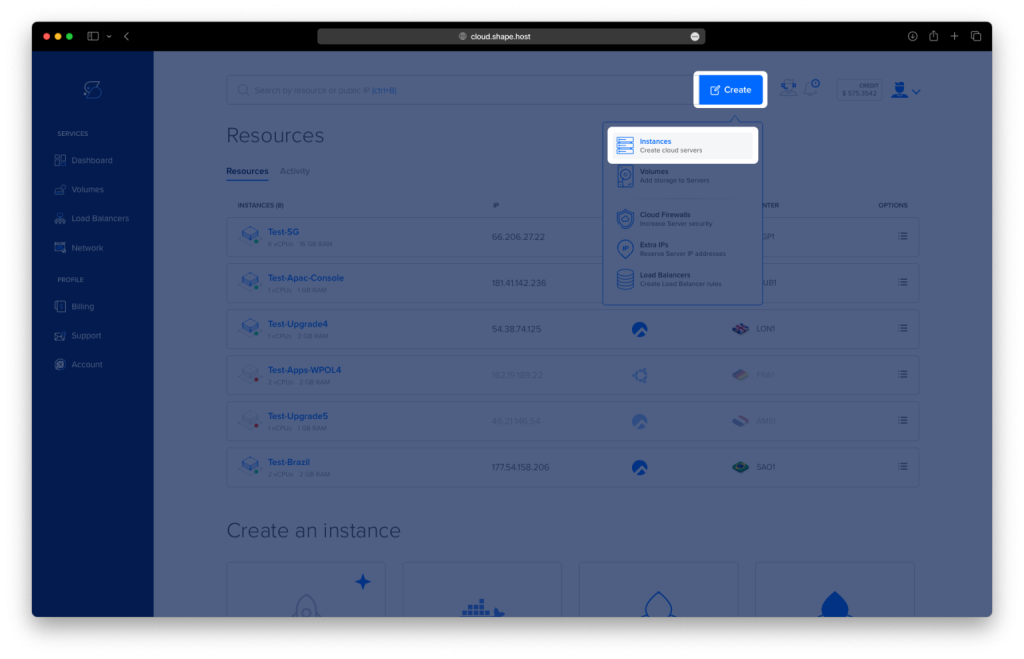
Click “Create” in your dashboard.
Choose “Instance” from the resource list.
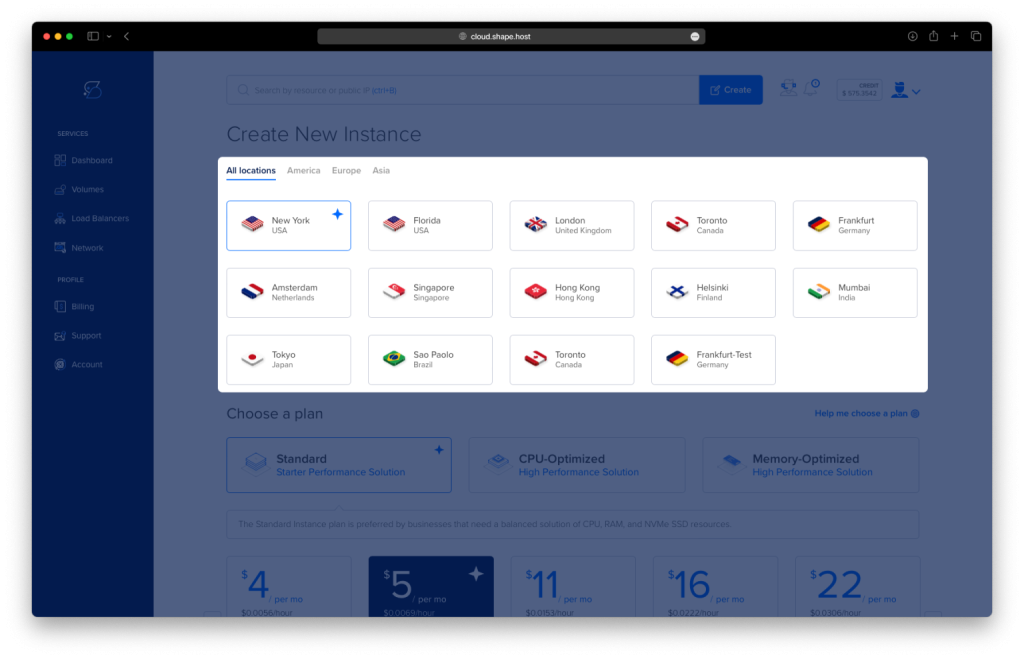
Select a data center location closest to you.
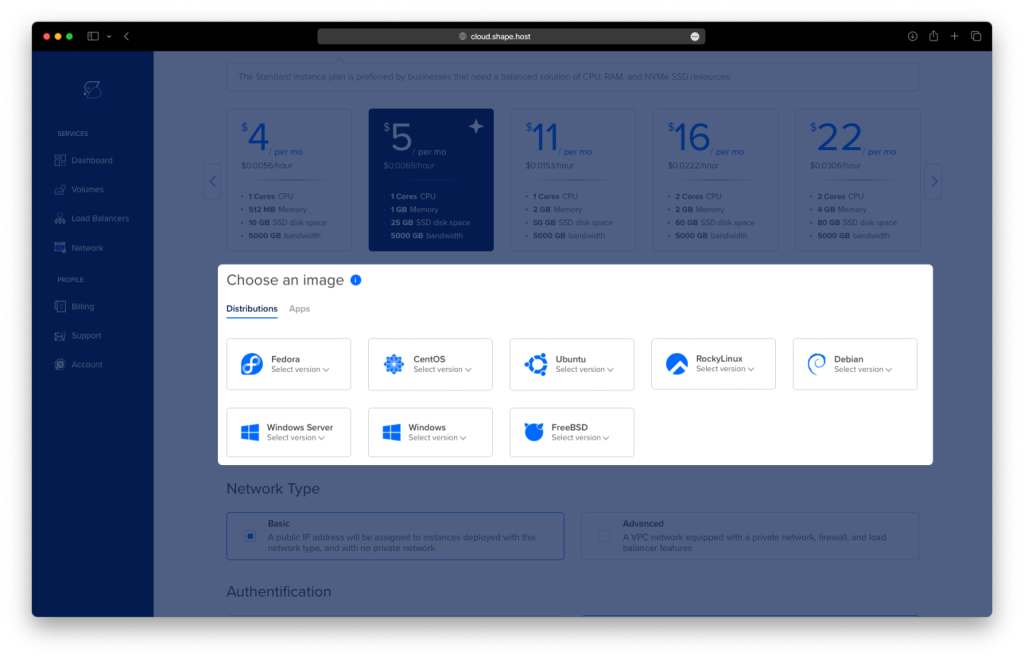
Choose Alma Linux 9 (64-bit) as your operating system.
Pick a plan with at least 2 CPUs, 2 GB RAM, and 20 GB SSD.
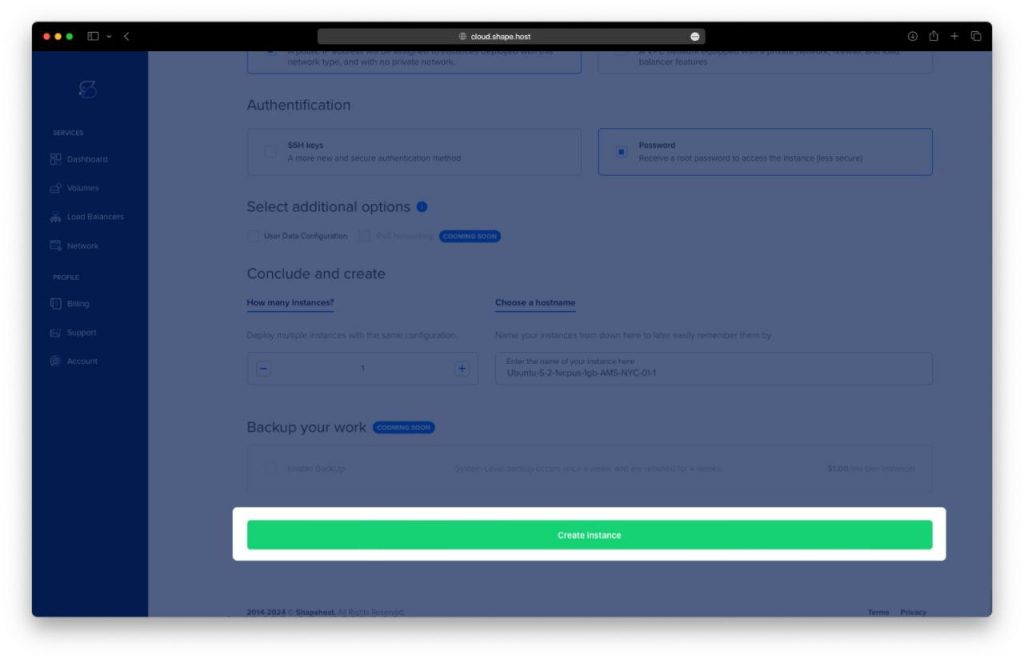
Click “Create Instance” and wait for the provisioning process to complete.
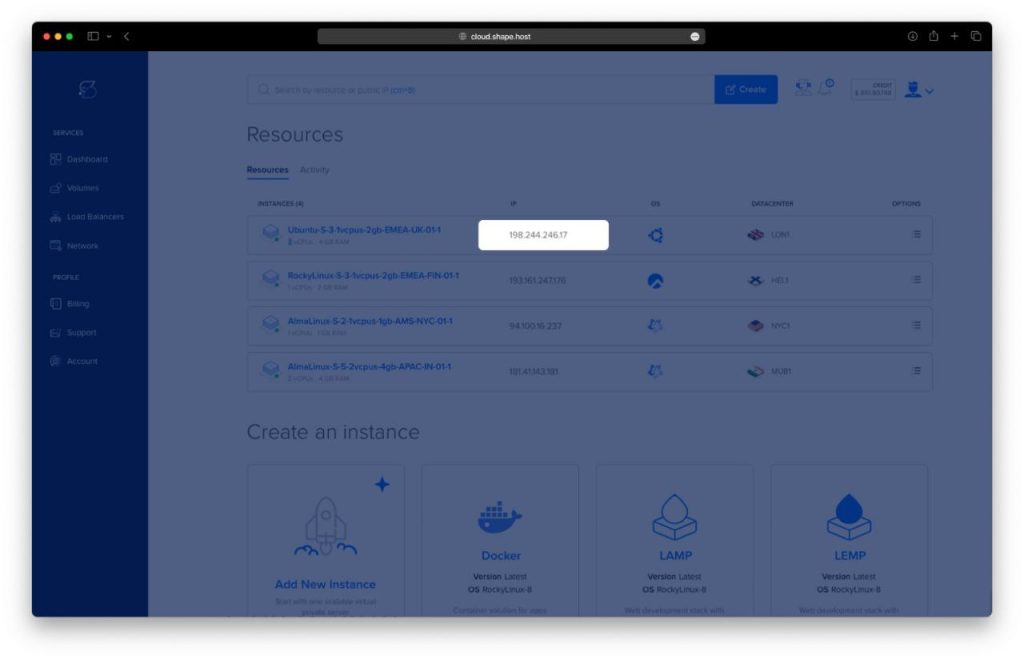
Copy the IP address listed under your instance in the Resources section.
Connect to Your Server via SSH
On Linux/macOS:
ssh root@your_server_ip
On Windows (using PuTTY):
- Download PuTTY from https://www.putty.org.
- Open PuTTY and enter your server’s IP in the Host Name field.
- Use port
22and ensure SSH is selected. - Click Open and log in as
root.
Step 2: Install Docker Engine & Docker Compose v2
Use the following commands step by step to install Docker and Compose v2:
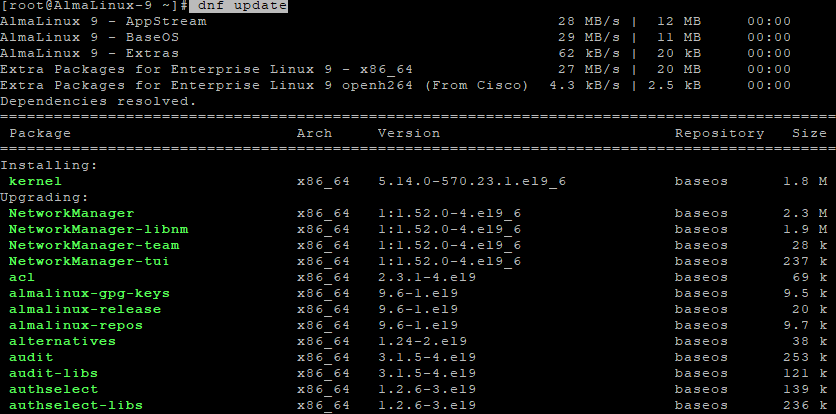
1. Update system packages:
dnf update
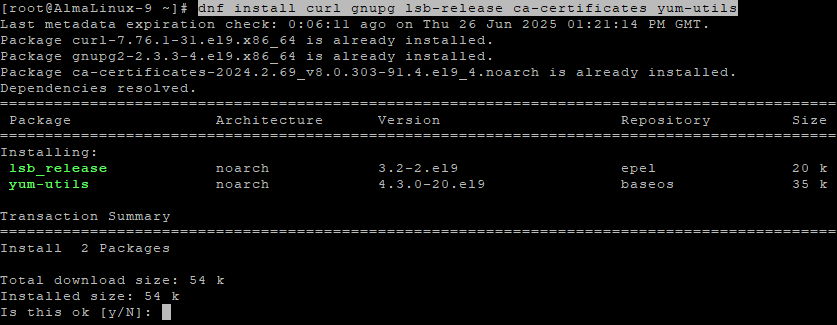
2. Install required tools:
dnf install curl gnupg lsb-release ca-certificates yum-utils
3. Add the Docker repository:
tee /etc/yum.repos.d/docker-ce.repo > /dev/null <<EOF
[docker-ce-stable]
name=Docker CE Stable - \$basearch
baseurl=https://download.docker.com/linux/centos/9/\$basearch/stable
enabled=1
gpgcheck=1
gpgkey=https://download.docker.com/linux/centos/gpg
EOF
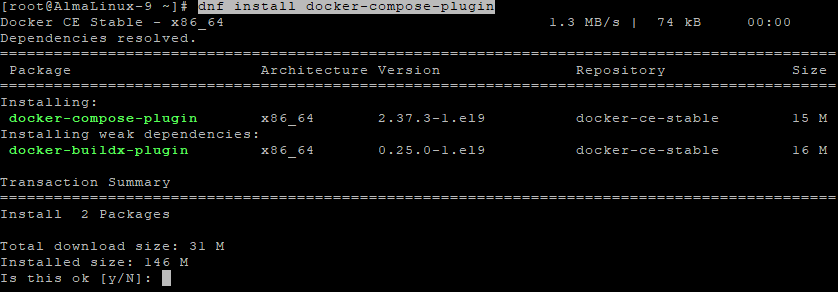
4. Install Docker Compose plugin:
dnf install docker-compose-plugin
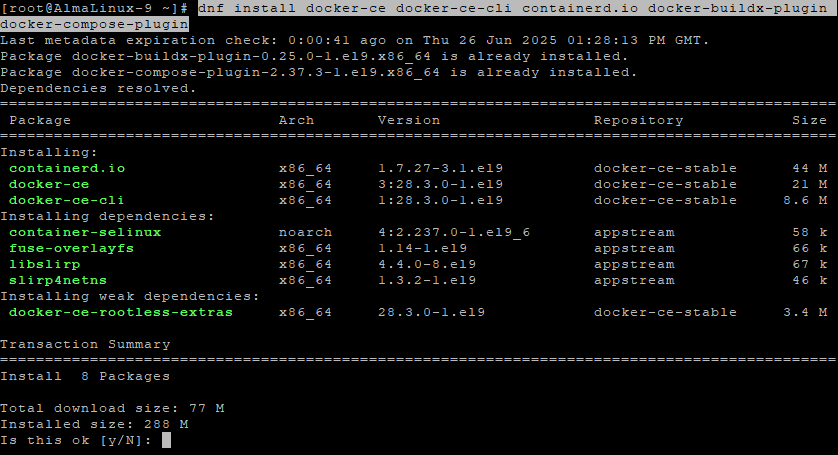
5. Install Docker Engine and components:
dnf install docker-ce docker-ce-cli containerd.io docker-buildx-plugin docker-compose-plugin
6. Start Docker service:
systemctl start docker
7. Enable Docker to start on boot:
systemctl enable docker

8. Check Docker Compose version:
docker compose version

Step 3: Run a Test Using Docker Compose
Now let’s verify your Docker Compose installation by running a simple container.
1. Create a test directory and move into it:
mkdir ~/compose-test && cd ~/compose-test
2. Create a Docker Compose file:
nano docker-compose.yml

Paste the following contents into the file:
services:
  hello:
    image: hello-world
Save and close the file (CTRL+O, ENTER, then CTRL+X).

3. Start the container with Docker Compose:
docker compose up
If successful, you’ll see the hello-world container output confirming that Docker and Docker Compose are working correctly.
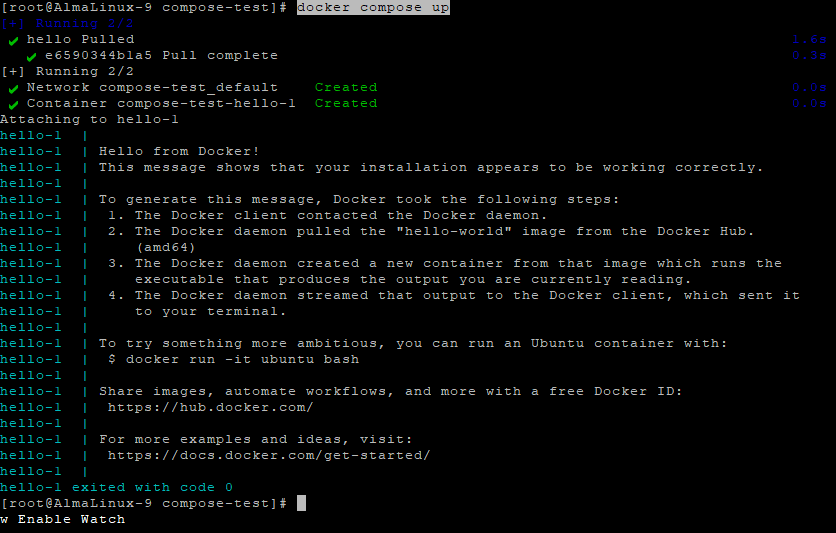
You’ve now successfully installed Docker Engine and Docker Compose v2 on Alma Linux 9, and verified the setup with a running container. This environment is now ready for deploying containerized applications or multi-service stacks.
Ready to go further? Host your production containers on Shape.Host Cloud VPS for unmatched speed, flexibility, and reliability.
Launch your next project at https://shape.host.
