 Christian Wells
PhotoPrism (AI-Powered Photo Manager) on Debian 12
PhotoPrism is an open-source, self-hosted AI-powered photo and video management platform designed to help you organize, browse, and search large media libraries intelligently. Using built-in machine learning, PhotoPrism can automatically classify images, detect objects and scenes, recognize faces, and extract EXIF/GPS metadata, turning your entire photo collection into a fully searchable visual archive.
Unlike cloud photo services, PhotoPrism keeps all photos and videos on your own server. Nothing is uploaded to third parties, making it an ideal solution for privacy-conscious users, photographers, and organizations that want modern AI features without sacrificing data ownership.
Running PhotoPrism on Debian 12 (Bookworm) provides a stable, secure, and long-term supported foundation. Debian 12 includes OpenSSL 3, systemd 252, and mature Docker and PostgreSQL packages, making it a reliable platform for deploying PhotoPrism with Docker, PostgreSQL, Nginx, and HTTPS in a production-ready environment.
Architecture Overview
| Layer | Component | Role |
|---|---|---|
| OS | Debian 12 (Bookworm) | Stable, production-grade Linux base |
| Container Runtime | Docker / Docker Compose | Runs PhotoPrism and supporting services |
| Application | PhotoPrism (Go + TensorFlow Lite) | AI-powered photo and video management |
| Database | PostgreSQL | Stores metadata, search indexes, and user data |
| Storage | Local filesystem / NAS | Original photos and videos |
| Reverse Proxy | Nginx | HTTPS termination, routing, compression |
| TLS | Let’s Encrypt / PKI | Secure access to the PhotoPrism web interface |
PhotoPrism is designed to scale from small personal libraries to hundreds of thousands of photos, depending on available CPU, RAM, and storage.
Why Use PhotoPrism?
- AI-powered search – find photos by objects, scenes, locations, or keywords
- Face recognition – automatically group photos by people
- Privacy-first – fully self-hosted, no cloud dependency
- Modern web interface – fast, responsive, and mobile-friendly
- Advanced metadata handling – EXIF, GPS, camera info, and RAW support
- Video support – manage and preview videos alongside photos
- Multi-user support – shared libraries with access control
- Open-source & actively developed – transparent and extensible
PhotoPrism offers a Google Photos-like experience while keeping your data entirely under your control.
PhotoPrism vs Other Photo Management Solutions
| Feature / Capability | PhotoPrism | Google Photos | Nextcloud Photos | Piwigo |
|---|---|---|---|---|
| Hosting | Self-hosted | Cloud only | Self-hosted / Cloud | Self-hosted |
| AI search | ✅ Yes | ✅ Yes | ❌ No | ❌ Limited |
| Face recognition | ✅ Yes | ✅ Yes | ❌ No | ❌ No |
| Privacy | Full control | Google-controlled | Partial | Full |
| RAW support | ✅ Yes | Limited | Limited | Limited |
| Cost | Free / Open-source | Free / Paid | Free / Paid | Free / Paid |
PhotoPrism stands out for users who want advanced AI features with full data ownership.
Security & Best Practices on Debian 12
- Run PhotoPrism behind Nginx with HTTPS enabled.
- Keep PhotoPrism and PostgreSQL restricted to internal Docker networks.
- Store secrets (DB passwords, admin credentials) using environment variables.
- Use UFW or nftables and allow only ports 80 and 443.
- Automate SSL certificate renewal with Certbot.
- Regularly update Debian, Docker, and PhotoPrism images.
- Back up:
- original photos and videos
- PostgreSQL database
- PhotoPrism configuration and index
- Mount original photo directories as read-only when possible.
- Create separate user roles and limit admin access.
Typical Use Cases
- Personal photo libraries – replace Google Photos or iCloud Photos
- Family media servers – shared albums with private hosting
- Photographers – manage large RAW/JPEG collections
- Home labs & NAS setups – centralized photo and video management
- Privacy-focused users – AI features without cloud tracking
- Small organizations – internal photo archives and media catalogs
Deploying PhotoPrism on Debian 12 with Docker, PostgreSQL, Nginx, and SSL gives you a powerful, AI-driven photo management platform that combines modern machine learning capabilities with privacy, stability, and long-term reliability.
Create a Debian 12 Instance on Shape.Host
Go to https://shape.host and log in
Click Create
Choose Instance
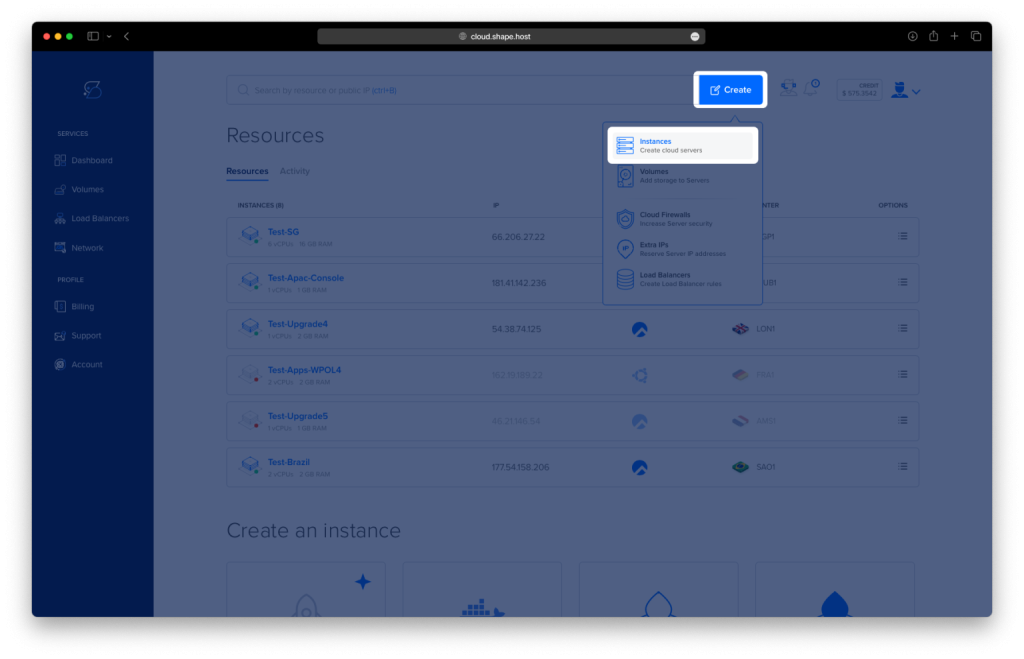
Select a server location
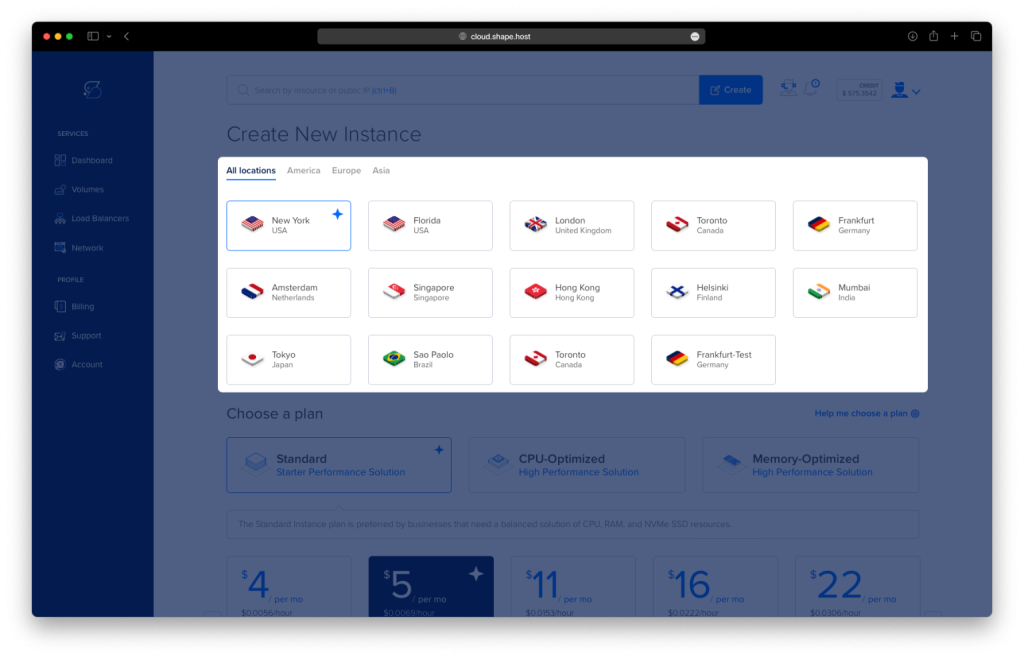
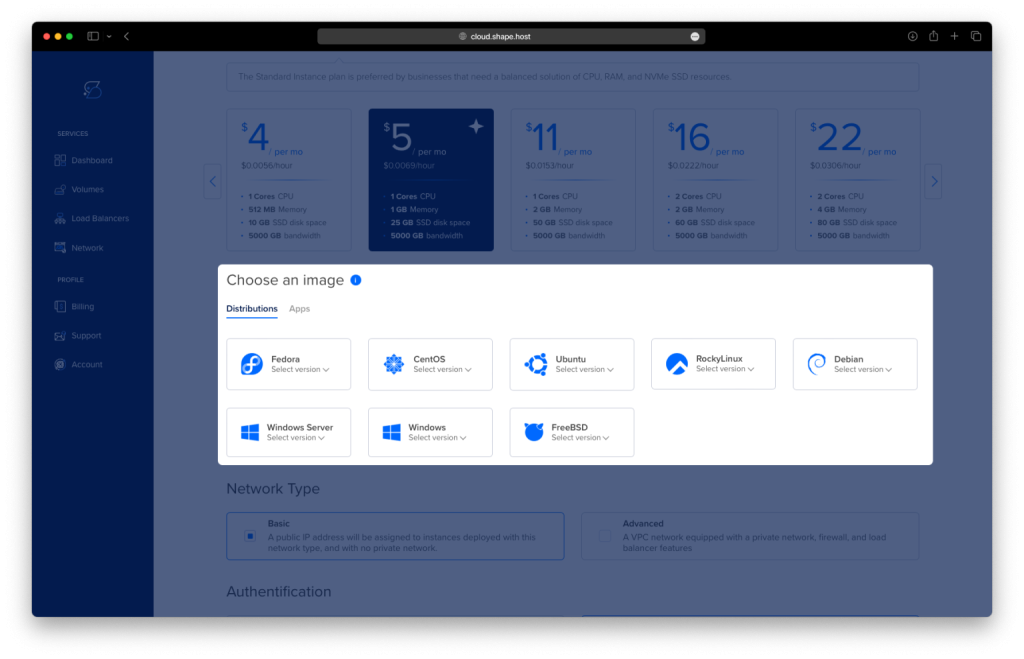
Choose Debian 12 (Bookworm, 64-bit)
Pick a plan (recommended minimum for PhotoPrism):
2 vCPU
4 GB RAM (8 GB recommended for large libraries)
40 GB NVMe SSD or more
Click Create Instance
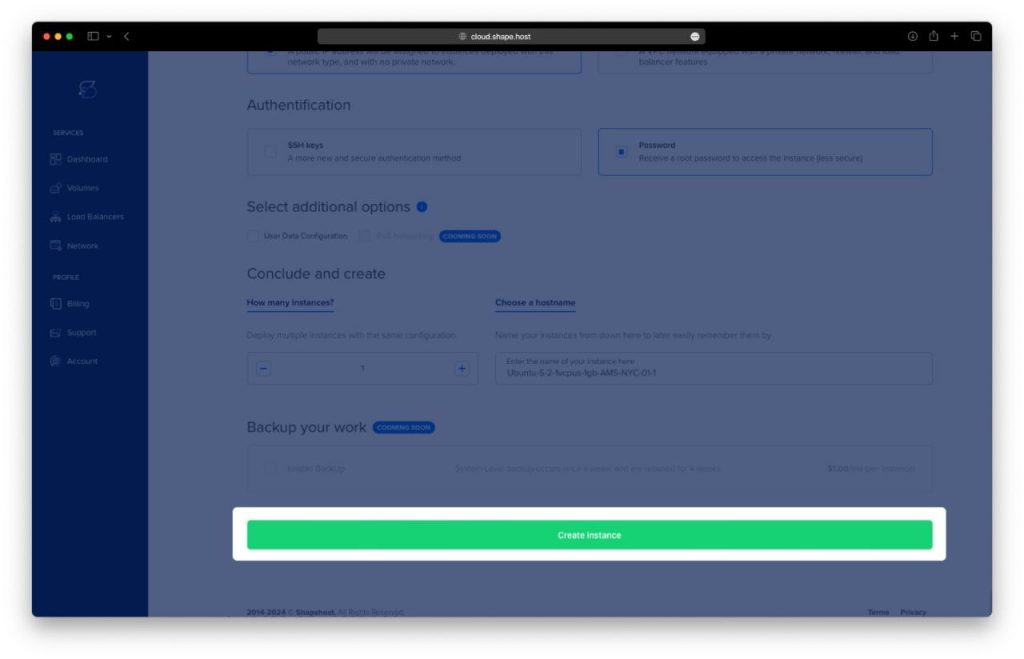
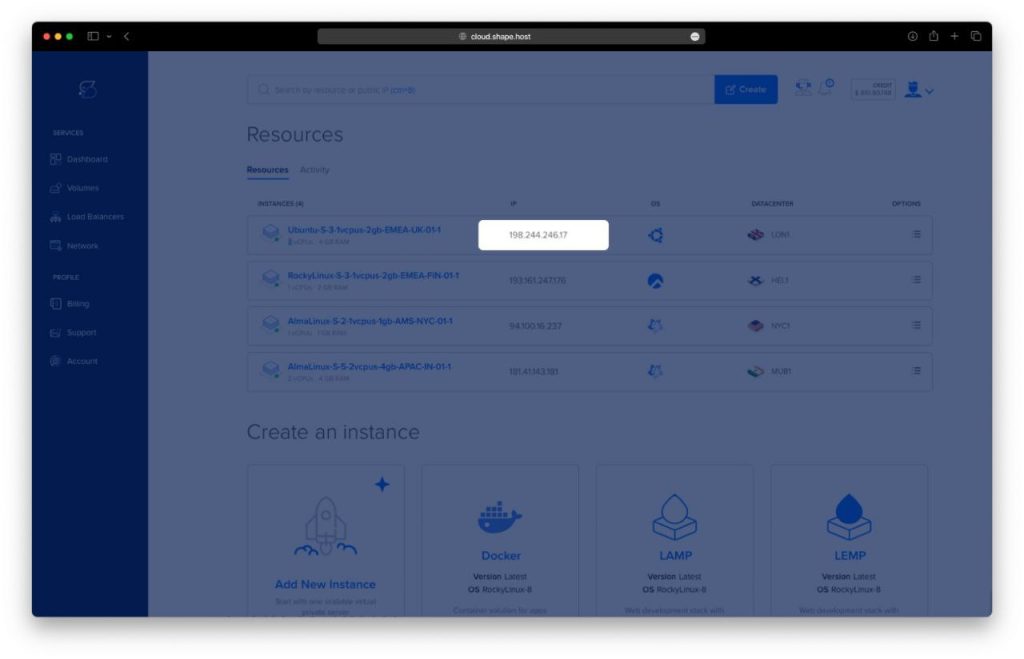
Copy the public IP address
Step 1: Connect to the Server via SSH
From your local machine:
ssh root@YOUR_SERVER_IP
You are now logged in as the root user.
Step 2: Update the System
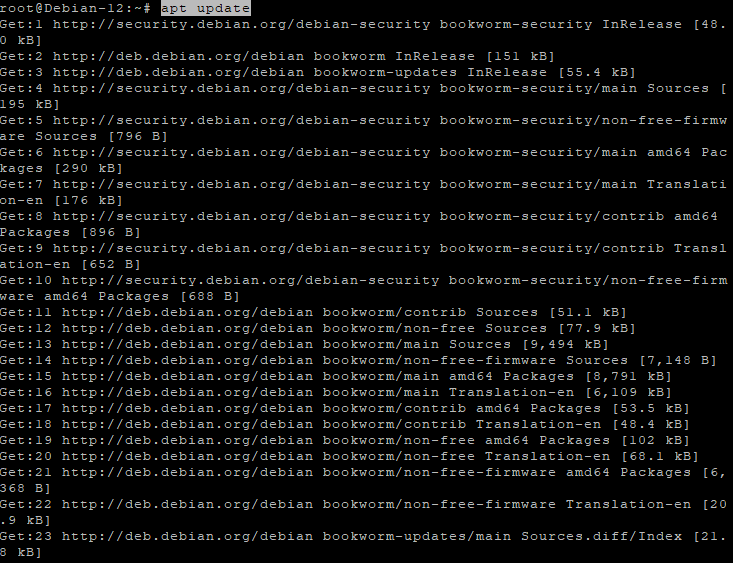
apt update
apt upgrade -y
Updates all system packages and applies security patches.
Step 3: Install Required System Packages
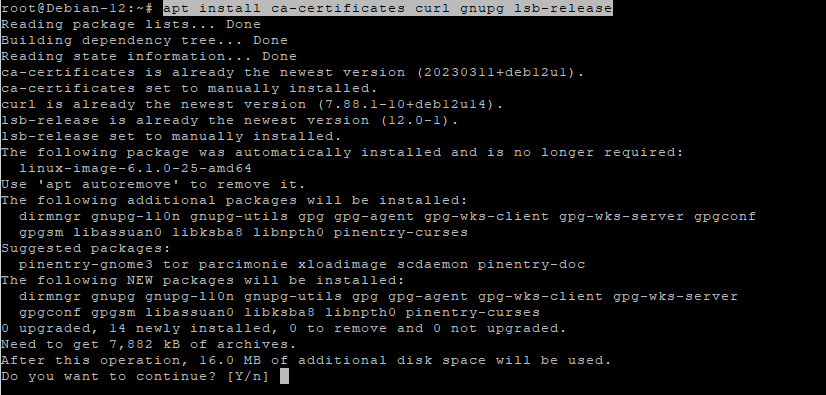
apt install ca-certificates curl gnupg lsb-release
These packages are required to securely add external repositories.
Step 4: Create Docker Keyrings Directory
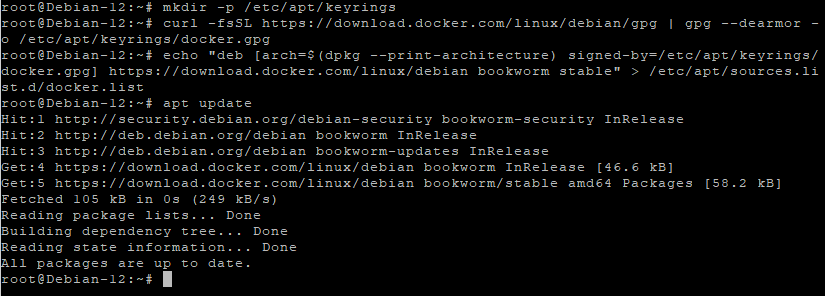
mkdir -p /etc/apt/keyrings
This directory stores trusted GPG keys.
Step 5: Add Docker GPG Key
curl -fsSL https://download.docker.com/linux/debian/gpg | gpg --dearmor -o /etc/apt/keyrings/docker.gpg
Ensures Docker packages are verified.
Step 6: Add Docker Repository
echo "deb [arch=$(dpkg --print-architecture) signed-by=/etc/apt/keyrings/docker.gpg] https://download.docker.com/linux/debian bookworm stable" > /etc/apt/sources.list.d/docker.list
Adds the official Docker repository.
Step 7: Update Package Index
apt update
Loads package metadata from the Docker repository.
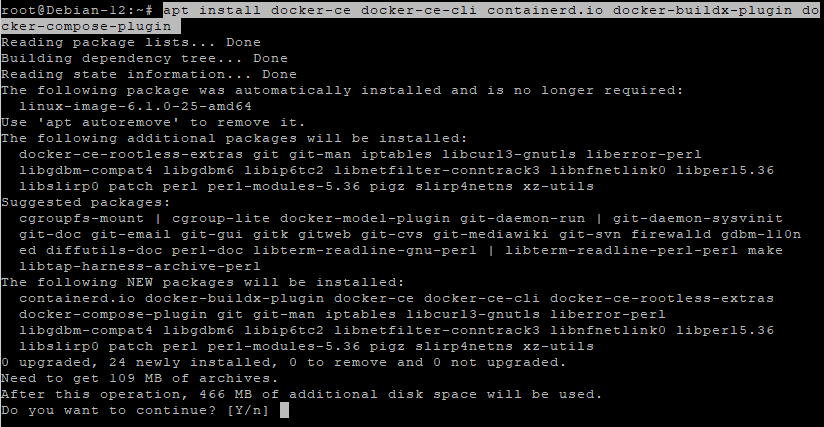
Step 8: Install Docker and Docker Compose
apt install docker-ce docker-ce-cli containerd.io docker-buildx-plugin docker-compose-plugin
Installs Docker Engine and Docker Compose v2.
Step 9: Verify Docker Installation
docker --version
docker compose version
Confirms Docker is installed correctly.
Step 10: Create PhotoPrism Directory
mkdir -p /opt/photoprism
cd /opt/photoprism
This directory will store configuration, originals, and PhotoPrism data.

Step 11: Download PhotoPrism Docker Compose Template
wget https://dl.photoprism.app/docker/compose.yaml -O docker-compose.yml
Downloads the official PhotoPrism Docker Compose file.
Step 12: Edit Docker Compose Configuration
nano docker-compose.yml
Adjust it as follows:
services:
  photoprism:
    image: photoprism/photoprism:latest
    restart: unless-stopped
    ports:
      - "2342:2342"
    environment:
      PHOTOPRISM_ADMIN_PASSWORD: "StrongAdminPasswordHere"
      PHOTOPRISM_ORIGINALS_PATH: "/photoprism/originals"
      PHOTOPRISM_STORAGE_PATH: "/photoprism/storage"
    volumes:
      - /opt/photoprism/originals:/photoprism/originals
      - /opt/photoprism/storage:/photoprism/storage
Explanation:
- Admin password secures the PhotoPrism interface
- Originals store your photos
- Storage holds thumbnails, metadata, and AI indexes
Save and exit the file.
Step 13: Create Required Directories
mkdir -p /opt/photoprism/originals
mkdir -p /opt/photoprism/storage
Ensures persistent storage for photos and application data.
Step 14: Pull PhotoPrism Image
docker compose pull
Downloads the latest PhotoPrism image.
Step 15: Start PhotoPrism
docker compose up -d
Starts PhotoPrism in the background.
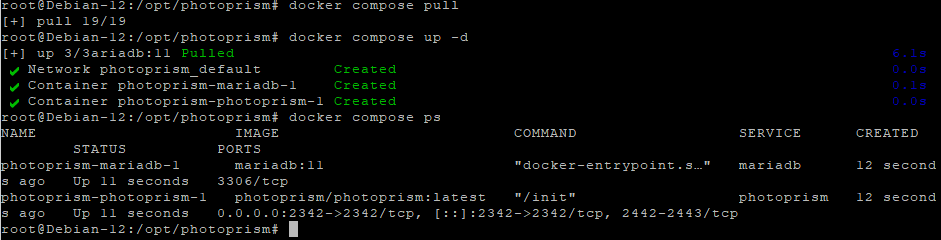
Step 16: Verify Running Containers
docker compose ps
Confirms PhotoPrism is running.
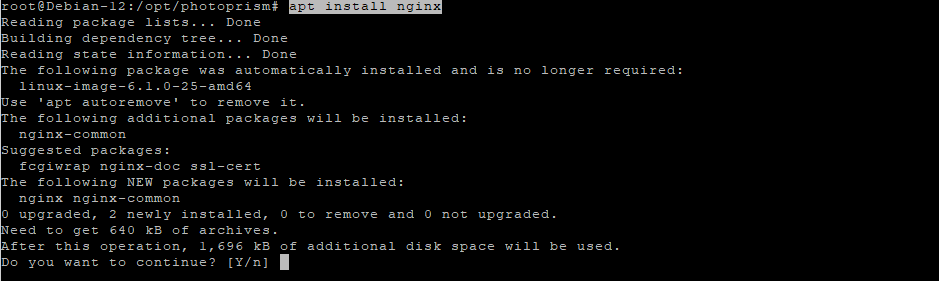
Step 17: Install Nginx
apt install nginx
Nginx will act as a reverse proxy.
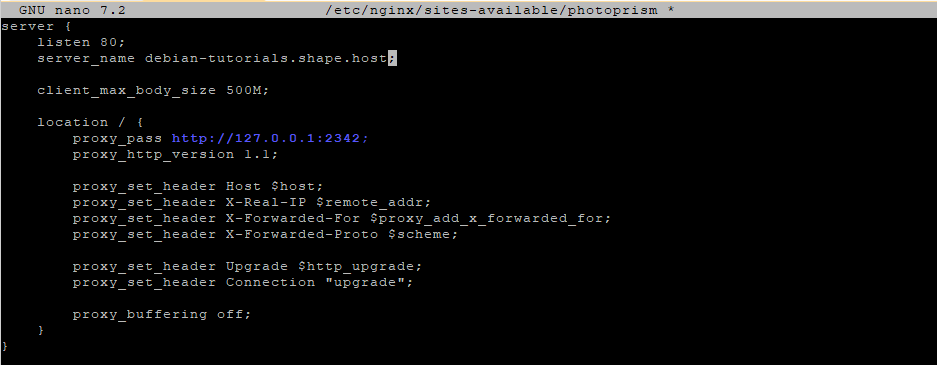
Step 18: Create Nginx Configuration
nano /etc/nginx/sites-available/photoprism
Paste:
server {
    listen 80;
    server_name photos.example.com;

    client_max_body_size 500M;

    location / {
        proxy_pass http://127.0.0.1:2342;
        proxy_http_version 1.1;

        proxy_set_header Host $host;
        proxy_set_header X-Real-IP $remote_addr;
        proxy_set_header X-Forwarded-For $proxy_add_x_forwarded_for;
        proxy_set_header X-Forwarded-Proto $scheme;

        proxy_set_header Upgrade $http_upgrade;
        proxy_set_header Connection "upgrade";

        proxy_buffering off;
    }
}
Explanation:
- Allows large photo uploads
- Supports WebSocket connections
- Proxies traffic securely to PhotoPrism
Step 19: Enable Nginx Site
ln -s /etc/nginx/sites-available/photoprism /etc/nginx/sites-enabled/
rm /etc/nginx/sites-enabled/default
Step 20: Test and Reload Nginx
nginx -t
systemctl reload nginx

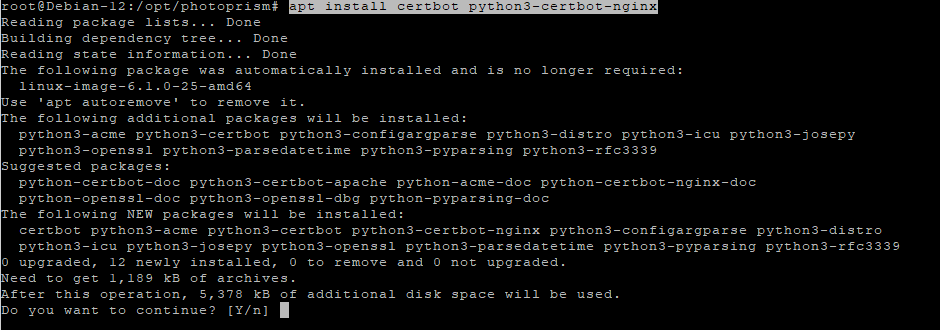
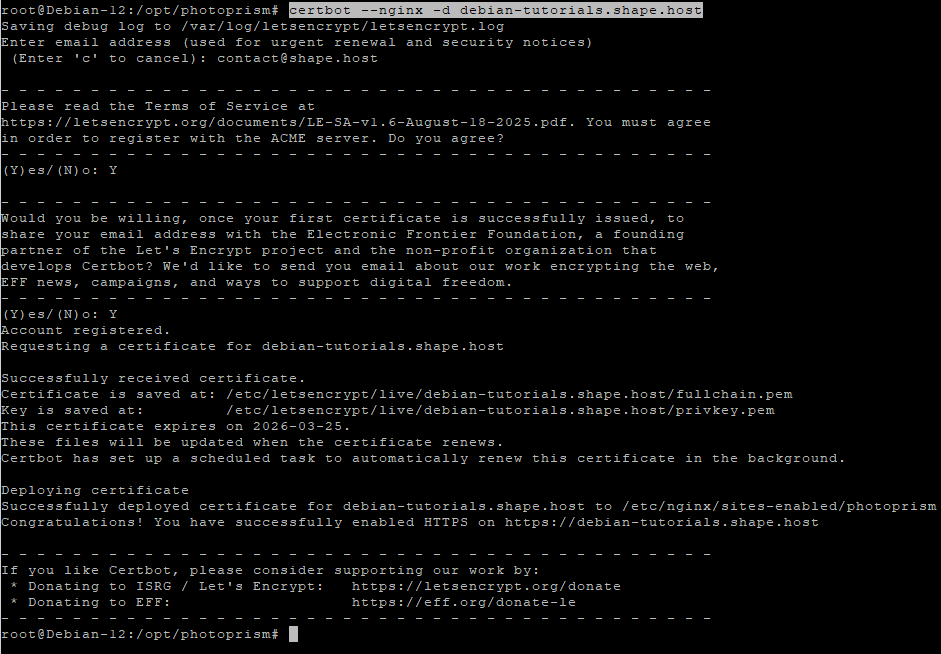
Step 21: Install SSL Certificate
apt install certbot python3-certbot-nginx
certbot --nginx -d debian-tutorials.shape.host
Certbot automatically configures HTTPS.
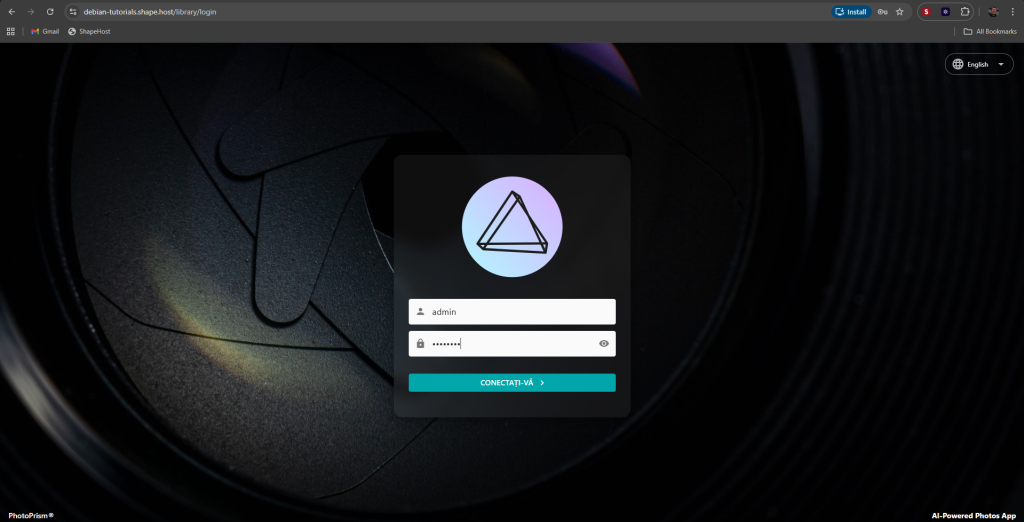
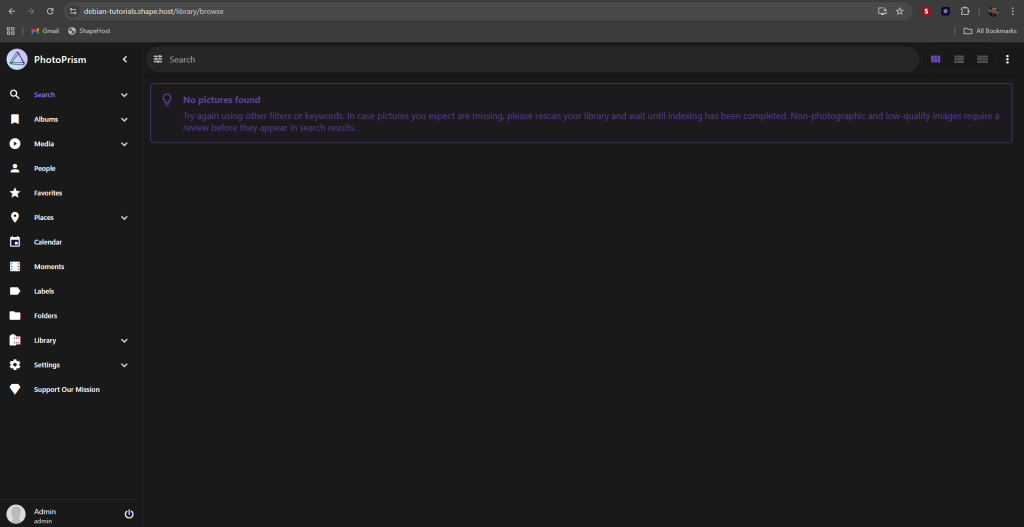
https://yourdomain.com
Log in using the admin password configured in Docker Compose.
PhotoPrism benefits greatly from fast NVMe storage and strong CPU performance, especially during AI indexing.
Shape.Host Linux SSD VPS offers:
- NVMe SSD storage
- Instant Debian 12 deployments
- Clean, minimal OS images
- Stable networking
- Excellent performance for Docker workloads
Deploy your next self-hosted media platform at https://shape.host.
