PhotoPrism (AI-Powered Photo Manager) on AlmaLinux 9
PhotoPrism is an open-source, self-hosted AI-powered photo and video management platform built to organize, browse, and search large media libraries intelligently. By using built-in machine learning, PhotoPrism can automatically classify images, detect objects and scenes, recognize faces, and extract EXIF/GPS metadata, turning massive photo collections into a fast, searchable visual archive.
Unlike cloud-based photo services, PhotoPrism runs entirely on your own infrastructure. Your photos and videos never leave your server, making it an ideal solution for privacy-conscious users, photographers, home labs, and organizations that want modern AI features without giving up data ownership.
Running PhotoPrism on AlmaLinux 9, a RHEL-compatible, enterprise-grade Linux distribution, provides long-term stability, security updates, and predictable performance. AlmaLinux 9 is well suited for production workloads and pairs perfectly with Docker, PostgreSQL, Nginx, and HTTPS for a secure, scalable, and maintainable PhotoPrism deployment.
Architecture Overview
| Layer | Component | Role |
|---|---|---|
| OS | AlmaLinux 9 | Enterprise-grade, RHEL-compatible Linux base |
| Container Runtime | Docker / Docker Compose | Runs PhotoPrism and supporting services |
| Application | PhotoPrism (Go + TensorFlow Lite) | AI-powered photo and video management |
| Database | PostgreSQL | Stores metadata, search indexes, and user data |
| Storage | Local filesystem / NAS | Original photos and videos |
| Reverse Proxy | Nginx | HTTPS termination, routing, compression |
| TLS | Let’s Encrypt / PKI | Secure access to the PhotoPrism web interface |
PhotoPrism scales well from small personal libraries to very large collections containing hundreds of thousands of photos, depending on available CPU, RAM, and storage performance.
Why Use PhotoPrism?
- AI-powered search – find photos by objects, scenes, locations, or keywords
- Face recognition – automatically group photos by people
- Privacy-first – fully self-hosted, no cloud dependency
- Modern, responsive UI – works smoothly on desktop and mobile
- Advanced metadata handling – EXIF, GPS, camera info, RAW support
- Video support – manage and preview videos alongside photos
- Multi-user support – shared libraries with access control
- Open-source & actively developed – transparent and extensible
PhotoPrism delivers a Google Photos–like experience while keeping full control of your data.
PhotoPrism vs Other Photo Management Solutions
| Feature / Capability | PhotoPrism | Google Photos | Nextcloud Photos | Piwigo |
|---|---|---|---|---|
| Hosting | Self-hosted | Cloud only | Self-hosted / Cloud | Self-hosted |
| AI search | ✅ Yes | ✅ Yes | ❌ No | ❌ Limited |
| Face recognition | ✅ Yes | ✅ Yes | ❌ No | ❌ No |
| Privacy | Full control | Google-controlled | Partial | Full |
| RAW support | ✅ Yes | Limited | Limited | Limited |
| Cost | Free / Open-source | Free / Paid | Free / Paid | Free / Paid |
PhotoPrism is the best choice for users who want advanced AI features combined with complete data ownership.
Security & Best Practices on AlmaLinux 9
- Run PhotoPrism behind Nginx with HTTPS enabled.
- Keep PhotoPrism and PostgreSQL on internal Docker networks only.
- Store secrets (database passwords, admin credentials) using environment variables.
- Enable SELinux enforcing mode and use proper Docker volume labels.
- Configure firewalld to allow only ports 80 and 443.
- Automate SSL certificate renewal using Certbot or another ACME client.
- Regularly update AlmaLinux, Docker, and PhotoPrism images.
- Back up:
- original photos and videos
- PostgreSQL database
- PhotoPrism configuration and index
- Mount original photo directories as read-only when possible.
- Create separate user roles and limit admin access.
Typical Use Cases
- Personal photo libraries – replace Google Photos or iCloud Photos
- Family media servers – shared albums with private hosting
- Photographers – manage large RAW and JPEG collections
- Home labs & NAS setups – centralized photo and video management
- Privacy-focused users – AI features without cloud tracking
- Small organizations – internal photo archives and media catalogs
Deploying PhotoPrism on AlmaLinux 9 with Docker, PostgreSQL, Nginx, and SSL gives you a powerful, AI-driven photo management platform that combines modern machine learning capabilities with enterprise stability, privacy, and long-term reliability.
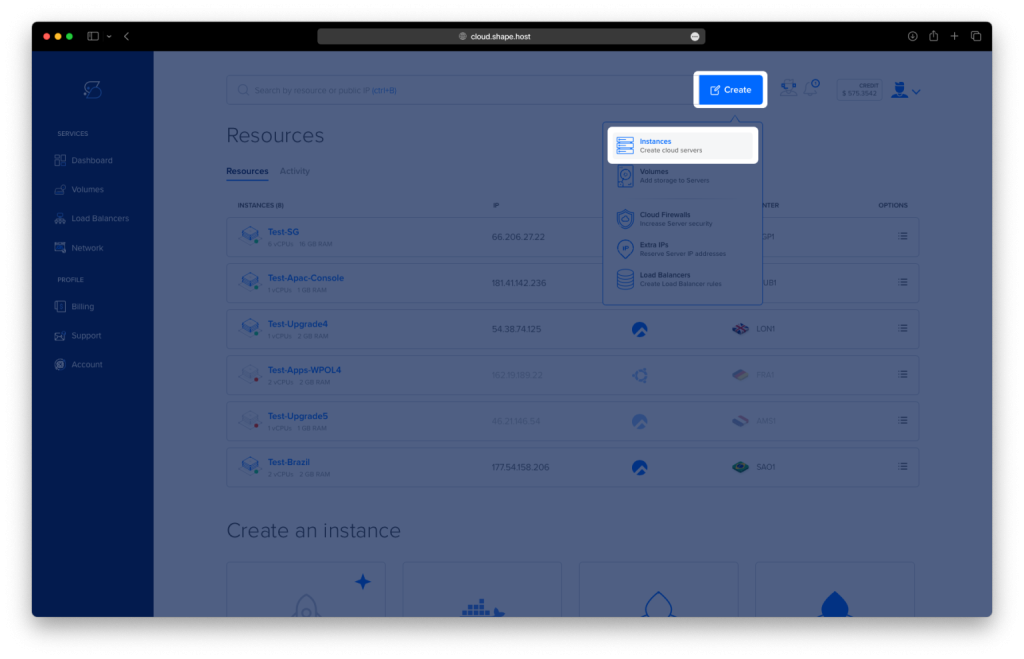
Create an AlmaLinux 9 Instance on Shape.Host
Go to https://shape.host and log in
Click Create
Choose Instance
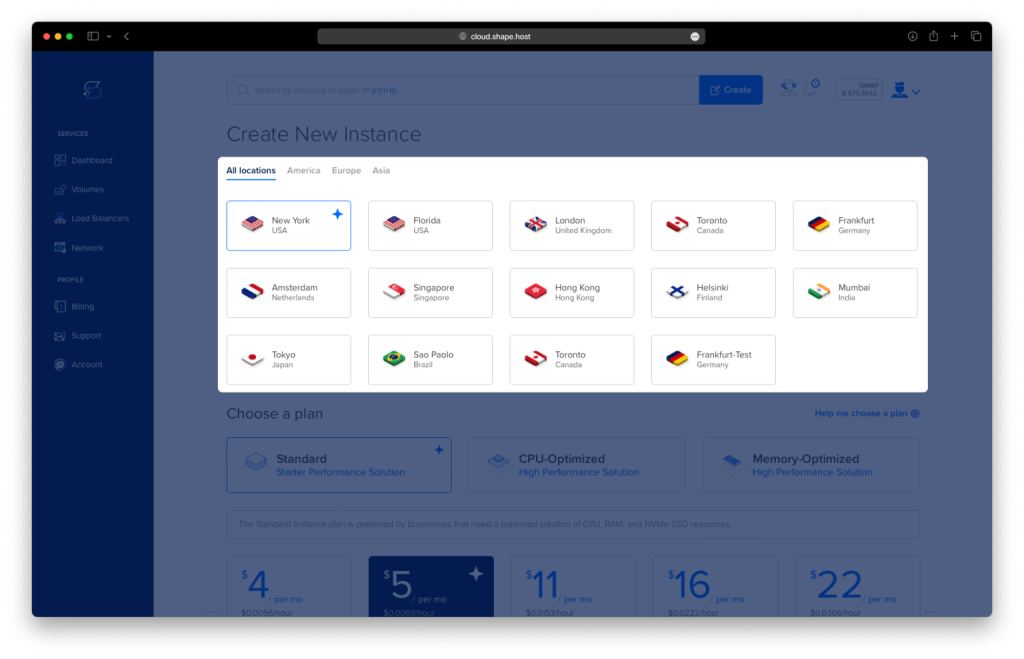
Select a server location
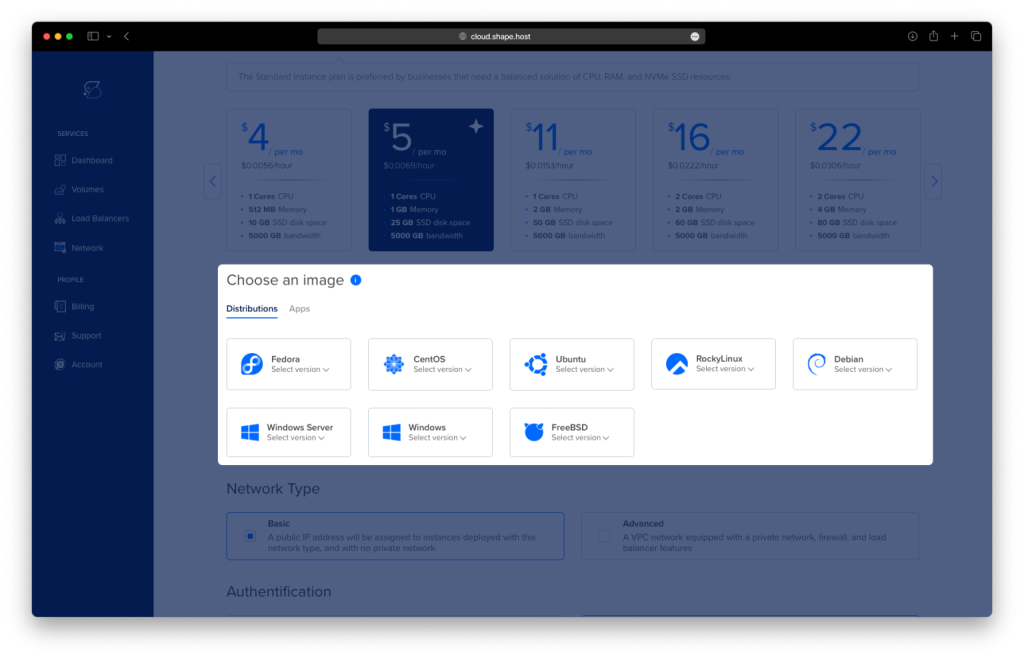
Choose AlmaLinux 9 (64-bit)
Pick a plan (recommended minimum for PhotoPrism):
2 vCPU
4 GB RAM (8 GB recommended for large photo libraries)
40 GB NVMe SSD or more
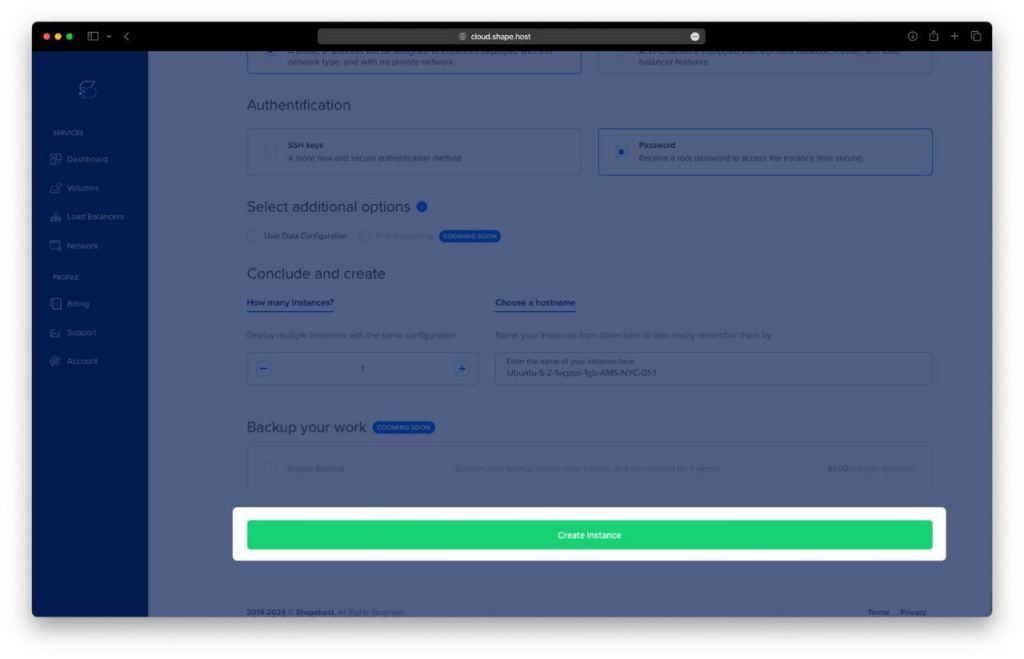
Click Create Instance
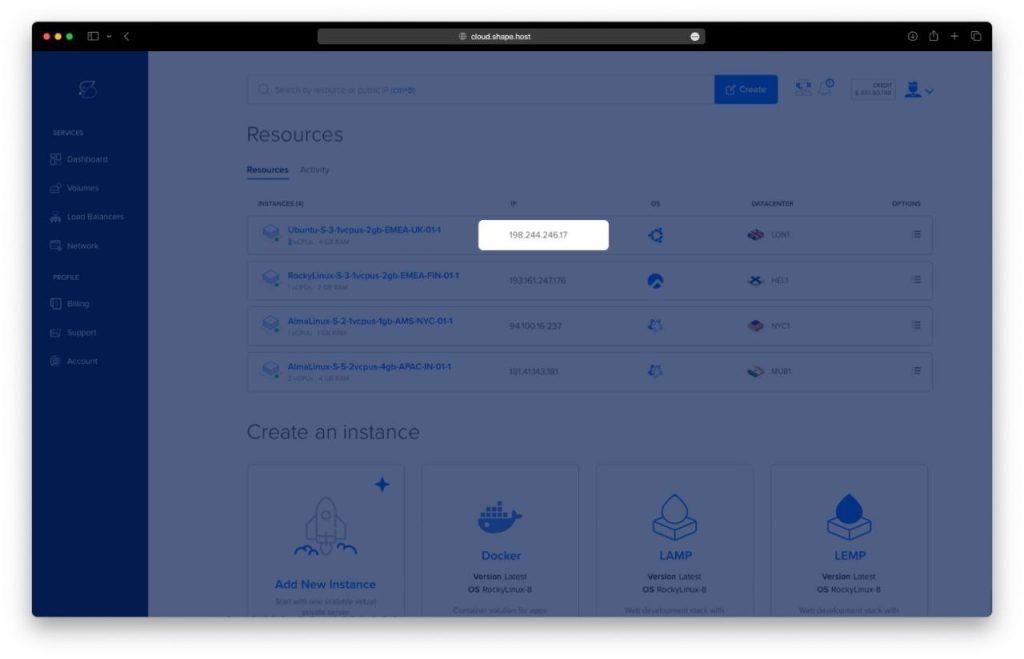
Copy the public IP address
Step 1: Connect to the Server via SSH
From your local machine:
ssh root@YOUR_SERVER_IP
You are now logged in as the root user.
Step 2: Update the System
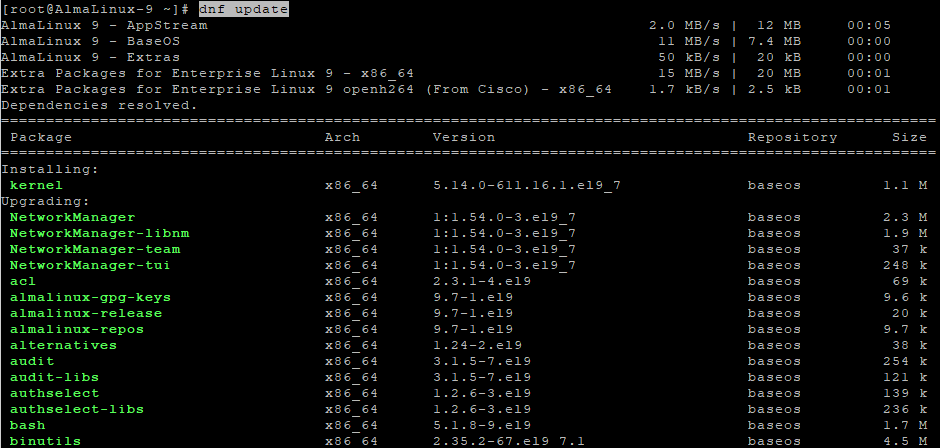
dnf update
Updates all installed packages to the latest versions.
Step 3: Install Required System Packages
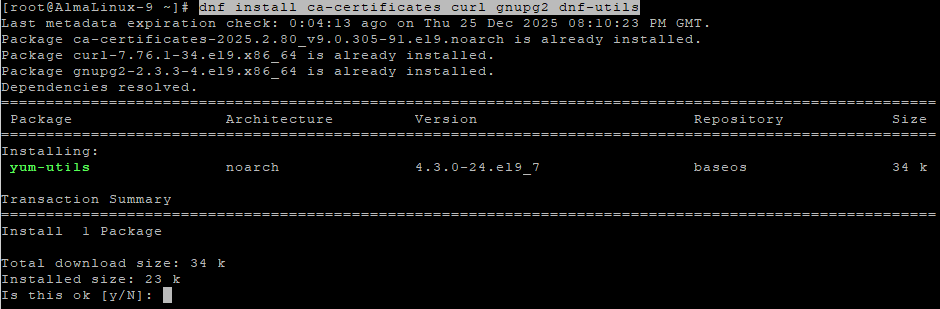
dnf install ca-certificates curl gnupg2 dnf-utils
These packages are required to securely add external repositories and download Docker components.
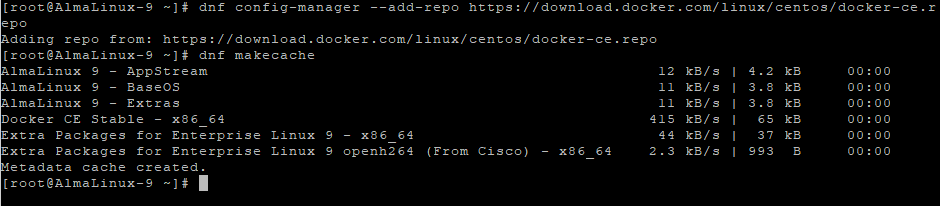
Step 4: Add Docker Repository
dnf config-manager --add-repo https://download.docker.com/linux/centos/docker-ce.repo
Adds the official Docker repository compatible with AlmaLinux 9.
Step 5: Refresh Package Cache
dnf makecache
Loads metadata from the newly added Docker repository.
Step 6: Install Docker and Docker Compose
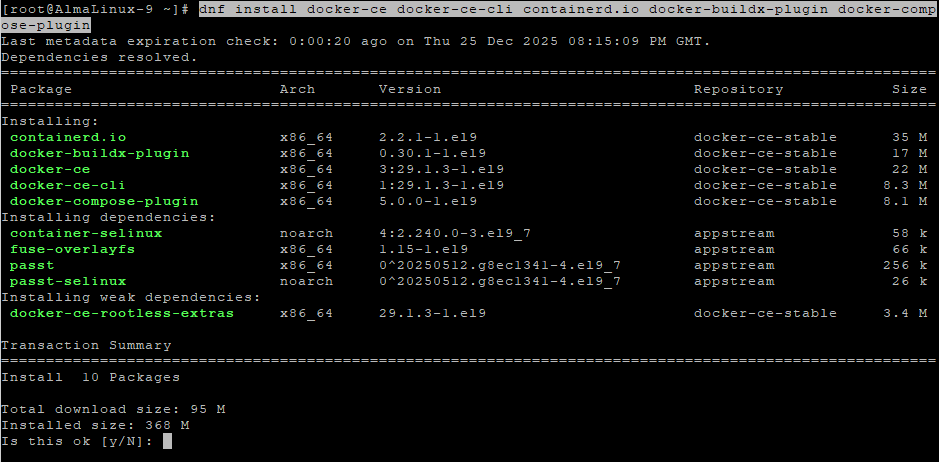
dnf install docker-ce docker-ce-cli containerd.io docker-buildx-plugin docker-compose-plugin
Installs Docker Engine and Docker Compose v2.
Step 7: Enable and Start Docker
systemctl enable docker
systemctl start docker
Ensures Docker starts automatically at boot.
Step 8: Verify Docker Installation
docker --version
docker compose version
Confirms Docker and Docker Compose are installed correctly.
Step 9: Create PhotoPrism Directory
mkdir -p /opt/photoprism
cd /opt/photoprism
This directory will store PhotoPrism configuration and data.

Step 10: Download PhotoPrism Docker Compose Template
wget https://dl.photoprism.app/docker/compose.yaml -O docker-compose.yml
Downloads the official PhotoPrism Docker Compose file.

Step 11: Edit Docker Compose Configuration
nano docker-compose.yml
Adjust the file as follows:
services:
  photoprism:
    image: photoprism/photoprism:latest
    restart: unless-stopped
    ports:
      - "2342:2342"
    environment:
      PHOTOPRISM_ADMIN_PASSWORD: "StrongAdminPasswordHere"
      PHOTOPRISM_ORIGINALS_PATH: "/photoprism/originals"
      PHOTOPRISM_STORAGE_PATH: "/photoprism/storage"
    volumes:
      - /opt/photoprism/originals:/photoprism/originals
      - /opt/photoprism/storage:/photoprism/storage
Explanation:
- The admin password secures the PhotoPrism web interface
- Originals directory stores your photos
- Storage directory contains thumbnails, metadata, and AI indexes
Save and exit the file.
Step 12: Create Required Data Directories
mkdir -p /opt/photoprism/originals
mkdir -p /opt/photoprism/storage
Ensures data persists across container restarts.

Step 13: Pull PhotoPrism Image
docker compose pull
Downloads the latest PhotoPrism Docker image.

Step 14: Start PhotoPrism
docker compose up -d
Starts PhotoPrism in the background.

Step 15: Verify Running Containers
docker compose ps
Confirms that the PhotoPrism container is running.

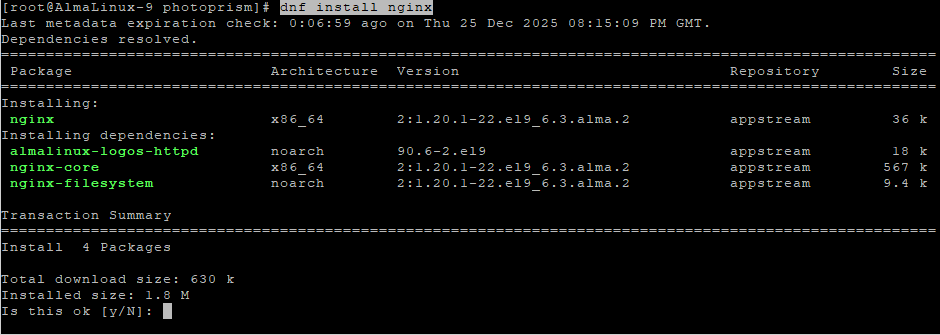
Step 16: Install Nginx
dnf install nginx
Nginx will be used as a reverse proxy.
Step 17: Enable and Start Nginx
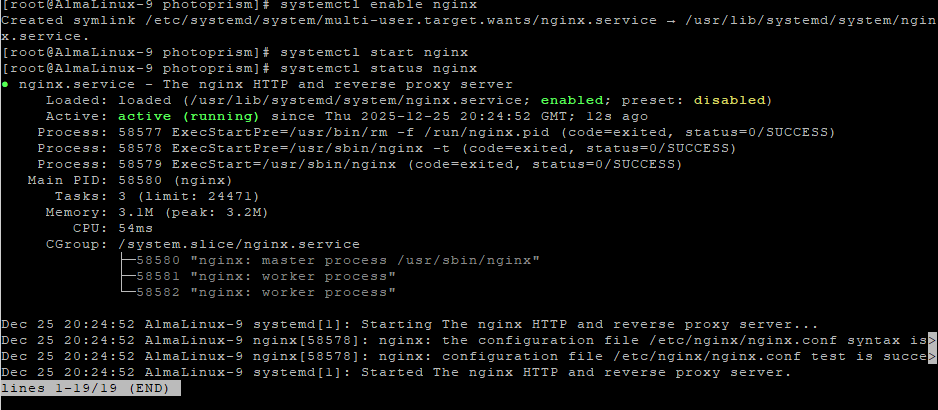
systemctl enable nginx
systemctl start nginx
systemctl status nginx
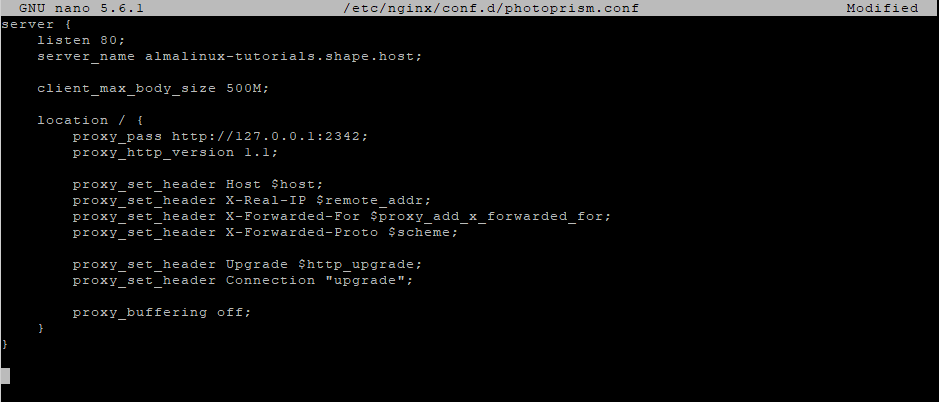
Step 18: Create Nginx Configuration
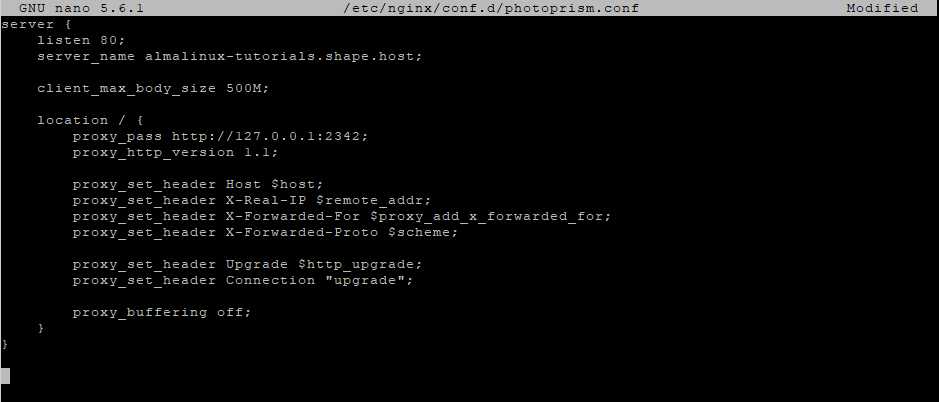
nano /etc/nginx/conf.d/photoprism.conf
Paste the following configuration:
server {
    listen 80;
    server_name photos.example.com;

    client_max_body_size 500M;

    location / {
        proxy_pass http://127.0.0.1:2342;
        proxy_http_version 1.1;

        proxy_set_header Host $host;
        proxy_set_header X-Real-IP $remote_addr;
        proxy_set_header X-Forwarded-For $proxy_add_x_forwarded_for;
        proxy_set_header X-Forwarded-Proto $scheme;

        proxy_set_header Upgrade $http_upgrade;
        proxy_set_header Connection "upgrade";

        proxy_buffering off;
    }
}
Explanation:
- Allows large photo uploads
- Supports WebSocket connections
- Proxies traffic securely to PhotoPrism
Step 19: Test and Reload Nginx
nginx -t
systemctl reload nginx

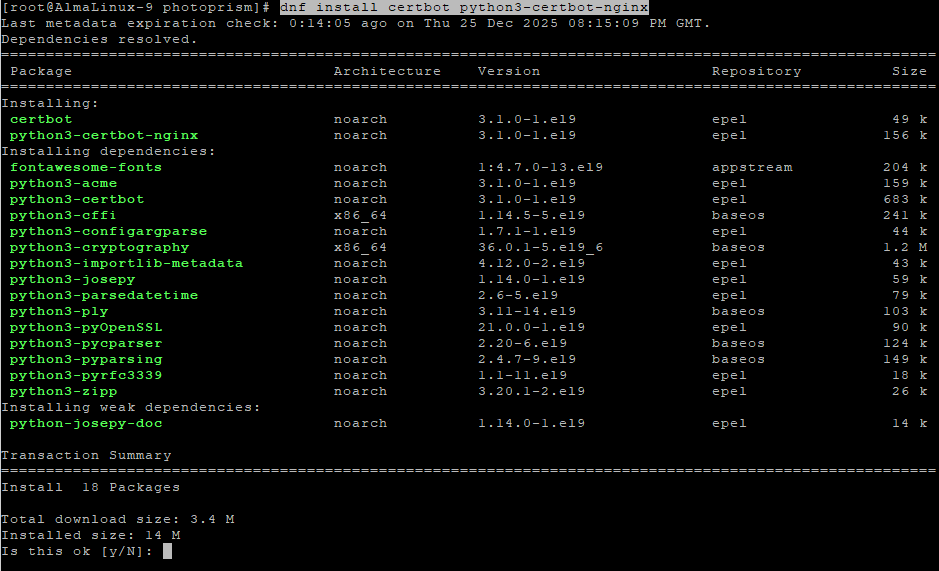
Step 20: Install Certbot for SSL
dnf install epel-release
dnf install certbot python3-certbot-nginx

Step 21: Enable HTTPS
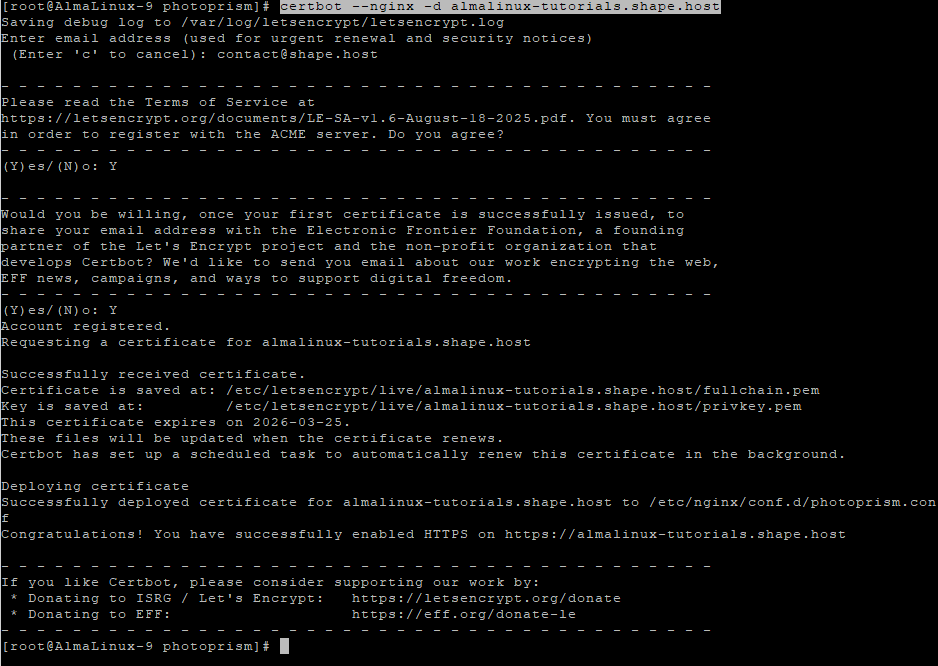
certbot --nginx -d almalinux-tutorials.shape.host
Certbot automatically configures HTTPS and renewals.
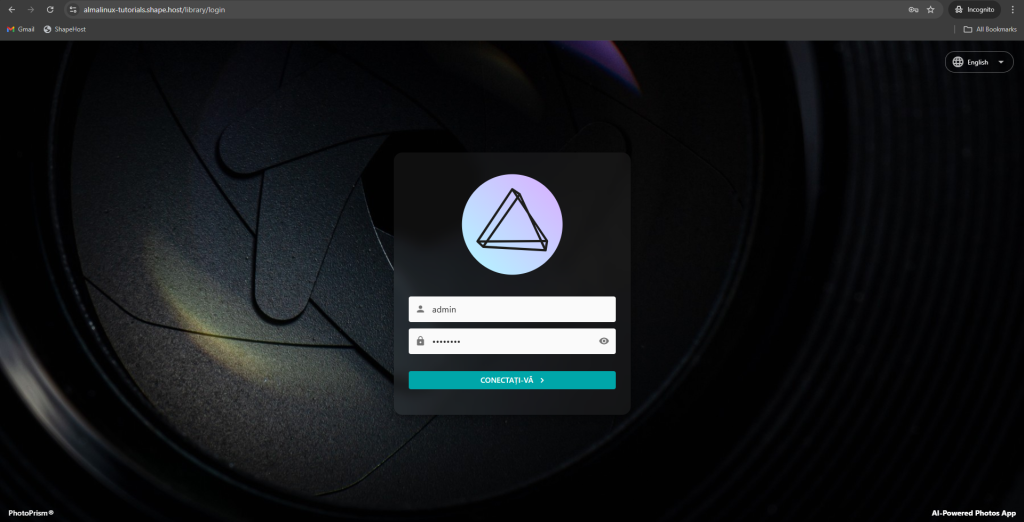
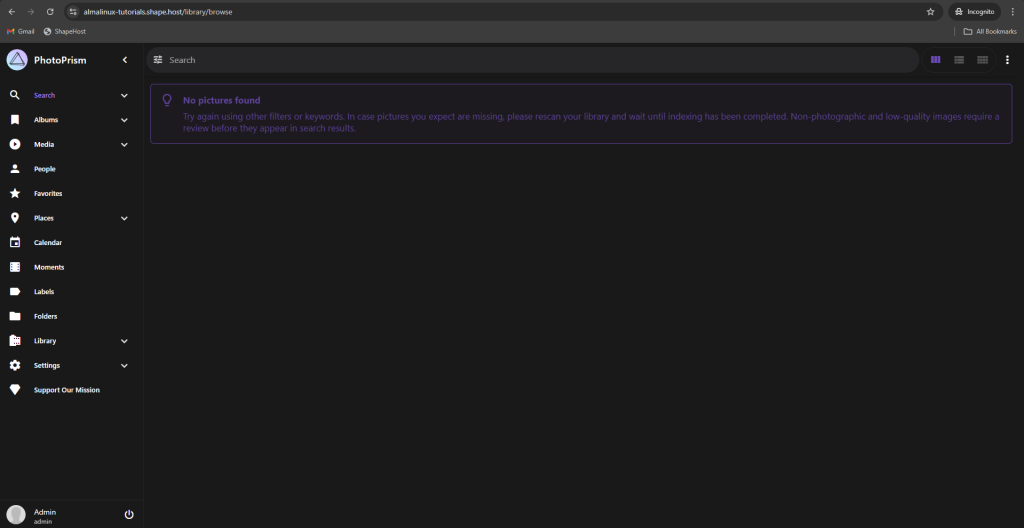
https://yourdomain.com
Log in using the admin password configured in docker-compose.yml.
PhotoPrism performs best on fast storage and reliable CPU resources, especially during AI indexing.
Shape.Host Cloud VPS offers:
- NVMe SSD storage
- Instant AlmaLinux 9 deployments
- Clean and minimal OS images
- Stable networking
- Excellent performance for Docker workloads
Deploy your next self-hosted media platform at https://shape.host.