Nagios Core on Ubuntu 24.04 — Legacy Stability in Modern Infrastructure Monitoring
Nagios Core is a well-established, open-source IT monitoring system that offers health checks and alerting for servers, applications, and infrastructure components. While not as modern as some newer platforms, it continues to power many production environments where stability, simplicity, and visibility are critical.
Running Nagios Core on Ubuntu 24.04 LTS (Noble Numbat) ensures long-term compatibility with up-to-date Linux packages, systemd service management, and TLS libraries—making it a dependable solution for both traditional and hybrid infrastructures.
Nagios Core Overview
Nagios Core is the engine behind several commercial offerings like Nagios XI, and is responsible for:
- Host & Service Monitoring: Periodic checks using plugins (e.g., ping, HTTP, disk, memory)
- Notification & Alerting: Email/SMS alerts for issues and recoveries
- Escalation Policies: Define notification hierarchies and alert conditions
- Web Interface: View status maps, logs, scheduled downtimes, and notifications
It is highly extensible through community-contributed plugins and scripts.
Why Use Nagios Core on Ubuntu 24.04?
Ubuntu 24.04 LTS provides a secure, predictable environment with long-term support and the latest system libraries.
| Ubuntu 24.04 Feature | Benefit for Nagios Core |
|---|---|
| Systemd 255 | Modern process and watchdog management |
| OpenSSL 3.0+ | Enables secure plugin communication and HTTPS use |
| PHP 8.3 | Powers the CGIs in the Nagios Classic UI |
| Minimal Base Image | Reduces unnecessary background processes |
| Snap & APT Support | Flexibility for installing dependencies and addons |
Ubuntu 24.04 also has excellent community and vendor support, which is helpful for resolving compatibility or configuration issues.
Key Features and Architecture
Nagios Core is structured around:
- nagios.cfg: The main configuration file, which loads objects and settings
- Object Definitions: Hosts, services, contacts, commands, templates
- Plugins: Shell or compiled scripts used to gather metrics (Nagios plugins or custom)
- Event Handlers: Scripts triggered automatically on specific conditions
- Web UI: CGI-based interface powered by Apache and PHP
Despite its age, this architecture remains effective in environments requiring precise, low-level monitoring control.
Use Cases for Nagios Core
Nagios Core is best suited for:
- On-prem infrastructure: Monitoring hardware, switches, routers, and servers
- Legacy system environments: Where agentless or SSH-based checks are preferred
- Custom script execution: Run and monitor bespoke internal scripts or services
- Air-gapped or offline networks: Fully self-contained monitoring stack
- Education or small-scale labs: Teaching monitoring fundamentals
It also integrates with NRPE or NCPA for remote system checks over SSL.
Advantages of Nagios Core on Ubuntu
- ✅ Agentless or agent-based monitoring
- ✅ Highly customizable (every check, threshold, and command is scriptable)
- ✅ Resource-efficient (runs well on low-spec VMs)
- ✅ Static configuration for better predictability and auditability
- ✅ Rich plugin ecosystem (thousands of checks available)
Nagios Core is known for its deterministic behavior—you know exactly what’s being checked, how, and when.
Limitations and Considerations
While reliable, Nagios Core lacks some modern features:
| Limitation | Workaround or Upgrade Path |
|---|---|
| No built-in time series DB | Integrate with Graphite, InfluxDB, or PNP4Nagios |
| Basic UI | Replace with NagiosQL or switch to Nagios XI |
| Static config files | Use automation tools like Ansible or Puppet |
| Limited scalability | Use Mod-Gearman or check_mk to scale horizontally |
| Manual dependency mapping | External tools or visualizations via addons required |
For environments needing distributed data collection or interactive dashboards, a hybrid monitoring stack may be more appropriate.
Ecosystem Integration
Nagios Core is highly modular and plays well with other tools:
| Integration | Purpose |
|---|---|
| NRPE/NCPA | Remote system checks |
| Grafana/PNP4Nagios | Visualizations and dashboards |
| Slack/Webhooks | Modern alerting and notifications |
| SMTP/Sendmail | Traditional email alerts |
| SSH/SNMP | Agentless system and network checks |
You can also develop your own plugins in any language that returns an exit code and text output.
Running Nagios Core on Ubuntu 24.04 delivers a stable, minimal, and long-supported platform for highly controlled infrastructure monitoring. It’s ideal if you need:
- Full transparency over how checks and alerts are run
- A lightweight monitoring system with minimal overhead
- Compatibility with legacy infrastructure or air-gapped networks
- A robust foundation to extend via plugins and automation
While more modern platforms (like Prometheus, Zabbix, or Icinga 2) offer greater flexibility and UI enhancements, Nagios Core remains a dependable workhorse, especially when simplicity, determinism, and control are top priorities.
Step 1: Create a VPS on Shape.Host
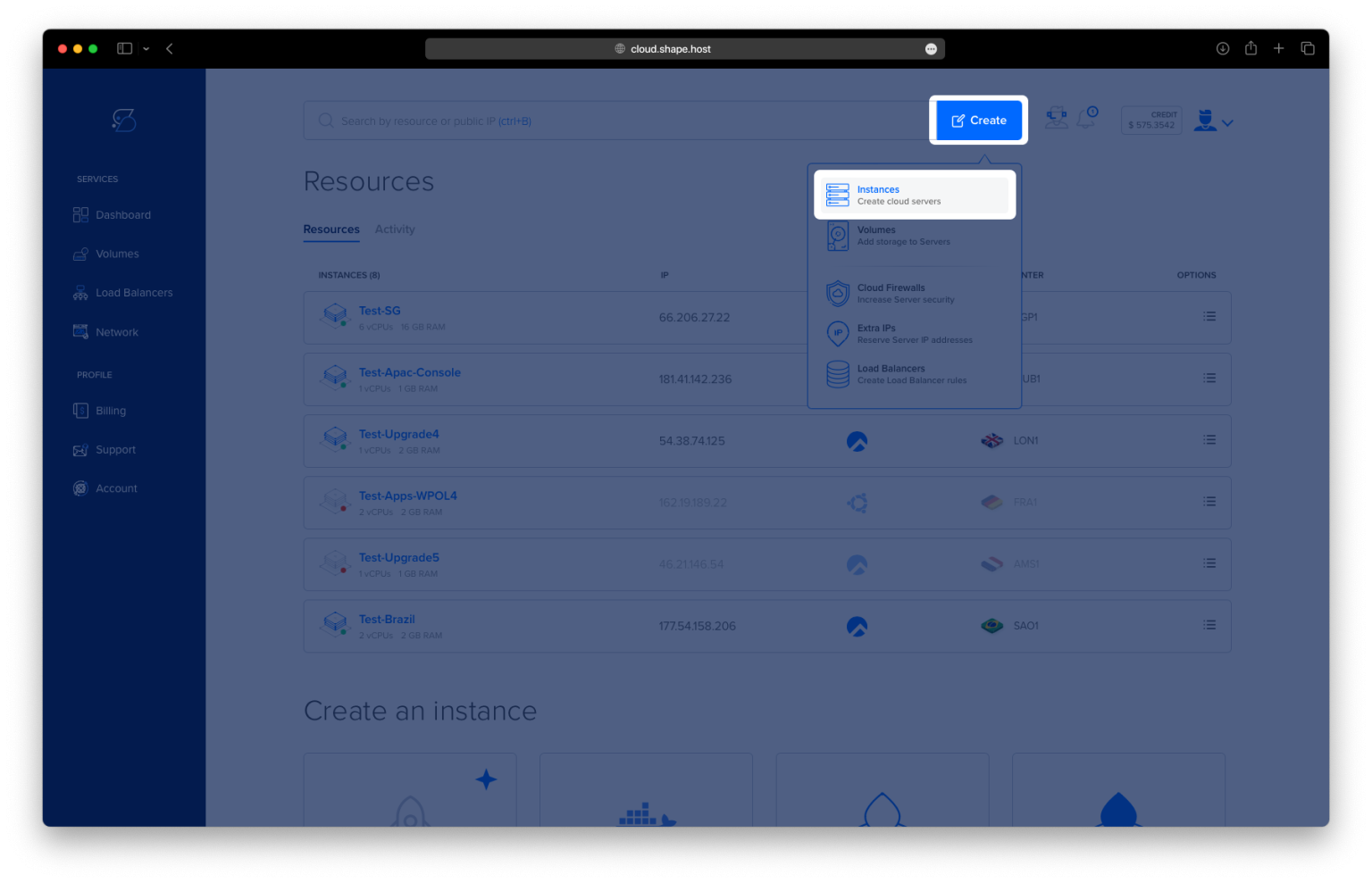
Go to https://shape.host and log in.
Click “Create”, then choose “Instance”.
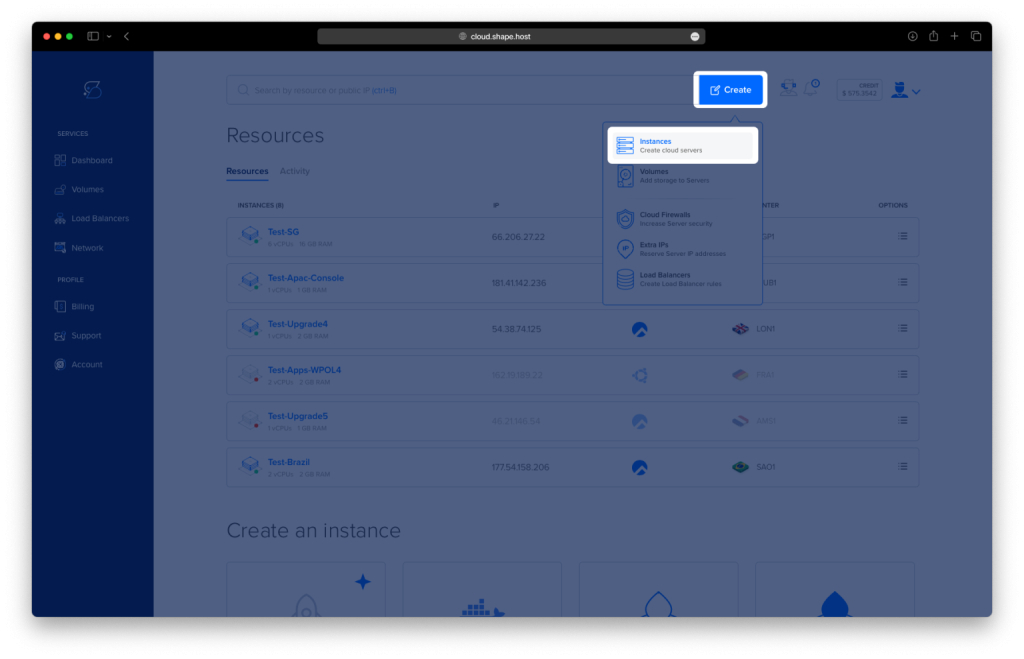
Select a location for your server (e.g., Germany, Netherlands, USA).
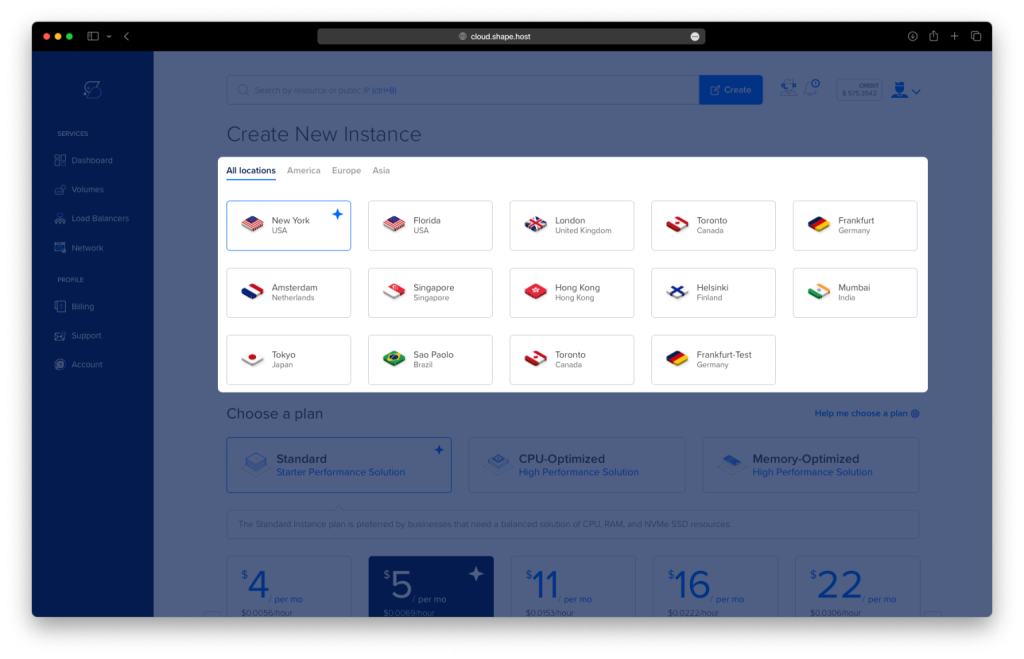
Choose Ubuntu 24.04 (64-bit) as your operating system.
Pick a plan with at least 2 CPUs and 2 GB RAM.
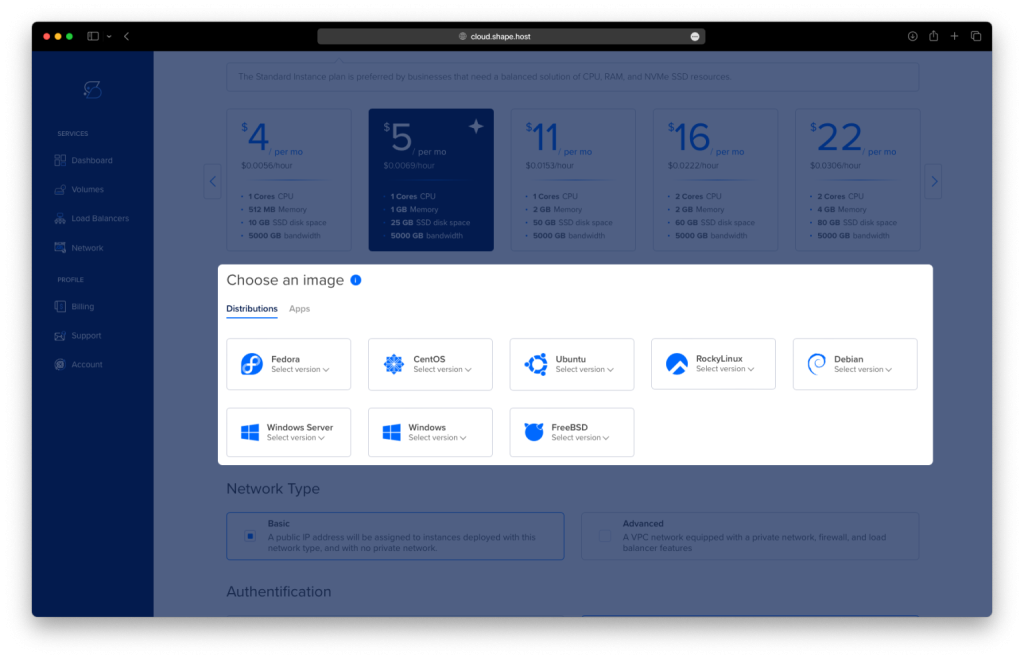
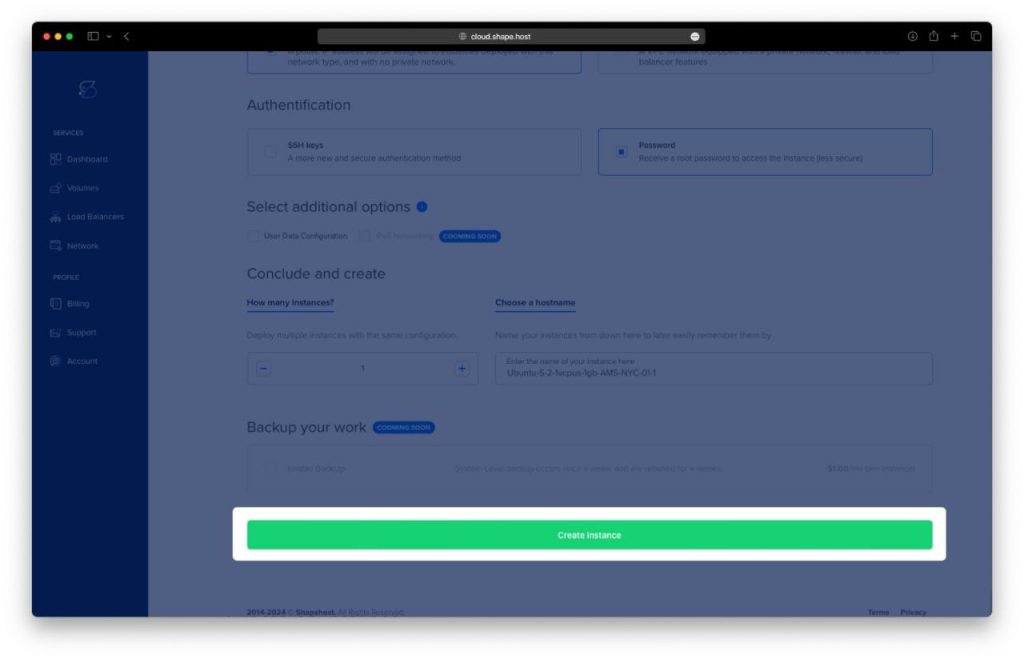
Click “Create Instance”.
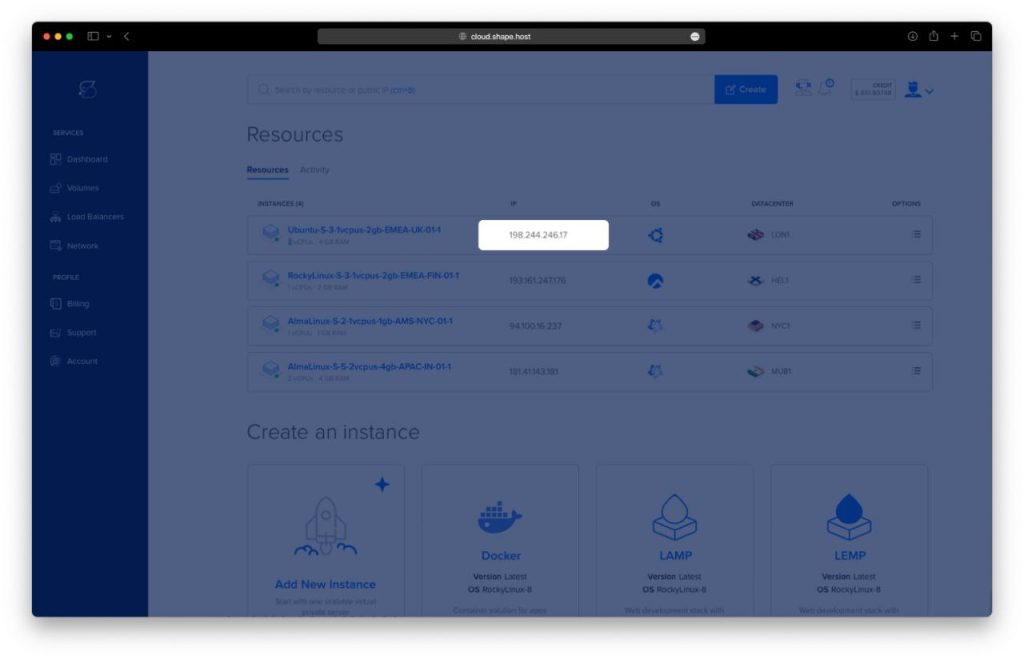
Once the instance is running, copy the IP address from the Resources section.
Step 2: Connect to Your VPS
From Linux/macOS:
ssh root@your_server_ip
From Windows:
Use PuTTY:
- Host Name:
your_server_ip - Port:
22 - Connection type:
SSH - Click Open, then log in as
root.
Step 3: Update System and Install Dependencies
apt update
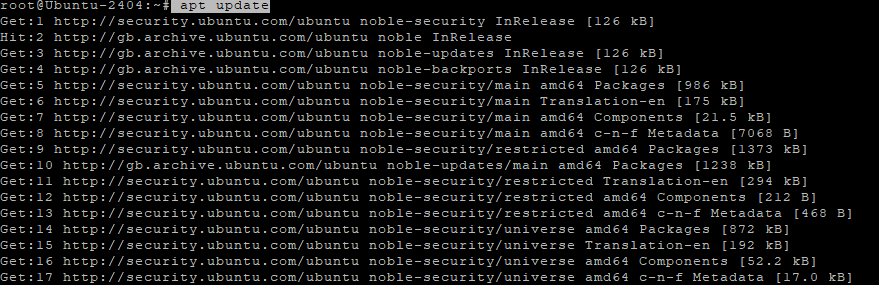
Updates the package index.
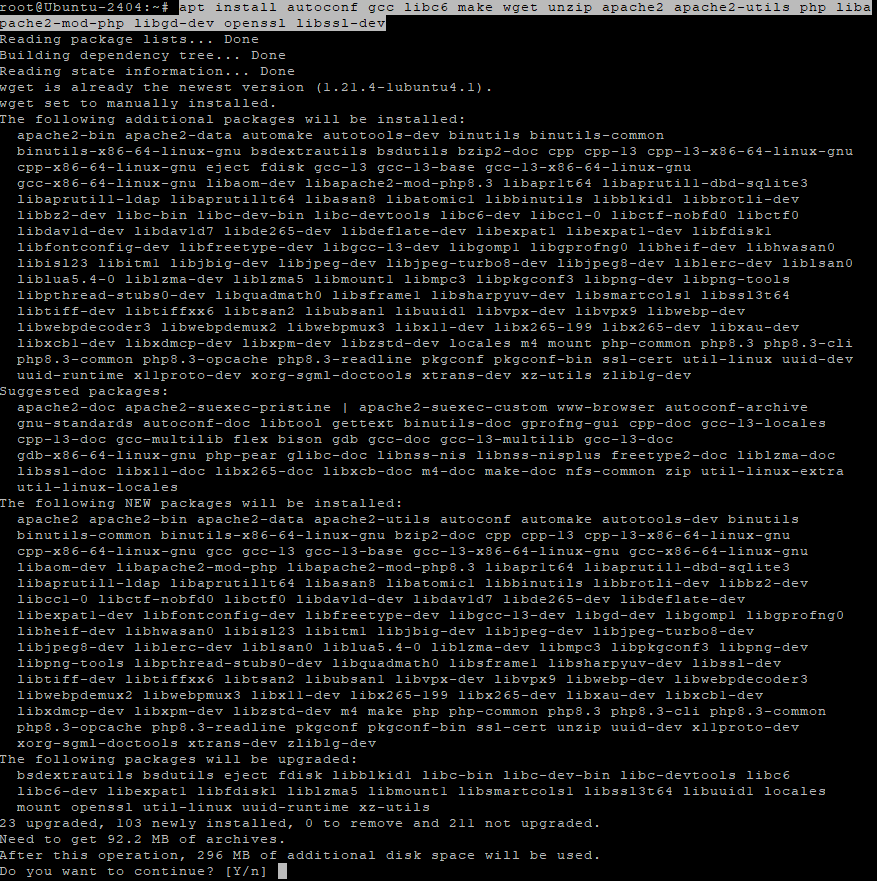
apt install autoconf gcc libc6 make wget unzip apache2 apache2-utils php libapache2-mod-php libgd-dev openssl libssl-dev -y
Installs essential packages needed to compile Nagios and run the web interface.
Step 4: Download and Compile Nagios Core
cd /usr/src
mkdir nagios && cd nagios
Creates and enters a working directory.
wget -O nagioscore.tar.gz https://github.com/NagiosEnterprises/nagioscore/archive/nagios-4.5.7.tar.gz
Downloads Nagios Core 4.5.7.
tar xzf nagioscore.tar.gz
Extracts the downloaded archive.
cd nagioscore-nagios-4.5.7
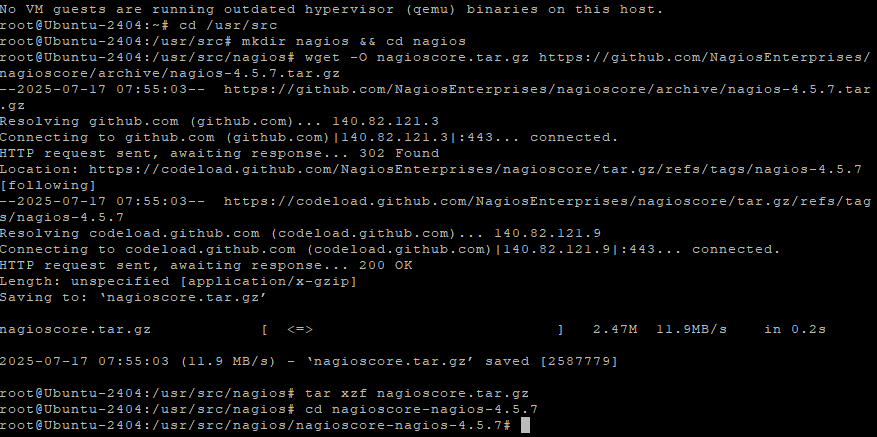
Navigates into the extracted directory.
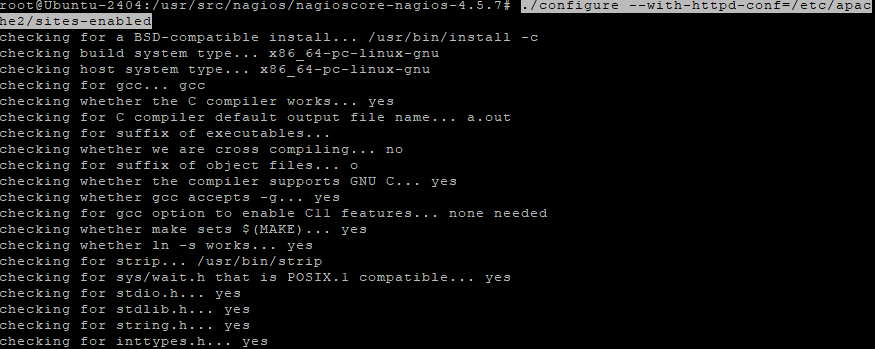
./configure --with-httpd-conf=/etc/apache2/sites-enabled
Configures Nagios with Apache settings.
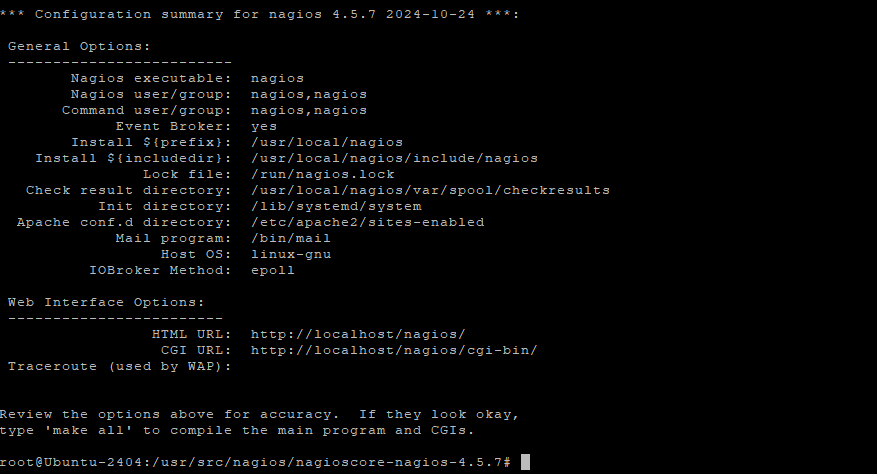
make all
Builds Nagios Core and components.
Step 5: Install Nagios Core
make install-groups-users
Creates Nagios user and group.
usermod -a -G nagios www-data
Adds Apache user to the Nagios group.

make install
Installs Nagios binaries.
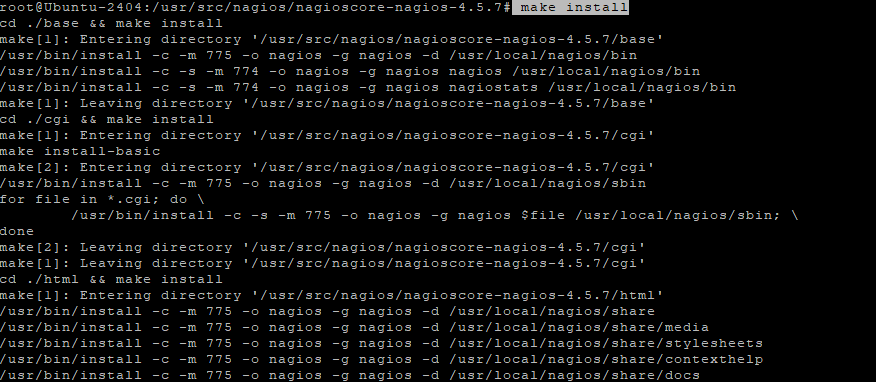
make install-daemoninit
Installs systemd service.

make install-commandmode
Sets correct permissions for external commands.

make install-config
Installs default config files.
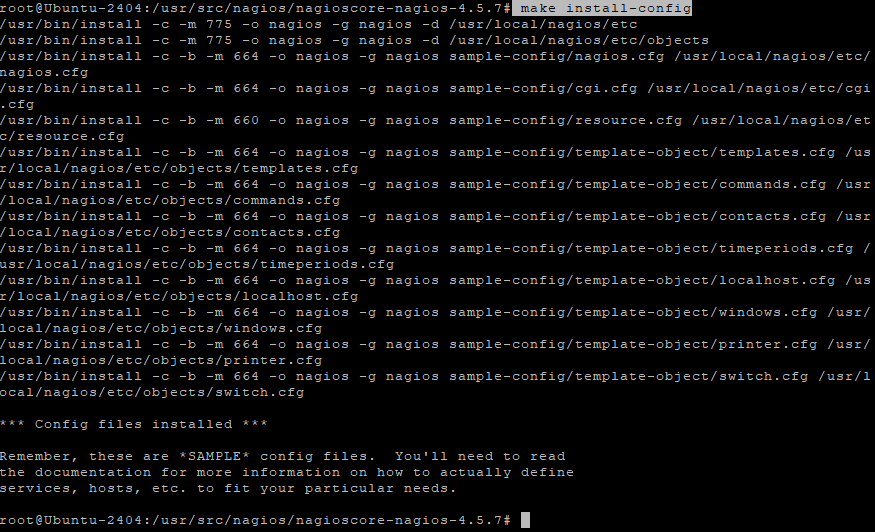
make install-webconf
Adds Apache web config.

Step 6: Configure Web Access
htpasswd -c /usr/local/nagios/etc/htpasswd.users nagiosadmin
Creates a login user for Nagios Web UI. Replace nagiosadmin with your username.

a2enmod rewrite
a2enmod cgi
Enables Apache modules required by Nagios.
systemctl restart apache2
Restarts Apache to apply changes.

Step 7: Install Nagios Plugins
cd /usr/src
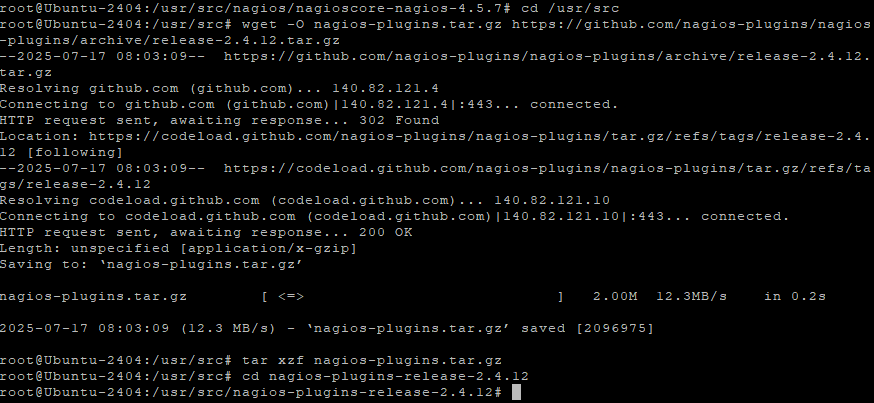
wget -O nagios-plugins.tar.gz https://github.com/nagios-plugins/nagios-plugins/archive/release-2.4.12.tar.gz
Downloads the plugins archive.
tar xzf nagios-plugins.tar.gz
Extracts it.
cd nagios-plugins-release-2.4.12
./tools/setup
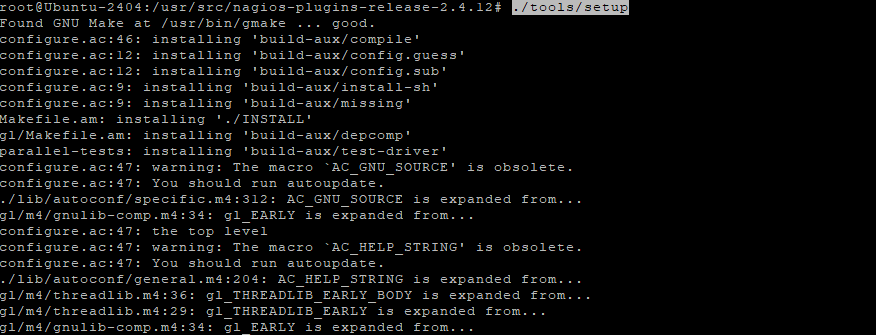
Prepares the build system.
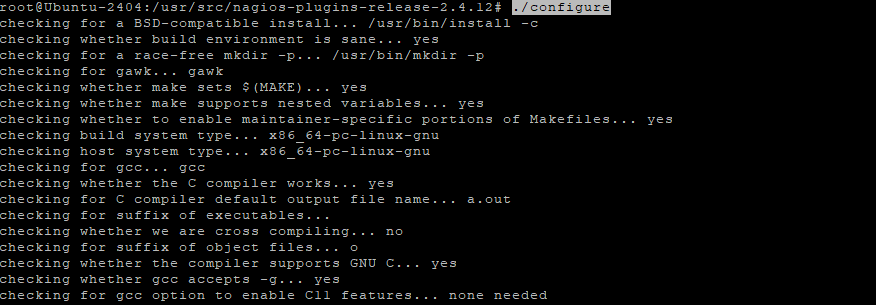
./configure
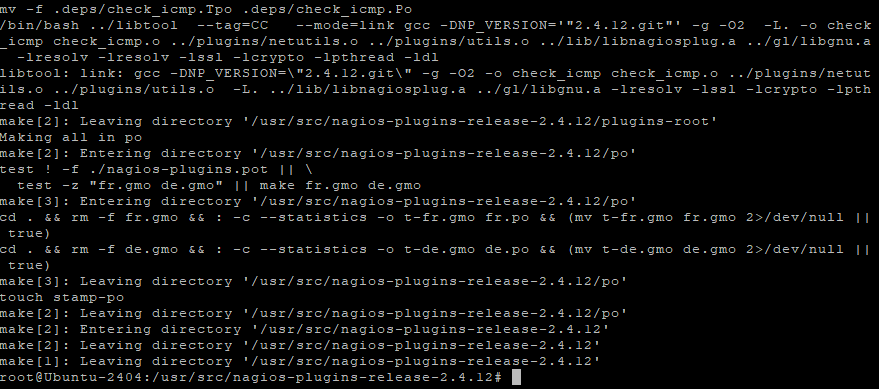
make
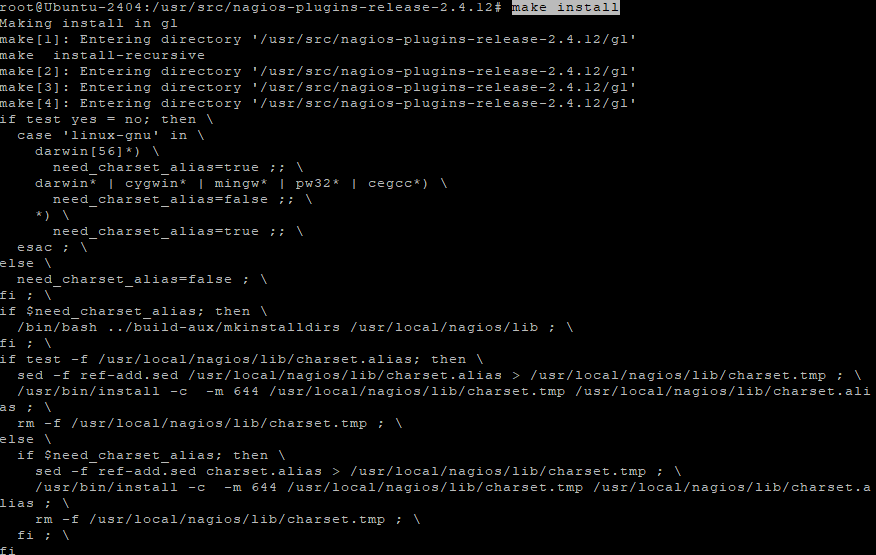
make install
Installs Nagios plugins.
Step 8: Start and Enable Nagios
/usr/local/nagios/bin/nagios -v /usr/local/nagios/etc/nagios.cfg
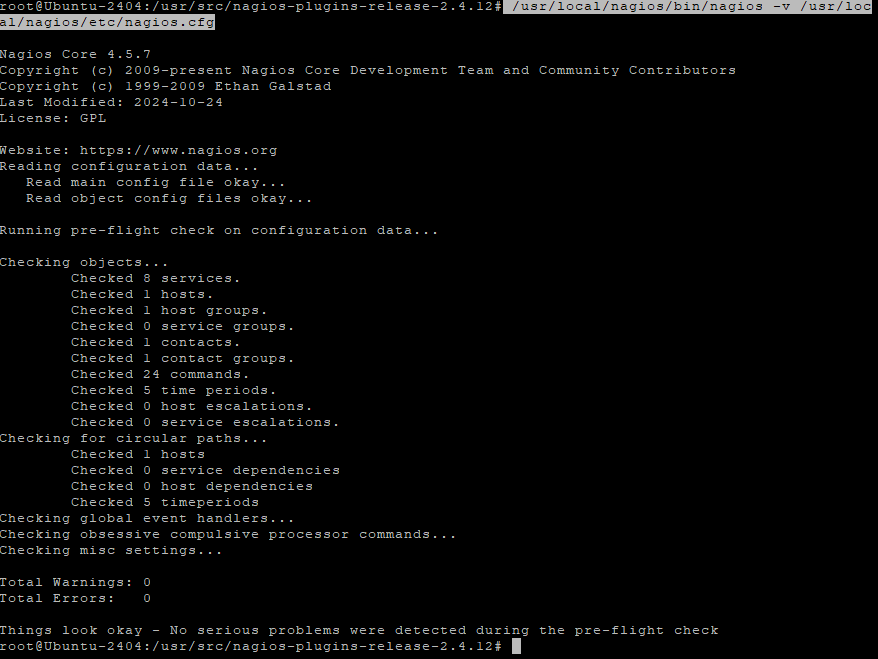
Validates your Nagios configuration.
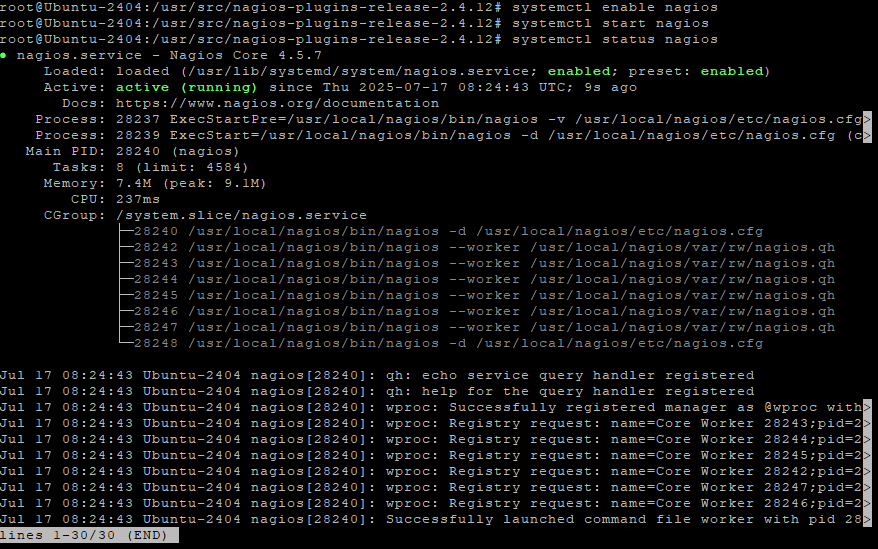
systemctl enable nagios
systemctl start nagios
systemctl status nagios
Ensures Nagios is running.
Step 9: Access Nagios Web Interface
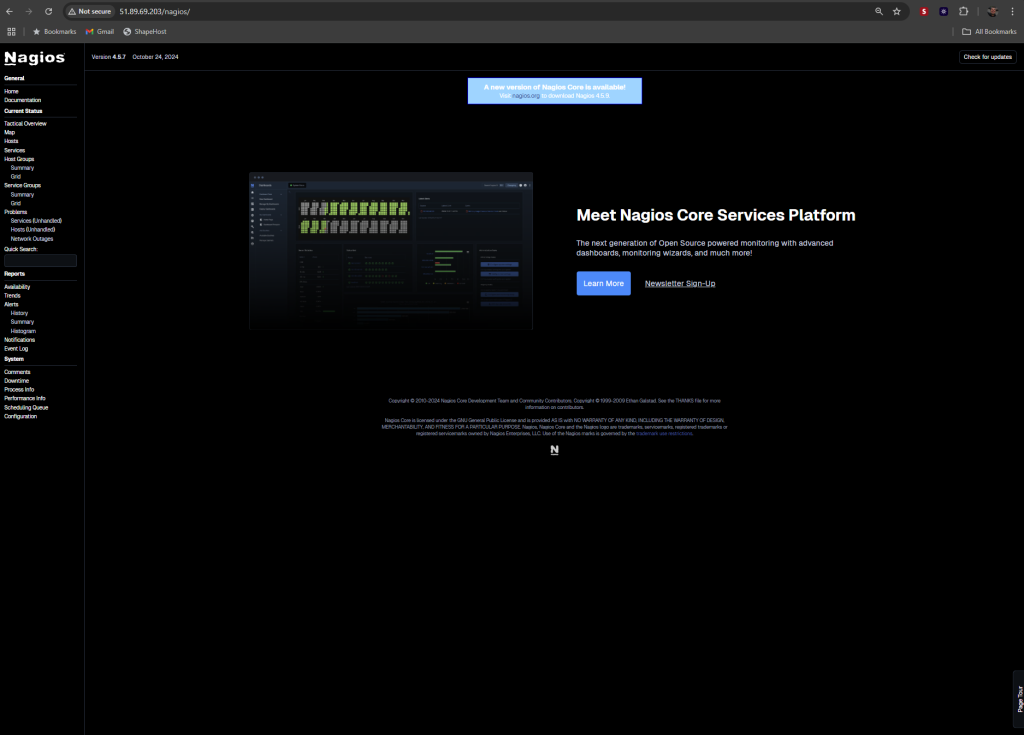
Open your browser and go to:
http://your_server_ip/nagios
Login with the username nagiosadmin (or your chosen name) and the password you set earlier.

You can run Nagios on a fast and reliable Linux SSD VPS from ShapeHost. It’s the perfect choice for monitoring your infrastructure.