Perl is a high-level, dynamic, and interpreted programming language renowned for its flexibility and text-processing capabilities. Originally developed by Larry Wall in 1987, Perl has evolved into a versatile tool used for web development, system administration, data manipulation, and automation. Known for its “There’s more than one way to do it” (TMTOWTDI) philosophy, Perl empowers developers with multiple approaches to solve problems efficiently.
Key Features of Perl
- Powerful Text Processing
- Advanced support for regular expressions and string manipulation, making it ideal for parsing and transforming text.
- Cross-Platform Compatibility
- Runs on various platforms, including Linux, Unix, Windows, macOS, and embedded systems.
- Dynamic Typing and Memory Management
- Features automatic memory allocation and garbage collection, simplifying resource management.
- CPAN (Comprehensive Perl Archive Network)
- Access to thousands of pre-built modules and libraries that extend Perl’s capabilities.
- Built-In Shell Integration
- Seamlessly integrates with system commands, enabling efficient system administration and automation.
- Object-Oriented and Procedural Programming
- Supports both object-oriented programming (OOP) and traditional procedural programming styles.
- Robust Regular Expression Engine
- One of the most powerful and flexible regex engines, widely used for pattern matching and data extraction.
- Scripting and Automation
- Ideal for writing scripts for file management, data extraction, and task automation.
- Security and Reliability
- Strong built-in features to handle secure file operations, input validation, and system interactions.
- Community and Documentation
- Supported by an active community with comprehensive documentation, forums, and online resources.
Advantages of Using Perl
- Versatile and Flexible: Suitable for web development, system administration, data analysis, and bioinformatics.
- Easy to Learn and Use: Simple syntax and extensive library support make it beginner-friendly.
- Time-Efficient Development: Rapid prototyping and quick development cycles due to concise syntax.
- Cross-Platform Portability: Write code once and run it on multiple operating systems without modification.
- Performance and Scalability: Efficient execution of scripts and scalability for large datasets.
Use Cases for Perl
- Web Development
- Build dynamic websites and web applications using frameworks like Catalyst, Dancer, and Mojolicious.
- System Administration
- Automate tasks such as file management, backups, and log analysis using Perl scripts.
- Data Parsing and Manipulation
- Process large datasets, extract information using regular expressions, and generate reports.
- Bioinformatics and Scientific Computing
- Analyze biological data and automate genomic research workflows.
- Network Programming
- Develop network applications and interact with TCP/IP protocols for communication and automation.
- Database Interaction
- Connect to databases like MySQL, PostgreSQL, Oracle, and SQLite using DBI (Database Interface).
- Automation and Scripting
- Write scripts to automate repetitive tasks and integrate with command-line tools.
- Security and Encryption
- Use Perl for data encryption, secure file handling, and building security tools.
Comparison: Perl vs. Other Scripting Languages
| Feature | Perl | Python | Ruby | Shell Script (Bash) |
|---|---|---|---|---|
| Text Processing | ✅ Excellent (Regex Support) | ✅ Good | ✅ Good | ✅ Basic |
| Cross-Platform | ✅ Yes | ✅ Yes | ✅ Yes | ⚠️ Limited to UNIX/Linux |
| Object-Oriented Support | ✅ Yes | ✅ Yes | ✅ Yes | ❌ No |
| Automation and Scripting | ✅ Strong | ✅ Moderate | ✅ Moderate | ✅ Strong |
| Web Development | ✅ Frameworks Available | ✅ Django, Flask | ✅ Ruby on Rails | ❌ Limited |
| Performance | ✅ Fast Execution | ✅ Moderate | ✅ Moderate | ✅ Fast |
| Community and Libraries | ✅ CPAN Repository | ✅ PyPI | ✅ RubyGems | ✅ Shell Scripts Available |
Why Use Perl on Debian 12?
- Stability and Performance: Debian 12’s stability complements Perl’s efficiency, ensuring reliable performance for long-running tasks.
- Cross-Platform Compatibility: Seamless integration with Linux and other platforms, making Perl scripts highly portable.
- Built-In System Utilities: Use Perl to automate and extend the functionality of Debian 12 system utilities.
- Security and Reliability: Strong focus on secure scripting and data handling, essential for system administration.
- Open-Source and Cost-Effective: Free to use with access to thousands of modules and libraries via CPAN.
Perl remains a powerful choice for text processing, automation, system administration, and web development. Its combination of performance, flexibility, and cross-platform compatibility makes it a valuable tool for developers, system administrators, and scientific researchers. Running Perl on Debian 12 provides a stable, secure, and efficient environment, ensuring optimal performance for both small scripts and large-scale applications.
Step 1: Set Up a Server Instance
To begin, you need a Debian 12 server instance. Follow these steps to create one:
Access Shape.Host Dashboard: Log in to your Shape.Host account and navigate to the Dashboard.
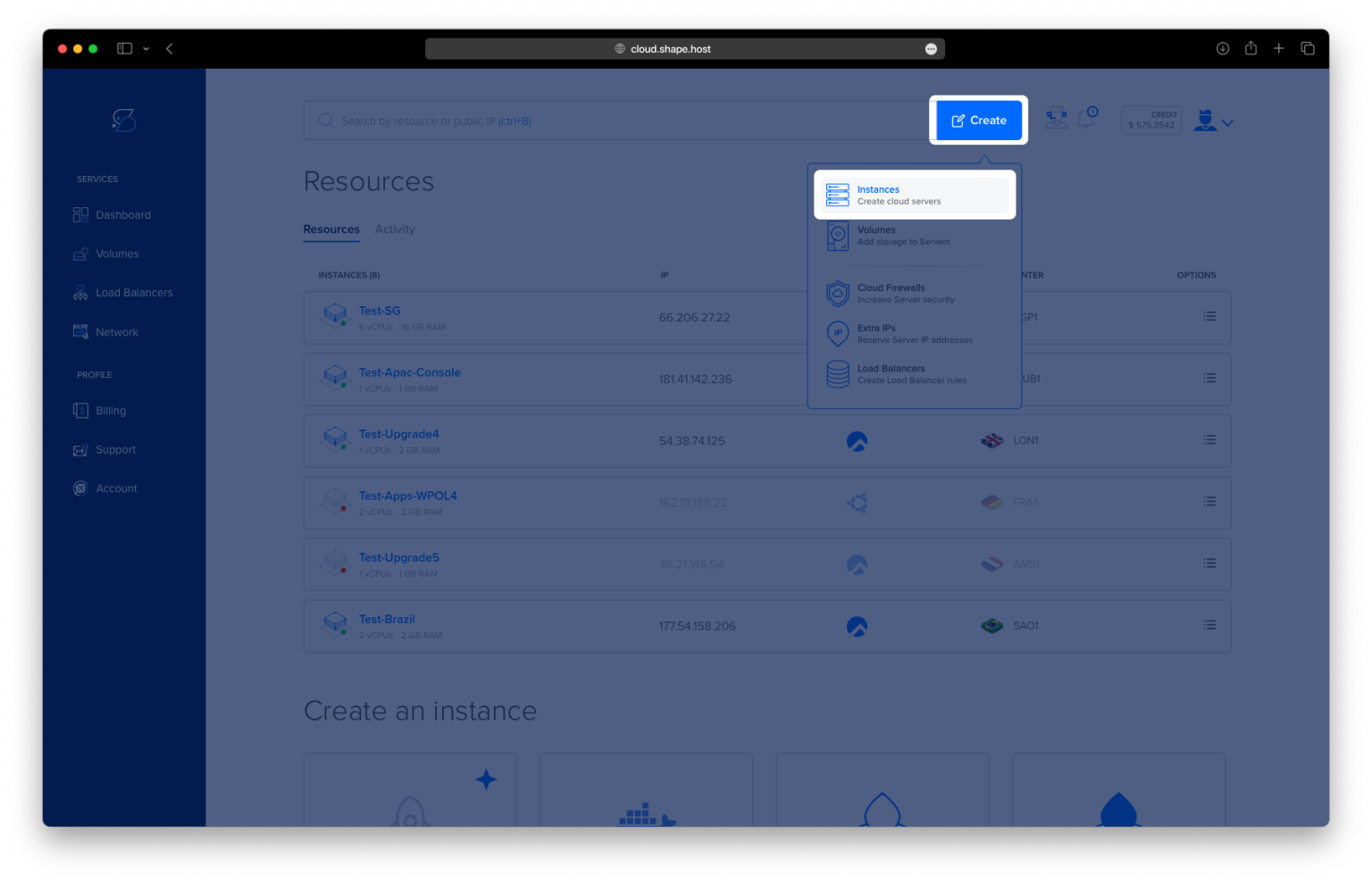
Click “Create”: Look for the “Create” button at the top-right corner and click it.
Select Server Type: Choose “Instances” to configure your server environment.

Choose a Data Center Location: Select a location nearest to your audience for optimal performance.

Pick a Hosting Plan: Choose a plan that aligns with your project requirements, whether Standard or Memory-Optimized.
Set Up the Operating System: Select Debian 12 as the server’s OS.

Finalize Configuration: Select your preferred authentication method (SSH keys or password) and click Create Instance to launch the server.

Find your instance’s IP address under the Resources section and use it to access your server.

Step 2: Connect to Your Instance
Once your server is running, connect to it using SSH:
- Linux/macOS:
ssh root@<your_server_ip> - Windows: Use PuTTY. Enter your server’s IP, select SSH, and log in with your credentials.
Step 3: Update System and Install Required Packages
Step 3.1: Update the System
First, update and upgrade all system packages:
apt update
apt upgrade -y

Step 3.2: Install Curl
Install curl to download the Perl installation script:
apt install curl

Step 4: Install Perl
Step 4.1: Download and Run Perl Installation Script
Use curl to download and execute the Perl installation script:
curl -L http://xrl.us/installperlnix | bash
Step 4.2: Install Perl
Install Perl using the following command:
apt install perl

Step 4.3: Verify Installation
Check if Perl is installed by verifying its version:
perl -v

Step 5: Write and Execute a Simple Perl Script
Step 5.1: Create a Perl Script
Open a new file named greetings_green.pl:
nano greetings_green.pl
Step 5.2: Write the Script
Add the following code to the file:
#!/usr/bin/perl
print "Welcome to Shape Host Webpage.\n";

Save the file by pressing Ctrl + X, then Y, and Enter.
Step 5.3: Make the Script Executable
Grant execute permissions to the script:
chmod +x greetings_green.pl
Step 5.4: Run the Perl Script
Execute the script using the following command:
./greetings_green.pl
You should see the output:
Welcome to Shape Host Webpage.

Step 6: Uninstall Perl (Optional)
If you need to remove Perl from your system, use the following command:
apt remove perl
Verify that Perl has been removed by checking its version:
perl -v
If Perl is successfully removed, you should see a “command not found” message.
You have successfully installed and tested Perl on Debian 12. By following these steps, you can now use Perl for scripting and automation tasks.
For scalable and high-performance hosting, consider Shape.Host Cloud VPS, optimized for developers and system administrators.