Laravel is an open-source PHP framework designed for building modern web applications with a focus on simplicity, elegance, and scalability. Known for its MVC architecture, robust features, and developer-friendly syntax, Laravel is widely used for web development, APIs, and enterprise applications. Running Laravel on Debian 12 ensures a secure, stable, and high-performance environment, making it ideal for both small projects and large-scale applications.
Key Features of Laravel
- MVC Architecture
- Based on the Model-View-Controller (MVC) design pattern, ensuring clean code separation and maintainability.
- Routing and Middleware
- Simplified routing system with built-in middleware for request filtering and security.
- Blade Templating Engine
- The lightweight and powerful Blade engine enables dynamic content generation with minimal syntax.
- Built-In Authentication and Authorization
- Easy-to-implement user authentication and role-based access control (RBAC) out of the box.
- Eloquent ORM (Object-Relational Mapping)
- Simplified database interactions using Eloquent, a robust and intuitive ORM.
- Database Migrations and Seeding
- Version-controlled database migrations and automated seeding for structured data management.
- Task Scheduling and Queues
- Schedule tasks using Laravel Scheduler and manage background jobs with queues for improved performance.
- API Development with Laravel Sanctum & Passport
- Secure RESTful APIs with built-in support for OAuth2 and token-based authentication.
- Testing and Debugging
- Comprehensive support for unit testing, feature testing, and automated testing using PHPUnit.
- Package Ecosystem with Composer
- Leverage Composer to install packages and extend functionality with Laravel packages from Packagist.
Advantages of Using Laravel on Debian 12
- Secure and Stable: Debian 12’s focus on security complements Laravel’s built-in features like CSRF protection, SQL injection prevention, and XSS protection.
- High Performance: Optimized execution on Debian’s lightweight environment ensures fast response times.
- Developer Productivity: Laravel’s expressive syntax and built-in tools accelerate web development and improve code maintainability.
- Cross-Platform Compatibility: Applications developed on Debian 12 can be deployed to various platforms with minimal changes.
- Open Source and Community Support: A large developer community and extensive documentation ensure support for both beginners and experts.
Use Cases for Laravel on Debian 12
- Web Application Development
- Build dynamic, responsive web applications using Laravel’s MVC framework.
- API Development
- Create secure RESTful APIs using Laravel Sanctum and Laravel Passport.
- E-Commerce Platforms
- Develop scalable e-commerce websites with features like product catalogs, payment gateways, and user authentication.
- Content Management Systems (CMS)
- Build custom CMS solutions tailored to specific business needs.
- Enterprise Resource Planning (ERP) Systems
- Develop internal tools for managing business processes, inventory, and customer relations.
- SaaS Applications
- Build and deploy Software-as-a-Service (SaaS) platforms using Laravel’s modular architecture.
- Task Automation and Scheduling
- Automate repetitive tasks using Laravel Scheduler and manage background jobs with queues.
- Secure User Management
- Implement user authentication, password resets, and role-based access control with built-in Laravel features.
Comparison: Laravel vs. Other PHP Frameworks
| Feature | Laravel | Symfony | CodeIgniter | Yii |
|---|---|---|---|---|
| MVC Architecture | ✅ Yes | ✅ Yes | ✅ Yes | ✅ Yes |
| Built-In Authentication | ✅ Built-In | ❌ Third-Party | ❌ Limited | ✅ Basic |
| ORM Support | ✅ Eloquent ORM | ✅ Doctrine ORM | ❌ No ORM | ✅ Active Record |
| Routing and Middleware | ✅ Simple and Flexible | ✅ Configurable | ✅ Basic | ✅ Configurable |
| Templating Engine | ✅ Blade | ✅ Twig | ✅ Simple | ✅ Simple |
| Performance and Speed | ✅ Fast (Optimized Execution) | ✅ Fast (Flexible Optimization) | ✅ Very Fast (Lightweight) | ✅ Fast |
| Community and Ecosystem | ✅ Large and Active | ✅ Large and Enterprise-Focused | ✅ Moderate | ✅ Moderate |
Why Use Laravel on Debian 12?
- Stable and Secure Environment: Debian 12’s long-term support (LTS) ensures a stable and secure platform for deploying Laravel applications.
- Optimized Performance: Lightweight and efficient, Debian 12 enhances Laravel’s speed and responsiveness.
- Open Source Flexibility: Both Debian 12 and Laravel are open-source, reducing software licensing costs.
- Scalable and Reliable: Ideal for building scalable web applications, from small websites to enterprise-grade platforms.
- Cross-Platform Deployment: Easily deploy Laravel applications to cloud platforms, VPS servers, and dedicated servers.
Laravel on Debian 12 is the perfect combination for building modern web applications, APIs, and enterprise solutions. With its MVC architecture, robust features, and developer-friendly tools, Laravel enables faster development while ensuring performance, scalability, and security. Running Laravel on Debian 12 guarantees a stable, secure, and high-performance environment, making it the preferred choice for developers, startups, and enterprises alike.
Step 1: Create a Server Instance on Shape.Host
Before installing Laravel, you’ll need a server to host your environment. Here’s how to set up a server instance on Shape.Host:
Log in to Shape.Host: Go to the Shape.Host website and log in to your account. Navigate to the Cloud VPS section.
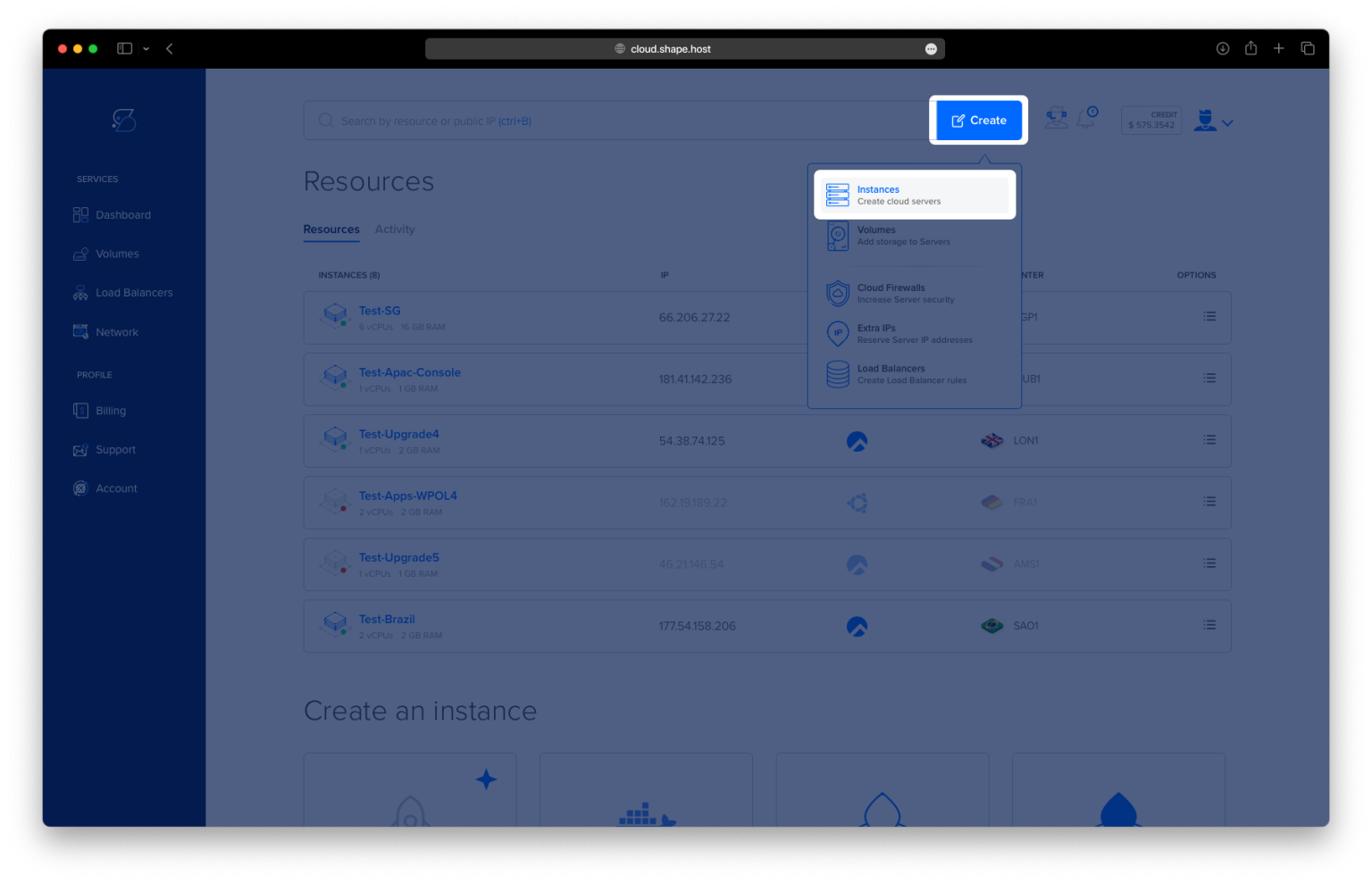
Create a New Instance: Click on “Create” and choose the server type that fits your needs.
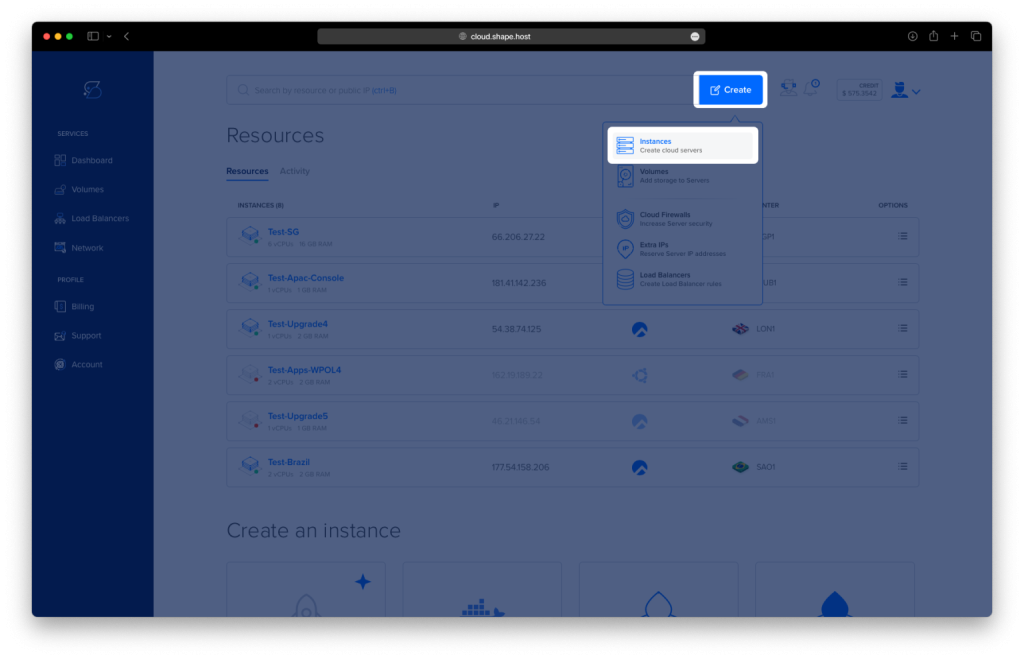
Pick a Data Center: Select a data center location close to your audience for better performance.
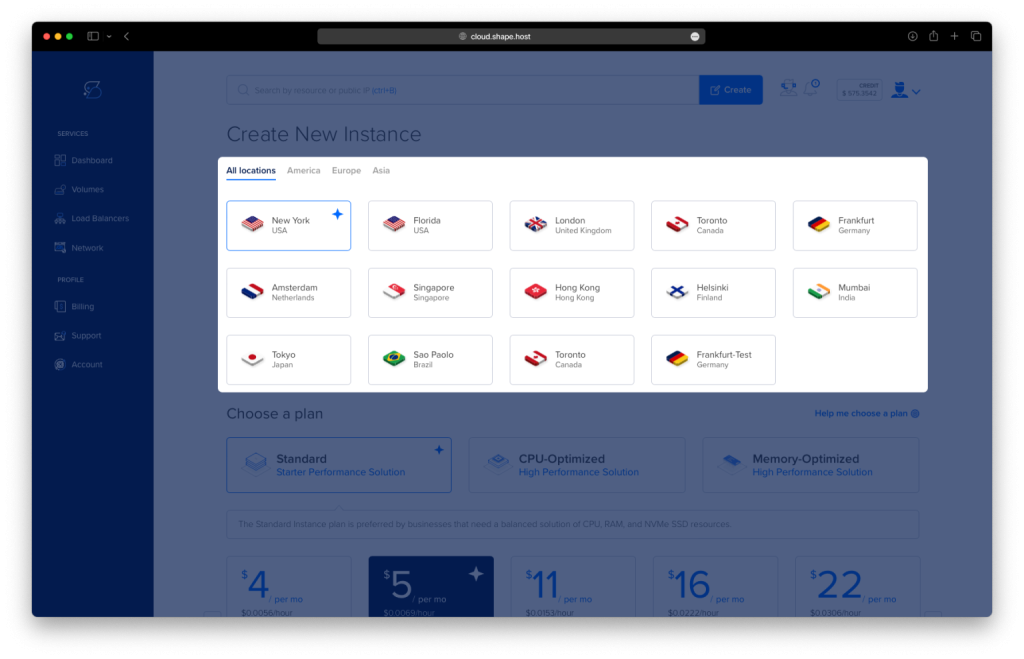
Choose a Plan: Pick a hosting plan that matches your project’s requirements and budget.
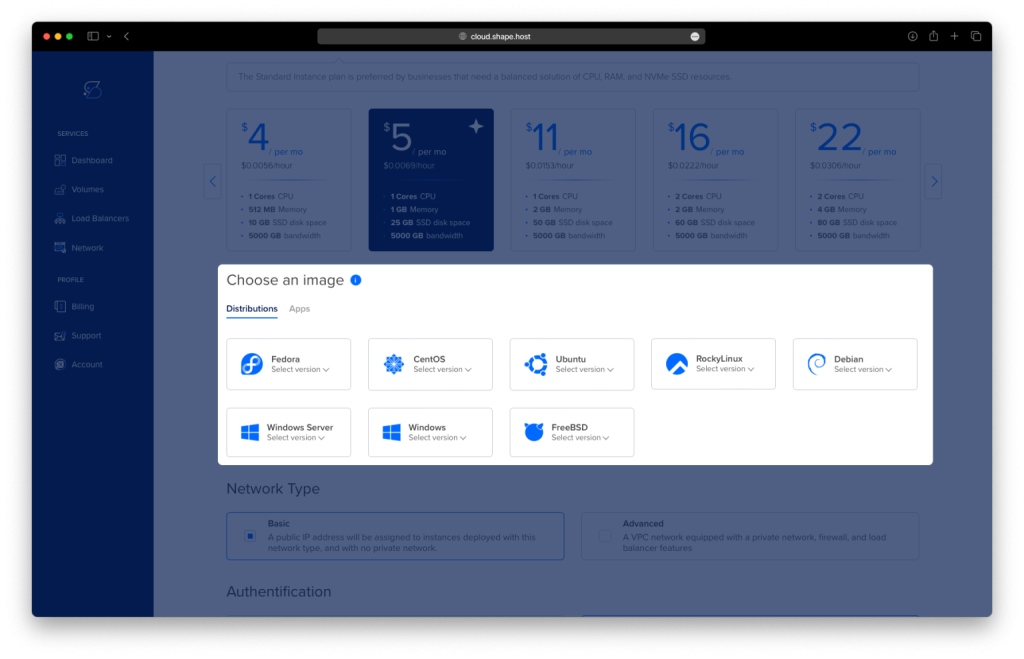
Set the OS: Choose Debian 12 as your operating system.
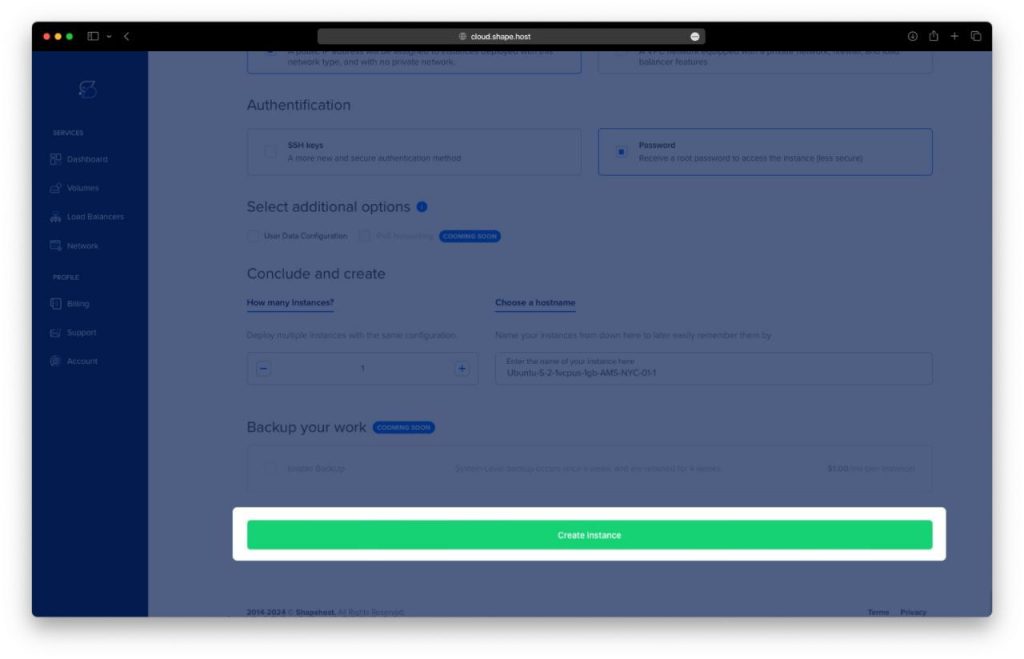
Launch the Server: Review your settings and click “Create Instance” Your server will be ready in a few minutes.
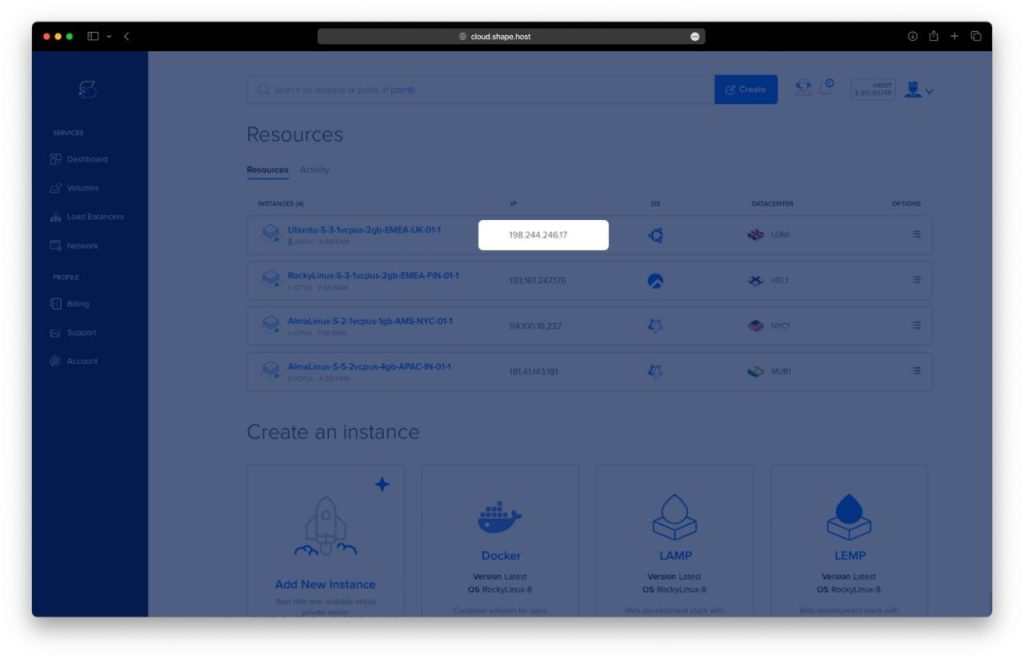
In Dashboard you will find your Instance IP
Step 2: Connect to Your Server
Once your server is ready, you’ll need to connect to it using SSH. Here’s how:
- Linux/macOS: Open your terminal and type:
ssh root@your_server_ipReplace your_server_ip with your server’s IP address.
- Windows: Use an SSH client like PuTTY. Enter your server’s IP address, specify the port (usually 22), and click “Open.” Log in with your username and password.
Step 3: Update Your System
Before installing any software, it’s important to update your system to ensure all software is up to date. Run the following command:
apt update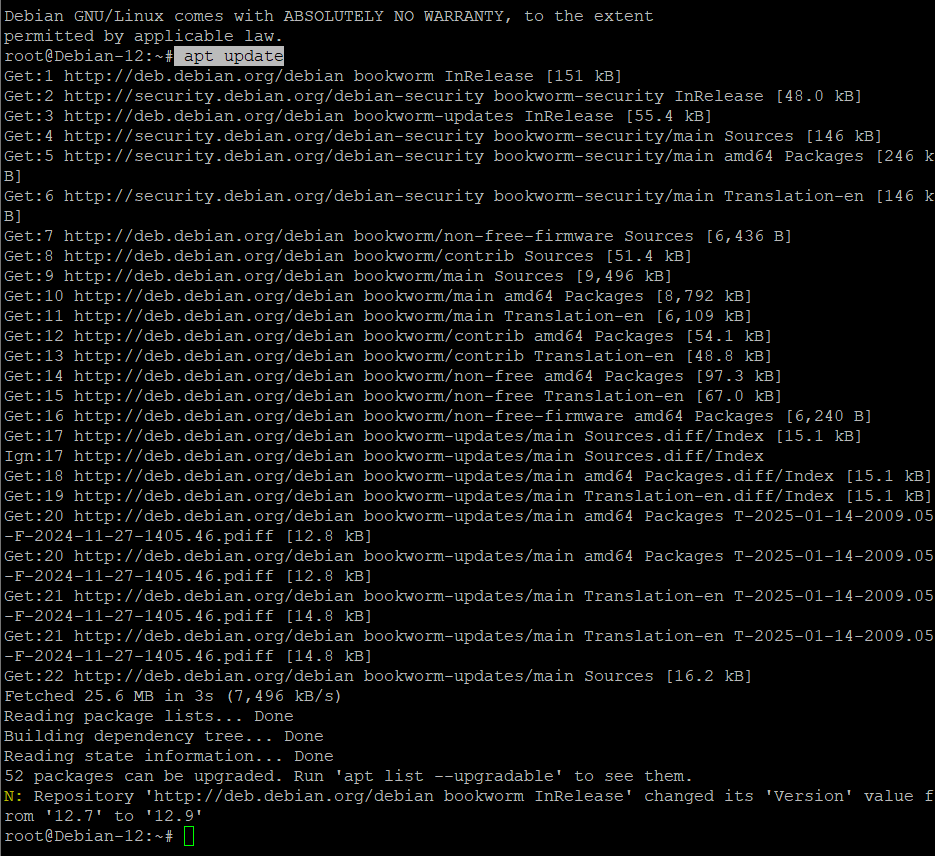
Step 4: Install Apache, PHP, and MariaDB
Laravel requires a web server (Apache), PHP, and a database (MariaDB). Install them with the following command:
apt install apache2 php php-curl php-bcmath php-json php-mysql php-mbstring php-xml php-tokenizer php-zip mariadb-server -y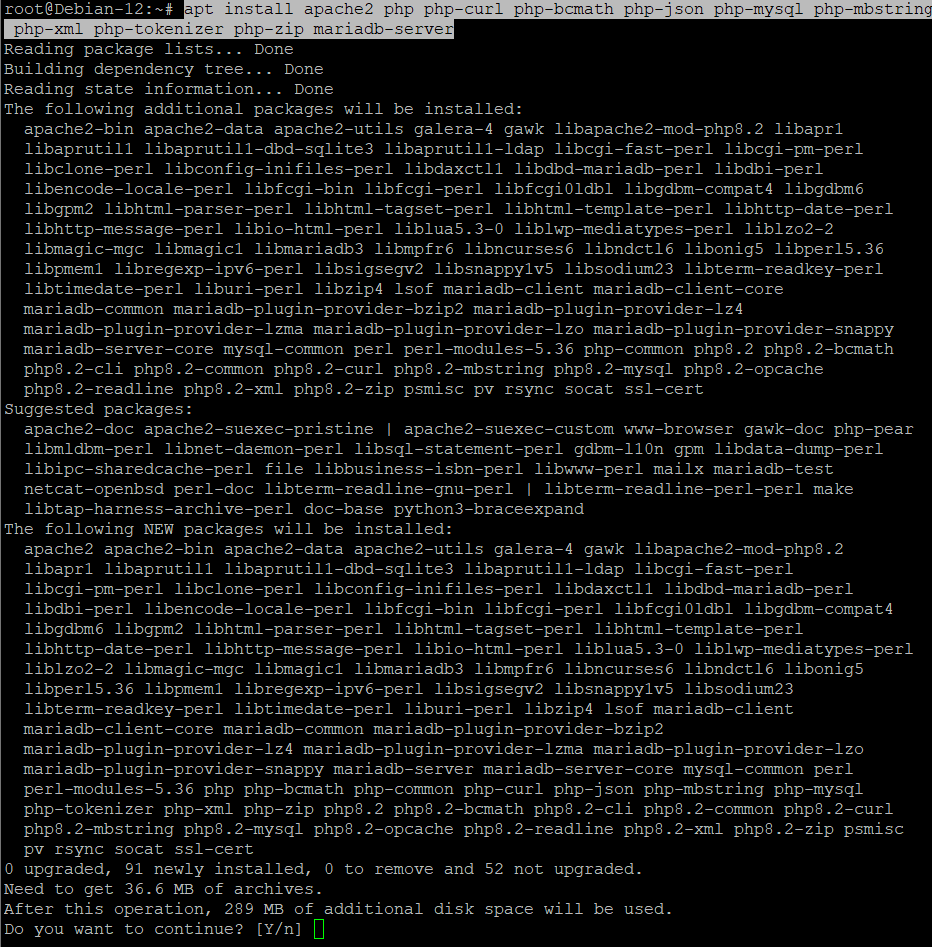
Step 5: Verify Services
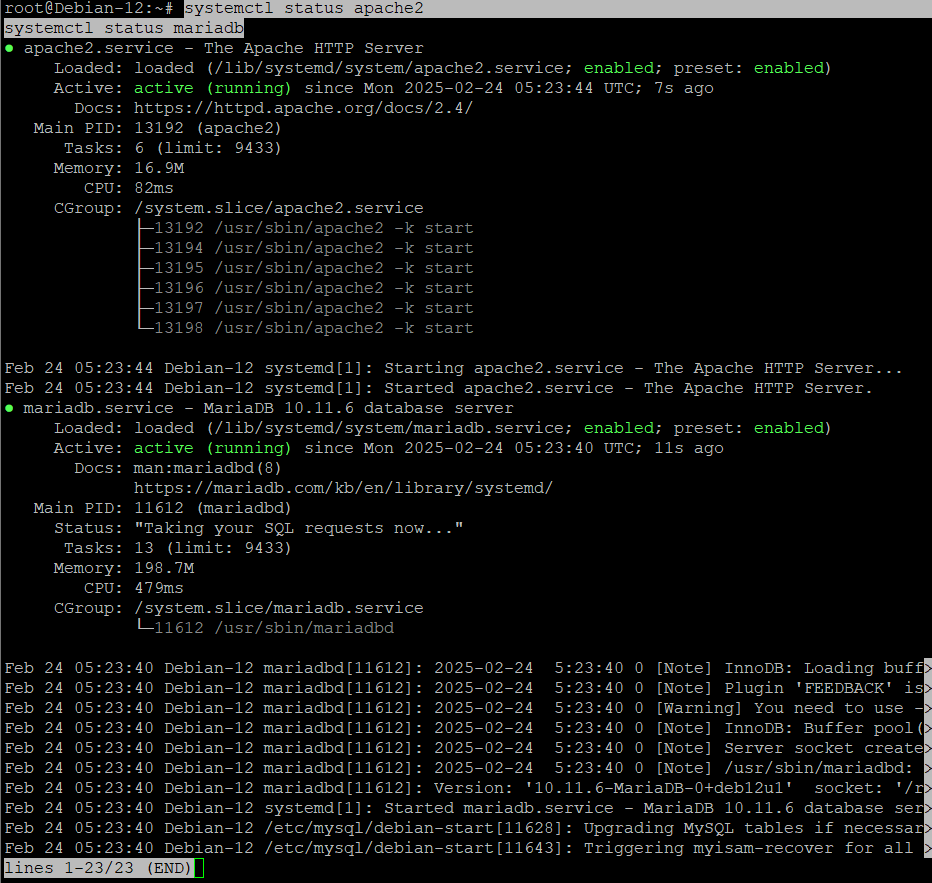
Check the status of Apache and MariaDB to ensure they are running:
systemctl status apache2
systemctl status mariadb
Both services should be active and enabled.
Step 6: Configure PHP
Laravel requires certain PHP extensions to be enabled. Open the PHP configuration file:
nano /etc/php/8.2/apache2/php.iniUncomment the following lines to enable the required extensions:
extension=fileinfo
extension=mbstring
extension=openssl
Save and close the file, then restart Apache:
systemctl restart apache2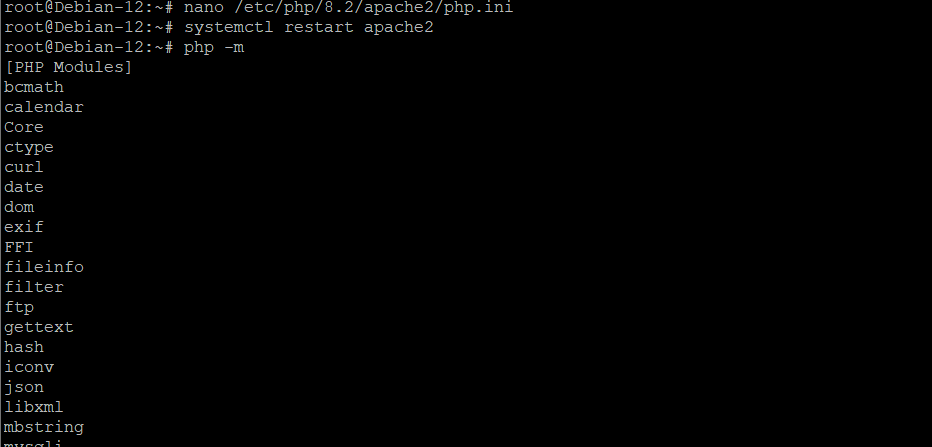
Step 7: Test PHP
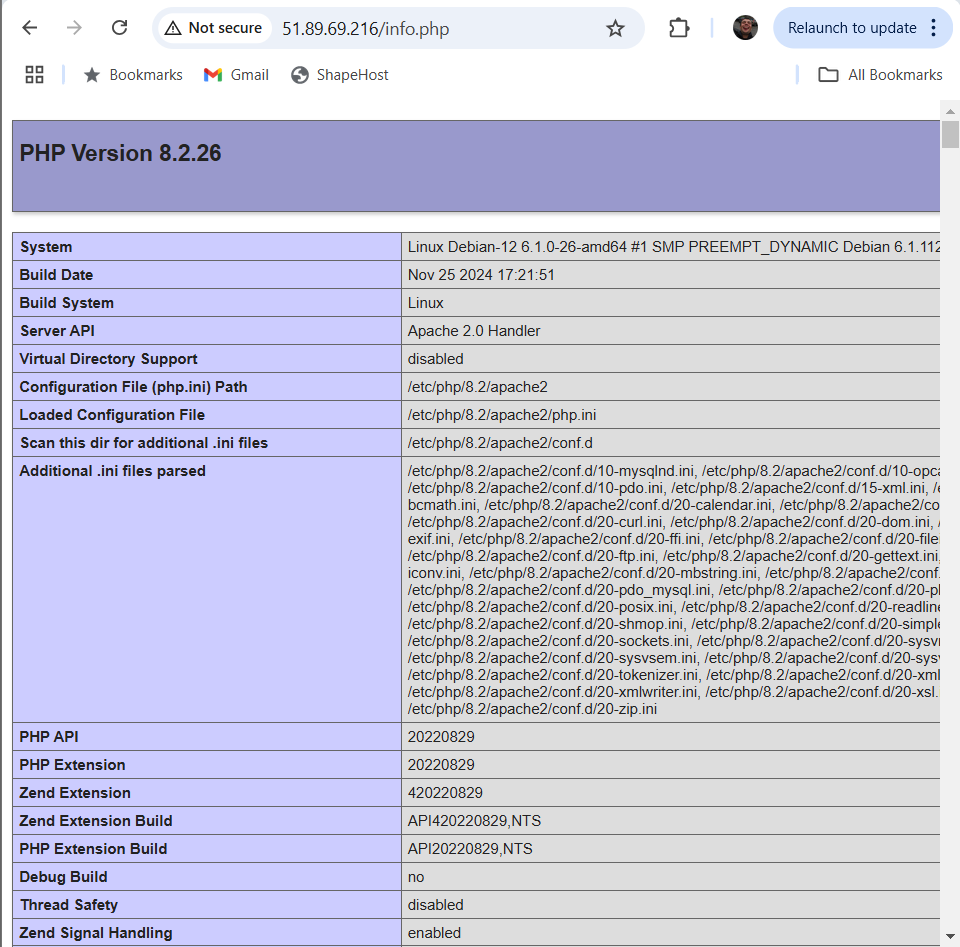
Create a PHP info file to verify that PHP is working:
echo "<?php phpinfo(); ?>" > /var/www/html/info.phpOpen your browser and navigate to http://<your_server_ip>/info.php. You should see the PHP info page.
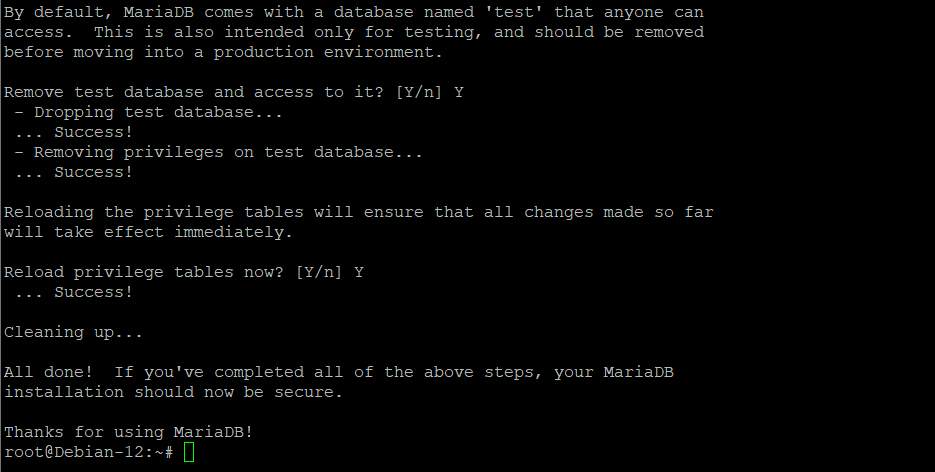
Step 8: Secure MariaDB
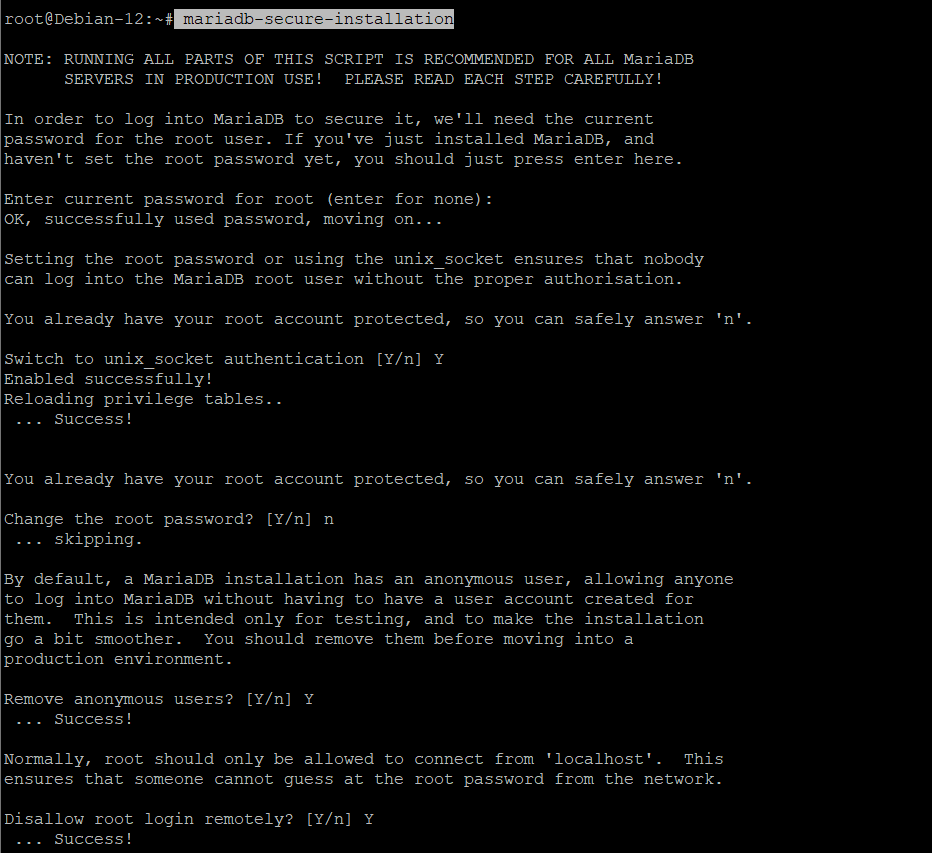
Run the MariaDB secure installation script to set a root password and secure your database:
mariadb-secure-installationFollow the on-screen prompts to complete the process.
Step 9: Create a Database and User
Log in to MariaDB and create a database and user for your Laravel application:
mariadb -u root -pRun the following SQL commands:
CREATE DATABASE testapp;
CREATE USER testapp@localhost IDENTIFIED BY 'password';
GRANT ALL PRIVILEGES ON testapp.* TO testapp@localhost;
FLUSH PRIVILEGES;
SHOW GRANTS FOR testapp@localhost;
quit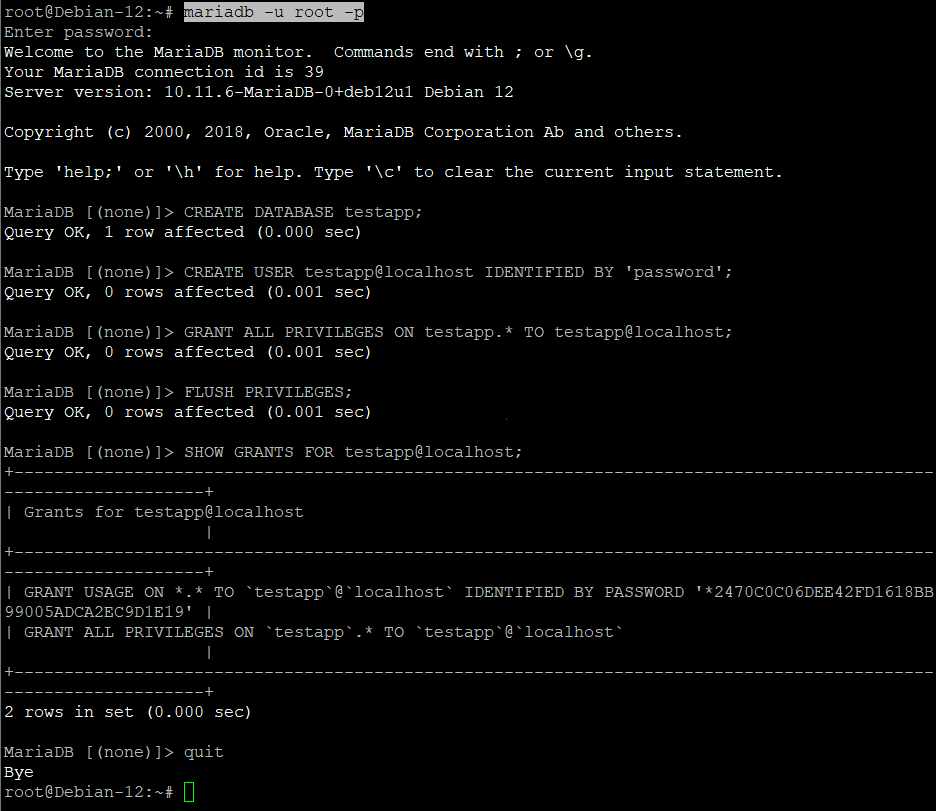
Step 10: Install Composer
Composer is a dependency manager for PHP and is required to install Laravel. Install it with:
apt install composer -y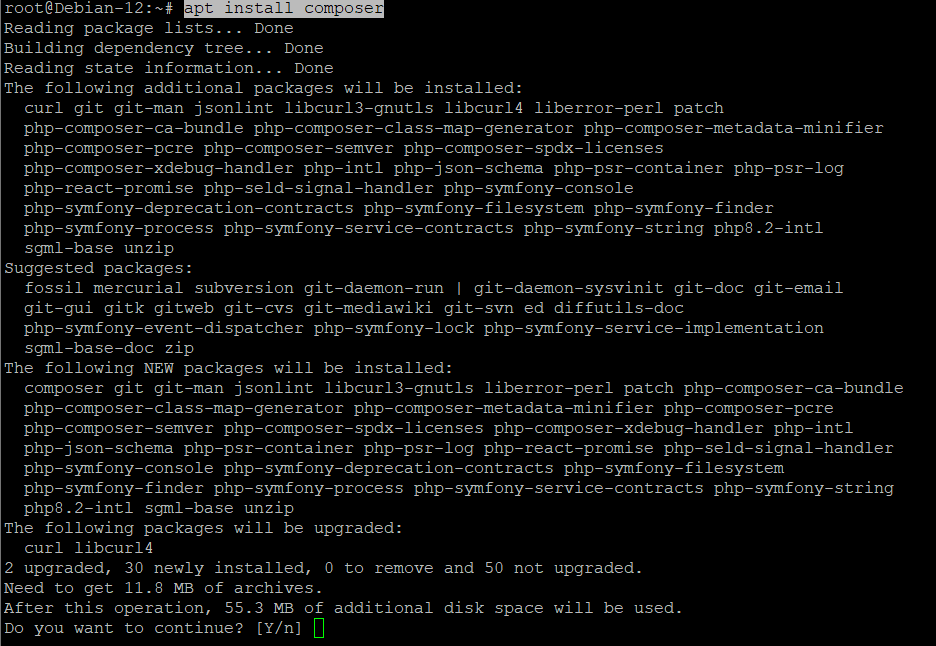
Verify the installation:
composer --version
Step 11: Set Up Laravel
Create a directory for your Laravel project and set the correct permissions:
mkdir -p /var/www/{.cache,.config,testapp}
chown -R www-data:www-data /var/www/{.cache,.config,testapp}
Navigate to the project directory and install Laravel:
cd /var/www/testapp/
sudo -u www-data composer create-project laravel/laravel .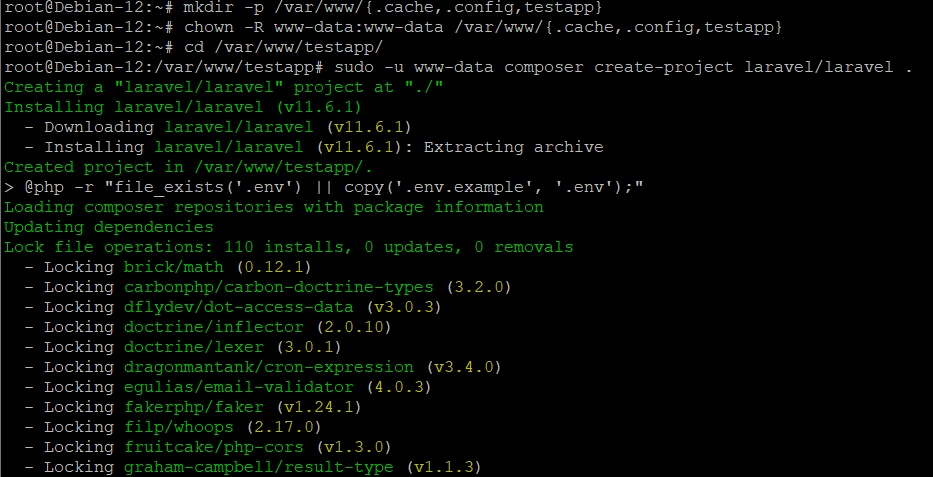
Step 12: Configure Laravel
Edit the .env file to configure the database connection:
nano .envUpdate the following lines with your database details:
DB_CONNECTION=mysql
DB_HOST=127.0.0.1
DB_PORT=3306
DB_DATABASE=testapp
DB_USERNAME=testapp
DB_PASSWORD=password
Run the database migrations:
sudo -u www-data php artisan migrate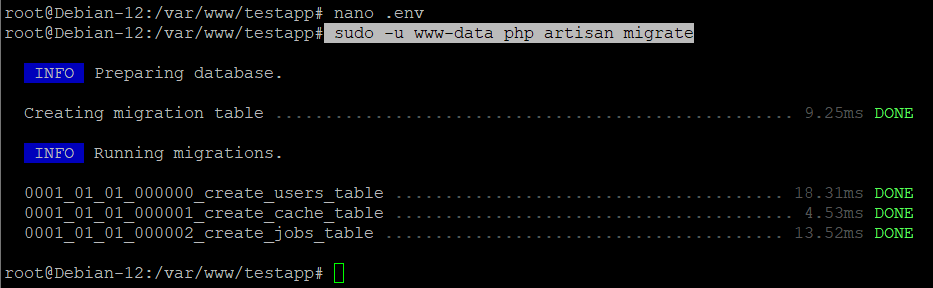
Step 13: Configure Apache
Enable the rewrite module and create a virtual host for Laravel:
a2enmod rewrite
nano /etc/apache2/sites-available/laravel.conf
Add the following configuration:
<VirtualHost *:80>
    ServerAdmin contact@example.com
    ServerName example.com
    DocumentRoot /var/www/testapp/public

    <Directory />
        Options FollowSymLinks
        AllowOverride None
    </Directory>
    <Directory /var/www/testapp>
        AllowOverride All
    </Directory>

    ErrorLog ${APACHE_LOG_DIR}/error.log
    CustomLog ${APACHE_LOG_DIR}/access.log combined
</VirtualHost>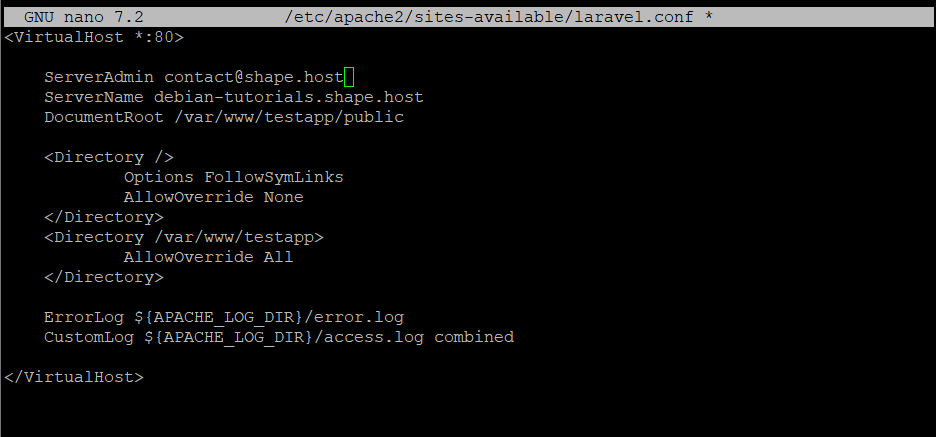
Enable the site and reload Apache:
a2ensite laravel.conf
apachectl configtest
systemctl reload apache2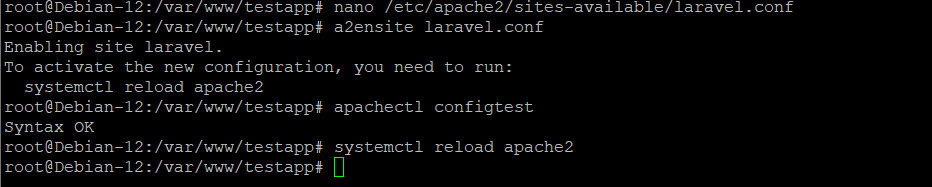
Step 14: Update Hosts File
If you’re testing locally, update your /etc/hosts file to map your server IP to the domain:
nano /etc/hostsAdd the following line:
your_server_ip example.com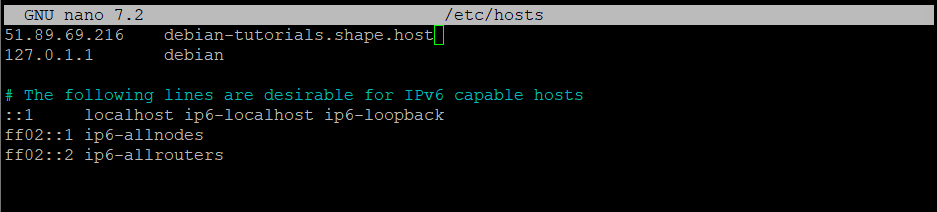
Step 15: Access Laravel
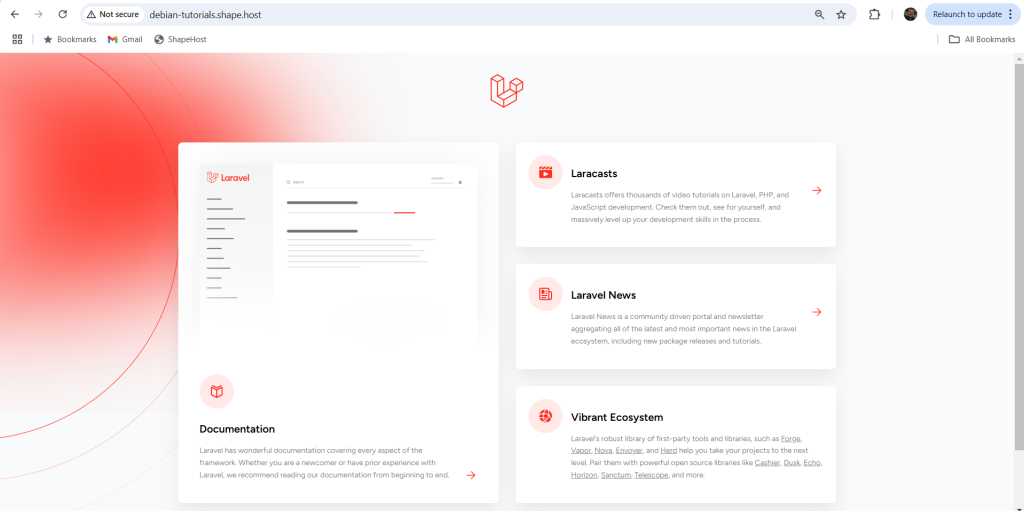
Open your browser and navigate to http://example.com. You should see the Laravel welcome page.
If you’re looking for a reliable hosting solution for your Laravel projects, consider Shape.Host Linux SSD VPS services. With fast SSD storage, scalable resources, and excellent support, Shape.Host provides the perfect environment for running Laravel and other demanding applications. Visit Shape.Host to learn more and get started today!