Apache Maven is an open-source build automation tool primarily used for Java projects. Developed by the Apache Software Foundation, Maven simplifies the process of building, managing, and deploying applications by using a project object model (POM). It automates tasks like compiling code, managing dependencies, running tests, and generating documentation. Running Maven on Debian 12 ensures a stable and efficient development environment, making it ideal for both individual developers and large enterprise teams.
Key Features of Maven on Debian 12
- Project Object Model (POM)
- Uses XML-based POM files to define project dependencies, build configurations, and plugins.
- Dependency Management
- Automatically downloads and manages project dependencies from remote repositories like Maven Central.
- Build Lifecycle Automation
- Standardized build lifecycles with phases like validate, compile, test, package, verify, and install.
- Plugin-Based Architecture
- Extensible with plugins for tasks like compilation, testing, code analysis, and deployment.
- Multi-Module Project Support
- Build and manage multi-module projects with a single command.
- Cross-Platform Compatibility
- Works seamlessly on Debian 12, with support for other platforms like Windows, macOS, and Linux distributions.
- Integration with CI/CD Pipelines
- Easily integrates with Jenkins, GitLab CI/CD, and GitHub Actions for automated builds and deployments.
- Centralized Repository System
- Access pre-built libraries and artifacts from Maven Central Repository or private repositories.
- Custom Build Profiles
- Configure custom build profiles for different environments like development, testing, and production.
- Testing and Code Quality
- Run unit tests, integration tests, and code analysis using plugins like Surefire, Failsafe, and Checkstyle.
Advantages of Using Maven on Debian 12
- Simplified Build Process: Automates complex build tasks, reducing manual effort and human errors.
- Dependency Management: Automatically handles library dependencies and resolves version conflicts.
- Consistency Across Teams: Standardized project structure ensures consistency and maintainability.
- Faster Development: Accelerates software development cycles by automating repetitive tasks.
- Scalability: Suitable for both small projects and large enterprise applications.
- Integration with Development Tools: Works seamlessly with IDEs like IntelliJ IDEA, Eclipse, and Visual Studio Code.
Use Cases of Maven on Debian 12
- Java Application Development
- Simplify the build process for Java applications, from compilation to packaging.
- Web Application Deployment
- Build and deploy web applications using frameworks like Spring Boot and Jakarta EE.
- Microservices Architecture
- Manage microservices projects with separate modules using multi-module support.
- Continuous Integration and Delivery (CI/CD)
- Integrate Maven into CI/CD pipelines for automated builds, testing, and deployments.
- Dependency Management for Large Projects
- Simplify dependency management for projects with multiple libraries and third-party tools.
- Automated Testing
- Execute unit tests, integration tests, and performance tests as part of the build process.
- Documentation and Reports
- Generate project documentation, Javadocs, and code quality reports automatically.
Comparison: Maven vs. Other Build Tools
| Feature | Maven | Gradle | Ant | Make |
|---|---|---|---|---|
| Build Configuration | ✅ XML-Based (POM) | ✅ Groovy/Kotlin DSL | ⚠️ XML-Based (Manual) | ⚠️ Makefile (Manual) |
| Dependency Management | ✅ Built-In | ✅ Built-In | ❌ Manual | ❌ No Built-In |
| Plugin Ecosystem | ✅ Extensive | ✅ Extensive | ⚠️ Limited | ❌ Minimal |
| Multi-Module Support | ✅ Yes | ✅ Yes | ✅ Yes | ❌ No |
| Performance | ⚠️ Slower for Large Builds | ✅ Faster (Incremental Builds) | ✅ Fast | ✅ Fast |
| IDE Integration | ✅ Seamless with IDEs | ✅ Seamless with IDEs | ⚠️ Basic | ❌ Limited |
| Cross-Platform Compatibility | ✅ Yes | ✅ Yes | ✅ Yes | ✅ Yes |
Why Use Maven on Debian 12?
- Stable and Secure Platform: Debian 12 offers a reliable environment for building Java applications with Maven.
- Optimized Performance: Lightweight and efficient, Debian 12 enhances Maven’s build speed and performance.
- Seamless Integration: Easily integrates with Java Development Kit (JDK) and PostgreSQL, common tools for Java applications.
- Open Source and Cost-Effective: Both Debian 12 and Maven are free and open-source, reducing development costs.
- Enterprise-Ready: Suitable for enterprise-scale projects with complex build dependencies and multi-module architectures.
Maven on Debian 12 provides a powerful and efficient platform for building, managing, and deploying Java applications. Its automated build process, dependency management, and multi-module support simplify software development and accelerate project delivery. Whether you’re developing a simple Java application or a complex enterprise system, Maven ensures a consistent, reliable, and scalable development environment.
Step 1: Set Up a Server Instance
To begin, create a Debian 12 server instance by following these steps:
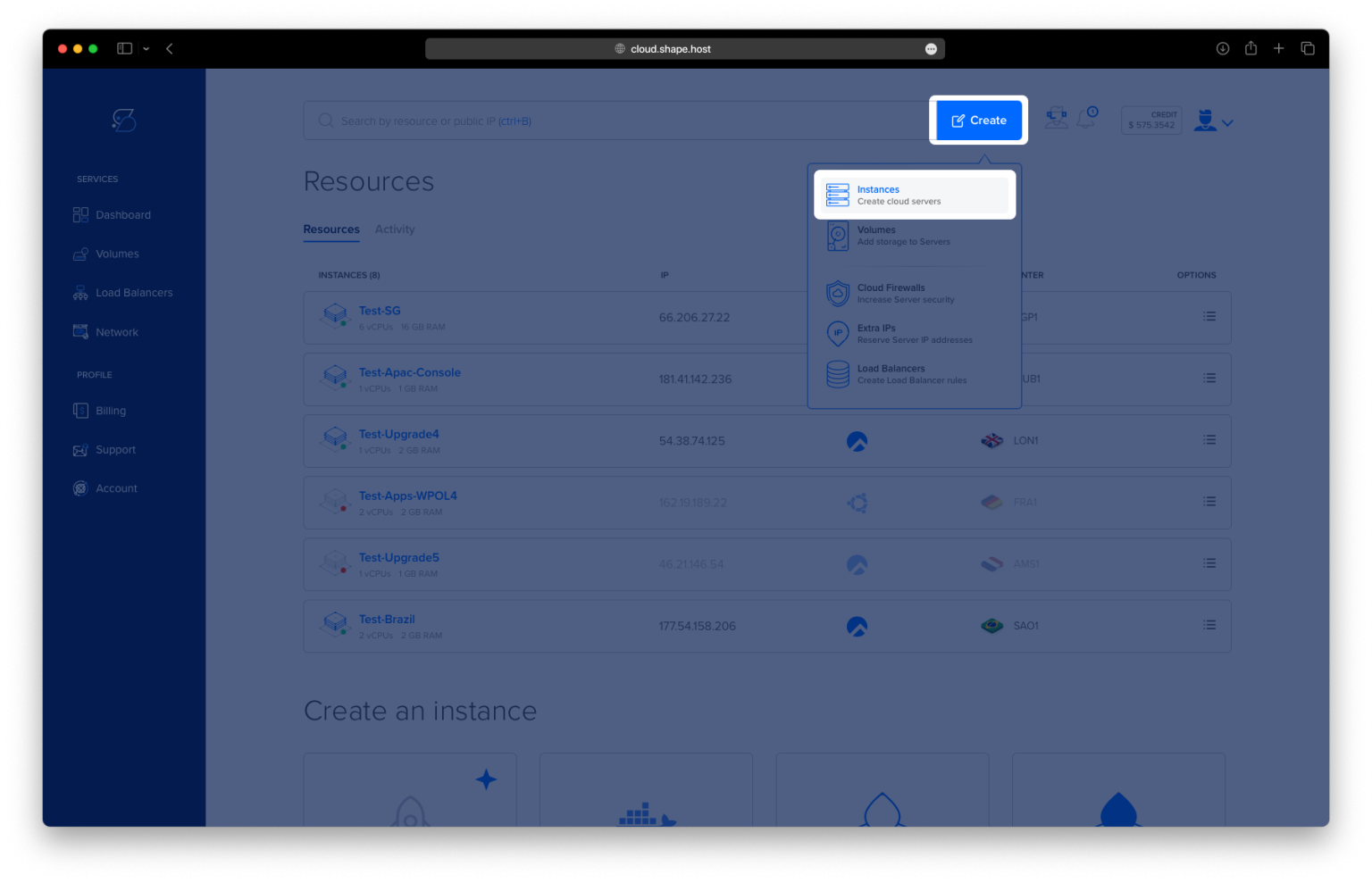
Access Shape.Host Dashboard: Log into your Shape.Host account and navigate to the Dashboard.
Create a New Instance: Click the “Create” button located at the top-right corner.
Select Server Type: Choose “Instances” to configure your server.

Choose a Data Center: Select a location nearest to your audience for better performance.

Select a Hosting Plan: Choose a plan that suits your needs, whether Standard or Memory-Optimized.
Set Up the Operating System: Select Debian 12 as your operating system.

Finalize and Launch: Choose SSH keys or a password for authentication and click Create Instance.

Find your instance’s IP address under the Resources section and use it to access your server.

Step 2: Connect to Your Server
Connect to your server using SSH:
- Linux/macOS:
ssh root@<your_server_ip> - Windows: Use PuTTY. Enter your server’s IP address, select SSH, and log in using your credentials.
Step 3: Install Required Packages
Step 3.1: Update the System
Ensure your system is up-to-date by running the following command:
apt update

Step 3.2: Install Java Development Kit (JDK)
Maven requires Java to run. Install the default JDK:
apt install default-jdk

Step 3.3: Verify Java Installation
Check the installed Java version to confirm the installation:
java -version

Step 4: Download and Extract Maven
Step 4.1: Download Apache Maven
Download the latest version of Apache Maven:
wget https://dlcdn.apache.org/maven/maven-3/3.9.7/binaries/apache-maven-3.9.7-bin.tar.gz

Step 4.2: Extract Maven to /opt Directory
Extract the downloaded archive to the /opt directory:
tar xf apache-maven-3.9.7-bin.tar.gz -C /opt

Step 5: Configure Environment Variables
Step 5.1: Create a Shell Script for Maven
Open the maven.sh script file:
nano /etc/profile.d/maven.sh
Step 5.2: Add Environment Variables
Paste the following lines into the file:
export JAVA_HOME=/usr/lib/jvm/default-java
export M3_HOME=/opt/apache-maven-3.9.7
export MAVEN_HOME=/opt/apache-maven-3.9.7
export PATH=${M3_HOME}/bin:${PATH}
Save the file by pressing Ctrl + X, then Y, and Enter.

Step 5.3: Make the Script Executable
Grant execute permissions to the script:
chmod +x /etc/profile.d/maven.sh
Step 6: Apply Configuration
Step 6.1: Navigate to the Profile Directory
Change to the /etc/profile.d/ directory:
cd /etc/profile.d/
Step 6.2: Verify Script Content
View the contents of maven.sh to ensure the variables are correctly set:
cat maven.sh
Step 6.3: Apply the Configuration Script
Execute the script to apply the environment variables:
bash /etc/profile.d/maven.sh
Step 6.4: Load Environment Variables into Current Session
Use the source command to load the environment variables into the current shell session:
source /etc/profile.d/maven.sh
Step 7: Verify Maven Installation
Confirm that Maven is installed and configured correctly by checking its version:
mvn -version
The output should display the Maven version, Java version, and the environment settings, indicating that Maven is ready for use.

You have successfully installed and configured Apache Maven on Debian 12. With Maven set up, you can now efficiently build, manage, and deploy your Java projects.
For reliable hosting solutions tailored to development environments, explore Shape.Host Cloud VPS, designed for high-performance applications.