What is Consul?
Consul is an open-source service mesh and infrastructure automation tool created by HashiCorp. It provides powerful features for service discovery, health checking, distributed key-value storage, and secure service-to-service communication. Consul is designed for dynamic, distributed systems, such as microservices architectures running in the cloud, containers, or hybrid environments.
Running Consul on Debian 12 is a solid choice for organizations and DevOps teams seeking a stable, lightweight, and secure platform for infrastructure orchestration and service mesh implementations.
Core Features of Consul
Service Discovery
- Automatically registers and discovers services across the network.
- Uses DNS and HTTP APIs to query services by name.
- No need to hardcode IPs—services can scale and move freely.
Health Checking
- Performs regular health checks on services and nodes.
- Supports HTTP, TCP, script-based, and gRPC checks.
- Removes unhealthy services from the registry automatically.
Key/Value Store
- Distributed and highly available KV storage for configurations, feature toggles, secrets, etc.
- Used by apps to retrieve runtime configurations dynamically.
Multi-Datacenter Support
- Consul supports federation across datacenters and cloud regions.
- Enables a global service network with WAN and LAN gossip protocols.
Security and ACLs
- Built-in ACL system for fine-grained access control to APIs and data.
- Supports mTLS encryption for secure service communication.
- Seamless integration with Vault for secrets management.
Service Mesh Integration
- Works with Envoy proxy to enable a modern service mesh.
- Provides features like:
- mTLS encryption
- Intentions-based traffic policies
- Load balancing and failover
- Service mesh mode can be used on Kubernetes or traditional VM-based setups.
Why Use Consul on Debian 12?
Debian 12 (“Bookworm”) is known for its security, stability, and long-term support, making it an ideal OS for deploying production-grade infrastructure services like Consul.
Benefits of using Consul on Debian 12:
- Reliable systemd integration for managing services.
- Low resource overhead—ideal for lightweight deployments.
- Compatible with Docker, Nomad, Kubernetes, and other orchestrators.
- Well-supported via HashiCorp’s official Linux binary packages and apt repositories.
Common Use Cases
✅ Service Discovery in Microservices
Replace static IPs with dynamic DNS names for app-to-app communication.
✅ Centralized Configuration
Use the KV store to manage application configs across environments.
✅ Service Mesh for Security
Secure internal traffic between services using mutual TLS and traffic policies.
✅ High Availability
Deploy Consul in a server cluster (Raft consensus) for HA and resilience.
✅ Multi-cloud or Hybrid Deployments
Federate multiple datacenters or cloud regions for unified service discovery.
Consul vs Other Tools
| Feature | Consul | etcd | Zookeeper | Eureka |
|---|---|---|---|---|
| Service Discovery | ✅ Yes | ❌ No | ❌ No | ✅ Yes |
| Health Checks | ✅ Yes | ❌ No | ⚠️ Basic | ✅ Yes |
| Key-Value Store | ✅ Yes | ✅ Yes | ✅ Yes | ❌ No |
| DNS Interface | ✅ Yes | ❌ No | ❌ No | ❌ No |
| Service Mesh Support | ✅ Yes (Envoy) | ❌ No | ❌ No | ❌ No |
| Multi-Datacenter Support | ✅ Yes | ⚠️ Limited | ❌ No | ❌ No |
System Requirements on Debian 12
| Requirement | Details |
|---|---|
| OS | Debian 12 (Bookworm) |
| CPU | 1+ core (multi-core recommended for servers) |
| RAM | 512MB minimum (1GB+ recommended) |
| Disk | ~100MB for binary and config |
| Ports | 8300–8302 (LAN/WAN), 8500 (HTTP), 8600 (DNS, TCP/UDP) |
🔐 You should secure these ports using firewalls or private networking.
Installation Options
- Official Binary: Download from https://www.consul.io/downloads
- APT Repository: HashiCorp provides an apt repo for Debian
- Docker Image: Available on Docker Hub (
hashicorp/consul) - Can be run as a systemd service or inside a container
Pros of Consul on Debian 12
✅ Reliable performance on a secure, minimal OS
✅ Excellent for DevOps and microservice architectures
✅ Full-stack solution: service discovery, mesh, KV store
✅ Integrates with Terraform, Vault, Nomad, Kubernetes
✅ Free and open source with commercial support from HashiCorp
Cons
❌ Setup complexity increases with scale (especially in multi-datacenter mode)
❌ Service mesh features require Envoy sidecars and proper config
❌ Needs a learning curve for managing ACLs and tokens securely
❌ WAN federation and Raft consensus require careful planning in production
Running Consul on Debian 12 offers a robust foundation for dynamic infrastructure management, service discovery, and secure networking. It is highly suitable for teams building scalable, microservice-based, or hybrid-cloud systems, providing the flexibility to integrate with other tools in the HashiCorp ecosystem.
With Debian 12’s reliability and security, Consul can power everything from simple service registries to enterprise-grade service meshes—making it a powerful ally in any modern infrastructure stack.
Step 1: Create a Debian 12 VPS with Shape.Host
To run Consul, you’ll need a virtual private server (VPS). Here’s how to create one on Shape.Host:
Visit https://shape.host and log in or sign up.
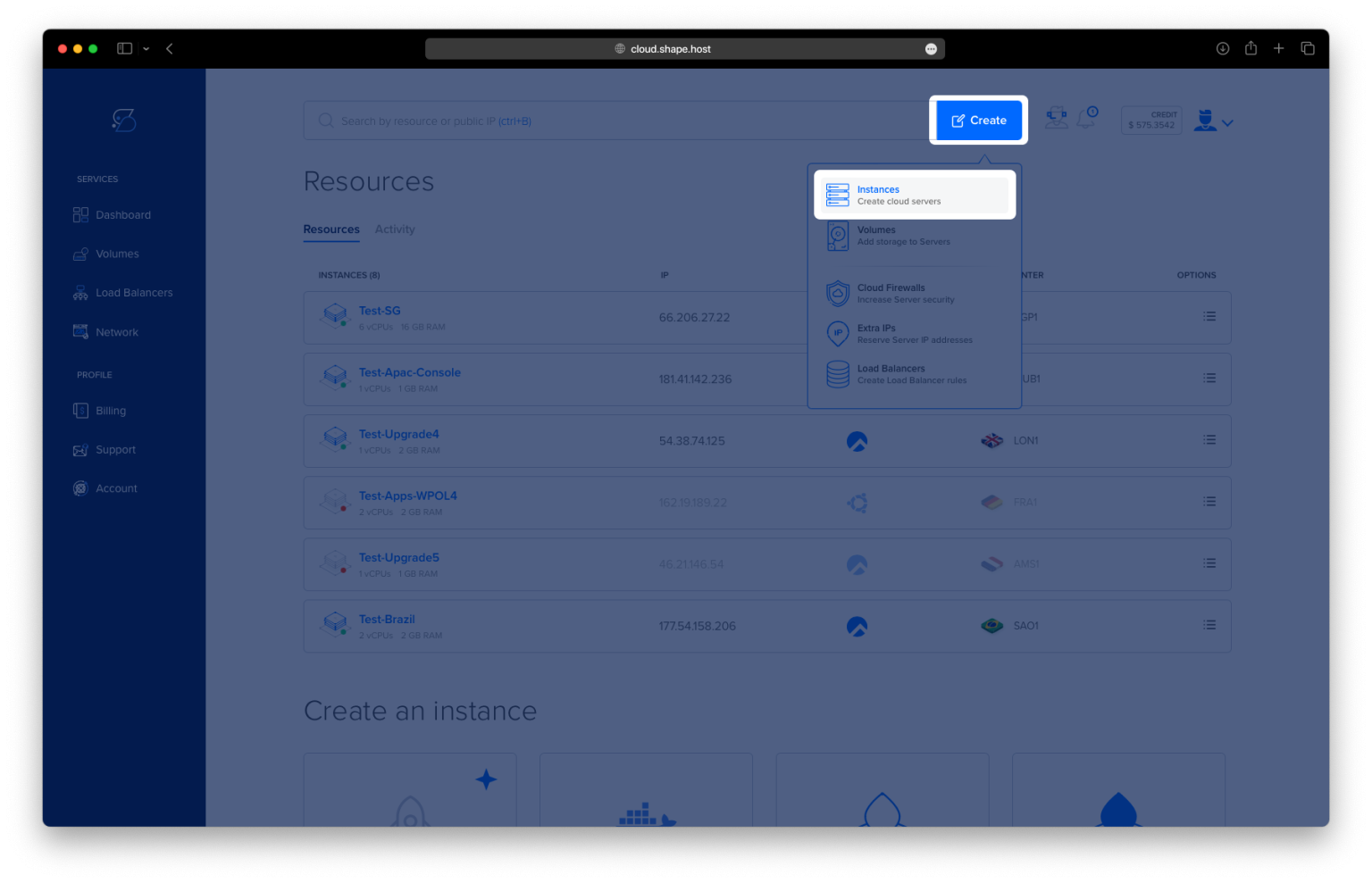
Click “Create” from your dashboard.
Choose Instance.

Pick your preferred data center and deploy the instance.

Select Debian 12 (64-bit) as your operating system.
Choose a server plan with at least 1 CPU, 1 GB RAM, and 10 GB storage.

Launch the Instance by selecting either SSH keys or a password for authentication. Click Create Instance to complete the process.

Find your instance’s IP address under the Resources section and use it to access your server.

Step 2: Connect to Your Server via SSH
To begin setup, log in to your server from your terminal or SSH client.
On Linux/macOS:
ssh root@your_server_ip
On Windows:
Use PuTTY to connect to your server using the IP and root credentials from Shape.Host.
Step 3: Update Your System
Run the following commands to update all packages:
apt update
apt upgrade

Step 4: Install Required Packages
Install utilities required for Consul installation:
apt install -y gnupg software-properties-common unzip

Step 5: Download and Install Consul
Let’s grab the latest stable version of Consul:
wget https://releases.hashicorp.com/consul/1.15.0/consul_1.15.0_linux_amd64.zip

Unzip and move it into your system path:
unzip consul_1.15.0_linux_amd64.zip
mv consul /usr/local/bin/

Verify the installation:
consul --version

Step 6: Create a System User for Consul
For security, Consul should run as its own user:
useradd --system --create-home --shell /bin/false consul
Step 7: Set Up Folders and Permissions
Now we’ll create the directories Consul needs and give proper access:
mkdir -p /opt/consul
mkdir -p /etc/consul.d

chown -R consul:consul /usr/local/bin/consul
chown -R consul:consul /opt/consul
chown -R consul:consul /etc/consul.d
chmod 750 /etc/consul.d

Step 8: Create the Consul Configuration File
Create the main configuration file:
nano /etc/consul.d/consul.hcl
Paste the following configuration:
data_dir = "/opt/consul"
client_addr = "0.0.0.0"
bind_addr = "127.0.0.1"
advertise_addr = "127.0.0.1"
server = true
bootstrap_expect = 1
ui = true
This sets Consul to run as a single server node with the web UI enabled.

Step 9: Create a systemd Service for Consul
We’ll now create a service unit so Consul runs in the background and starts on boot:
nano /etc/systemd/system/consul.service
Paste the following content:
[Unit]
Description=Consul
Documentation=https://www.consul.io/docs
After=network.target

[Service]
ExecStart=/usr/local/bin/consul agent -bind=127.0.0.1 -config-dir=/etc/consul.d
Restart=on-failure
User=consul
Group=consul
LimitNOFILE=65536
LimitNPROC=65536

[Install]
WantedBy=multi-user.target

Step 10: Start and Enable Consul
Reload systemd and start the Consul service:
systemctl daemon-reload
systemctl start consul
systemctl enable consul
Check its status:
systemctl status consul
You should see that it’s active and running.

Step 11: Access the Consul Web UI
If the service is running, you can now access the Consul web interface from your browser:
http://your_server_ip:8500
This web UI gives you a dashboard view of your services, nodes, health checks, and more.

- A dedicated system user for Consul
- A configuration file with UI support
- systemd integration to manage the service
Consul is now running and ready to help you manage services, configuration, and discovery in your infrastructure.
Need hosting for scalable apps or service mesh testing?
Check out Shape.Host for powerful, budget-friendly VPS solutions — perfect for running tools like Consul, Nomad, and Vault.