Directus on Debian 12 (PostgreSQL + PM2 + Nginx + SSL)
Directus is an open-source data platform that provides a real-time REST and GraphQL API plus a no-code admin app directly on top of your SQL database. Unlike a traditional CMS that enforces its own schema, Directus treats your database as the source of truth: it introspects your tables, adds a lightweight system schema, and exposes your content and data with granular permissions.
Debian 12 (Bookworm) offers a production-grade foundation with long-term support, systemd 252, modern OpenSSL 3, and stable Node.js and PostgreSQL packages. Its reputation for security and reliability makes it one of the best environments for self-hosting Directus.
Architecture Overview
| Layer | Component | Role |
|---|---|---|
| OS | Debian 12 (Bookworm) | Stable, secure base; systemd service management |
| Runtime | Node.js LTS (18/20) | Runs Directus API and admin interface |
| Database | PostgreSQL 15/16 | Primary datastore for content, system schema, and metadata |
| Process | PM2 | Keeps Directus running; logging, clustering, and startup on boot |
| Proxy | Nginx | TLS termination, HTTP/2, compression, routing, caching |
| TLS | Let’s Encrypt / PKI | HTTPS for APIs and admin panel |
Why PostgreSQL for Directus?
Directus supports PostgreSQL, MySQL, and SQLite, but PostgreSQL is the preferred choice for production because:
- JSONB + advanced indexing for semi-structured content.
- High concurrency and transactions under API load.
- Rich ecosystem of extensions (full-text search, trigram matching, PostGIS).
- Easy replication, PITR (point-in-time recovery), and HA setups.
For medium to large deployments, run a dedicated PostgreSQL instance, and tune parameters like shared_buffers, work_mem, and WAL settings to your workload.
PM2 for Process Control
PM2 is the recommended way to run Directus in production:
- Daemonizes Directus; restarts automatically after crashes/reboots (
pm2 startup). - Cluster mode to use all CPU cores with zero-downtime reloads.
- Centralized logs with rotation, and basic metrics via
pm2 monit. - Ecosystem config file keeps environment variables and app settings consistent.
Nginx + SSL as the Edge
Nginx acts as the secure public entrypoint:
- Reverse proxy to Directus on localhost (default port 8055).
- TLS termination with HTTP/2, OCSP stapling, modern ciphers (OpenSSL 3).
- Add security headers: HSTS, CSP, Referrer-Policy, and X-Frame-Options.
- Gzip/Brotli compression and caching for safe GET endpoints.
- Automate certificates with Certbot (ACME); reload configs after renewal.
Security & Access Control
- Keep secrets in environment variables, not in Git.
- Restrict Directus to
127.0.0.1and expose only Nginx (80/443). - Use RBAC to define Admin, Editor, and Public roles with field-level permissions.
- Support for local auth, OAuth, OIDC, and SSO providers.
- Store media in local disk or external (S3/MinIO, GCS) with signed URLs/CDN.
- Apply firewall rules (UFW/nftables) and enable Fail2Ban against brute-force attempts.
Sizing & Performance
Small (internal or dev):
- 2 vCPU, 4–8 GB RAM, PostgreSQL co-located.
- Local file storage with backups to object storage.
Medium (multi-team / public API):
- 4–8 vCPU, 8–16 GB RAM.
- Dedicated PostgreSQL, backups + PITR.
- PM2 cluster (2–4 workers), S3/MinIO storage, Nginx caching.
Large (high traffic):
- Multiple Directus nodes behind load balancer.
- HA PostgreSQL (Patroni, managed service, or replicas).
- CDN for assets, Redis if extensions need caching/rate limiting.
Observability
- Logs: PM2 → journald or log shipper (Vector, Fluent Bit).
- Metrics: Node + PostgreSQL exporters for Prometheus.
- Health checks: Nginx upstream probes, synthetic endpoint tests.
- CI/CD: Run dependency audits, test upgrades in staging, version-control migrations.
Use Cases
- Headless CMS where you fully own the schema.
- API layer over existing databases without ORM rewrites.
- Multi-tenant content hubs with granular permissions.
- Back-office dashboards for operational teams.
- Catalogs, docs hubs, and multilingual content at scale.
Directus vs Other Platforms
| Capability | Directus | Strapi | WordPress | Contentful | Hasura |
|---|---|---|---|---|---|
| DB ownership | Your existing SQL | ORM-managed | WP schema only | SaaS (closed) | Your existing SQL |
| Admin app | Built-in | Built-in | Built-in | Cloud UI | Console only |
| APIs | REST + GraphQL | REST + GraphQL | REST + GraphQL | REST + GraphQL | GraphQL only |
| Permissions | Field-level RBAC | Role-based | Limited | Role-based | Row-level security |
| Hosting | Self-hosted | Self-hosted | Self-hosted | SaaS only | Self-hosted/SaaS |
Directus shines when you want total control, no lock-in, and a polished admin UI directly on top of your database.
Production Checklist
- Use Node.js LTS (18 or 20) with pinned versions.
- Secure PostgreSQL (roles, PITR backups, monitoring).
- Run Directus under PM2 with an ecosystem config.
- Reverse proxy with Nginx + TLS; restrict backend port.
- Define and audit RBAC roles carefully.
- Store media in object storage with CDN for scale.
- Patch regularly and test disaster recovery.
1. Create a Shape.Host Instance
Go to https://shape.host and log in.
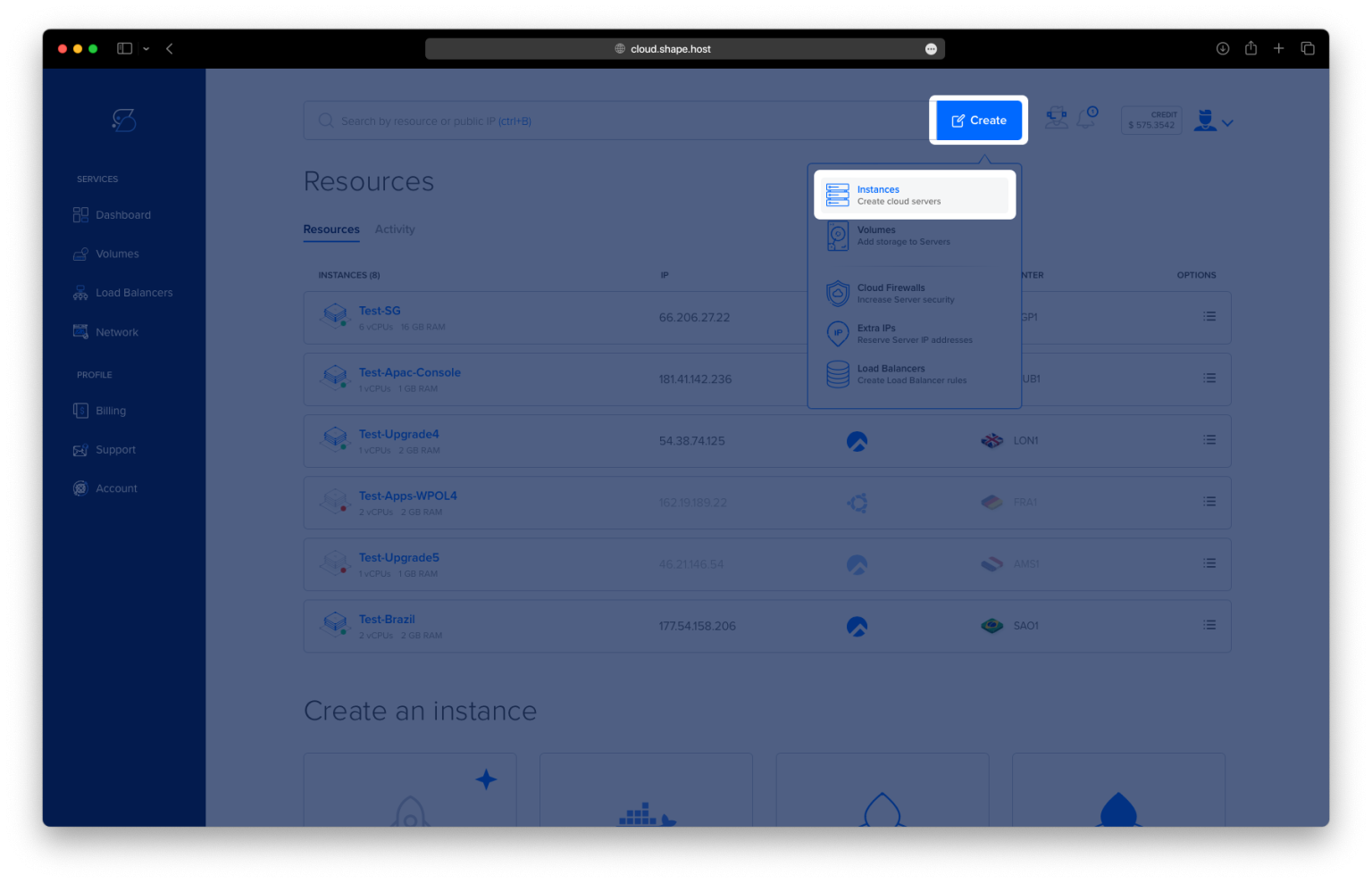
Click “Create”.
Choose “Instance”.
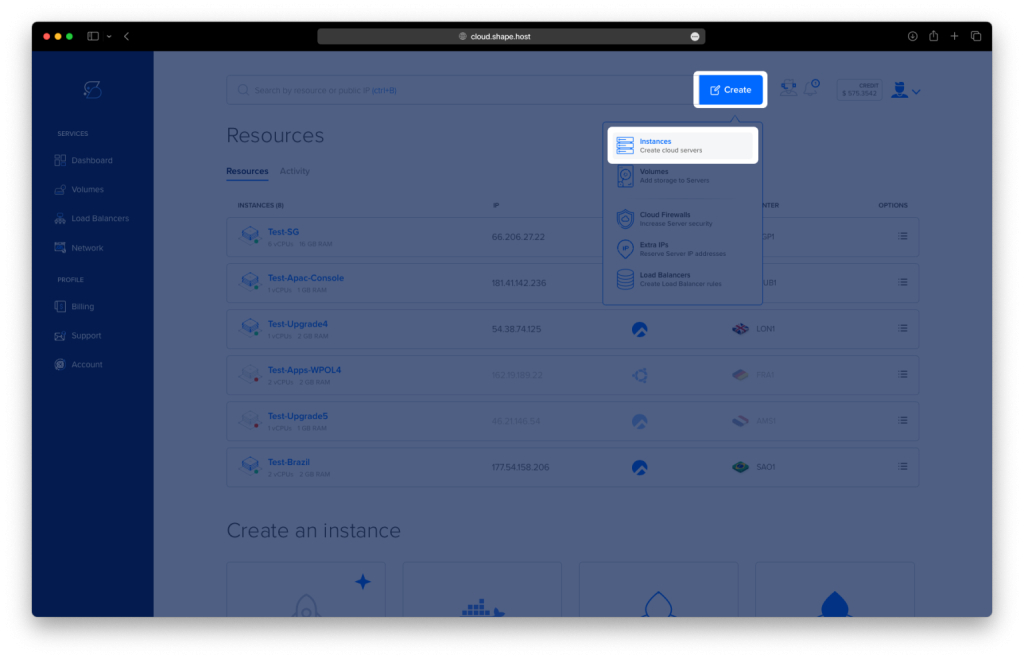
Select your preferred server location.
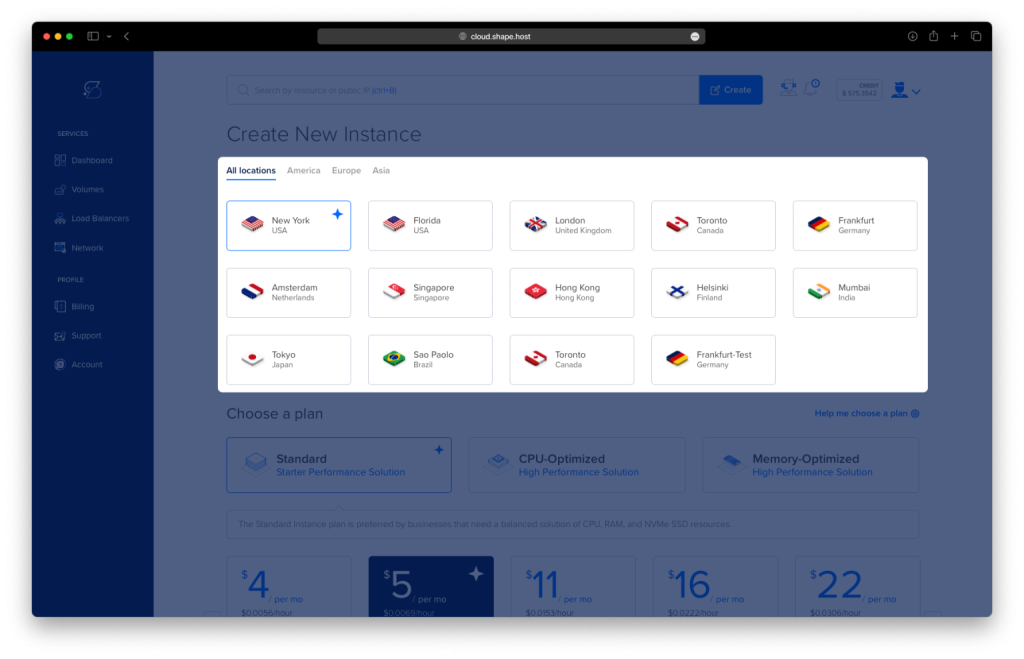
Choose Debian 12 (64-bit) as the OS.
Pick a plan with at least 2 CPUs, 4 GB RAM, and 20 GB SSD.
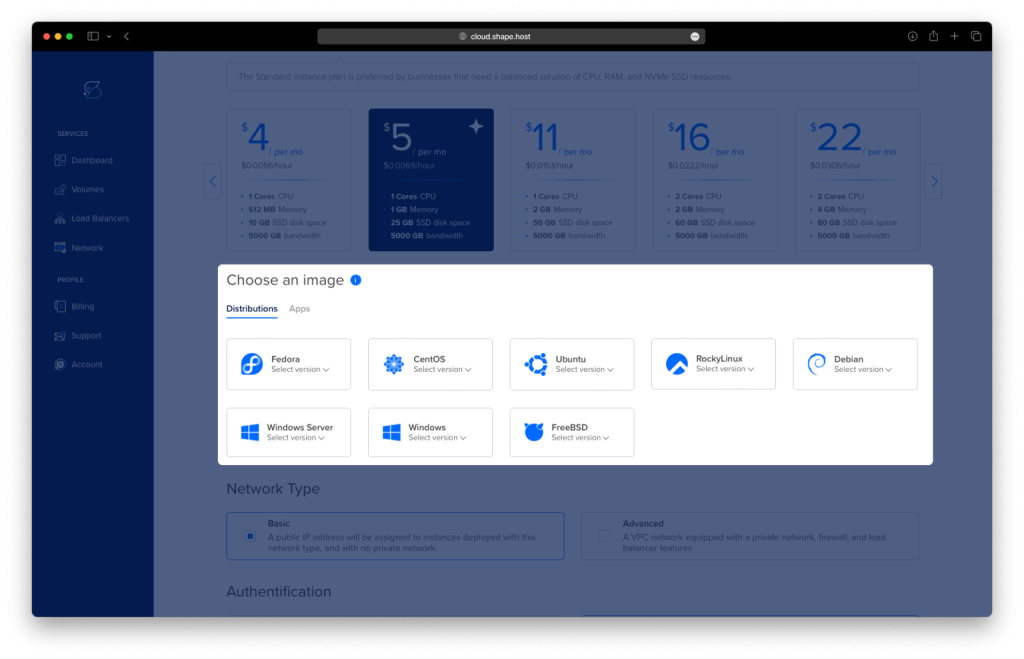
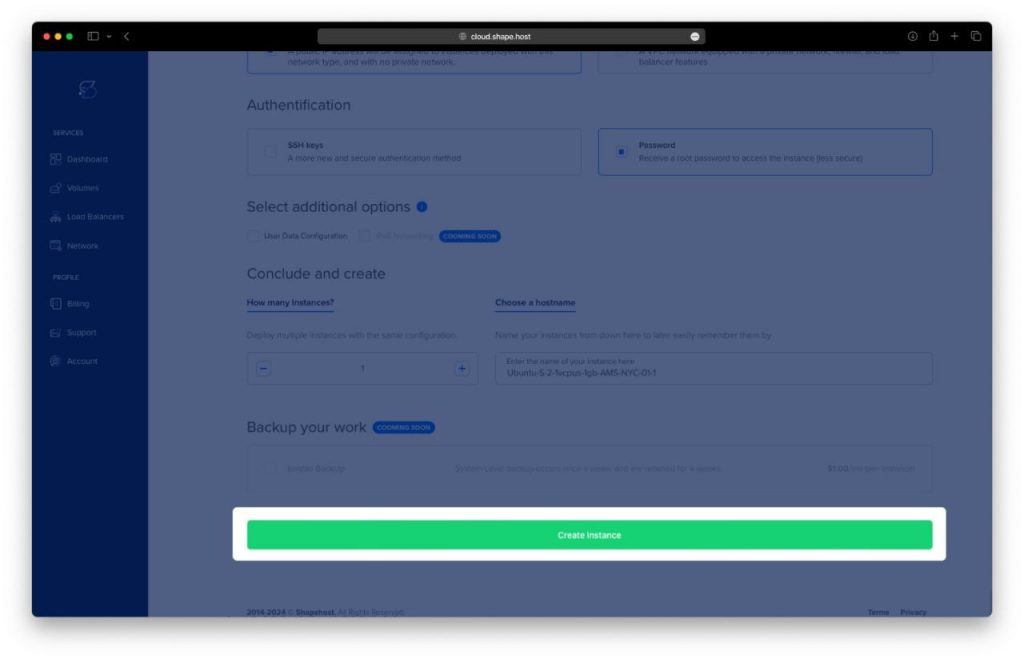
Click “Create Instance”.
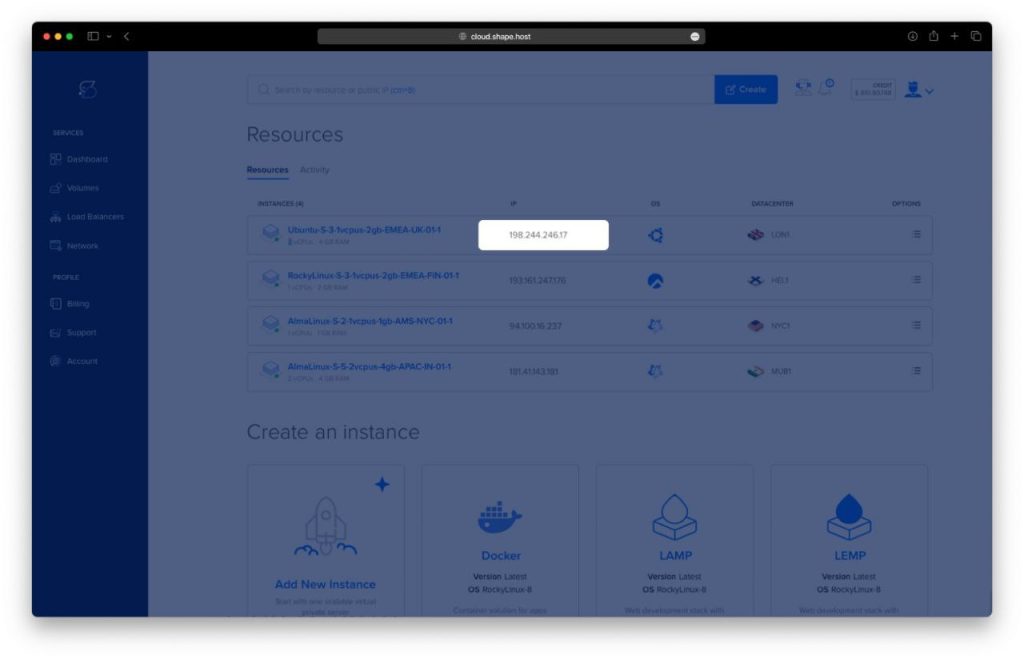
Find your instance’s IP address under the Resources section.
2. Connect to Your Instance
On Linux/macOS:
ssh root@your_server_ip
On Windows:
- Download and install PuTTY.
- Open PuTTY, enter your server’s IP, and connect as root.
3. Update the System
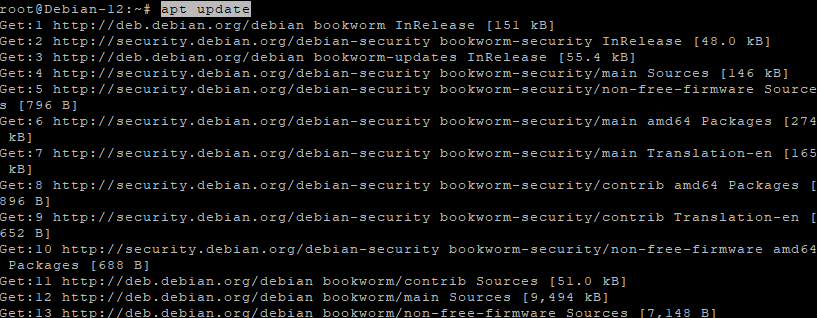
apt update
Updates the package index.
apt upgrade
Upgrades all installed packages to the latest versions.
4. Install Required Packages
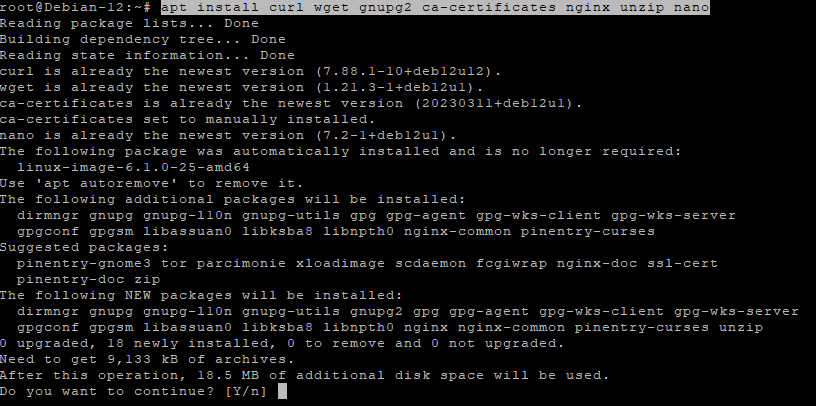
apt install curl wget gnupg2 ca-certificates nginx unzip nano
Installs essential tools and Nginx.
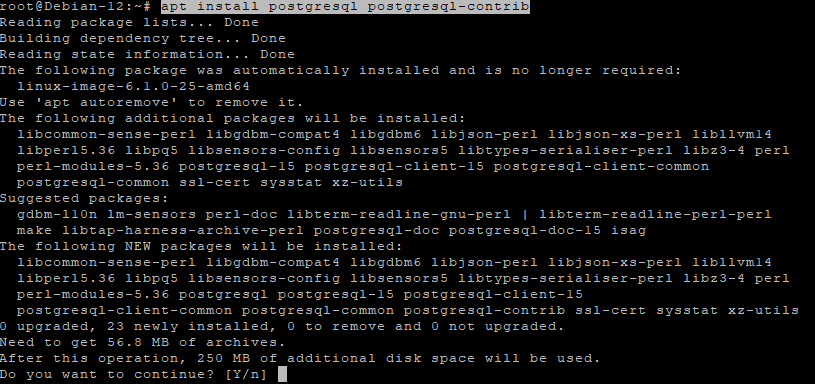
5. Install PostgreSQL
apt install postgresql postgresql-contrib
Installs PostgreSQL and additional utilities.
6. Create a Database for Directus
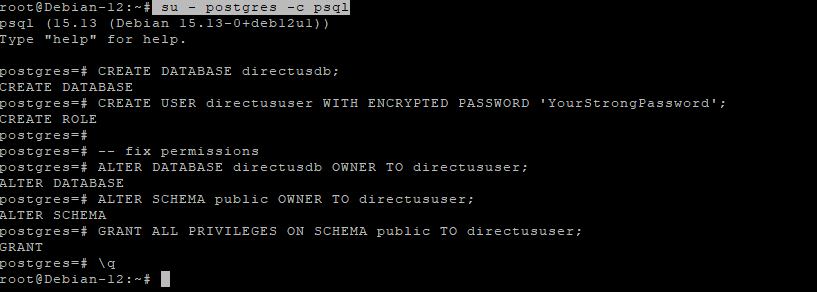
su - postgres -c psql
Log in to PostgreSQL shell.
Run these SQL commands:
CREATE DATABASE directusdb;
CREATE USER directususer WITH ENCRYPTED PASSWORD 'YourStrongPassword';
ALTER DATABASE directusdb OWNER TO directususer;
ALTER SCHEMA public OWNER TO directususer;
GRANT ALL PRIVILEGES ON SCHEMA public TO directususer;
\q
7. Install Node.js 20
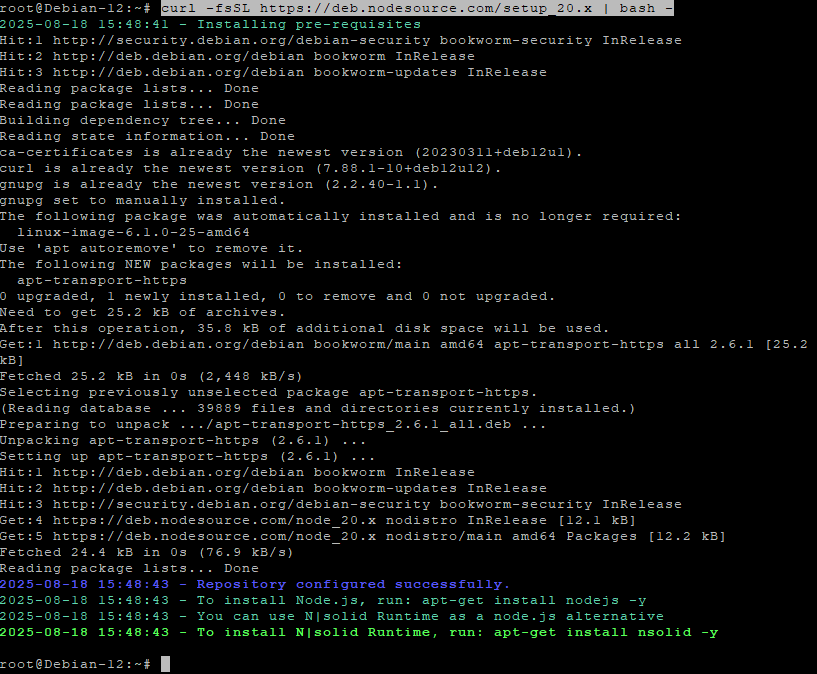
curl -fsSL https://deb.nodesource.com/setup_20.x | bash -
Adds NodeSource repo for Node.js 20.
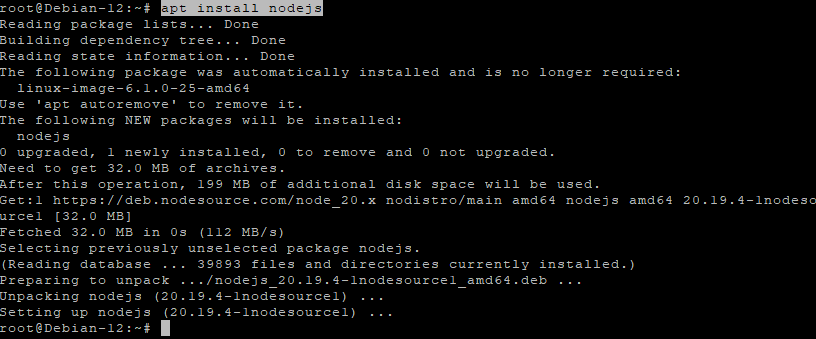
apt install nodejs
Installs Node.js and npm.
Check versions:
node -v
npm -v

8. Install Directus
mkdir -p /var/www/directus
cd /var/www/directus
Creates and enters the project directory.
npm install directus
Installs Directus locally.
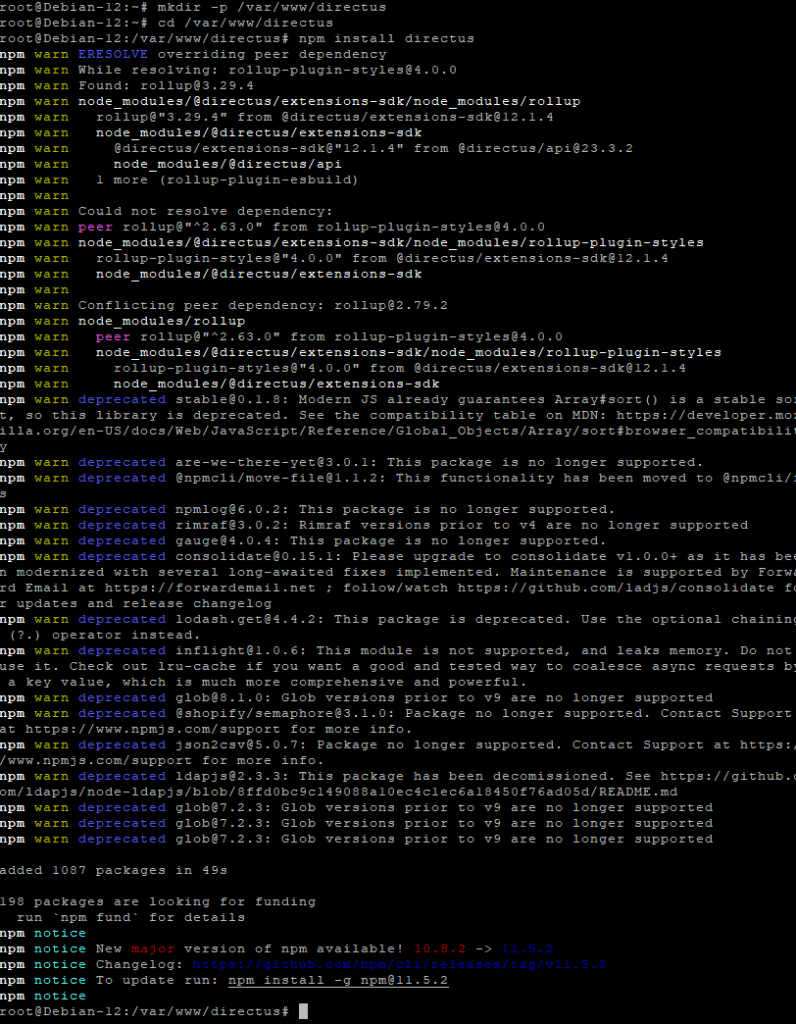
npm install -g npm@11.5.2
Upgrades npm globally.

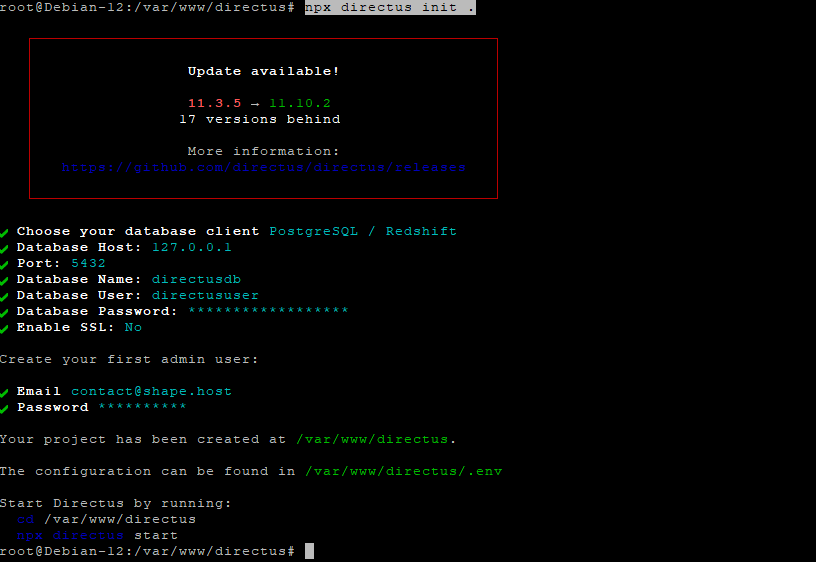
npx directus init .
Initializes a new Directus project.
9. Configure Directus Environment
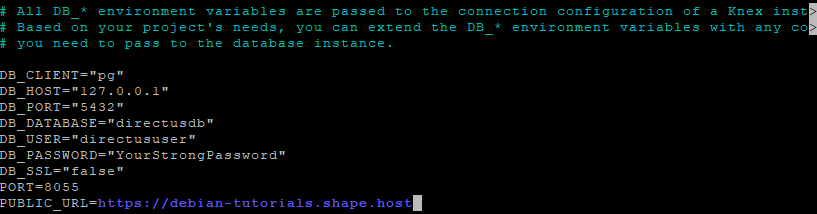
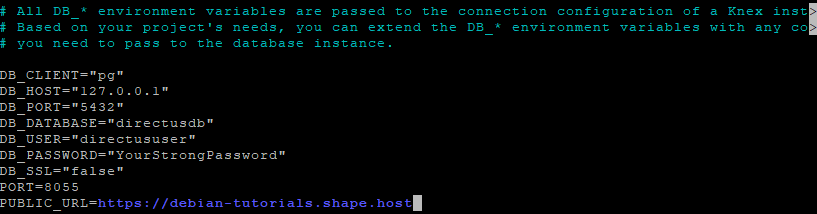
nano .env
Paste and edit:
DB_CLIENT=pg
DB_HOST=127.0.0.1
DB_PORT=5432
DB_DATABASE=directusdb
DB_USER=directususer
DB_PASSWORD=YourStrongPassword
PORT=8055
PUBLIC_URL=https://your_domain.com
10. Finalize Database & Permissions
Install PostgreSQL driver:
npm install pg
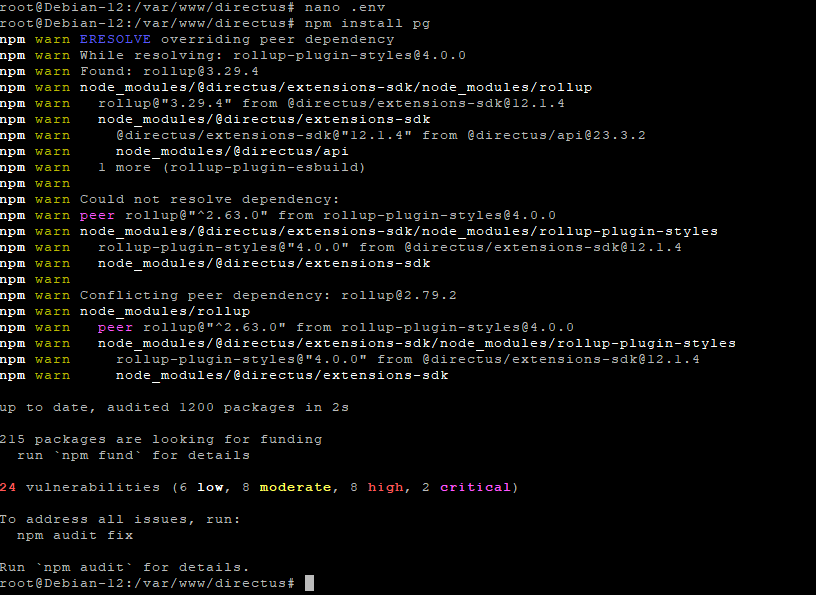
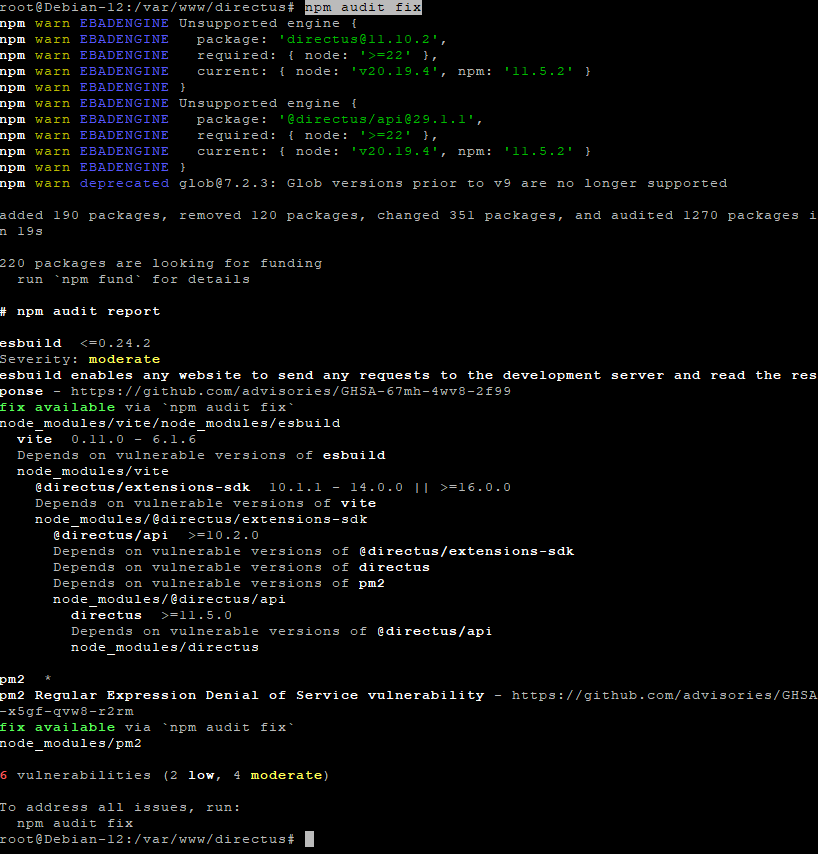
Fix vulnerabilities:
npm audit fix
Run migrations:
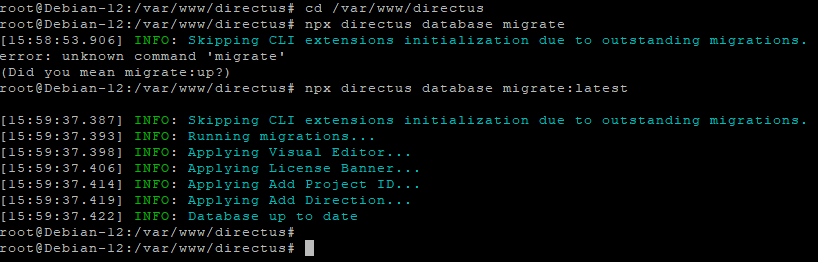
cd /var/www/directus
npx directus database migrate:latest
Prepare storage directories:
mkdir -p /var/www/directus/uploads /var/www/directus/extensions
Set ownership:
chown -R root:root /var/www/directus/uploads /var/www/directus/extensions
Set permissions:
chmod -R 755 /var/www/directus/uploads /var/www/directus/extensions

11. Configure PM2 for Process Management
npm install -g pm2
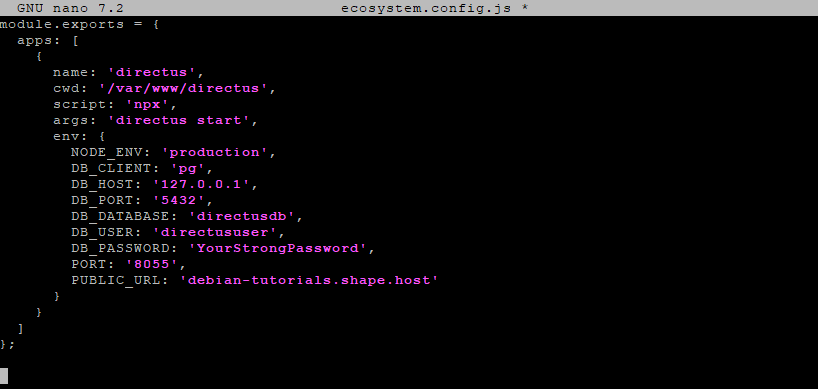
nano ecosystem.config.js

Paste:
module.exports = {
  apps: [
    {
      name: 'directus',
      cwd: '/var/www/directus',
      script: 'npx',
      args: 'directus start',
      env: {
        NODE_ENV: 'production',
        DB_CLIENT: 'pg',
        DB_HOST: '127.0.0.1',
        DB_PORT: '5432',
        DB_DATABASE: 'directusdb',
        DB_USER: 'directususer',
        DB_PASSWORD: 'YourStrongPassword',
        PORT: '8055',
        PUBLIC_URL: 'https://your_domain.com'
      }
    }
  ]
};
Start and save:
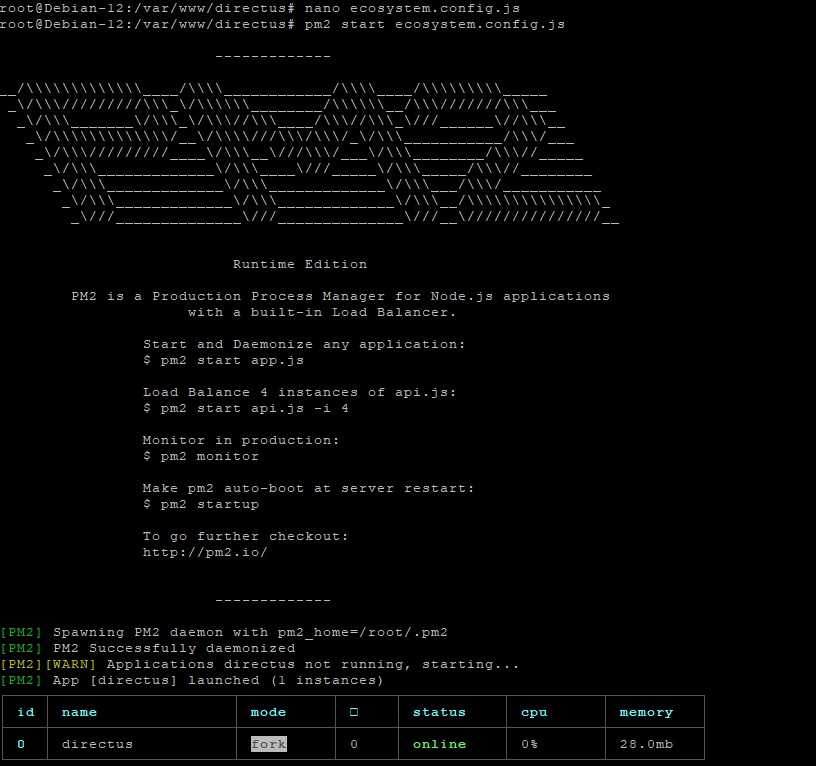
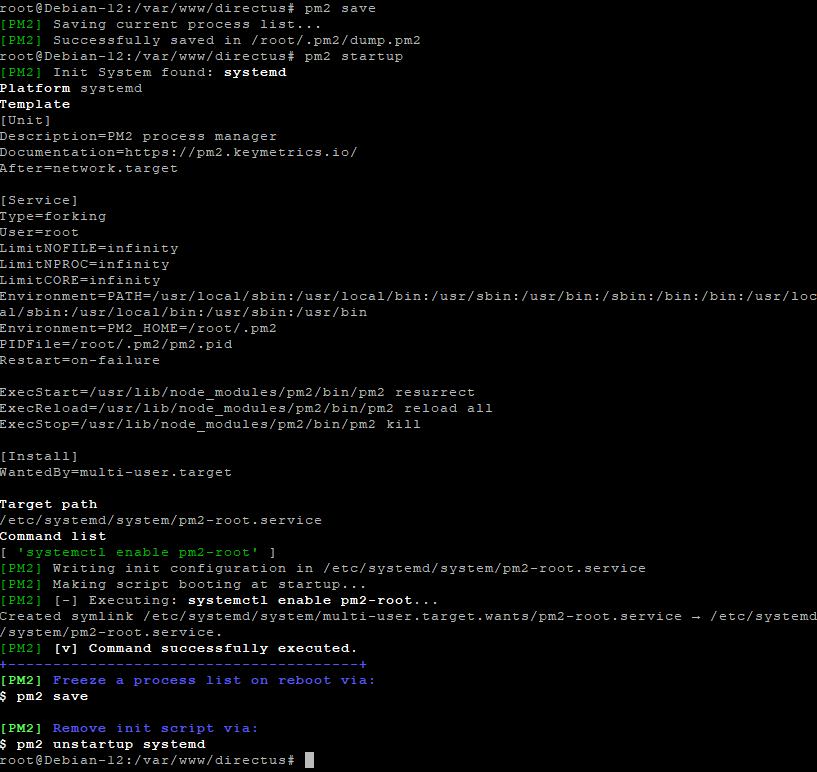
pm2 start ecosystem.config.js
pm2 save
pm2 startup
12. Configure Nginx Reverse Proxy
nano /etc/nginx/sites-available/directus
Paste:
server {
    listen 80;
    server_name your_domain.com;

    location / {
        proxy_pass http://127.0.0.1:8055;
        proxy_set_header Host $host;
        proxy_set_header X-Real-IP $remote_addr;
        proxy_http_version 1.1;
        proxy_set_header Upgrade $http_upgrade;
        proxy_set_header Connection 'upgrade';
        proxy_cache_bypass $http_upgrade;
    }
}
Enable site:
ln -s /etc/nginx/sites-available/directus /etc/nginx/sites-enabled/
nginx -t
systemctl reload nginx

13. Enable SSL with Let’s Encrypt
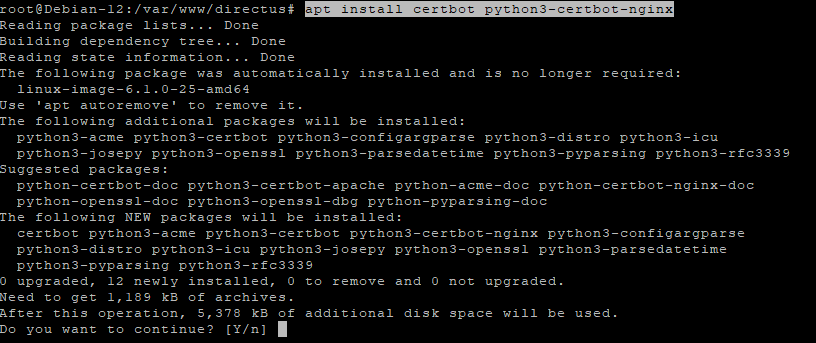
apt install certbot python3-certbot-nginx
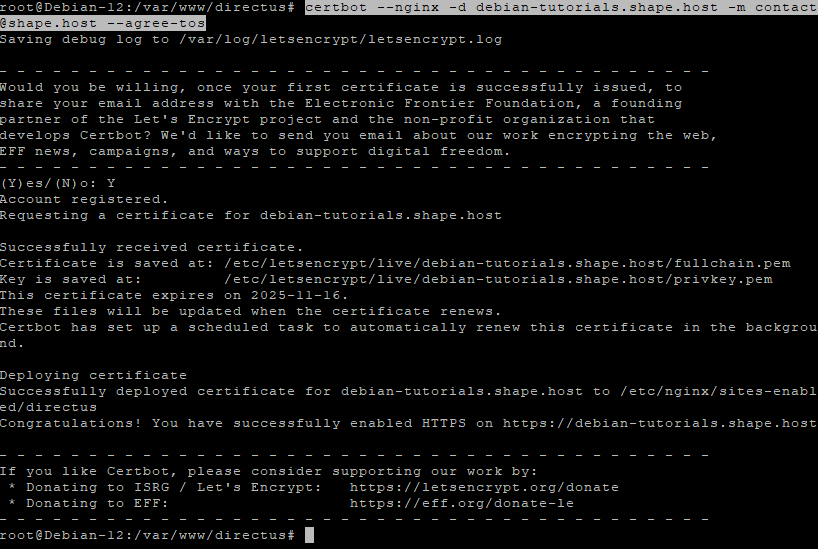
certbot --nginx -d debian-tutorials.shape.host -m contact@shape.host --agree-tos
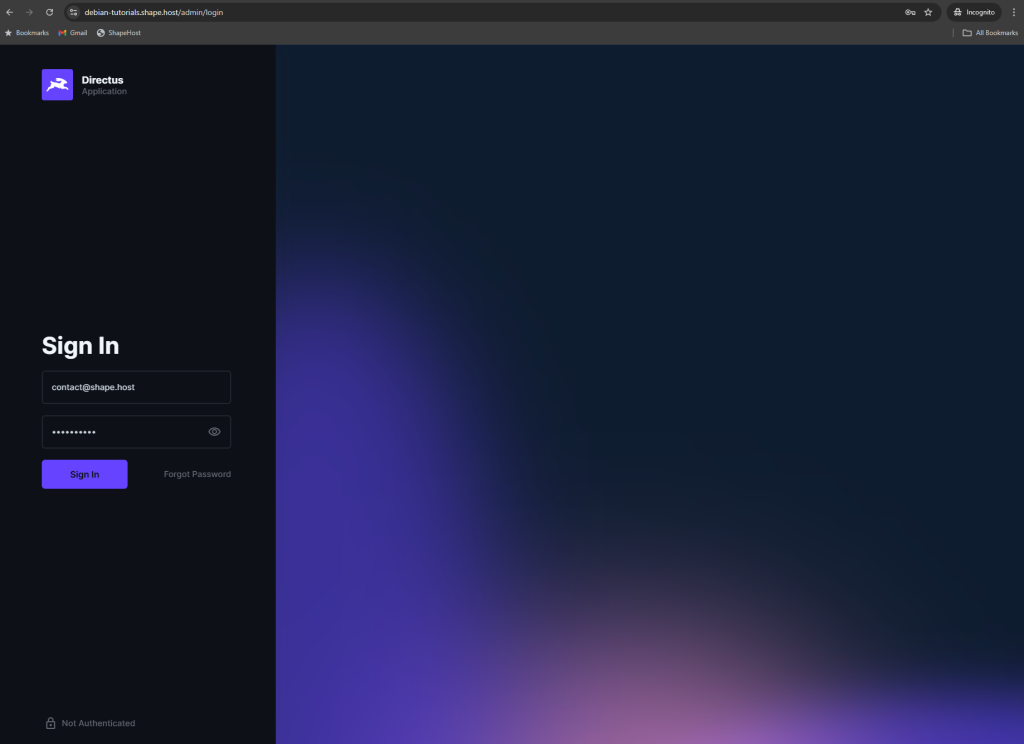
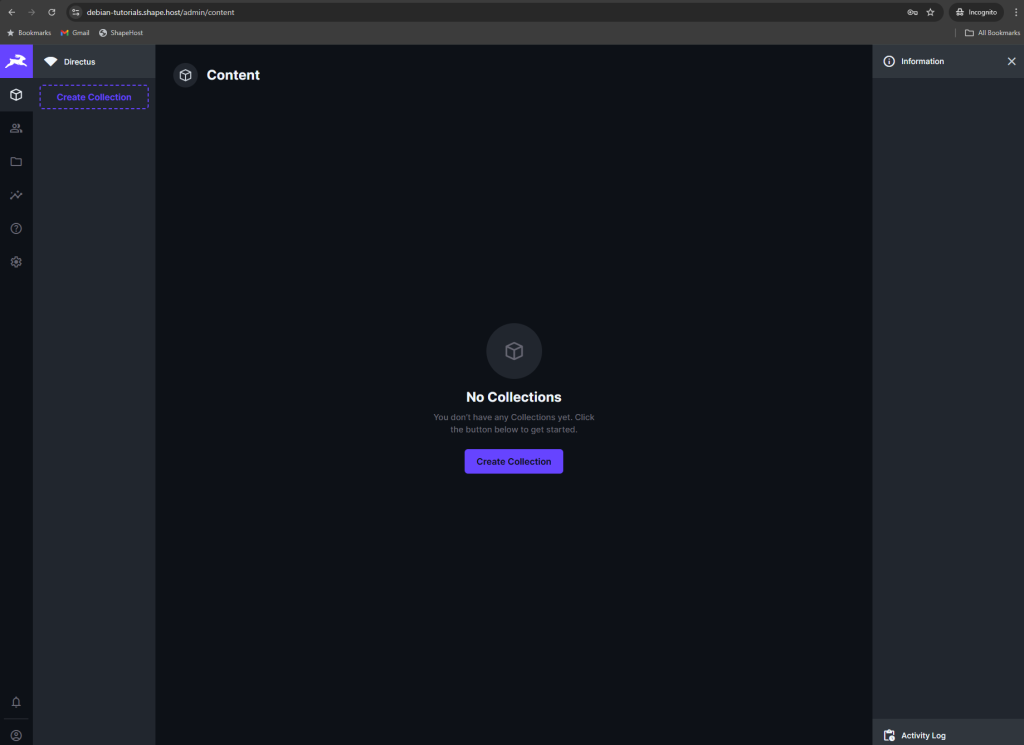
Step 14: Access Directus in Your Browser Open your browser and go to:
https://your_domain.com
You should see the Directus setup page where you can create the first admin user and log in.
At Shape.Host you can deploy reliable and affordable Linux SSD VPS servers for your projects.
- High-performance servers with SSD storage
- Global server locations to reduce latency
- Easy-to-use dashboard for managing instances
- Scalable plans to grow with your needs
Start building your apps today with Shape.Host → https://shape.host