Dozzle Log Viewer on AlmaLinux 9 (Docker + Nginx + SSL)
Dozzle is a lightweight, real-time log viewer for Docker containers. Instead of manually tailing logs with docker logs -f, Dozzle provides a clean web-based dashboard where you can stream and filter logs from all your containers instantly. It runs as a single Docker container, requires no database, and is designed for developers and sysadmins who need quick insights without deploying a full logging stack.
AlmaLinux 9 is a stable, enterprise-grade distribution that serves as a 1:1 RHEL (Red Hat Enterprise Linux) binary-compatible alternative. It’s widely used in production environments, providing long-term support, SELinux enforcement, and enterprise security updates. Combined with Dozzle, AlmaLinux 9 gives you a reliable, secure platform for managing container logs.
Architecture Overview
| Layer | Component | Role |
|---|---|---|
| OS | AlmaLinux 9 | Enterprise-grade RHEL-compatible base; systemd service management |
| Runtime | Docker Engine | Runs Dozzle container in isolation |
| Application | Dozzle | Web UI for real-time Docker logs |
| Reverse Proxy | Nginx (optional) | TLS termination, HTTP/2, compression, and access control |
| TLS | Let’s Encrypt / PKI | Secure HTTPS access to the log viewer |
Why Use Dozzle?
- Simple deployment – one container, no database, no extra services.
- Real-time visibility – instantly stream logs from multiple containers.
- Low resource usage – much lighter than ELK or Loki.
- User-friendly – accessible web interface, no SSH required.
- Flexible – can run standalone or alongside enterprise observability stacks.
Dozzle vs Other Logging Tools
| Feature/Capability | Dozzle | Loki + Grafana | ELK/EFK Stack | Docker CLI |
|---|---|---|---|---|
| Setup complexity | Very low (1 container) | Medium (multi-service) | High (Elasticsearch, Beats, Kibana) | None |
| Log storage | No (stream only) | Yes (time-series DB) | Yes (Elasticsearch DB) | No |
| User interface | Built-in Web UI | Grafana dashboards | Full dashboards | None (terminal) |
| Best use case | Quick log access | Centralized logging | Enterprise-scale logging | Debug only |
Dozzle is the right choice when you need live logs at a glance, without the complexity of heavy log management systems. For long-term log storage or analytics, it complements centralized solutions like Loki or ELK.
Security & Best Practices
- Run Dozzle behind Nginx with HTTPS in production.
- Add basic authentication or integrate SSO/OAuth if accessed publicly.
- Limit access with firewall rules and SELinux policies.
- Keep Dozzle updated (
amir20/dozzle:latest). - Combine with Prometheus/Grafana for a full observability stack.
Typical Use Cases
- Local or staging environments for quick debugging.
- Small production servers where ELK or Loki are overkill.
- Real-time log streaming for CI/CD pipelines or microservices.
- Complementing centralized logging with fast, live visibility.
1. Create a Shape.Host VPS Instance
Go to https://shape.host and log in.
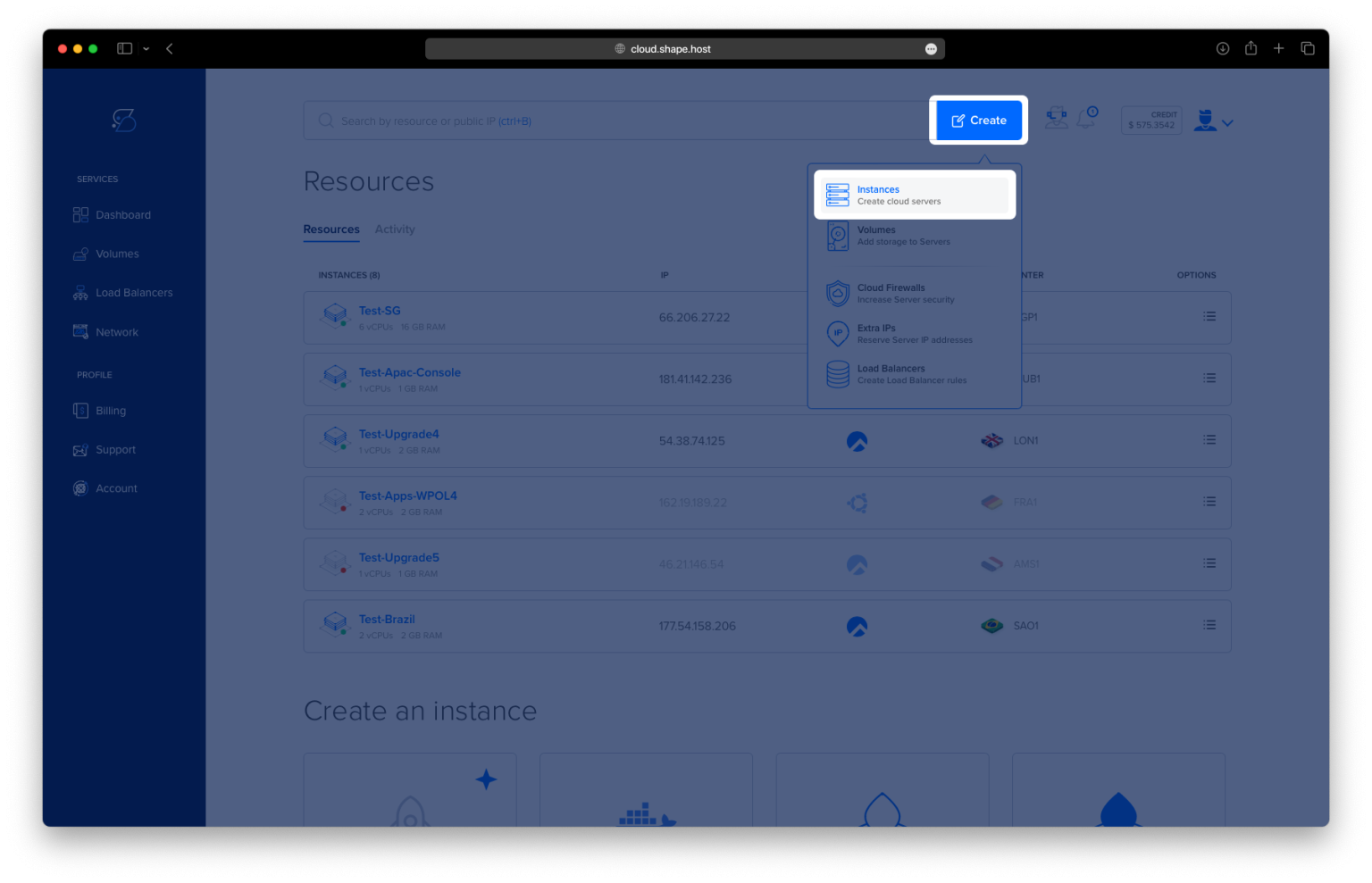
Click “Create” → “Instance”.
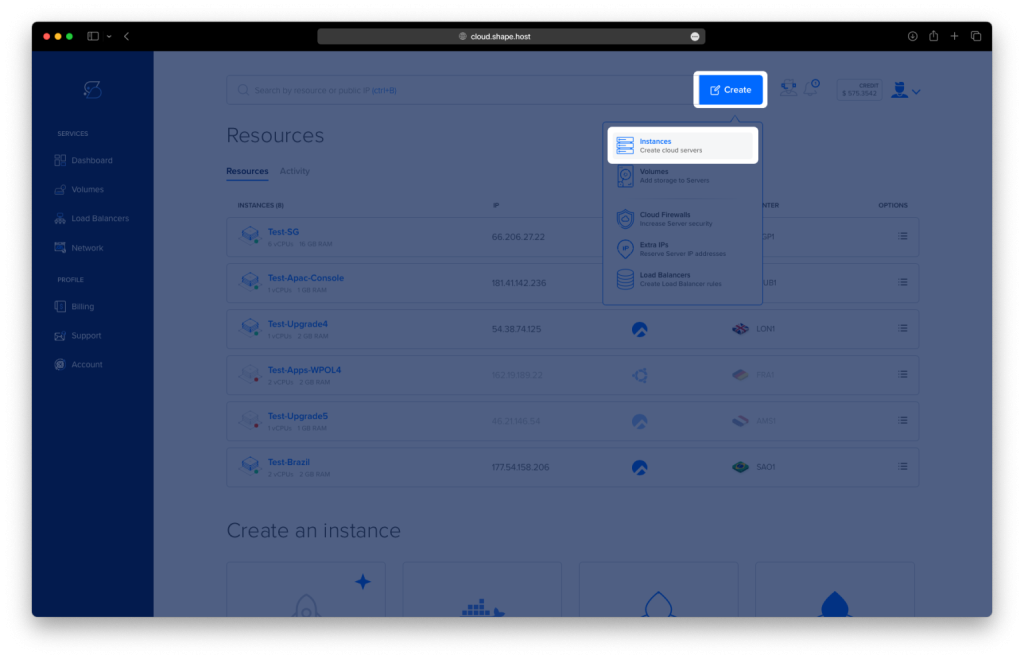
Select the server location closest to your users.
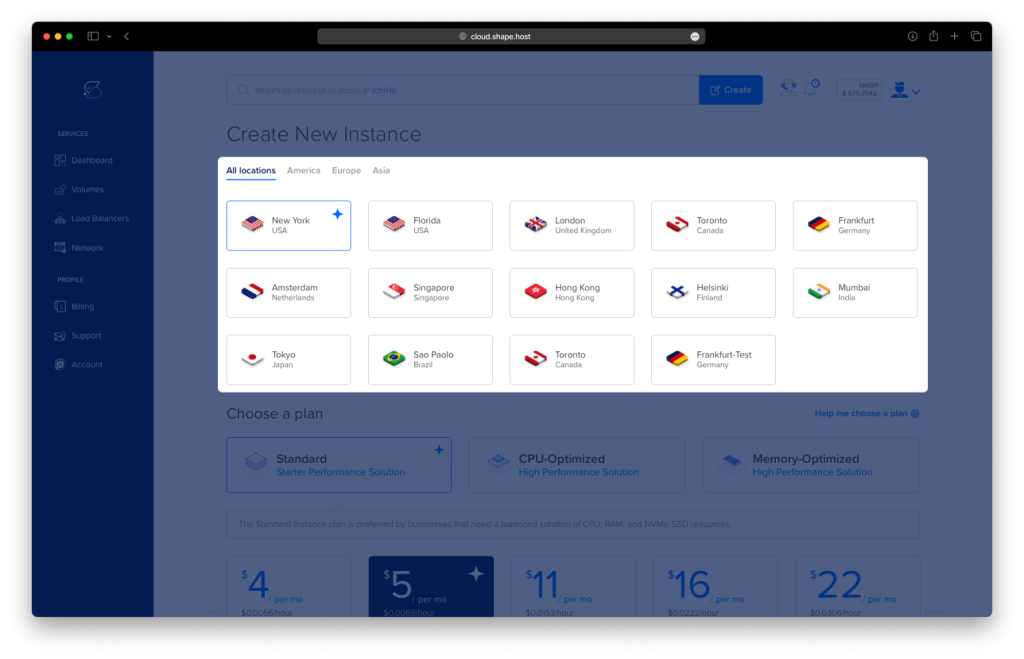
Choose AlmaLinux 9 (64-bit) as the OS.
Pick a plan with at least 2 CPUs, 4 GB RAM, and 20 GB SSD.
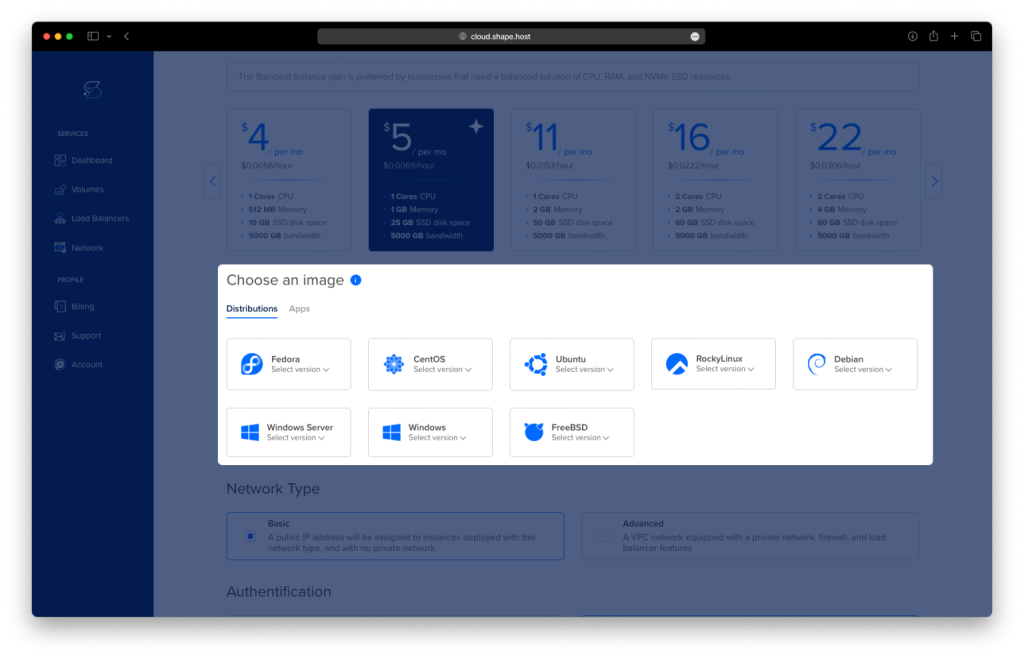
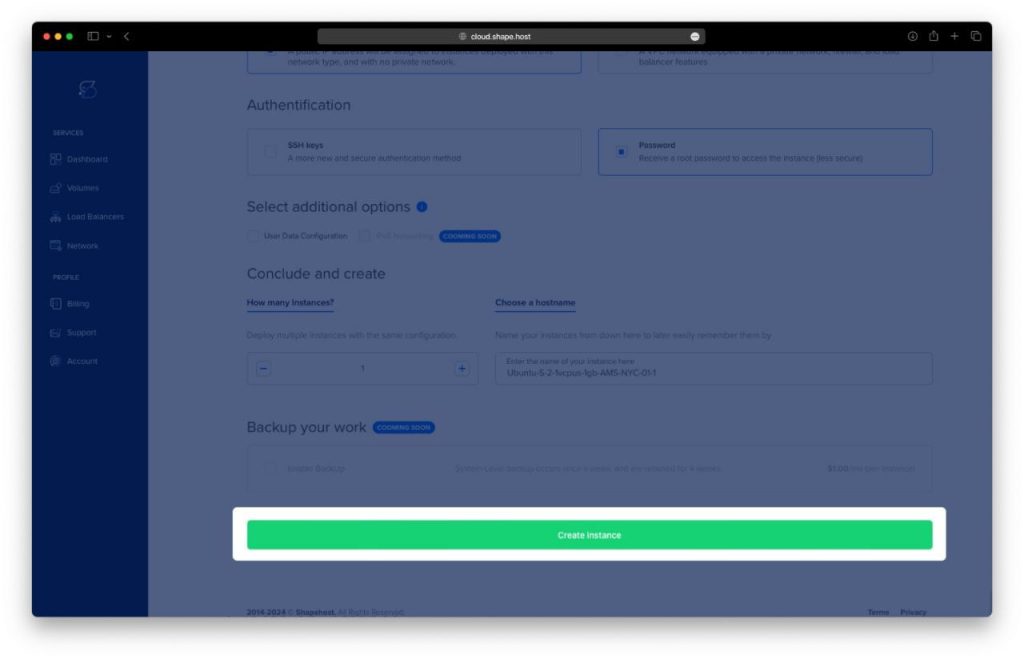
Click “Create Instance”.
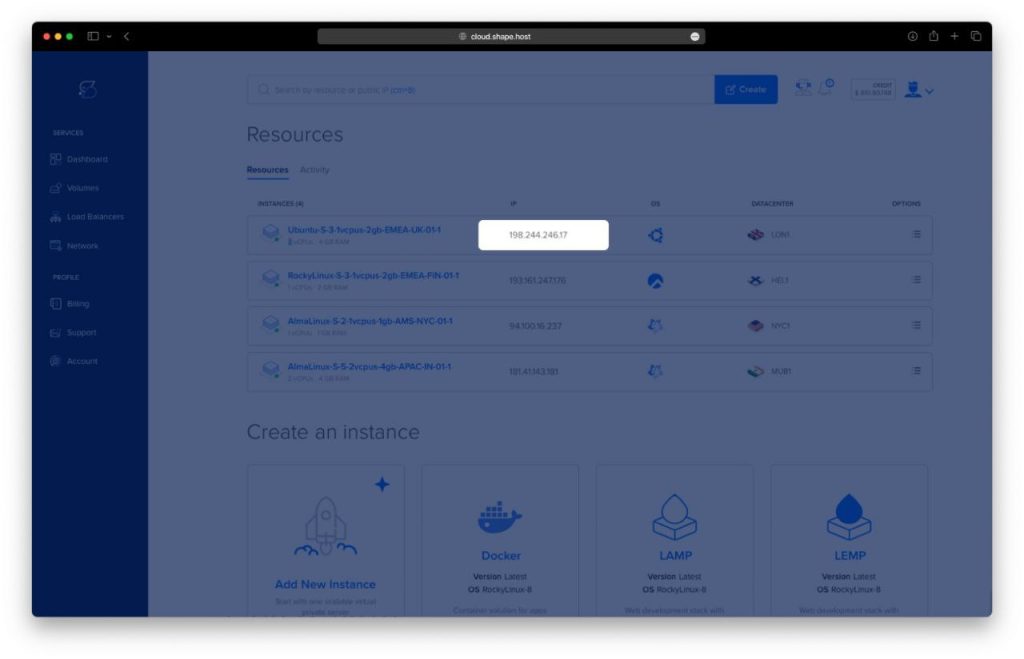
Copy the IP address of your instance from the Resources section.
2. Connect to Your VPS
On Linux/macOS
ssh root@your-server-ip
On Windows
- If using PowerShell on Windows 10/11:
ssh root@your-server-ip - On older Windows, use PuTTY and log in as root with your server’s IP.
3. Update the System and Install Required Tools
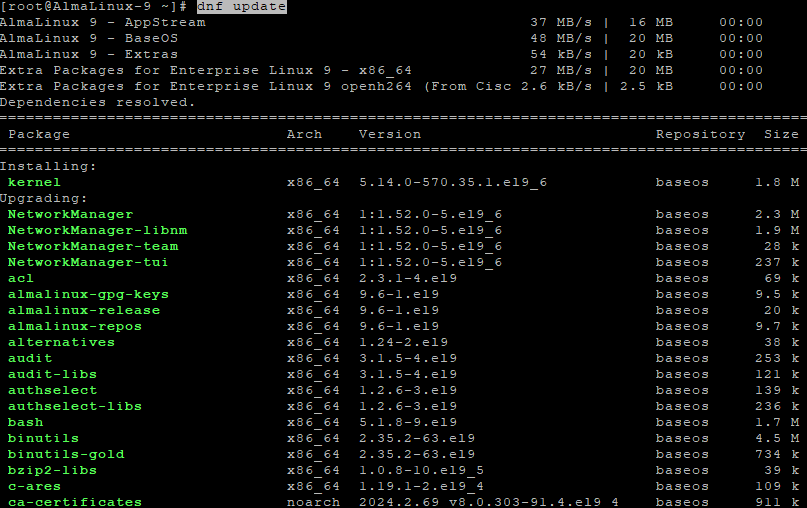
dnf update
Updates all system packages.
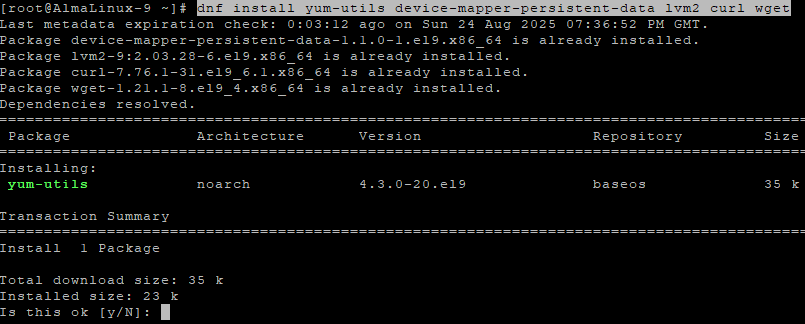
dnf install yum-utils device-mapper-persistent-data lvm2 curl wget
Installs required tools for managing repositories and storage.
4. Install Docker and Docker Compose
Add the official Docker repository:
dnf config-manager --add-repo https://download.docker.com/linux/centos/docker-ce.repo
Install Docker and related components:
dnf install docker-ce docker-ce-cli containerd.io docker-buildx-plugin docker-compose-plugin
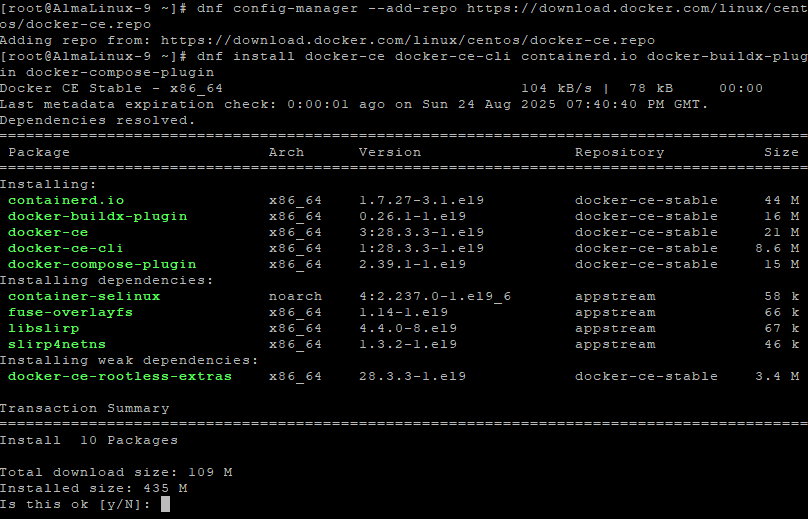
Enable and start Docker:
systemctl enable --now docker
Check versions:
docker --version
docker compose version

5. Deploy Dozzle with Docker Compose
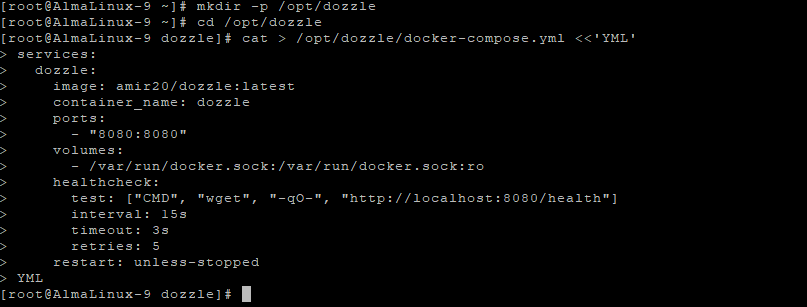
Create a directory for Dozzle:
mkdir -p /opt/dozzle
cd /opt/dozzle
Create the docker-compose.yml file:
cat > /opt/dozzle/docker-compose.yml <<'YML'
services:
  dozzle:
    image: amir20/dozzle:latest
    container_name: dozzle
    ports:
      - "8080:8080"
    volumes:
      - /var/run/docker.sock:/var/run/docker.sock:ro
    healthcheck:
      test: ["CMD", "wget", "-qO-", "http://localhost:8080/health"]
      interval: 15s
      timeout: 3s
      retries: 5
    restart: unless-stopped
YML
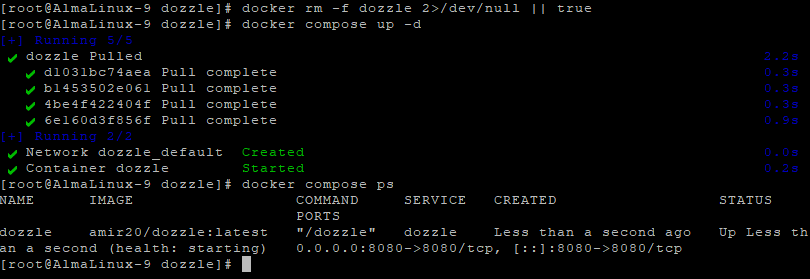
Remove old Dozzle container if it exists:
docker rm -f dozzle 2>/dev/null || true
Start Dozzle:
docker compose up -d
Check running containers:
docker compose ps
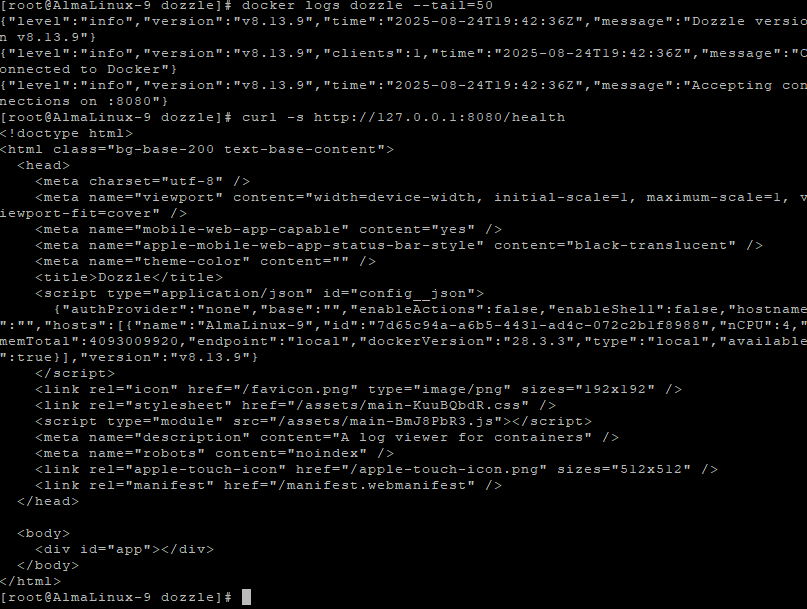
View logs:
docker logs dozzle --tail=50
Verify Dozzle health:
curl -s http://127.0.0.1:8080/health
6. Configure Nginx as Reverse Proxy
Install Nginx:
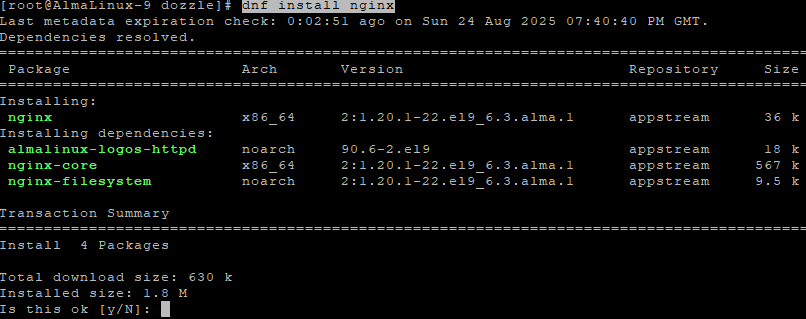
dnf install nginx
Enable and start Nginx:
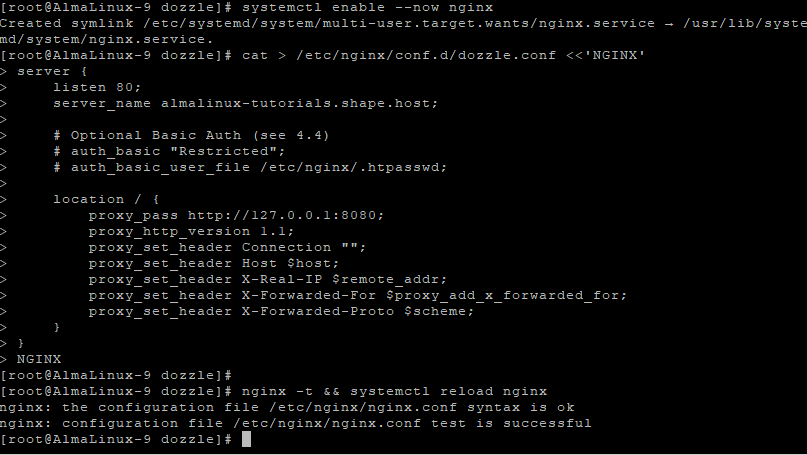
systemctl enable --now nginx
Create the Dozzle configuration:
cat > /etc/nginx/conf.d/dozzle.conf <<'NGINX'
server {
    listen 80;
    server_name your-domain.com;

    # Optional Basic Auth (see 4.4)
    # auth_basic "Restricted";
    # auth_basic_user_file /etc/nginx/.htpasswd;

    location / {
        proxy_pass http://127.0.0.1:8080;
        proxy_http_version 1.1;
        proxy_set_header Connection "";
        proxy_set_header Host $host;
        proxy_set_header X-Real-IP $remote_addr;
        proxy_set_header X-Forwarded-For $proxy_add_x_forwarded_for;
        proxy_set_header X-Forwarded-Proto $scheme;
    }
}
NGINX
Test and reload Nginx:
nginx -t && systemctl reload nginx
7. Enable SSL with Let’s Encrypt
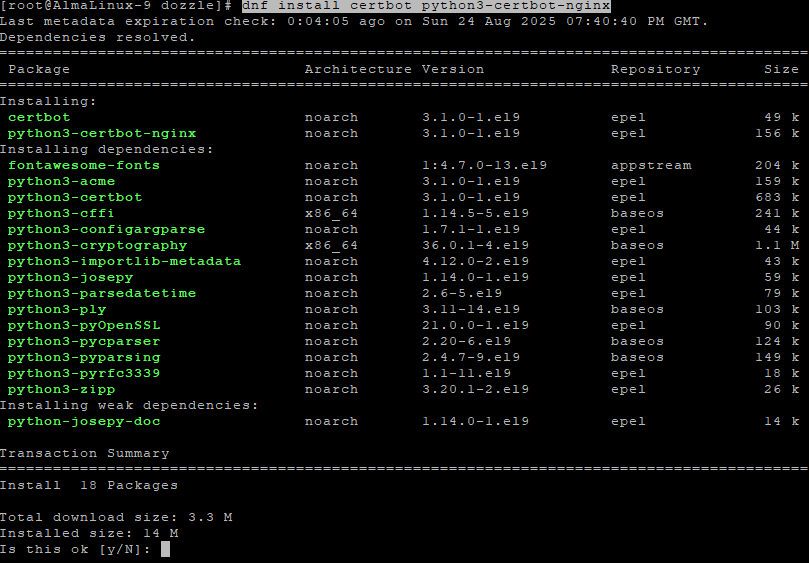
Install Certbot:
dnf install certbot python3-certbot-nginx
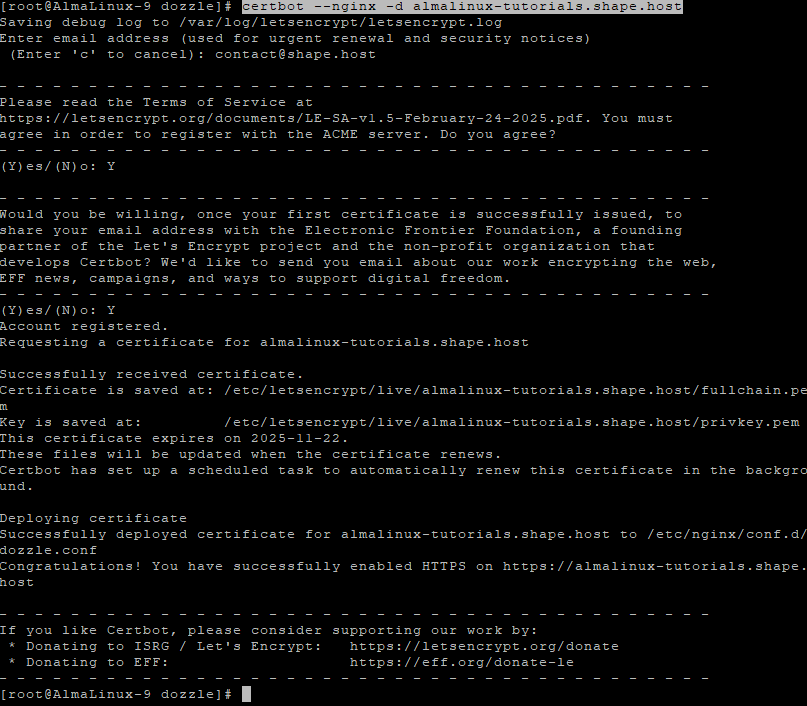
Run Certbot to obtain SSL:
certbot --nginx -d your-domain.com
8. Access Dozzle
Open your browser and visit:
https://your-domain.com
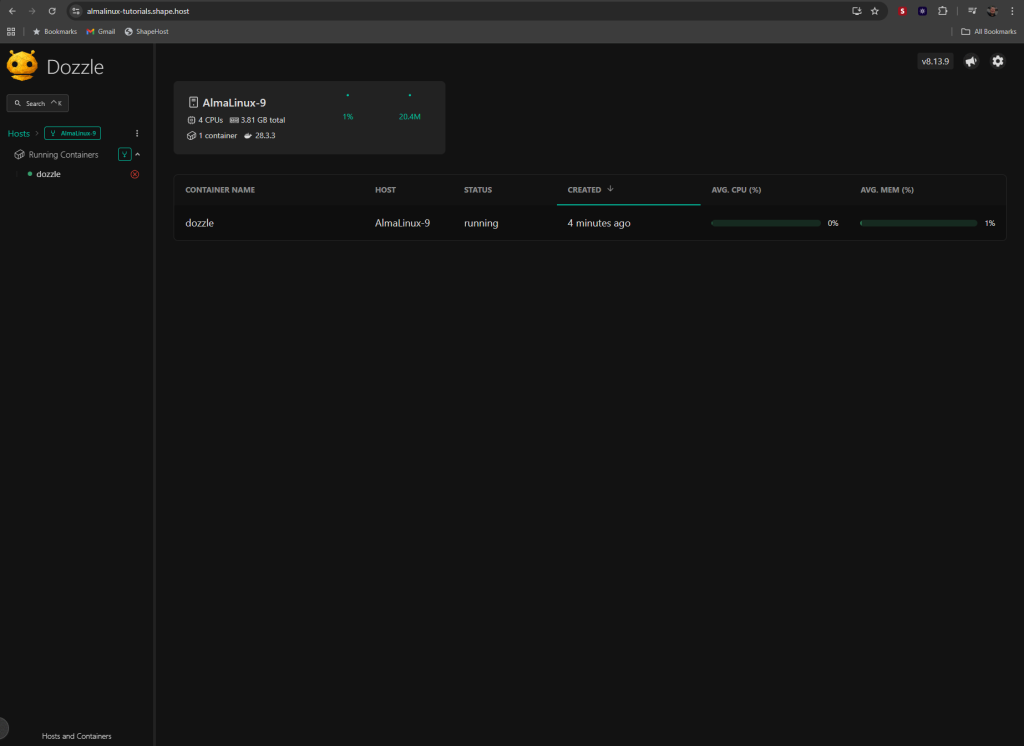
You should see the Dozzle web UI, showing real-time Docker logs. 🎉
This tutorial was tested on a Shape.Host Linux SSD VPS.
With Shape.Host, you can:
- Deploy fast Cloud VPS globally
- Run Linux distributions like AlmaLinux, Debian, Ubuntu, and Rocky Linux
- Scale resources instantly (CPU, RAM, Storage)
- Use backups, snapshots, and monitoring for reliability
Start your project today with Shape.Host and set up Dozzle in minutes.