MEAN Stack on Ubuntu 22.04 – Full-Stack JavaScript Development on a Modern LTS Platform
The MEAN Stack is a popular JavaScript-based web development stack made up of:
- MongoDB – NoSQL database for JSON-like documents
- Express.js – Minimalist web framework for Node.js
- Angular – Client-side front-end framework (TypeScript-based)
- Node.js – Server-side runtime for JavaScript
When deployed on Ubuntu 22.04 LTS, developers benefit from an enterprise-grade Linux environment with strong support for Node.js, containerized workflows, CI/CD integration, and scalable application hosting.
Why Use Ubuntu 22.04 for MEAN Stack Development?
Ubuntu 22.04 (“Jammy Jellyfish”) is widely adopted in production and development environments due to:
- Long-Term Support until 2027 (with ESM until 2032)
- Modern Kernel (5.15) with hardware enablement and container support
- Native support for Node.js via APT and NVM
- Open-source developer ecosystem (Docker, Git, build tools, VS Code, etc.)
- Snap and APT package formats, enabling flexibility in managing runtime environments
It also supports integration with services like MongoDB Atlas, NGINX reverse proxy, and modern CI/CD pipelines using GitHub Actions, GitLab CI, or Jenkins.
Architecture of a MEAN Stack Application
The MEAN architecture divides responsibilities across layers:
| Layer | Component | Role |
|---|---|---|
| Frontend | Angular | Dynamic SPA (single-page application) for UI and client-side logic |
| Server | Express.js | REST API routing, middleware, and integration with the database |
| Runtime | Node.js | Event-driven, non-blocking execution of server-side code |
| Database | MongoDB | Schema-less, document-oriented data persistence |
These components communicate via JSON over HTTP or WebSocket protocols, and they use a single language (JavaScript/TypeScript) across the full stack.
Key Benefits of Using MEAN Stack on Ubuntu 22.04
- Unified Development Language (JS/TS) – Developers can work across the front end, API, and database logic using one language.
- Performance and Scalability – Node.js’s asynchronous I/O model works well under high concurrency, especially in microservice setups.
- MongoDB Native Integration – MongoDB works seamlessly with Node.js using drivers like
mongooseor the officialmongodbpackage. - Rapid Prototyping – With Angular CLI, Express generators, and MongoDB’s flexible schema, developers can iterate fast.
- Deployment Ready – Ubuntu 22.04 can be used with Docker, Kubernetes, or native system services for production hosting.
Development Workflow on Ubuntu 22.04
Typical developer tasks for a MEAN stack project on Ubuntu include:
- Using Node Version Manager (nvm) to install Node.js and npm/yarn
- Installing Angular CLI and generating components and services
- Creating RESTful APIs with Express.js
- Setting up MongoDB either locally or remotely (e.g., MongoDB Atlas)
- Configuring NGINX for SSL termination, static file delivery, and reverse proxy
- Using PM2 or systemd for running Node.js services in production
- Writing tests using Jest, Mocha, or Karma
- Integrating with CI/CD tools such as GitHub Actions, GitLab CI, or Jenkins
- Containerizing apps with Docker Compose or Kubernetes (minikube, k3s)
Ubuntu’s developer ecosystem also includes popular editors (like VS Code), debuggers, and tools for testing, code linting, and performance profiling.
Security and System Integration
Ubuntu 22.04 provides strong support for securing MEAN stack applications:
| Feature | Security Benefit |
|---|---|
| UFW / iptables | Configure firewalls for ports (e.g., MongoDB default 27017) |
| AppArmor | Mandatory access control to isolate MongoDB and Node.js processes |
| TLS Support | Secure APIs and web interfaces with NGINX + Let’s Encrypt |
| Auditd & journald | Track system-level changes and app activity |
| Environment isolation | Use Docker or systemd-nspawn to isolate services in dev and prod |
MongoDB access can be secured using authentication, IP whitelisting, and encrypted connections. Express.js apps should also use Helmet.js and rate-limiting middleware for further protection.
Deployment Options on Ubuntu 22.04
Deployment strategies for MEAN on Ubuntu 22.04 vary by project scale:
- Simple VM: Use NGINX, systemd, and MongoDB locally
- Docker-based: Use
docker-composefor separate containers (frontend, API, DB) - Kubernetes: Ideal for enterprise deployments requiring autoscaling, HA, and CI/CD pipelines
- Cloud hosting: Easily run on AWS EC2, Azure, or GCP VM instances using Ubuntu images
- Edge/IoT: Lightweight deployments possible on ARM-based Ubuntu devices (e.g., Raspberry Pi)
The stack supports traditional monolithic deployment and microservices through API gateways or service meshes.
Comparison with Other Stacks
| Stack | Language(s) | Frontend Framework | Backend | DB | Use Case |
|---|---|---|---|---|---|
| MEAN | JavaScript / TypeScript | Angular | Express (Node.js) | MongoDB | JS-centric web applications |
| MERN | JavaScript / TypeScript | React | Express (Node.js) | MongoDB | React developers |
| LAMP | PHP | HTML + JS | Apache/PHP | MySQL | Traditional CMS, PHP apps |
| Django Stack | Python | HTML + JS (or SPA) | Django | PostgreSQL | Data-driven web apps |
| JAMstack | JavaScript APIs | Static or Vue/React | Serverless/API | Headless | Headless CMS, fast web delivery |
MEAN is best suited for modern single-page applications (SPAs), real-time services, and full-stack JavaScript teams.
Running the MEAN Stack on Ubuntu 22.04 provides developers with a unified, high-performance, and secure platform for building scalable web applications. The combination of Node.js, Express, Angular, and MongoDB delivers end-to-end JavaScript productivity, while Ubuntu offers long-term support, robust package management, and seamless deployment tooling.
Step 1: Set Up a Server Instance on Shape.Host
To begin, you’ll need a clean Ubuntu 22.04 server. Shape.Host provides reliable and scalable VPS infrastructure that’s ideal for MEAN stack deployment.
Create an Instance:
Go to https://shape.host and log in.
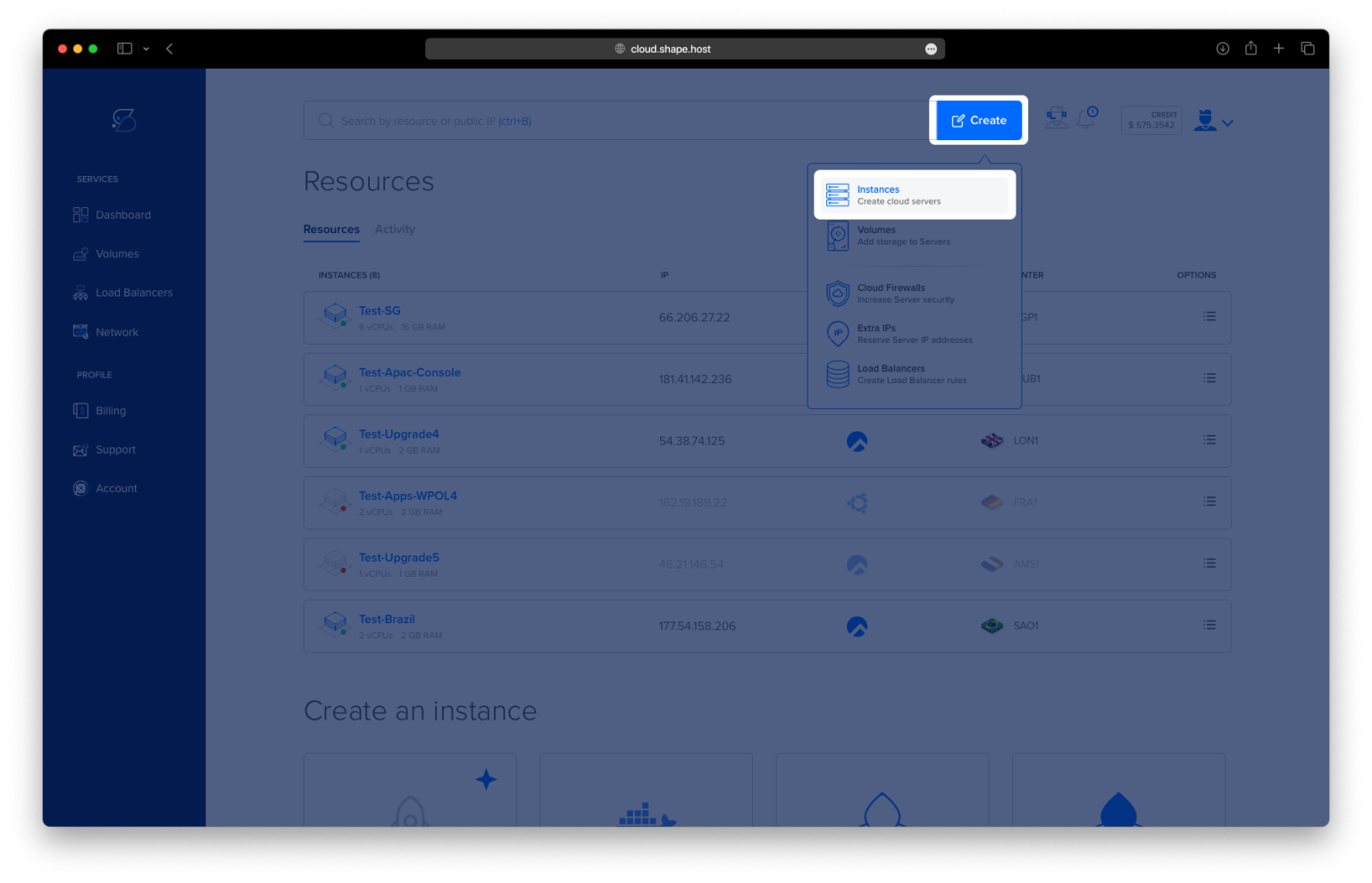
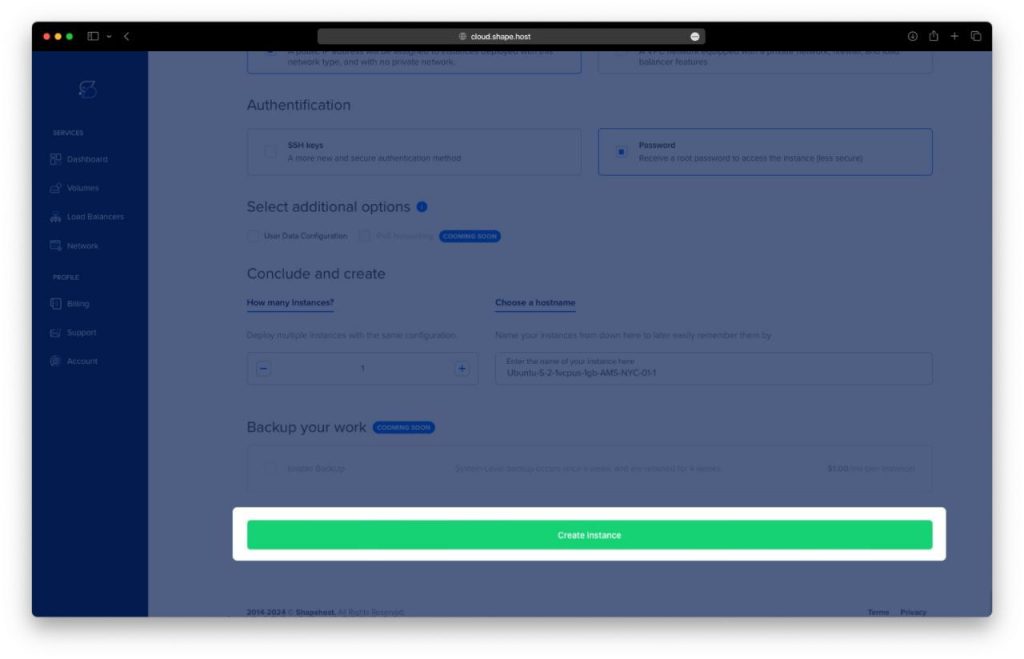
Click “Create” from your dashboard.
Choose “Instance”.
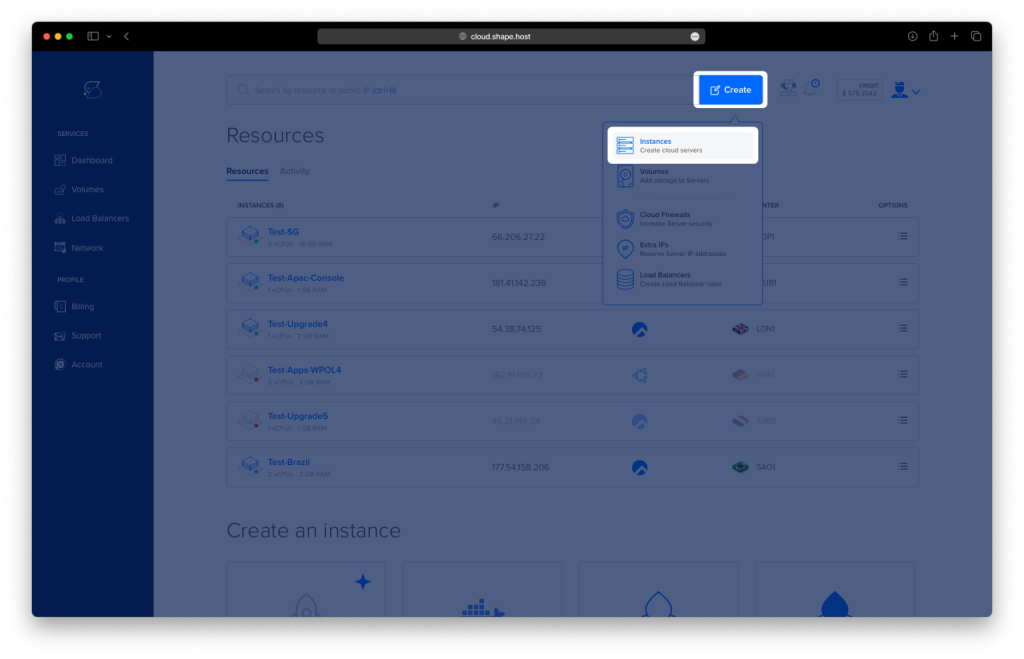
Select your preferred server location (data center) — e.g., Europe or North America.
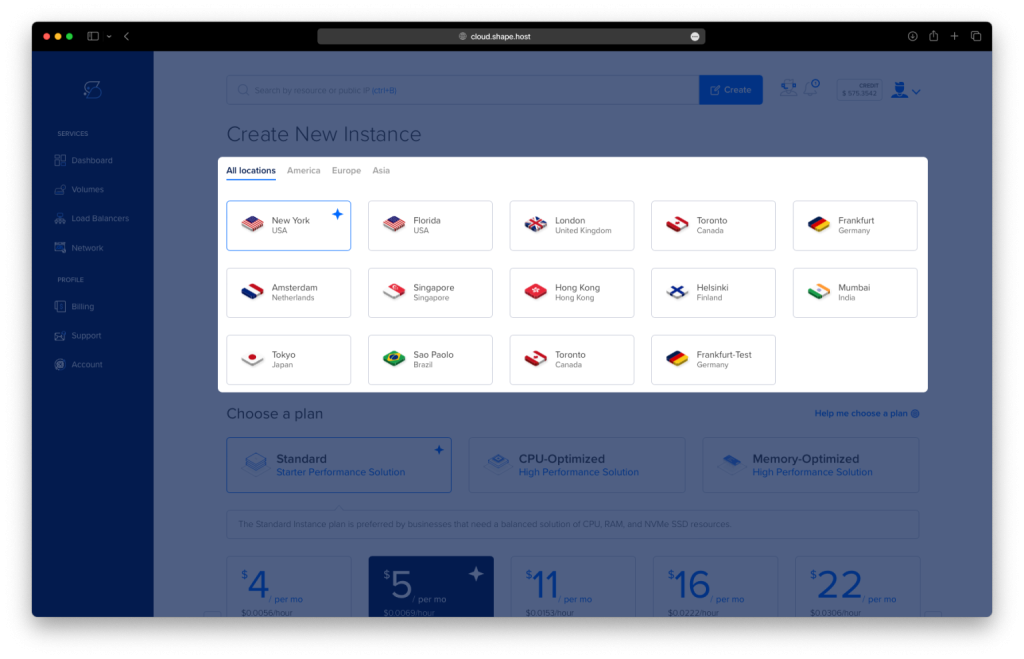
Choose Ubuntu 22.04 (64-bit) as the operating system.
Select a plan with at least 2 CPUs, 2 GB RAM, and 20 GB SSD.
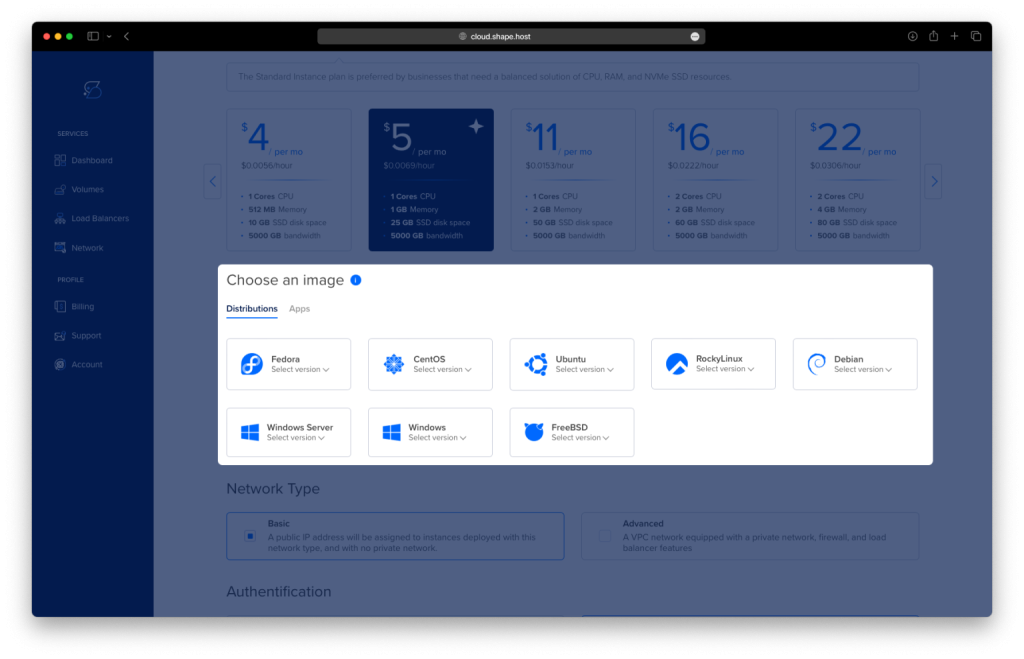
Click “Create Instance” and wait for provisioning to complete.
Copy the IP address from the Resources section.
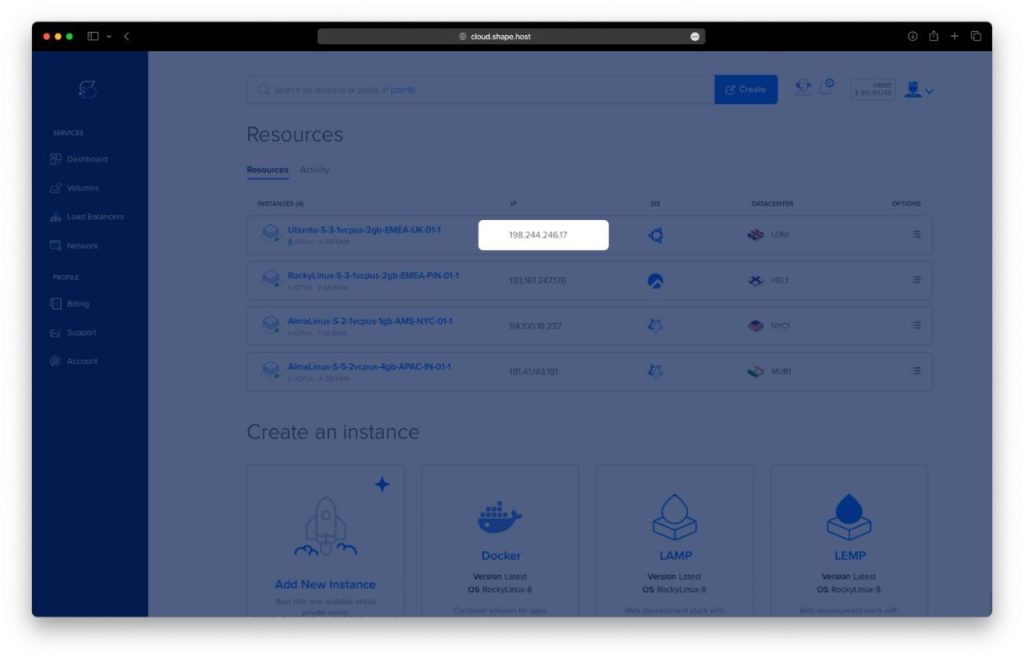
Connect to Your Instance
On Linux/macOS:
ssh root@your_server_ip
On Windows:
Use PuTTY to connect:
- Download PuTTY from https://www.putty.org.
- Enter your server’s IP in the Host Name field.
- Set port to
22, select SSH, then click Open.
Step 2: Install Node.js and NPM
1. Update your system:
apt update
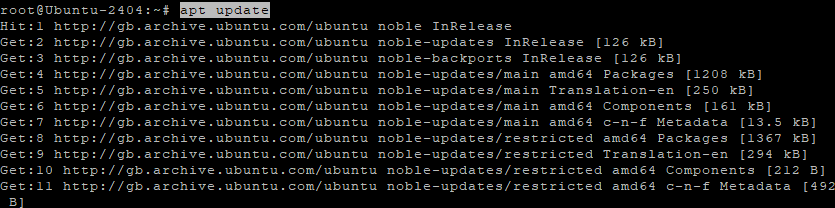
2. Add NodeSource repository for Node.js 18:
curl -fsSL https://deb.nodesource.com/setup_18.x | bash -
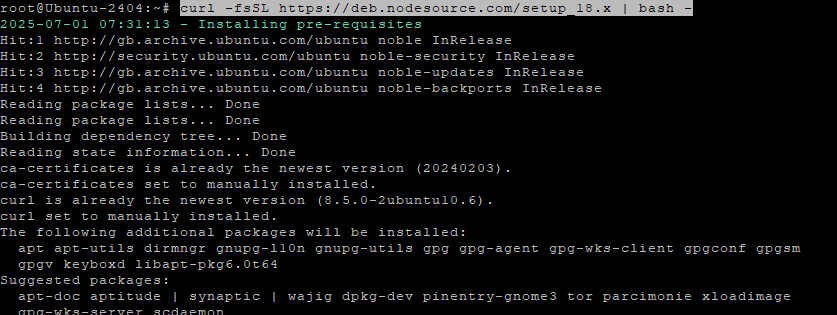
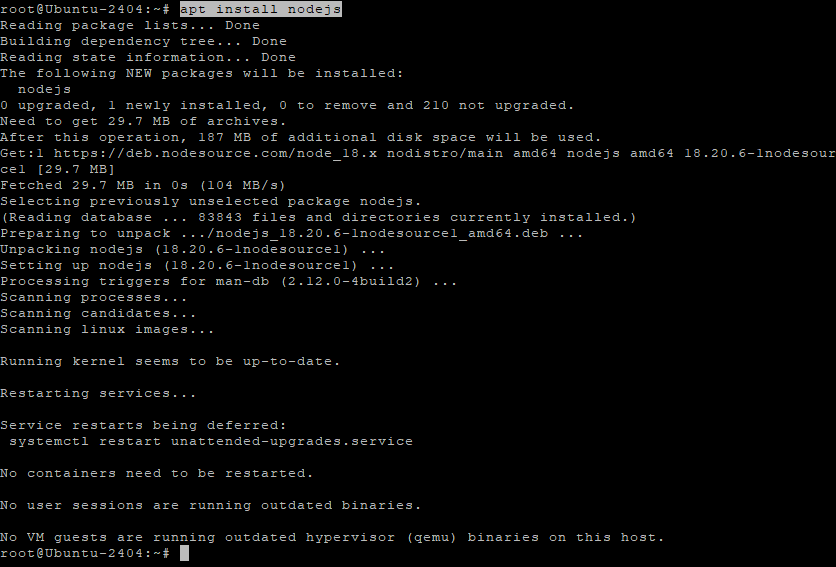
3. Install Node.js:
apt install nodejs
4. Verify Node.js and NPM:
node -v
npm -v

Step 3: Install MongoDB
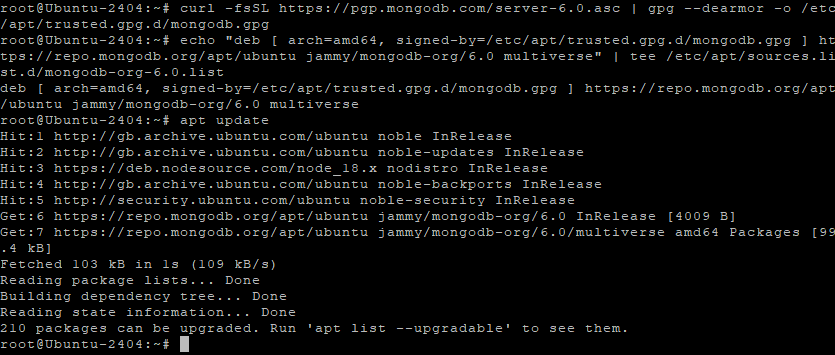
1. Add the MongoDB GPG key:
curl -fsSL https://pgp.mongodb.com/server-6.0.asc | gpg --dearmor -o /etc/apt/trusted.gpg.d/mongodb.gpg
2. Add MongoDB repository:
echo "deb [ arch=amd64, signed-by=/etc/apt/trusted.gpg.d/mongodb.gpg ] https://repo.mongodb.org/apt/ubuntu jammy/mongodb-org/6.0 multiverse" | tee /etc/apt/sources.list.d/mongodb-org-6.0.list
3. Update packages and install MongoDB:
apt update
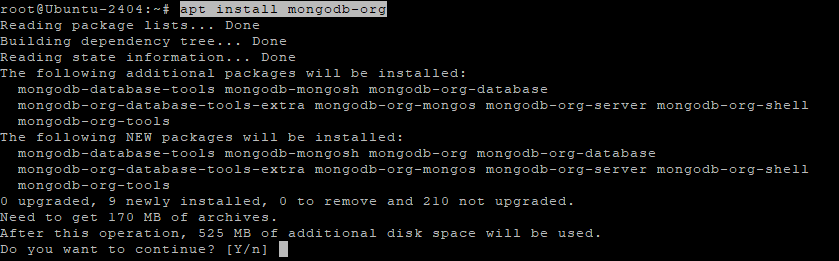
apt install mongodb-org
4. Start and enable MongoDB:
systemctl start mongod
systemctl enable mongod

Step 4: Install Angular CLI
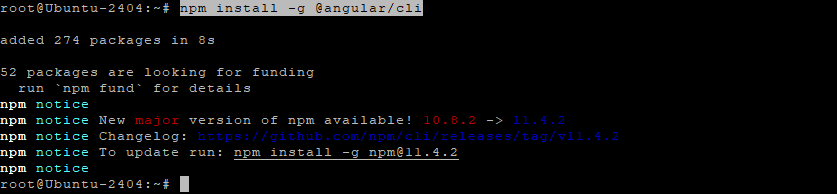
1. Install Angular CLI globally:
npm install -g @angular/cli
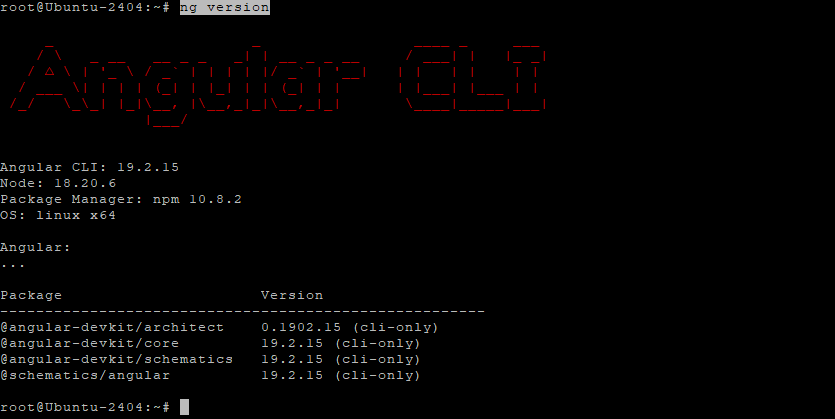
2. Check Angular CLI version:
ng version
Step 5: Create a Simple Express Application
1. Create and enter your project directory:
mkdir mean-app
cd mean-app
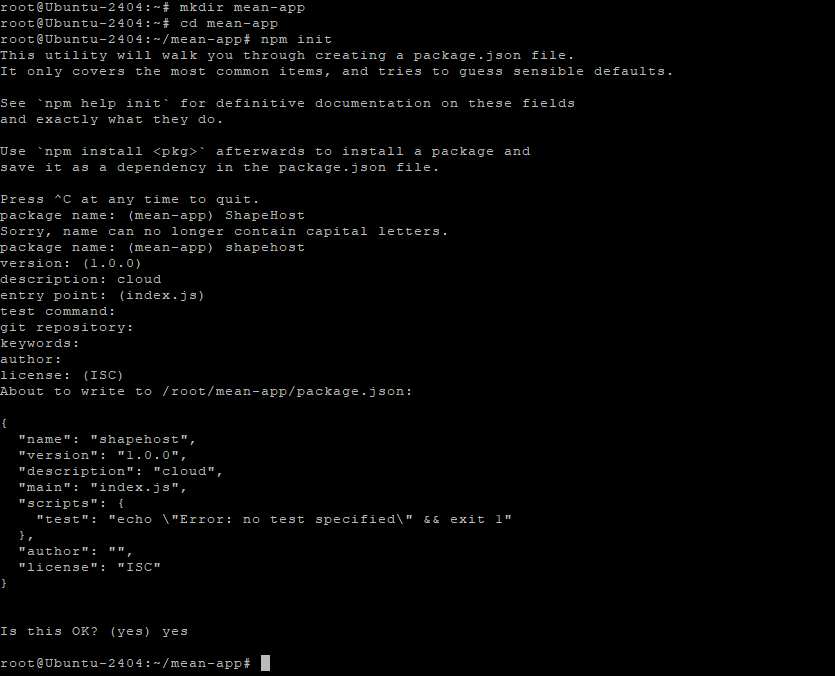
2. Initialize the project:
npm init
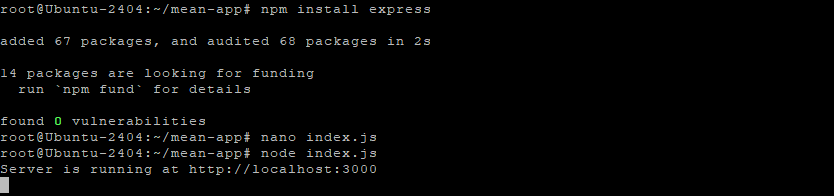
3. Install Express.js:
npm install express

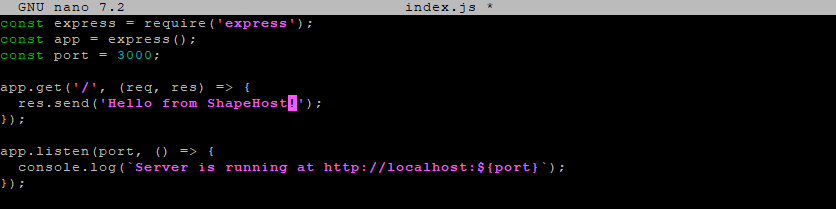
4. Create the main server file:
nano index.js
Paste the following code:
const express = require('express');
const app = express();
const port = 3000;

app.get('/', (req, res) => {
  res.send('Hello from Express.js!');
});

app.listen(port, () => {
  console.log(`Server is running at http://localhost:${port}`);
});
Save and close the file (CTRL+O, ENTER, then CTRL+X).
Step 6: Run the Application
Start the server:
node index.js
Then open your browser and visit:
http://your-server-ip:3000
You should see the message:
“Hello from Express.js!”

You’ve successfully installed the MEAN Stack on Ubuntu 22.04, including Node.js, MongoDB, Angular CLI, and Express. You also created a simple Express.js server as a starting point for your application.
Ready to deploy your full-stack app in production? Get started with scalable, developer-friendly Shape.Host Linux SSD VPS.