How to Install Immich on AlmaLinux 10
Immich on AlmaLinux 10 is a strong way to build a self-hosted photo and video management platform with mobile backup, AI-powered search, timeline browsing, albums, and sharing while keeping your media library under your own infrastructure control. It is especially useful when you want a Google Photos-style experience without handing your personal archive to a third-party cloud.
In this guide, we restore a fresh AlmaLinux 10.1 server on Shape.Host, verify the current stable Immich release, install Docker Engine and Docker Compose from Docker’s official repository, deploy Immich 2.5.6 with the official Compose bundle, place Nginx in front of it on tutorials.shape.host, account for SELinux and firewalld on AlmaLinux, secure the site with a live Let’s Encrypt certificate, and validate the finished installation from both the terminal and a browser.
What Is Immich?
Immich is a self-hosted photo and video management platform designed for personal or family media libraries. It supports mobile uploads, AI-powered search features, albums, timeline navigation, map views, and external storage options, making it a practical alternative to hosted photo services when privacy and ownership matter.
Versions Used in This Tutorial
| Component | Version Verified | Source |
|---|---|---|
| AlmaLinux | 10.1 | Fresh Shape.Host restore and /etc/os-release check |
| Immich | 2.5.6 | Current GitHub release at install time |
| Docker Engine | 29.3.0 | Installed from Docker’s official repository |
| Docker Compose | 5.1.0 | Installed from Docker’s official repository |
| Nginx | 1.26.3 | Installed on the live AlmaLinux 10 server |
| SSL | Let’s Encrypt certificate for tutorials.shape.host |
Issued live during the deployment |
Why Install Immich on AlmaLinux 10?
- AlmaLinux 10 gives you a modern RHEL-compatible base with long support timelines.
- Immich’s recommended Docker Compose deployment model fits cleanly on AlmaLinux once Docker is installed from the official repository.
- Nginx, SELinux, and firewalld give you a familiar enterprise-style operating model for a public HTTPS deployment.
- A dedicated VM keeps your media storage, backup policy, and future scaling decisions under your own control.
Prerequisites
- A fresh AlmaLinux 10 server
- Root or sudo access
- A domain pointing to your server, in this case
tutorials.shape.host - At least 2 vCPU, 4 GB RAM, and 50 GB storage for a comfortable baseline deployment
1. Verify the Operating System
Start by confirming that the restored server is actually running AlmaLinux 10.1.
cat /etc/os-release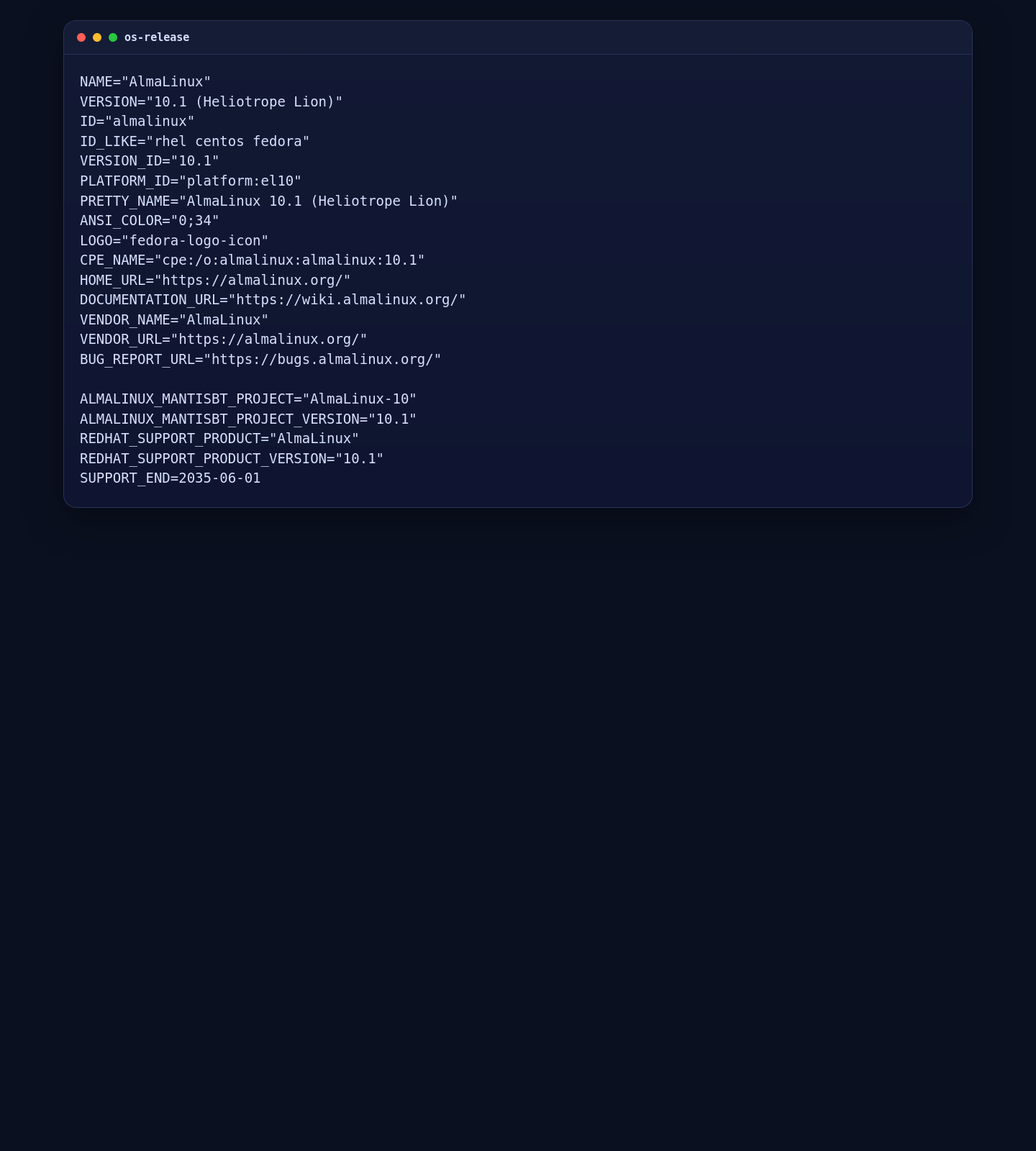
2. Install Docker Engine and Docker Compose
Immich’s official installation path is Docker Compose. On AlmaLinux 10, the clean approach is to remove older container packages, add Docker’s official repository, and install the engine plus Compose plugin from there.
dnf -y update
dnf -y install epel-release || true
dnf -y install dnf-plugins-core curl wget nginx certbot python3-certbot-nginx policycoreutils-python-utils

dnf -y remove docker \
    docker-client \
    docker-client-latest \
    docker-common \
    docker-latest \
    docker-latest-logrotate \
    docker-logrotate \
    docker-engine \
    podman \
    runc || true

dnf config-manager --add-repo https://download.docker.com/linux/centos/docker-ce.repo
dnf -y install docker-ce docker-ce-cli containerd.io docker-buildx-plugin docker-compose-plugin
systemctl enable --now docker
docker run --rm hello-world
docker --version
docker compose version
On this server, that resulted in Docker Engine 29.3.0 and Docker Compose 5.1.0.
3. Download the Immich Compose Bundle and Prepare the Environment
Next, create the Immich working directory, download the official Compose files, generate a database password, and replace the default paths and version tag with the values we want for this deployment.
DB_PASSWORD=$(python3 -c "import secrets, string; alphabet = string.ascii_letters + string.digits; print(''.join(secrets.choice(alphabet) for _ in range(24)))")

mkdir -p /opt/immich
cd /opt/immich
wget -O docker-compose.yml https://github.com/immich-app/immich/releases/latest/download/docker-compose.yml
wget -O .env https://github.com/immich-app/immich/releases/latest/download/example.env
mkdir -p /opt/immich/library /opt/immich/postgres

sed -i 's|^UPLOAD_LOCATION=.*|UPLOAD_LOCATION=/opt/immich/library|' .env
sed -i 's|^DB_DATA_LOCATION=.*|DB_DATA_LOCATION=/opt/immich/postgres|' .env
sed -i 's|^# TZ=.*|TZ=Etc/UTC|' .env
sed -i 's|^IMMICH_VERSION=.*|IMMICH_VERSION=v2.5.6|' .env
sed -i "s|^DB_PASSWORD=.*|DB_PASSWORD=${DB_PASSWORD}|" .env
Pinning IMMICH_VERSION=v2.5.6 makes the tutorial reproducible instead of depending on a moving latest tag.
4. Start the Immich Stack
With the environment file ready, pull the images and bring the stack up in detached mode.
cd /opt/immich
docker compose pull
docker compose up -d
docker compose ps
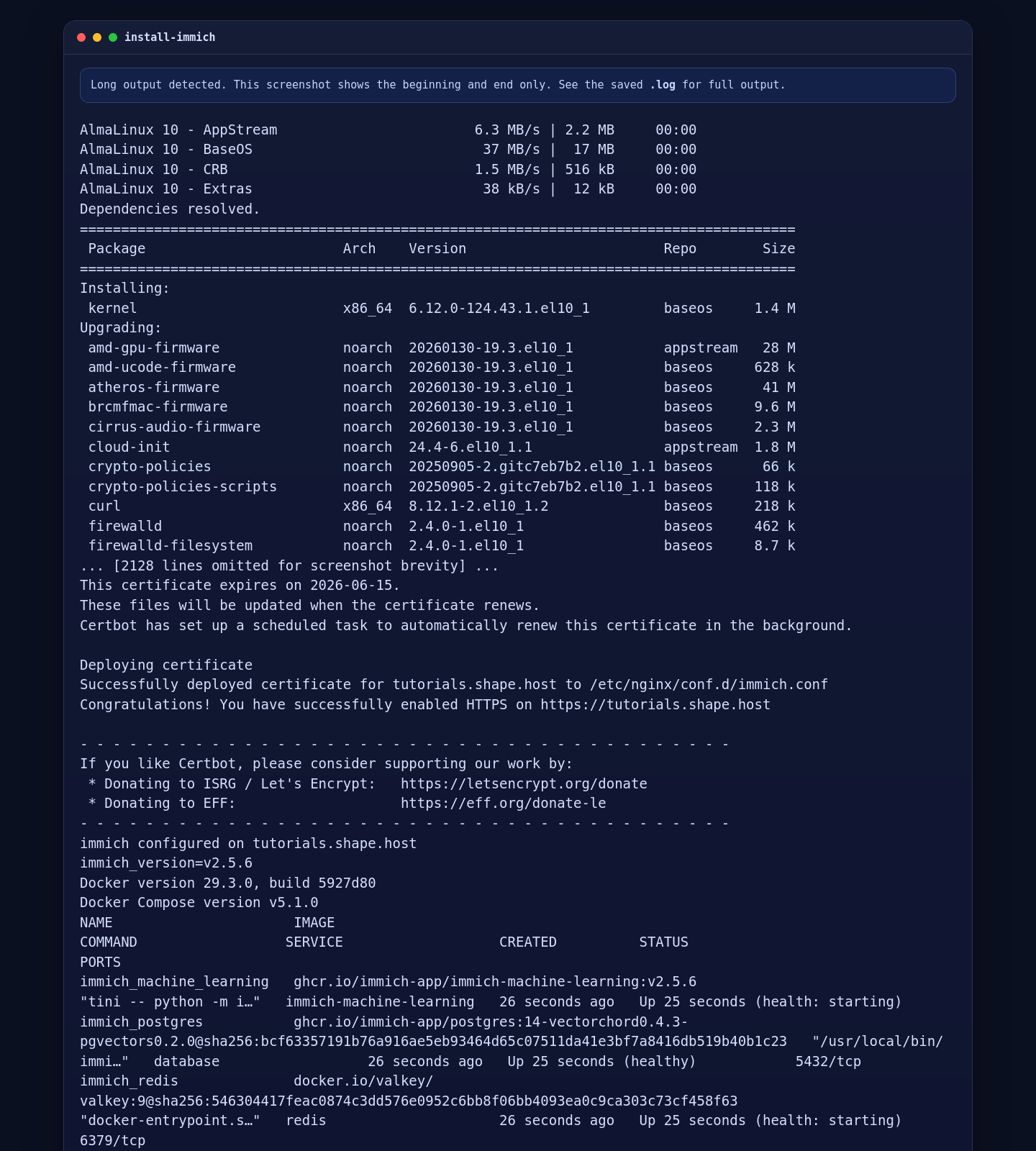
On the live Shape.Host server, Docker brought up the immich_server, immich_machine_learning, database, and redis services successfully.
5. Configure Nginx, SELinux, and firewalld
Immich works best behind a reverse proxy on a subdomain. On AlmaLinux, you should also account for SELinux and firewalld so Nginx can reach the Immich service and HTTP or HTTPS traffic can reach the host.
cat >/etc/nginx/conf.d/immich.conf <<'EOF'
server {
    listen 80;
    listen [::]:80;
    server_name tutorials.shape.host;

    client_max_body_size 50000M;
    proxy_request_buffering off;
    client_body_buffer_size 1024k;

    proxy_set_header Host              $host;
    proxy_set_header X-Real-IP         $remote_addr;
    proxy_set_header X-Forwarded-For   $proxy_add_x_forwarded_for;
    proxy_set_header X-Forwarded-Proto $scheme;
    proxy_http_version 1.1;
    proxy_redirect off;
    proxy_read_timeout 600s;
    proxy_send_timeout 600s;
    send_timeout 600s;

    location / {
        proxy_pass http://127.0.0.1:2283;
        proxy_set_header Upgrade $http_upgrade;
        proxy_set_header Connection "upgrade";
    }

    location = /.well-known/immich {
        proxy_pass http://127.0.0.1:2283;
    }
}
EOF

rm -f /etc/nginx/conf.d/default.conf || true
setsebool -P httpd_can_network_connect 1

if systemctl is-enabled --quiet firewalld 2>/dev/null || systemctl is-active --quiet firewalld 2>/dev/null; then
    firewall-cmd --permanent --add-service=http
    firewall-cmd --permanent --add-service=https
    firewall-cmd --reload
fi

nginx -t
systemctl enable --now nginx
systemctl reload nginx
The SELinux change is important because Nginx otherwise cannot proxy to the Immich service on localhost. If firewalld is active, both HTTP and HTTPS must be opened before public validation will work.
6. Secure Immich with Let’s Encrypt
Once the domain resolves publicly and Nginx is serving the site, request the certificate with Certbot:
certbot --nginx --non-interactive --agree-tos -m contact@shape.host -d tutorials.shape.host --redirect
systemctl enable --now certbot-renew.timer
On this deployment, Certbot issued a valid certificate for tutorials.shape.host with an expiry date of 2026-06-15, and the certbot-renew.timer service was both enabled and active.
7. Validate the Installed Versions and Services
Use the following commands to verify the final state of the deployment:
docker --version
docker compose version
cd /opt/immich
grep -E '^(IMMICH_VERSION|UPLOAD_LOCATION|DB_DATA_LOCATION|TZ)=' .env
docker compose ps
docker compose images
certbot certificates
systemctl is-enabled certbot-renew.timer
systemctl is-active certbot-renew.timer
curl -I -H "Host: tutorials.shape.host" http://127.0.0.1/
curl -I https://tutorials.shape.host/
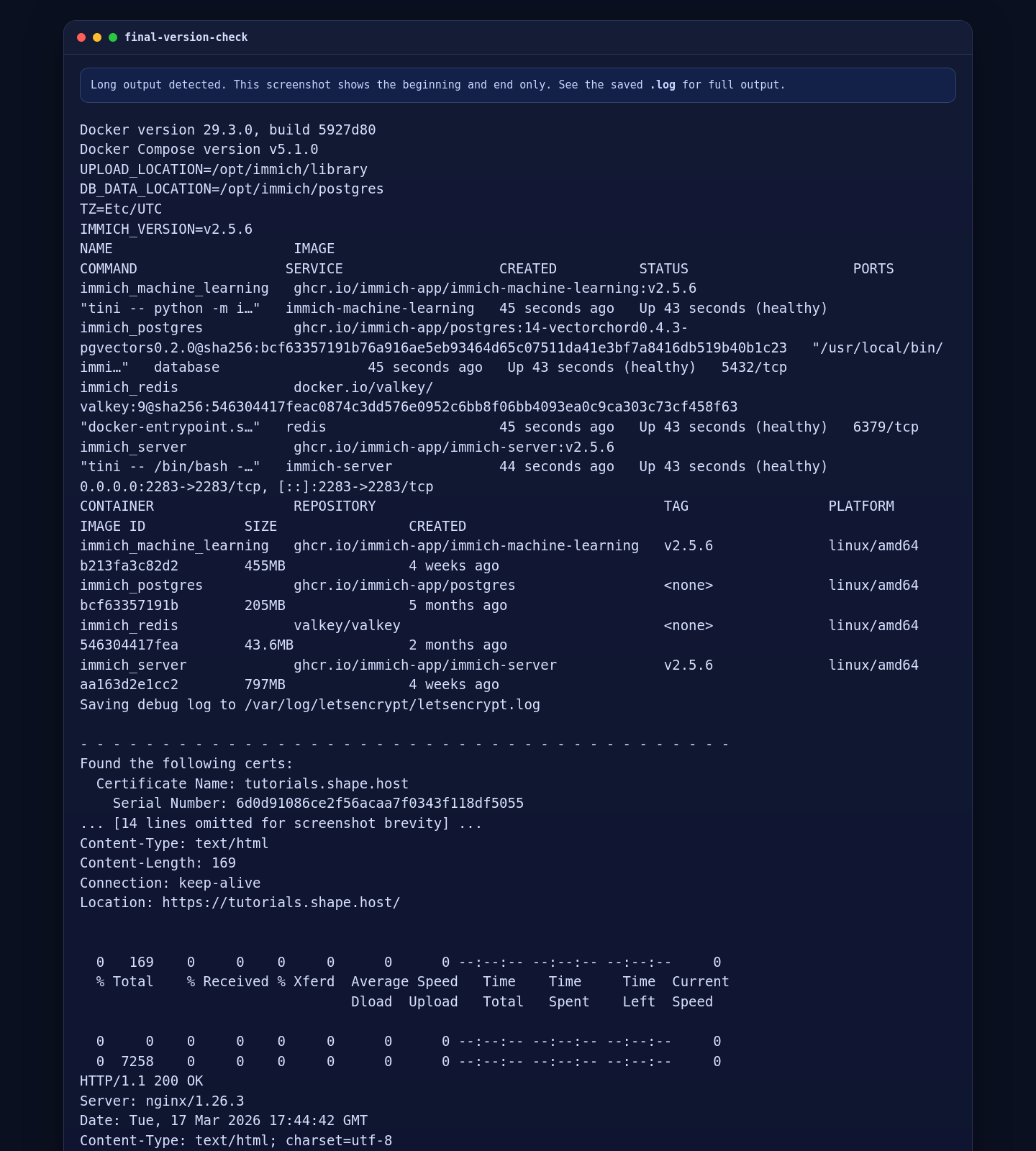
On this Shape.Host deployment, the final validation showed:
- Docker Engine 29.3.0
- Docker Compose 5.1.0
- Immich pinned to 2.5.6 in
.env - All Immich containers healthy
certbot-renew.timerenabled and active- An HTTP redirect to HTTPS on
tutorials.shape.host - A final external
200 OKresponse over HTTPS
8. Open Immich in a Browser and Create the First Admin User
Finally, open https://tutorials.shape.host/ in a browser. On a fresh installation, Immich presents the first-user setup screen so you can create the administrator account.

Troubleshooting Notes
- If Docker packages conflict during installation, remove older container packages before adding Docker’s official repository.
- If Immich fails to start, check
cd /opt/immich && docker compose logs --tail 100 immich-serverand confirm the storage paths in.envare writable. - If uploads fail through the browser, make sure the Nginx
client_max_body_sizevalue is large enough for your media library. - If the site loads on HTTP but not HTTPS, rerun
nginx -t, confirm thattutorials.shape.hoststill resolves to the server IP, and retry Certbot. - If the reverse proxy responds with an upstream error, confirm the SELinux boolean
httpd_can_network_connectis enabled.
Conclusion
You now have a working Immich installation on AlmaLinux 10 with Docker Compose, Nginx reverse proxying, SELinux adjusted for proxy connectivity, and a live Let’s Encrypt certificate on tutorials.shape.host. On this verified Shape.Host deployment, the Immich release used was 2.5.6.
From here, the next sensible steps are creating the first administrator account, configuring mobile backup, reviewing external storage and backup strategy, and sizing the underlying disk layout for long-term media library growth.