Deploy Plausible Analytics on AlmaLinux 10 with Docker and ZeroSSL
Plausible Analytics is a lightweight, privacy-friendly analytics platform that gives you clean traffic reporting without the overhead of a much larger analytics suite. It is a strong fit when you want first-party analytics on infrastructure you control and you want a simpler dashboard than a traditional enterprise analytics stack.
In this guide, we restore a fresh AlmaLinux 10.1 server on Shape.Host, verify the current official Plausible Community Edition release, install Docker Engine and Docker Compose from Docker’s official CentOS-compatible repository, deploy Plausible Community Edition v3.2.0 with its supported Docker Compose bundle, place Nginx in front of it on tutorials.shape.host, secure the site with a trusted ZeroSSL certificate, and validate the finished installation from both the terminal and a browser.
| Application | Plausible Analytics Community Edition |
|---|---|
| Application version | v3.2.0 |
| Operating system | AlmaLinux 10.1 |
| Container runtime | Docker Engine 29.3.0 with Docker Compose 5.1.0 |
| Reverse proxy | Nginx 1.26.3 |
| Public hostname | tutorials.shape.host |
| TLS issuer | ZeroSSL ECC Domain Secure Site CA |
| Validated on | Live Shape.Host AlmaLinux 10 server |
Why Use Plausible Analytics on AlmaLinux 10?
- AlmaLinux 10 gives you a modern RHEL-compatible base with a long support horizon.
- Plausible Community Edition uses a straightforward Docker Compose deployment model that fits cleanly on AlmaLinux once Docker is installed from the official repository.
- Nginx works well as a simple public proxy in front of the local Plausible container.
- ZeroSSL provides a trusted public certificate for the analytics dashboard on your own hostname.
Before You Begin
Make sure you have the following in place before you start:
- A fresh AlmaLinux 10 server
- Root or sudo access
- A DNS record pointing
tutorials.shape.hostto your server IP - Ports
80and443open to the public internet
1. Verify the AlmaLinux 10 Release
Start by confirming that the rebuilt server is actually running AlmaLinux 10.1.
cat /etc/os-release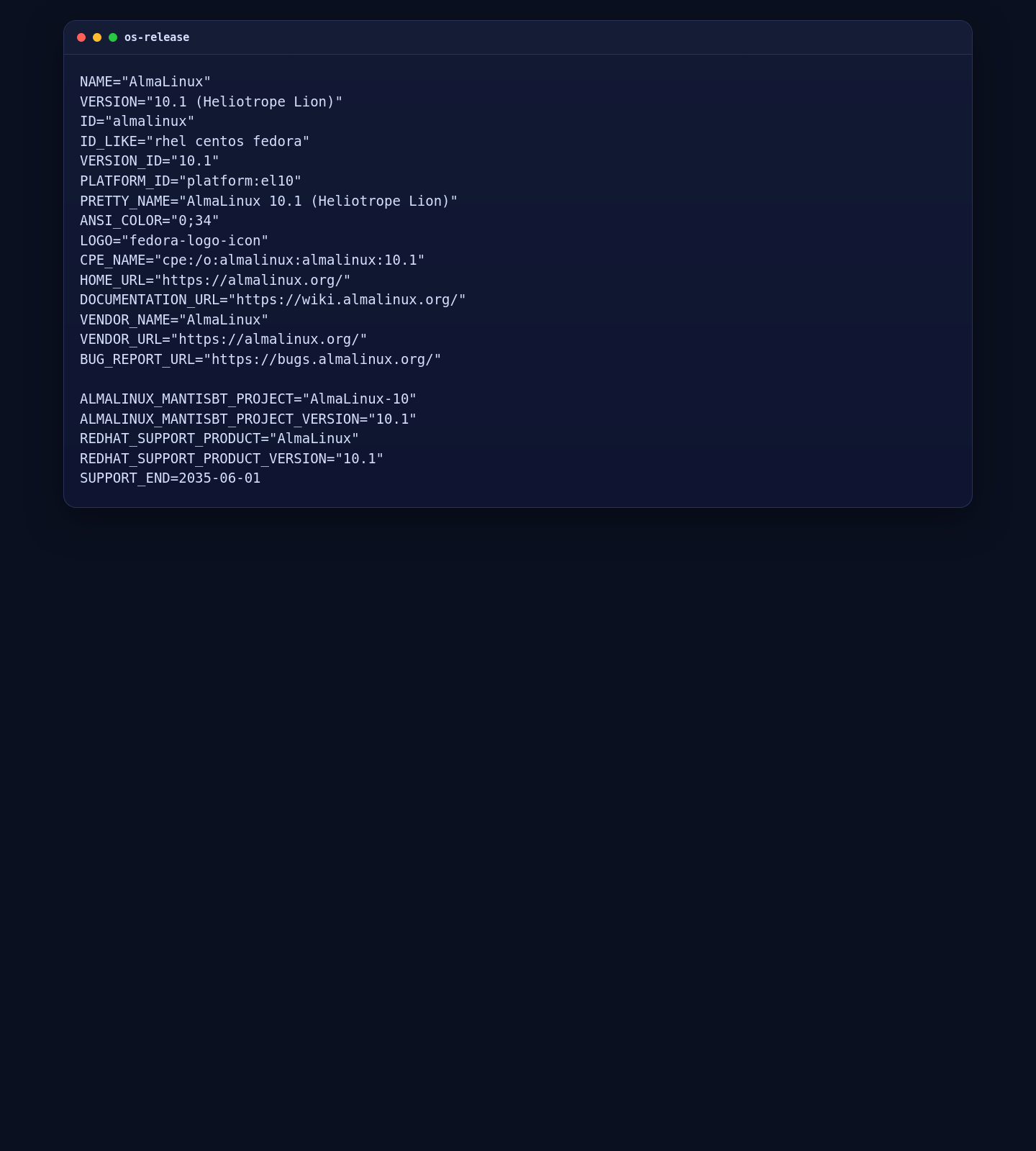
2. Install Docker, Docker Compose, Nginx, and Base Dependencies
Plausible Community Edition’s official self-hosted path is Docker Compose. On AlmaLinux 10, the clean approach is to install Docker from Docker’s official CentOS-compatible repository and add the supporting packages needed for Nginx, firewall handling, and certificate issuance.
dnf -y install git curl ca-certificates dnf-plugins-core firewalld nginx socat policycoreutils-python-utils
dnf config-manager --add-repo https://download.docker.com/linux/centos/docker-ce.repo
dnf -y install docker-ce docker-ce-cli containerd.io docker-buildx-plugin docker-compose-plugin
systemctl enable --now docker nginx firewalld

docker --version
docker compose version
nginx -v
git --version
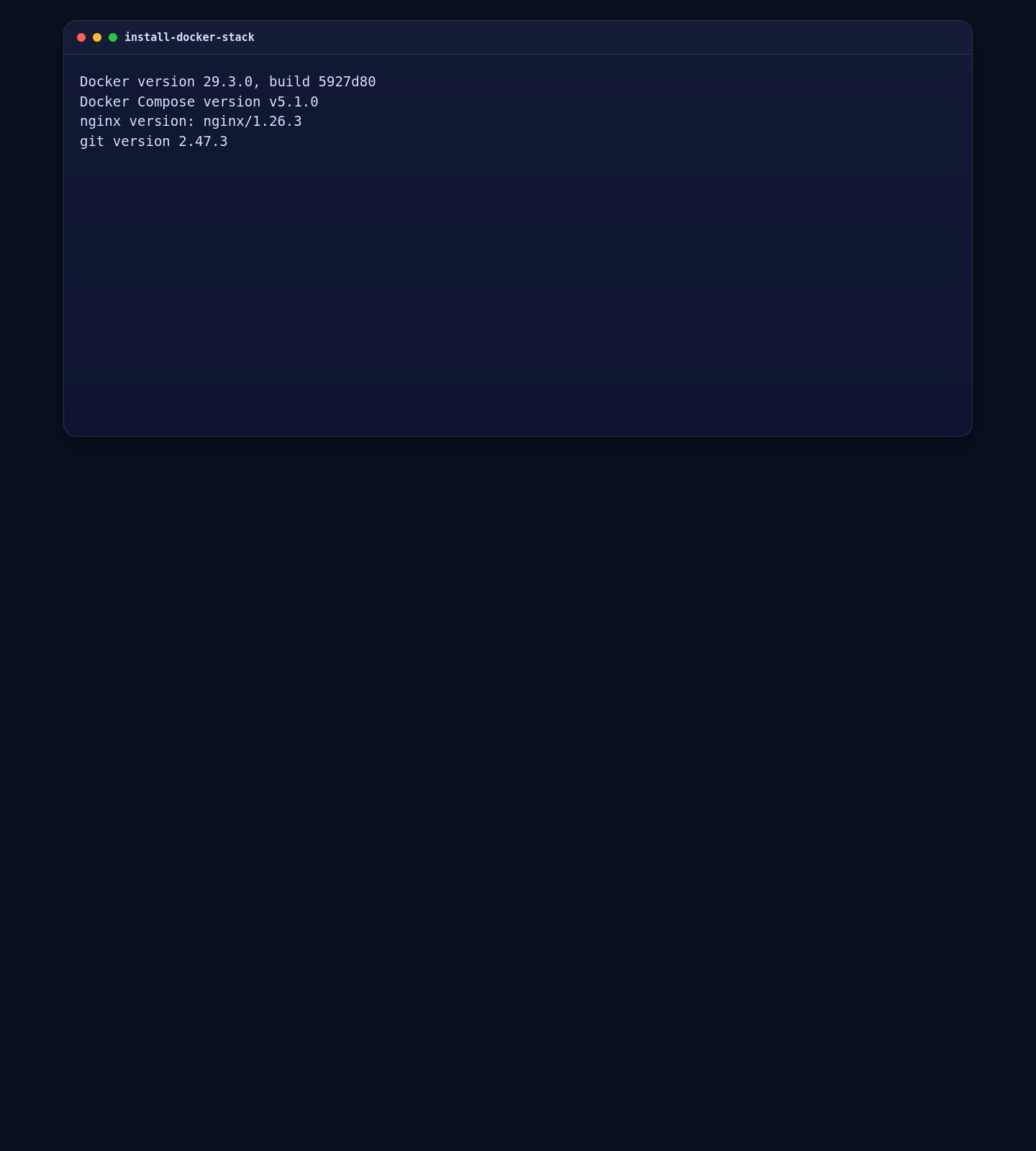
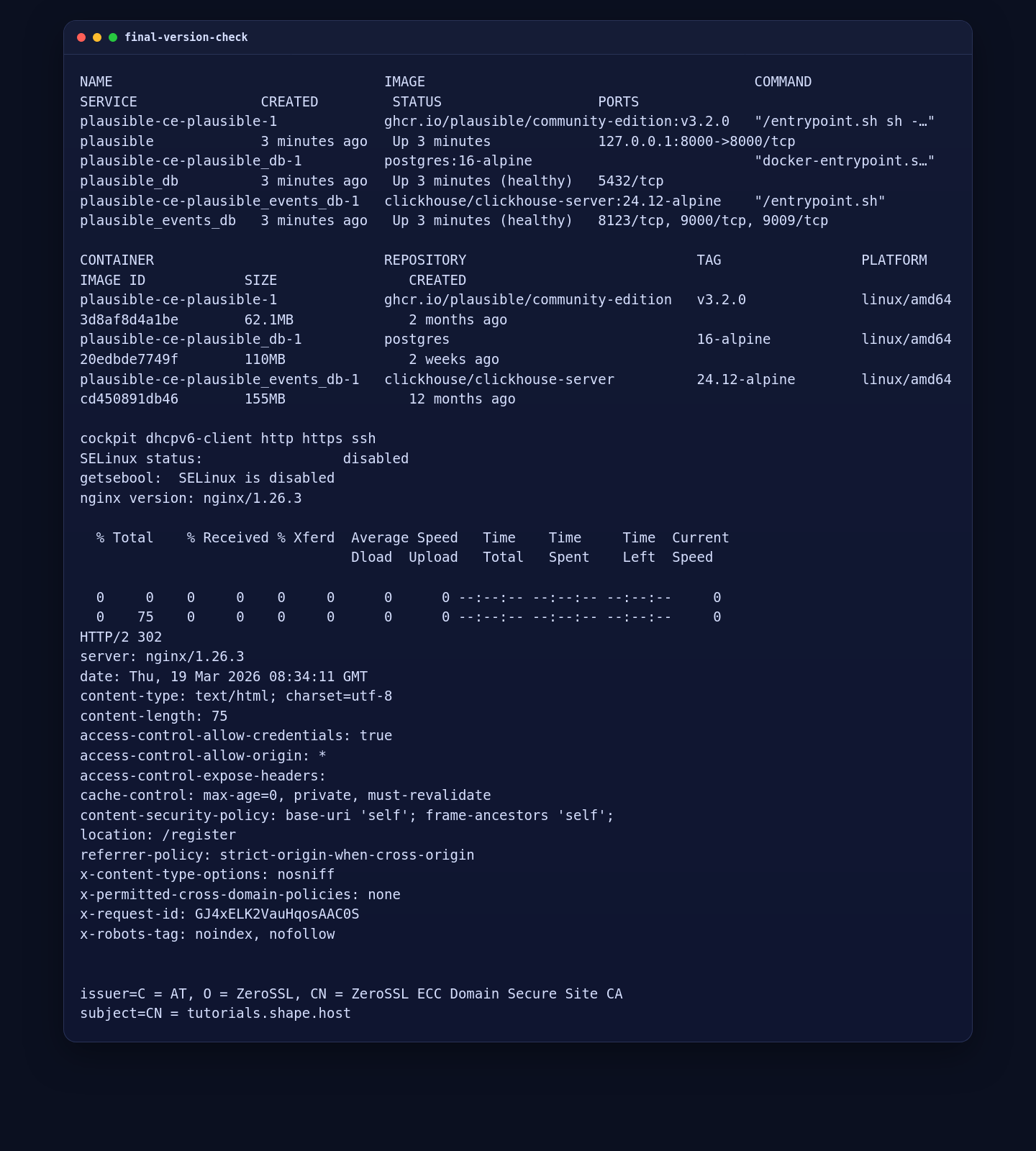
On the tested AlmaLinux 10.1 deployment, this installed Docker Engine 29.3.0, Docker Compose 5.1.0, Nginx 1.26.3, and Git 2.47.3.
3. Download Plausible Community Edition and Create the Environment File
The official Plausible self-hosting guide uses the plausible/community-edition repository. Clone the release branch you want to deploy, create the environment file, and bind the internal HTTP listener to localhost so Nginx can handle the public edge.
cd /opt
git clone -b v3.2.0 --single-branch https://github.com/plausible/community-edition.git plausible-ce
cd /opt/plausible-ce

SECRET_KEY_BASE=$(openssl rand -base64 48 | tr -d '\n')

cat > .env <<EOF
BASE_URL=https://tutorials.shape.host
SECRET_KEY_BASE=$SECRET_KEY_BASE
HTTP_PORT=8000
MAILER_EMAIL=contact@shape.host
EOF

cat > compose.override.yml <<'EOF'
services:
  plausible:
    ports:
      - 127.0.0.1:8000:8000
EOF
BASE_URL must match the real public hostname you plan to use. The localhost-only port mapping keeps Plausible off the public interface so Nginx can proxy it securely.
4. Start Plausible Community Edition
With the environment prepared, launch the official Compose bundle and confirm that Plausible answers locally before you introduce the public reverse proxy.
4.1 Launch the Compose Stack
cd /opt/plausible-ce
docker compose up -d
sleep 25
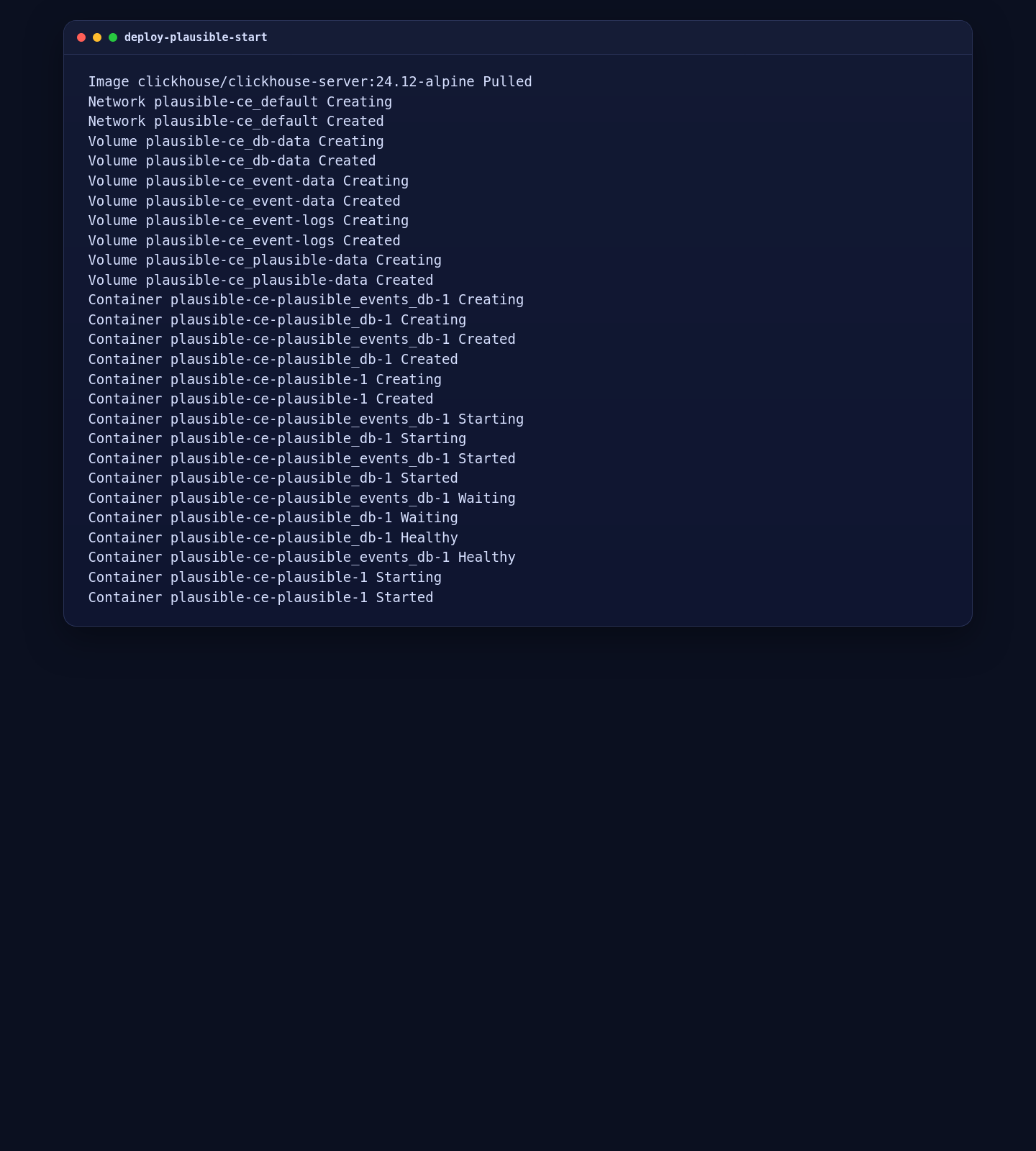
On the live server, Docker created the Plausible network and volumes, started PostgreSQL and ClickHouse, waited for both services to become healthy, and then started the Plausible application container.
4.2 Validate the Running Containers and Local HTTP Response
docker compose ps
curl -I http://127.0.0.1:8000
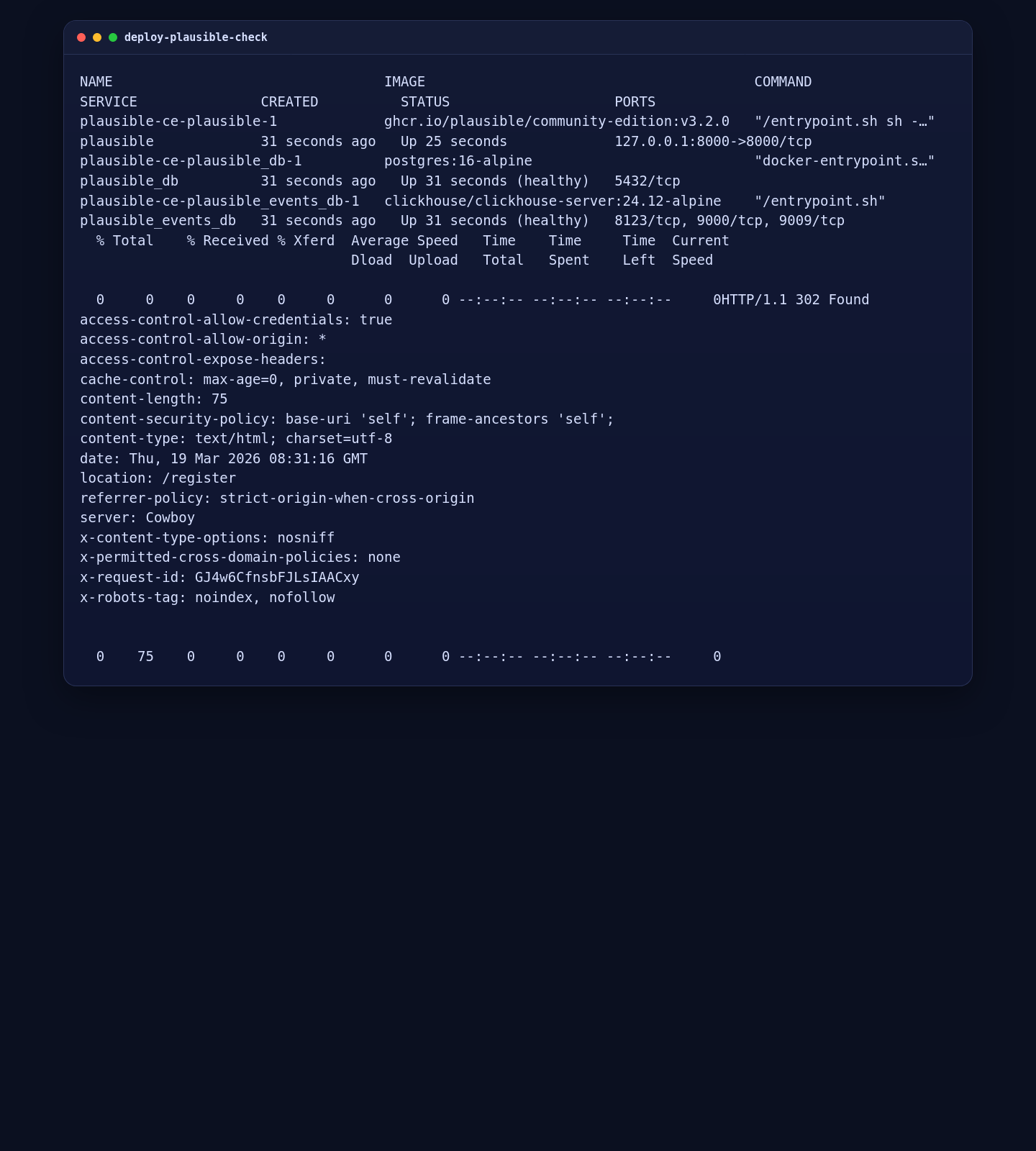
On the live server, the Plausible container came up using the official image tag v3.2.0 and the local endpoint returned an HTTP 302 redirect to /register, which is the correct first-run state for a new deployment.
5. Configure Nginx, Firewalld, and ZeroSSL
Create an HTTP site first so ZeroSSL can validate the ACME challenge over the webroot path. Then issue the certificate, install it into Nginx, and switch the site to HTTPS.
mkdir -p /var/www/_letsencrypt /etc/nginx/ssl/tutorials.shape.host

cat > /etc/nginx/conf.d/tutorials.shape.host.conf <<'EOF'
server {
    listen 80;
    server_name tutorials.shape.host;

    location /.well-known/acme-challenge/ {
        root /var/www/_letsencrypt;
        default_type "text/plain";
    }

    location / {
        proxy_pass http://127.0.0.1:8000;
        proxy_http_version 1.1;
        proxy_set_header Host $host;
        proxy_set_header X-Real-IP $remote_addr;
        proxy_set_header X-Forwarded-For $proxy_add_x_forwarded_for;
        proxy_set_header X-Forwarded-Proto $scheme;
    }
}
EOF

firewall-cmd --permanent --add-service=http
firewall-cmd --permanent --add-service=https
firewall-cmd --reload

# Run this if SELinux is enforcing on your server.
setsebool -P httpd_can_network_connect 1

nginx -t
systemctl reload nginx

curl -fsSL https://get.acme.sh | sh -s email=contact@shape.host
/root/.acme.sh/acme.sh --register-account --server zerossl --eab-kid YOUR_ZEROSSL_EAB_KID --eab-hmac-key YOUR_ZEROSSL_EAB_HMAC_KEY
/root/.acme.sh/acme.sh --issue --server zerossl --webroot /var/www/_letsencrypt -d tutorials.shape.host --keylength ec-256
/root/.acme.sh/acme.sh --install-cert -d tutorials.shape.host --ecc \
  --fullchain-file /etc/nginx/ssl/tutorials.shape.host/fullchain.cer \
  --key-file /etc/nginx/ssl/tutorials.shape.host/tutorials.shape.host.key \
  --reloadcmd "systemctl reload nginx"

cat > /etc/nginx/conf.d/tutorials.shape.host.conf <<'EOF'
server {
    listen 80;
    server_name tutorials.shape.host;

    location /.well-known/acme-challenge/ {
        root /var/www/_letsencrypt;
        default_type "text/plain";
    }

    location / {
        return 301 https://$host$request_uri;
    }
}

server {
    listen 443 ssl;
    http2 on;
    server_name tutorials.shape.host;

    ssl_certificate /etc/nginx/ssl/tutorials.shape.host/fullchain.cer;
    ssl_certificate_key /etc/nginx/ssl/tutorials.shape.host/tutorials.shape.host.key;
    ssl_protocols TLSv1.2 TLSv1.3;
    ssl_session_timeout 1d;
    ssl_session_cache shared:SSL:10m;
    ssl_session_tickets off;

    location / {
        proxy_pass http://127.0.0.1:8000;
        proxy_http_version 1.1;
        proxy_set_header Host $host;
        proxy_set_header X-Real-IP $remote_addr;
        proxy_set_header X-Forwarded-For $proxy_add_x_forwarded_for;
        proxy_set_header X-Forwarded-Proto https;
    }
}
EOF

nginx -t
systemctl reload nginx
On this specific AlmaLinux 10.1 template, the final validation reported SELinux is disabled. If your server uses an enforcing SELinux policy, keep the setsebool -P httpd_can_network_connect 1 step in place so Nginx can proxy the local Plausible service.
6. Validate the Public HTTPS Route
Once the certificate is installed and Nginx has been reloaded, check the public route. From another machine on the internet, a simple HTTPS header check is enough. If you want a deterministic test that forces the hostname to your server IP, use --resolve.
curl -I https://tutorials.shape.host

# Deterministic validation against a known server IP:
curl -I --resolve tutorials.shape.host:443:YOUR_SERVER_IP https://tutorials.shape.host

openssl s_client -connect tutorials.shape.host:443 -servername tutorials.shape.host < /dev/null 2>/dev/null | openssl x509 -noout -issuer -subject
In the validated Shape.Host deployment, the public HTTPS route returned an HTTP 302 redirect to /register, and the certificate issuer reported ZeroSSL ECC Domain Secure Site CA.
7. Create the First Plausible Account and Add a Site
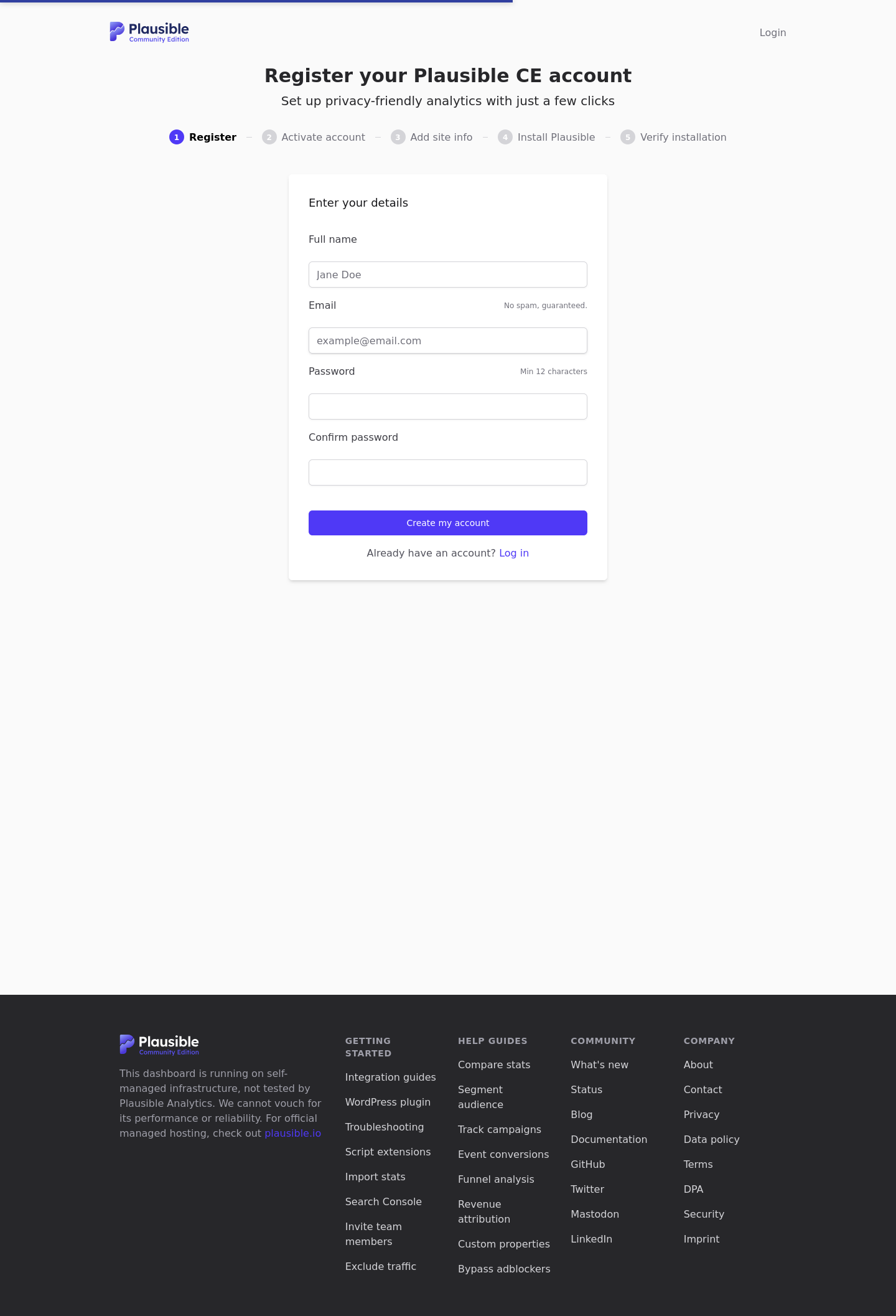
Open https://tutorials.shape.host/register in your browser. The first page creates the initial Plausible CE account. After that, log in, add your site domain, and install the tracking script on the website you want to measure.
Troubleshooting Tips
- If the Plausible container does not answer locally, check
docker compose psanddocker compose logs plausibleinside/opt/plausible-ce. - If the public route does not respond, confirm that
firewall-cmd --list-servicesincludes bothhttpandhttps. - If Nginx starts but cannot proxy the app on a hardened AlmaLinux build, enable
setsebool -P httpd_can_network_connect 1when SELinux is enforcing. - If certificate issuance fails, verify that the DNS record for
tutorials.shape.hostalready points to your server and that port80is reachable from the public internet.
Conclusion
You now have a working Plausible Analytics Community Edition deployment on AlmaLinux 10 with Docker Compose, Nginx reverse proxying, firewalld adjustments, and a trusted ZeroSSL certificate on tutorials.shape.host. On this validated Shape.Host run, the deployed Plausible version was v3.2.0 and the public site was ready for the first account registration page.