WildFly Java Application Server on Ubuntu 24.04 (Systemd + Nginx + SSL)
WildFly (formerly JBoss AS) is a powerful, lightweight, and flexible Java application server for running enterprise-grade applications. It supports Jakarta EE (formerly Java EE), RESTful services, web sockets, messaging, clustering, and microservices architectures. With its modular design and high-performance runtime, WildFly is widely used for modern Java deployments in production environments.
Deploying WildFly on Ubuntu 24.04 LTS (Noble Numbat) provides a secure, up-to-date, and long-term supported base system. Ubuntu 24.04 ships with systemd 255, OpenSSL 3, and the latest OpenJDK releases — making it an ideal foundation for a stable, production-ready Java server setup.
Architecture Overview
| Layer | Component | Role |
|---|---|---|
| OS | Ubuntu 24.04 LTS | Stable, secure base with long-term support |
| Runtime | OpenJDK 17 / 21 (LTS) | Runs WildFly application server and deployed apps |
| Application | WildFly (Java EE / Jakarta EE server) | Provides APIs, container, and services for enterprise Java apps |
| Process Manager | systemd | Ensures WildFly runs as a managed background service |
| Reverse Proxy | Nginx (optional) | TLS termination, load balancing, routing |
| TLS | Let’s Encrypt / PKI | Provides secure HTTPS for applications |
Why Use WildFly?
- Enterprise-ready – complete support for Jakarta EE APIs and microservices.
- High-performance – fast startup, modular design, and low memory footprint.
- Flexible deployments – supports WAR/EAR packaging, standalone or domain mode.
- Secure – RBAC, strong TLS support, and integration with enterprise auth (LDAP, Kerberos).
- Clustering and HA – built-in support for load balancing, failover, and distributed caches.
WildFly vs Other Java Servers
| Feature/Capability | WildFly | Tomcat | Payara / GlassFish | Jetty |
|---|---|---|---|---|
| Jakarta EE support | Full (complete spec) | Partial (Servlet/JSP) | Full | Partial (Servlets, WebSockets) |
| Clustering & HA | Yes | Limited | Yes | Limited |
| Modular design | Yes | Lightweight core | Less modular | Lightweight core |
| Management console | Yes (web + CLI) | No | Yes | No |
WildFly is strongest when you need a full Jakarta EE platform with clustering, security, and enterprise features, while Tomcat or Jetty are lighter servlet containers.
Security & Best Practices
- Run WildFly as a dedicated system user (non-root).
- Use systemd service management to ensure uptime and controlled restarts.
- Place WildFly behind Nginx with SSL for secure HTTPS and reverse proxying.
- Keep OpenJDK and WildFly updated to the latest supported versions.
- Secure the management console with strong authentication and firewall rules.
- Use role-based access control (RBAC) for administration.
- Integrate with LDAP/AD for enterprise environments if needed.
Typical Use Cases
- Hosting enterprise Java EE/Jakarta EE applications.
- Running REST/SOAP web services for backend systems.
- Clustering and HA setups for high-availability applications.
- Microservices and modular Java apps using WildFly Swarm/Thorntail (or Quarkus migration paths).
- Secure, scalable middleware platform for large organizations.
1. Create a Shape.Host VPS Instance
Go to https://shape.host and log in.
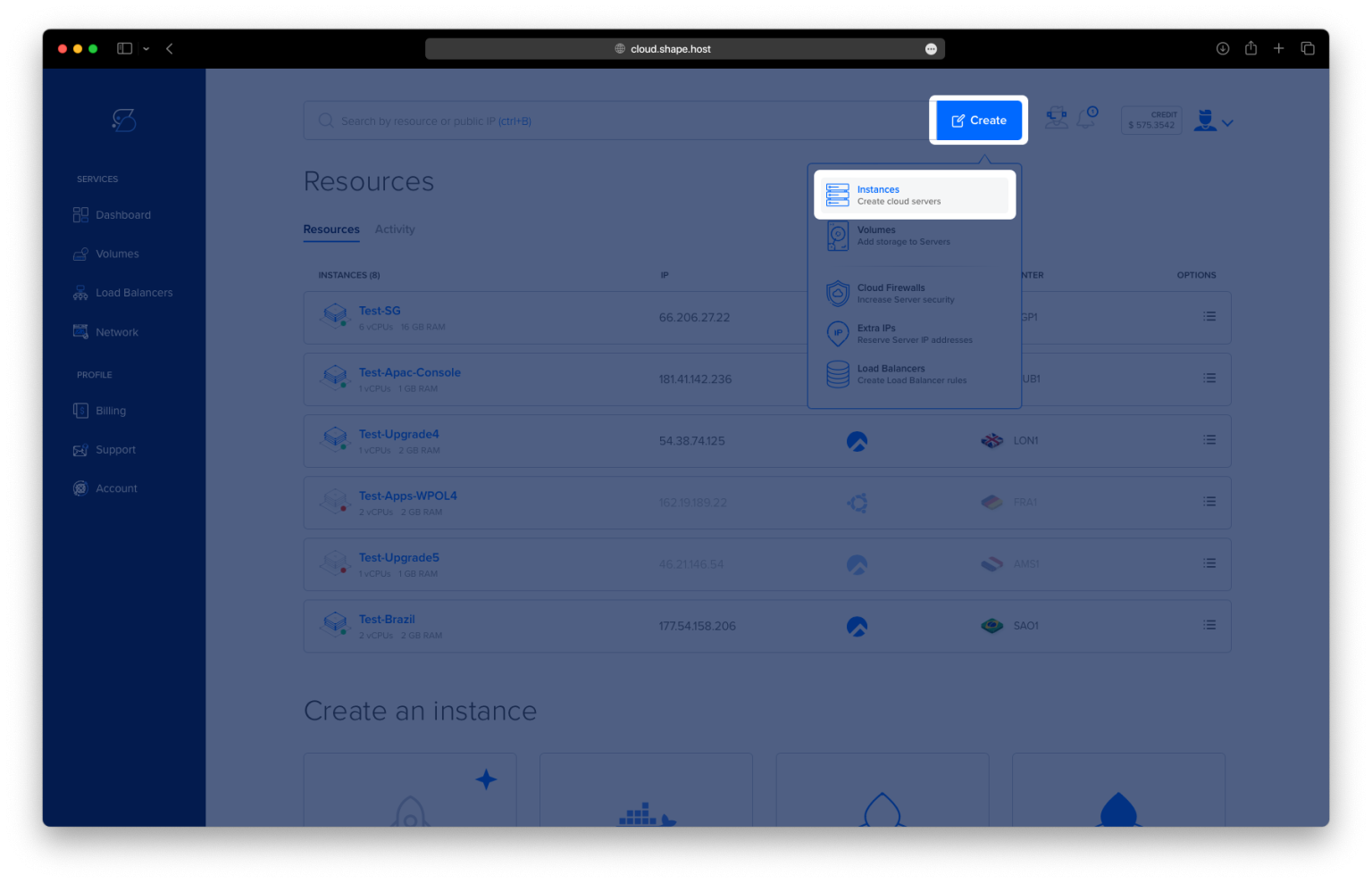
Click “Create” → “Instance”.

Choose your preferred server location.

Select Ubuntu 24.04 (64-bit) as the operating system.
Pick a plan with at least 2 CPUs, 4 GB RAM, and 20 GB SSD.

Click “Create Instance”.

Copy the server IP address from the Resources section.

2. Connect to Your VPS
On Linux/macOS
ssh root@your-server-ip
On Windows
- On Windows 10/11 PowerShell:
ssh root@your-server-ip - On older versions, download PuTTY and log in as root.
3. Install Java Development Kit
Update and upgrade packages:
apt update
apt upgrade

Install the default JDK:
apt install default-jdk

Verify Java installation:
java --version

4. Create WildFly User and Directories
Add a wildfly system group and user:
groupadd -r wildfly
useradd -r -g wildfly -d /opt/wildfly -s /sbin/nologin wildfly

5. Download and Install WildFly
Download WildFly 37:
wget https://github.com/wildfly/wildfly/releases/download/37.0.0.Final/wildfly-37.0.0.Final.tar.gz -P /tmp

Extract it to /opt:
tar xf /tmp/wildfly-37.0.0.Final.tar.gz -C /opt/
Create a symlink for easier upgrades:
ln -sfn /opt/wildfly-37.0.0.Final /opt/wildfly
Set ownership:
chown -RH wildfly:wildfly /opt/wildfly*

6. Configure WildFly as a System Service
Create config directory:
mkdir -p /etc/wildfly
Copy systemd config files:
cp /opt/wildfly/docs/contrib/scripts/systemd/wildfly.conf /etc/wildfly/
cp /opt/wildfly/docs/contrib/scripts/systemd/wildfly.service /etc/systemd/system/
cp /opt/wildfly/docs/contrib/scripts/systemd/launch.sh /opt/wildfly/bin/
Make launch.sh executable:
chmod +x /opt/wildfly/bin/launch.sh
chown -R wildfly:wildfly /opt/wildfly
Reload systemd:
systemctl daemon-reload
Enable and start WildFly:
systemctl enable --now wildfly

7. Create WildFly Admin User
Run the add-user script:
/opt/wildfly/bin/add-user.sh

Restart WildFly:
systemctl restart wildfly
Check status:
systemctl status wildfly

8. Configure WildFly Network Access
Edit WildFly config file:
nano /etc/wildfly/wildfly.conf
Set:
WILDFLY_BIND=0.0.0.0
Or update standalone.xml:
nano /opt/wildfly/standalone/configuration/standalone.xml
Find:
<interfaces>
    <interface name="management">
        <inet-address value="${jboss.bind.address.management:127.0.0.1}"/>
    </interface>
    <interface name="public">
        <inet-address value="${jboss.bind.address:127.0.0.1}"/>
    </interface>
</interfaces>
Change 127.0.0.1 → 0.0.0.0.

Restart WildFly:
systemctl restart wildfly
9. Configure Firewall
Allow application and admin console ports:
ufw allow 8080/tcp
ufw allow 9990/tcp
ufw enable

10. Access WildFly
- Application URL:
http://<server-IP>:8080 - Admin Console:
http://<server-IP>:9990
Login with the admin credentials you created. ✅


This tutorial was tested on a Shape.Host Linux SSD VPS.
With Shape.Host, you get:
- Reliable VPS hosting across multiple global data centers
- Support for Ubuntu, Debian, AlmaLinux, Rocky Linux
- Instant scalability (CPU, RAM, storage)
- Built-in backups, snapshots, and monitoring
Start today at https://shape.host and deploy your WildFly server in minutes.